You have an idea for a small tool. Perhaps a page listing your team's workshops, or a report that turns a messy export into a few useful totals. You can describe what you need, but the distance between that description and a working project feels large. Where do the files go? Which application opens them? What should you ask the AI to do? How do you recognize a result that merely looks right?
This book takes you across that distance using OpenCode Desktop. You will first recognize the application and its controls. Then you will connect a model, open a deliberately small project, make something visible in a browser, and improve it in manageable steps. Later, you will handle structured data, review changes, and hand work to another person.
You do not need to begin by understanding containers, command-line installers, or CI pipelines. The first project needs OpenCode Desktop, an approved model connection, an ordinary text editor, and a browser. Optional Git and automated browser checks come later, when there is a concrete reason to use them.
Downloads: see AI Lab (opens in a new tab). The portal changes independently; this book does not reproduce its catalog or menu structure.
The examples use fictional workshop information. There are no real attendee names, customer records, credentials, or production systems. Screenshot positions are intentionally labelled placeholders: the active OpenCode authoring session was not controlled or captured to produce this book. Official source references are provided where appropriate.
What this tool is
An assistant that can work on project files
OpenCode is an open-source AI coding agent. OpenCode Desktop is a graphical application for working with it. A coding agent is more than a chat box that returns a block of code: with the appropriate tools and permission, it can inspect project files, propose a plan, edit files, and run commands to check its work.
That distinction matters in practice. In a browser chat, you might ask for a web page, copy the answer, create a file yourself, and return with an error message. In OpenCode, the conversation is connected to a project. You can ask it to examine that project and make a bounded change in the actual files. The explanation, file activity, and resulting changes can be reviewed together.
This does not make the model infallible. It can choose the wrong file, misunderstand a requirement, produce a plausible but incorrect formula, or claim success too early. The advantage is not that checking disappears. The advantage is that a useful part of the work can happen where the files already live, with a record you can inspect.
Desktop, model, project: three things to distinguish
The Desktop application is the interface you open on your computer. The model is the AI system that processes the conversation. The project is the folder containing the files you are working on.
These are not interchangeable. Installing Desktop does not necessarily give you access to every model. Selecting an excellent model does not give it the missing file you forgot to include. Opening a folder does not prove that every file in it is appropriate to send to a provider.
| Thing | Plain-English meaning | Example in this book |
|---|---|---|
| Desktop | The application window you use | OpenCode Desktop |
| Provider | The service through which a model is accessed | An approved provider connection |
| Model | The AI selected for a conversation | The exact model shown in the selector |
| Project | The folder that contains your working files | workshop-board |
| Session | One conversation and its associated work | Build the first workshop page |
| Tool | An action the agent can request | Read a file or edit index.html |
| Result | What the user can actually use or inspect | The workshop page in a browser |
A model may be accessed through a cloud service, a local service, or an approved organizational route. A local Desktop window is not proof that inference is local. For these exercises, fictional inputs let you learn the workflow without making that data-governance decision about real records.
What makes OpenCode useful
It works with projects rather than isolated answers. You can give the agent the existing page, explain what should change, and inspect the resulting file instead of repeatedly copying entire answers between applications.
It separates the application from the model choice. OpenCode supports multiple providers and model configurations. This can make it easier to compare approaches or choose a model suited to a task. It does not guarantee that every advertised model is available through your account or that every provider has the same billing terms.
It exposes work beyond the final message. A file read, a requested command, and an edit are useful evidence. They help you ask, "What did it actually do?" rather than relying only on a confident summary.
It supports project-specific guidance. Later you will add a small AGENTS.md file explaining your project's purpose and working conventions. The goal is to stop repeating the same useful context, not to write a miniature legal contract before every task.
It can help with unfamiliar code. You can begin with questions: what files exist, what a function does, where a label is defined, or why a browser displays an error. Understanding an existing project is a legitimate first result.
The trade-off is that a capable agent can do more than you intended if the task or permission is too broad. We will handle that at the relevant steps. You do not need a lecture on every possible security boundary before opening your first project.
When another tool is enough
Use a normal editor when you already know the exact one-line change. Use a spreadsheet when its built-in functions solve the problem clearly. Use a browser chat when you need an explanation that does not depend on your project files. Use OpenCode when the connection between conversation, files, and iterative checking saves work.
For example, changing a workshop title from "AI day" to "AI practice day" does not require a multi-agent process. Building a small searchable schedule, understanding an existing export script, or making a reviewable change across a few files is a better fit.
The objective is not to use an agent for everything. It is to make a useful result easier to obtain and easier to understand.
Meet the interface
What you should recognize on the first screen
OpenCode Desktop is organized around projects and sessions. Recent application source includes a Home screen, project selection, session tabs, a prompt area, file views, and review controls. Their exact arrangement can change between releases and between layouts.
The English control names in this book are supported by the official application source referenced at the end. They are not screenshots of a tested installation. If your interface is translated, identify the equivalent action. If a control is absent in your installed version, use that version's help rather than assuming a TUI keyboard shortcut will work.
Screenshot placeholder SC-01: Desktop orientation. Intended view: Home, a selected project, session tabs, and the prompt area. Caption: "Choose the project first; a session is a conversation about work in that project." Status: not captured. Reference: OpenCode Desktop (opens in a new tab).
Before doing any work, locate these areas:
| Area or control | What it is for | What to check |
|---|---|---|
| Home / Projects | Opening or returning to a project | You are not accidentally working in another folder |
| Open project / Add project | Selecting a working directory | The selected folder is the one you created |
| New session | Starting a separate conversation | The conversation belongs to the intended project |
| Prompt input | Giving the AI a request | You are typing a prompt, not a shell command |
| Choose model / Select model | Selecting the AI for the session | The provider and model are the intended ones |
| Files / All files | Inspecting project files | The expected file exists in the expected location |
| Review / Files Changed | Inspecting supported change information | The changes match your request |
| Terminal | Running commands when necessary | The command's working folder and effects are understood |
You do not have to memorize all of them. For the first exercise, project selection, the model connection, the prompt area, and your operating system's file manager are enough.
The command palette is a navigation aid
The application source names a Command palette, with search for files, commands, and sessions. Depending on the layout, a search control or menu entry opens it. Searching for an action such as Open project, Connect provider, Choose model, or New session can be easier than hunting for an icon.
This book intentionally does not prescribe a universal Desktop shortcut for the palette. Keyboard assignments can change or be customized. Prefer the displayed shortcut in your installation.
A command-palette action is not the same thing as typing words into the model's prompt. Searching for Choose model selects an application action. Asking the model "choose a better model" may merely produce advice.
Four kinds of text you will encounter
This distinction prevents many beginner mistakes:
| Label used in this book | Where the text goes | Example |
|---|---|---|
| Prompt | OpenCode's normal conversation input | "Explain this README without editing files." |
| File content | A named file in your project, through a text editor or an approved agent edit | The contents of README.md |
| Browser input | A field on the page you are testing | A search phrase in your workshop board |
| Terminal command | An operating-system terminal in the stated folder | git status --short |
Do not paste Markdown fences such as three backticks into a file unless the instruction explicitly includes them as content. Do not paste a terminal command into a web page's search box. Do not paste a provider credential into the conversation.
The terminal interface also has slash commands, but it is a different interface. You do not need to learn /connect, /models, or terminal installation commands to follow the Desktop path here.
A map of the work, not another screen to learn
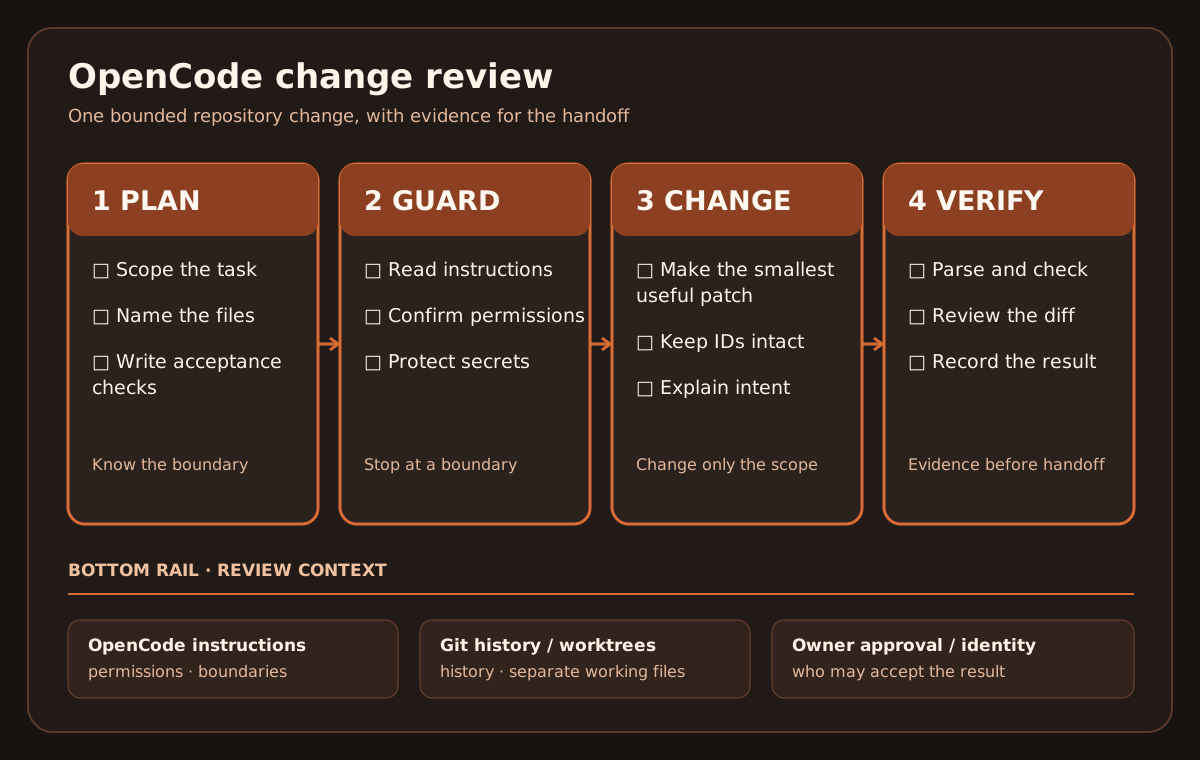
This canvas is an original diagram, not an OpenCode screenshot. Its purpose is to keep the next action obvious. Most of your work consists of repeating this short loop. You do not need a different agent, a new framework, or a larger plan every time the result needs a small correction.
Install and connect
Install the application you intend to use
Use the current download reference given at the beginning of the book. The official Desktop download page (opens in a new tab) distinguishes Desktop packages from the Terminal installation commands. Select OpenCode Desktop, not an npm command merely because it appears on the same page.
For the main Windows path:
- Browser: select the current Windows Desktop download matching your supported system. The inspected official page offers a Windows x64 package; do not assume that package supports another architecture.
- Downloads folder: identify the downloaded installer and its source. A filename alone is not proof of origin.
- Windows: open the installer and follow the displayed installation steps. Use your organization's approved installation process on a managed device. Do not disable a security control because an AI says it is inconvenient.
- Start menu or installed-app shortcut: launch OpenCode Desktop.
- Desktop window: wait for the application to finish starting. You should reach its normal Home/project interface rather than an unresolved startup error.
The exact installer filename and wizard pages vary by release. This book therefore specifies the application, source, and outcome rather than freezing a beta filename that may be obsolete when you read it.
Screenshot placeholder SC-02: Desktop installation and first launch. Intended view: the appropriate Desktop installer or completed launch, with the application identity visible. Caption: "Install Desktop, then open the installed application." Status: not captured; platform-specific wizard labels require a future isolated check.
On macOS, select the appropriate Desktop package for your supported Mac, open the downloaded disk image, and follow its application-installation instructions. On Linux, use the appropriate supported Desktop package and your distribution's normal installation process. The same project and exercise files can then be used. Do not mix Windows file paths into those alternatives.
This Desktop introduction does not require you to install Podman, configure a container, or use WSL as a first step. A particular tool, server connection, or later development project may have additional requirements. Treat those as explicit requirements of that selected path, not as universal prerequisites for every Desktop user.
Choose a training folder before opening a project
Location: Windows File Explorer. Open your Documents location and create a folder named OpenCodePractice. Inside it, create workshop-board.
The resulting structure is:
Documents/
  OpenCodePractice/
    workshop-board/
Your actual Documents location may be redirected or synchronized. Use the location shown by File Explorer; do not type a literal YourName placeholder into a path. If your organization provides a different approved training location, use it consistently.
Keep the folder separate from real work. Do not point a beginner exercise at the root of your home directory, a production repository, or a folder containing unrelated confidential documents. The small empty folder also makes it easier to tell what the agent creates.
Location: OpenCode Desktop. Use Open project or the equivalent Add project action, select workshop-board, and confirm the selection. Check the project name and, where available, its full path.
Expected result: the active project refers to your workshop-board directory. It may initially show no files or no sessions. That is normal for an empty project.
Screenshot placeholder SC-03: Project folder selection. Intended view: selecting
OpenCodePractice/workshop-boardand the resulting project identity. Caption: "The folder is the working project, not the download directory." Status: not captured; no personal username should appear in the final image.
Connect a provider without putting a key in the conversation
A provider connection gives OpenCode access to models through a particular service or account. It is separate from installing the application.
Location: Desktop's provider connection controls. Find Connect provider. Choose the provider your organization or personal account permits. The application may offer an API-key method, a browser sign-in method, or another provider-specific method. Use the method actually offered for that provider.
If the selected method asks for an API key, enter it in the dedicated provider credential field, not the prompt box, a README, or a screenshot. If it opens a browser login, check that the destination belongs to the expected provider before signing in.
An existing consumer chat subscription does not automatically establish API access, and an API account does not automatically include every model. Some supported connections use account-login flows. Check the current provider conditions rather than applying one rule to every service.
Expected result: Desktop reports the provider as connected and makes the permitted models available. A connection form closing without an error is not yet evidence that a particular model can answer a request; the small first request below checks that.
Screenshot placeholder SC-04: Connect provider. Intended view: the provider chooser and a safely redacted connection state. Caption: "Credentials belong in the connection control, not in a prompt." Status: not captured; no key or authorization code may be shown.
If your team supplies an organizational model route, use its approved connection information. Do not guess an endpoint, borrow another project's credentials, or disable authentication to get past a failure. A 401 or 403 response means this connection needs attention; rewriting the prompt will not fix access.
Select a model and check one small request
Location: Desktop's model selector. Use Choose model or Select model and select one model available through your connected provider. Record its displayed name and provider. If the application exposes the underlying provider/model identifier or a reasoning variant, record that too.
Do not spend the first hour comparing the entire model catalog. Start with one model suitable for ordinary code and tool use, within a budget you understand. You can compare another model later using the same task.
Screenshot placeholder SC-05: Model selection. Intended view: model name, provider, and any visible variant selection. Caption: "The application and the selected model are separate choices." Status: not captured; example model labels must match the captured release.
Location: a new Desktop session's normal prompt input. Send this first request:
We are working in a new synthetic training project called workshop-board.
In three short sentences, explain what an HTML file is and how I can open
one in a browser. Do not create or edit files and do not run commands.
Expected result: you receive a short explanation, not a generated application or an installation script. This checks basic model access while keeping the task small. If the agent asks to perform an unrelated action, decline it.
If your build exposes a planning or read-oriented agent choice, use it for explanation-only work. Do not assume that a mode name is a comprehensive security boundary. Your explicit task and approval choices still matter.
Screenshot placeholder SC-06: First successful conversation. Intended view: the short request and response, with the project and model identifiable. Caption: "First prove that the selected model can answer; do not start with a large build." Status: not captured; no fabricated response will be substituted.
Set a small spending boundary
Before the first build, decide what you are willing to spend on the exercise and use any appropriate provider-side limit. Keep initial tasks short. Repeated long conversations, expensive variants, large tool outputs, retries, and additional agents can all add cost.
OpenCode may display usage or cost information for a session. That display is useful, but provider billing remains the authority for actual charges. If a field is unavailable, record it as unavailable, not as zero. The first book project does not need a benchmark campaign or ten agents.
Your first useful result
Project one: a page you can actually open
You will build a small Workshop board for three fictional sessions. It is a real local HTML page, not just a screenshot or a model's description of a page.
The first version is deliberately modest. It lists session titles, dates, times, and places. Later you will add search, capacity information, and checks. Keeping the stages separate helps you understand what changed.
Put the project brief in a file
Location: an ordinary text editor, such as Windows Notepad. Create a new file with the content below. Save it as README.md inside your workshop-board folder.
In Notepad's Save As dialog, choose the option that preserves the exact filename rather than adding .txt, and use UTF-8. In File Explorer, enable file-name extensions if necessary and confirm that the file is README.md, not README.md.txt. The project folder, not Downloads, is the destination.
File content: workshop-board/README.md
# Workshop board

This is a fictional training project. Build a local page named index.html.
It must open directly in a browser without a server or an installation step.
Use ordinary HTML and CSS. Do not load external libraries, fonts, or images.

Display these three sessions in date and time order:

| Title | Date | Time | Place |
| --- | --- | --- | --- |
| Prompt lab | 2030-10-05 | 09:30 | Room A |
| Document clinic | 2030-10-03 | 14:00 | Room B |
| AI review hour | 2030-10-04 | 11:15 | Online |

Use a clear heading, readable text, and a layout that works in a narrow window.
Do not add accounts, bookings, email, tracking, a database, or a public deployment.
The dates are synthetic training dates, not live upcoming events.
Return to Desktop and inspect the file list. If a refresh or reopening the file list is needed, use the normal application control. Confirm that the file belongs to the correct project.
Screenshot placeholder SC-07: The brief in the project. Intended view:
README.mdvisible in the file tree and its contents open. Caption: "A saved brief gives the project context that can be reread and checked." Status: not captured.
Ask for a short plan, then the file
Location: OpenCode's normal prompt input. Send:
Read README.md. Explain how you will create the first version of index.html
in no more than five bullets. Do not edit files yet. Mention anything in the
brief that is unclear. Do not propose a framework or package installation.
Read the response. It should describe a local page with the supplied sessions and no extra backend. If it proposes a hosted service, a package manager, or a sign-in flow, correct the plan before allowing the build.
Then send:
Create index.html in this project, following README.md.
Keep everything needed for this first version in that file.
Do not modify README.md or create other files.
When finished, list the file you created and tell me how to open it.
Do not claim that I have checked the browser result.
An edit request may require approval. Check that the requested path is index.html inside your training project before approving. A request to install a dependency or write elsewhere does not match this task.
Expected result: an actual file named index.html exists alongside README.md. The agent's final message should identify it. A block of HTML in the conversation alone is not the requested file.
Find the file and open the result
Location: File Explorer. Return to workshop-board. If you cannot find it from the application, use the project's displayed path. Recent Desktop source also provides an Open in / File Explorer action; use it if available in your build.
Double-click index.html, or use Open with and choose your browser. For this exercise the address normally begins with file:. You are opening a file on your computer, not publishing a website.
Check four things yourself:
- The page identifies the fictional workshop schedule.
- All three sessions appear, with their original values intact.
- The order is Document clinic, AI review hour, then Prompt lab.
- Narrowing the browser window does not make the basic content unusable.
Screenshot placeholder SC-08: First browser result. Intended view: the generated page in a browser, showing the three sessions. Caption: "The result is the page you can open, not the message saying it was created." Status: not captured. This would be a browser-result image, not an OpenCode Desktop screenshot.
If a text editor opens instead, use the browser's Open File action or File Explorer's Open with option. If the browser shows literal HTML tags as text, check the extension and the file content. If it displays a blank page, do not ask for a complete rewrite immediately: first check that this is the correct file and that it contains a full HTML document.
Give useful feedback about what you see
Avoid "it looks bad" as your only correction. Name the visible issue and the desired result:
The browser page opens and contains all three sessions. The text is too small
and the date is hard to find. Change only index.html: use body text of at least
18px, make dates visually distinct, and keep all session values unchanged.
Do not change the order or add new features.
After the edit, save or confirm the saved file and reload the same browser tab. The browser does not necessarily reload merely because OpenCode changed a file. A stale tab can make a correct edit look as if nothing happened.
The point of this first result is the loop: describe, change, inspect, refine. You now know where the prompt goes, where the file is, and where to judge its visible behavior.
Work step by step
1. Make the interface easier to read without changing the task
Now improve the page intentionally. First choose one audience: a visitor looking for a session, not an administrator managing a booking system. That choice keeps the page focused.
A useful visual request specifies hierarchy and constraints:
Improve the presentation of index.html for a visitor scanning the schedule.
Keep the three records and their date/time order unchanged.
Use one clear page heading, visible session titles, readable dates and places,
and enough spacing to distinguish rows or cards. Keep the page usable at a
narrow browser width. Use system fonts and no external assets.
Do not add animation, login, booking buttons, or decorative content.
Inspect the result at a normal reading distance. If you have to zoom just to read a date on a desktop-sized window, the design has not met the brief. If the page uses a wide table, it should provide sensible horizontal scrolling rather than cropping columns invisibly.
Use the keyboard as well as the mouse when interactive controls are introduced. Visible focus indicators are not decoration; they show which control will respond when the user presses a key.
Screenshot placeholder SC-09: Readability comparison. Intended view: the same schedule before and after the focused visual change, at comparable scale. Caption: "Improve hierarchy and reading size without changing the data." Status: not captured.
Do not ask for five styles at once unless you genuinely need to compare them. Each alternative consumes time and makes it harder to identify the particular change you wanted. A short decision such as "keep the table, increase the text, remove the animation" is often enough.
2. Add search with a precise contract
The next useful feature is search by session title or place. Decide how it should behave before asking the model to implement it.
For this training version:
- Search ignores upper/lower case and surrounding spaces.
- It checks both title and place.
- Matching rows remain in date/time order.
- An empty search displays all three sessions.
- No match displays an explicit message, not a blank unexplained area.
- A Reset control clears the search and restores all sessions.
Location: the same Desktop session, normal prompt input. Send:
Add search to index.html. Search must check session title and place, ignore
case and surrounding spaces, and preserve the existing date/time ordering.
Add a clearly labelled search input, a Search button, and a Reset button.
An empty search shows all sessions. A nonmatching search shows
"No sessions match your search." Do not fetch data or add dependencies.
Keep the supplied records unchanged.
This request chooses an explicit Search button so a beginner has one visible action to test. A later version can filter while typing, but do not silently switch behavior halfway through your acceptance check.
Location: the browser page. Reload it, then run these checks:
| Input and action | Expected result |
|---|---|
| Empty input, Search | All three sessions |
prompt, Search | Prompt lab only |
ROOM A, Search | Prompt lab only |
clinic, Search | Document clinic only |
nothing-here, Search | Zero rows and an explicit no-match message |
| Reset | Input cleared and all three sessions restored |
Screenshot placeholder SC-10: Search and empty state. Intended view: a place search and the explicit no-match result. Caption: "Test the case that returns nothing, not only the case that looks successful." Status: not captured.
If the model reports that search works but ROOM A fails, explain the discrepancy using the exact input. Do not merely ask it to "make search more robust." That phrase lets the model choose a different interpretation of the task.
3. Give files as context, not just descriptions of files
As the project grows, asking "fix the page" becomes less informative. Name the file and the behavior. Desktop includes file/context controls; the inspected source uses names such as Add files, Add selection to context, and Include active file. Use the controls supported by your build, and check that the intended file or selection appears in the prompt context.
If you open a file in the UI, do not assume every line automatically becomes model context. Conversely, do not attach your entire working directory merely to be safe. Include the files that control the current behavior.
A good correction might read:
In index.html, searching for "room a" returns no rows even though the third
record's place is Room A. The title search works. Inspect the filtering logic
and make the smallest change so the same query checks both title and place.
Preserve the existing records, date ordering, and no-results behavior.
That message contains a reproducible input, the actual result, the expected result, and the file boundary. It is much easier to act on than a screenshot with no explanation or a long conversation about how search ought to feel.
If you attach an image in a future isolated exercise, accompany it with the intended change. An image can show a visual defect; it cannot reliably specify the data contract, allowed files, or what must stay unchanged.
4. Add capacity data, then challenge the obvious-looking total
The same fictional schedule now needs capacity information. Extend the brief with the following values:
| Session | Capacity | Registered |
|---|---|---|
| Document clinic | 12 | 13 |
| AI review hour | 10 | 6 |
| Prompt lab | 8 | 8 |
One session is deliberately overbooked. This is a training condition, not a real booking record. Do not "correct" the 13 to 12 just to remove the problem.
Location: your text editor, README.md. Append a Capacity section containing the table and these definitions:
All-session totals always refer to all three records, even when search filters
the displayed rows.
Capacity = sum of capacity.
Registered = sum of registered.
Available seats = sum of max(capacity - registered, 0) for each session.
Overbooked seats = sum of max(registered - capacity, 0) for each session.
Show an overbooking explicitly; do not silently change the input.
Then ask OpenCode to read the updated brief and add the per-session values and totals to index.html.
The correct totals are capacity 30, registered 27, available seats 4, and overbooked seats 1. The net difference, 30 minus 27, is 3. That is not the same as four usable places in AI review hour: an extra registration in Document clinic does not consume a seat in another session.
This is a small example of a large lesson. A formula can be arithmetically correct and still answer the wrong business question. The owner defines the meaning; the model should not silently choose it.
Check that filtering the visible rows does not relabel the all-session totals as if they belonged to the filtered subset. Either behavior could be useful, but the label and calculation must agree. Here we deliberately keep all-session totals fixed.
Screenshot placeholder SC-11: Capacity and overbooking. Intended view: all-session totals and the visibly flagged overbooked row. Caption: "Four available seats and one overbooked seat are different quantities." Status: not captured.
5. Use the reference implementation when a result needs comparison
The companion files include a complete Workshop board reference. It is an ordinary local HTML file, not an image of OpenCode and not a claim about a particular model run.
If you are reading this manuscript in the repository, open that file and use the repository's raw-file or download function to obtain the HTML itself. Do not save the repository's surrounding web page and expect it to behave like the example.
Put the downloaded reference in a different folder, for example OpenCodePractice/reference-workshop-board/index.html, so it does not overwrite your generated result. Open it in the same browser and run the same checks.
The reference demonstrates one acceptable implementation: a readable table, title/place search, Reset, a no-results message, and the stated totals. Your generated page need not have identical colors or code. Compare behavior, data, and usability rather than pixel identity.
If you choose to replace your exercise file with the reference, do so explicitly: preserve your previous version, state which file is being replaced, and record that you are now using a supplied implementation. Do not later claim that the model independently produced the reference.
6. Teach the project its recurring rules
After a few iterations, you will notice that you repeat the same instructions: keep data fictional, use no external libraries, do not add a backend, and preserve the records. Those are good candidates for project guidance.
Location: your text editor, the root of workshop-board. Create a new file named AGENTS.md with the following content:
# Workshop board project

This is a synthetic learning project, not a production booking system.

- Keep the supplied fictional session data unchanged unless the task explicitly
  requests a data change.
- The application must run by opening index.html directly in a browser.
- Do not add packages, remote assets, accounts, uploads, or a server.
- Use readable text, labelled controls, and a visible no-results state.
- Explain which files changed and which checks were actually performed.
- Do not commit, publish, or deploy without a separate explicit request.
Do not paste this over an existing team's guidance file. In a real project, read and preserve its existing instructions, and ask the owner how a new rule should be incorporated.
In Desktop, ask the agent to read the project guidance and summarize the relevant rules before a new change. Keep the summary short. The purpose of the file is to carry useful context forward, not to create a long ritual for every small edit.
Screenshot placeholder SC-12: Project guidance. Intended view:
AGENTS.mdin the project and a short acknowledgment of its applicable rules. Caption: "Keep recurring project context in a reviewed file." Status: not captured.
Instructions are not operating-system isolation. A rule saying "do not publish" is weaker than withholding a publishing credential. For this small training folder, approve only the specific edits you need and keep production credentials out of the exercise. Learn the deeper permission model when you reach a task that actually needs it.
7. Know when the application is asking you to decide
An agent may pause for permission or clarification. Read what is being requested rather than approving solely because you want it to finish.
An edit to workshop-board/index.html can match the task. Installing a framework, opening an unrelated directory, or invoking a remote deployment does not match this exercise. Decline the mismatched action and restate the boundary.
If the model genuinely needs a decision, answer the decision. For example, "Should totals represent all sessions or only filtered rows?" is a product question, not a malfunction. You already chose all-session totals in the brief, so point to that definition.
By contrast, repeated questions about harmless implementation details can waste time. A useful instruction is: "Choose reversible implementation details yourself; ask before changing the promised behavior, the allowed files, or an external system."
Avoid automatic approval while you are learning. The official permission system distinguishes allow, ask, and deny, and auto-approval can change how ask decisions are handled. Learn the implications before enabling it; do not let an agent change its own effective authority merely to avoid interruptions.
8. Project two: turn the same schedule into a local CSV report
The next project reuses the same workshop story. You have received a small CSV export and want a quick, inspectable report. This is not a new unrelated toy: it addresses the same capacity question from another input format.
Location: File Explorer. Inside OpenCodePractice, create a second folder named csv-report. Open that folder as a separate project in Desktop. Check the active project name before sending a build request.
Create csv-report/README.md in your text editor. Give it this brief:
# Workshop CSV report

Build a single local index.html file with a textarea, Use sample button,
Analyze button, readable errors, and a report. No server, upload, external
resources, model API, or package installation.

The training CSV has exactly these columns:
title,date,time,place,capacity,registered

Use the same three fictional workshop rows as the Workshop board exercise.
For this small format, reject quotes and embedded commas. Require six nonempty
fields, a real YYYY-MM-DD date, a 24-hour HH:mm time, and nonnegative whole-number
digits for capacity and registered. Do not silently skip invalid rows.

Report sessions, total capacity, registered, available seats, and overbooked
seats using the definitions from the first project. Show session order by date
and time. Invalid input must clear the previous report before showing an error.
Then ask for a short plan, inspect it, and request index.html only. Use the same change loop you already practiced.
The CSV for the exercise is:
title,date,time,place,capacity,registered
Document clinic,2030-10-03,14:00,Room B,12,13
AI review hour,2030-10-04,11:15,Online,10,6
Prompt lab,2030-10-05,09:30,Room A,8,8
Location: the generated page in your browser. Paste the CSV into the field labelled for CSV data and choose Analyze. This is browser input, not a prompt and not JavaScript to paste into a developer console.
Expected result: the report contains three sessions, capacity 30, registered 27, available 4, and overbooked 1. Session order begins with Document clinic. The reference implementation is included as CSV report.
Screenshot placeholder SC-13: CSV input and report. Intended view: the synthetic input and the five resulting totals. Caption: "The report calculates from the pasted rows; it does not ask an AI to guess the totals." Status: not captured.
Once built, this example performs deterministic work in the browser. It does not call a model for each calculation. AI helps create the application; it does not have to sit inside every application action.
9. Test bad input and an old result that should disappear
A successful sample is only the beginning. Use controlled failures to find out whether the page behaves honestly when the input is wrong.
Start with the valid sample and obtain the report. Then change the first date to 2030-02-30 and choose Analyze again. February 30 is not a valid calendar date. The old report should disappear and an explicit input error should appear.
Repeat with a negative capacity such as -1, a quoted title, and a semicolon-separated row. Each violates the small training format. Rejection is correct here; silent guessing is not.
For capacity and registered, this version expects whole-number digits such as 12. Inputs such as 1e2, 12.5, or +12 are outside that deliberately narrow format even if a programming language can convert some of them into numbers.
Screenshot placeholder SC-14: Rejected input. Intended view: one invalid date and a clear error, with no stale totals still displayed. Caption: "An old successful report must not survive as if it described new invalid input." Status: not captured.
The supplied reference also limits the training input to 100,000 characters and 1,000 data rows and rejects totals outside the exact integer range. These are declared limits, not evidence of a general-purpose enterprise CSV importer.
Real CSV files can contain quoted commas, line breaks, and other dialect details. Do not remove the validation and call the result production-ready. If your actual task requires general CSV support, choose and review an appropriate parser and update the contract and tests deliberately.
10. Write a useful bug report to the agent
Suppose your generated report continues showing the old totals after invalid input. Give the agent the sequence, not just an opinion:
In this csv-report project's index.html:
1. I pasted the valid sample and clicked Analyze; the totals were correct.
2. I changed the first date to 2030-02-30 and clicked Analyze again.
3. The error appeared, but the old report remained visible.

Expected: clear the previous report before analyzing any new input. On invalid
input, show the error and no totals. Fix only this behavior. Preserve the valid
sample totals and the existing input restrictions. Do not add dependencies.
This gives the agent a reproducible failure and protects the behavior that already works. After the edit, repeat the entire sequence. Checking only the invalid input on a freshly loaded page would miss the stale-output defect.
Keep a short note when a defect teaches a general lesson. For example: "Clear the previous successful result before validating a new input." That is a reusable learning, not a transcript you must paste into every future session.
11. Understand the code at the level needed for the decision
You do not need to become a language expert before using the examples. You do need to understand the parts that determine whether the result is acceptable.
Ask OpenCode questions such as:
Explain where index.html validates the input and where it calculates totals.
Use the capacity example to show why available seats is 4 rather than 3.
Do not edit files. Point to the relevant functions or lines.
Then compare the explanation with the file. For this exercise, you should be able to identify the input, validation, calculation, and output steps. An explanation that merely repeats the UI labels is not enough.
For text from pasted data, the reference uses text nodes rather than treating arbitrary input as HTML. Ask why that matters: a title containing markup should appear as text, not become a script or an unexpected element in the page.
When a model suggests a package, ask what concrete need it solves that the current code does not. Do not reject every dependency automatically, but do not introduce one for a small local operation merely because the model has seen it in many examples.
12. Save progress and recover without confusing different kinds of history
A Desktop session records the conversation. The project files contain the application. Git, when used, records chosen file revisions. These are related but different forms of history.
Recent Desktop source includes Undo, Redo, Fork from message, and review controls. Their availability and behavior depend on the installed version and project setup. The application can also report that Git is absent or snapshot tracking is disabled. Do not assume that an undo action reverses everything that has happened outside the conversation.
For the early exercises, preserve a known-good copy of the small training folder before a major change if you are not yet using Git. Use a clearly named copy such as workshop-board-before-search. Do not make several vaguely named copies and then lose track of which one the browser or Desktop has open.
When you use Undo in a supported project, inspect the actual files and reload the browser afterward. If a command sent an email, modified a remote service, or changed some external resource, conversation recovery is not a promise that the external effect was reversed.
Never use a destructive repository reset as a reflex in a shared project. Recovery should preserve another person's changes and identify exactly what you are restoring.
13. Move into a real repository only after the small loop is familiar
This book belongs at the repository-integration level of the matrix, but a newcomer to OpenCode still needs the earlier orientation. Now you can connect that tool knowledge to a team's normal development process.
In a real repository, begin with the owner's instructions and the current state. Read the existing AGENTS.md, README, and relevant contribution instructions. Find out which checks the project actually uses. Do not replace its configuration with a training example from this book.
If you are continuing in your own disposable training project, Git can make changes easier to inspect. Recent Desktop source includes a Create Git repository action when no Git repository is detected. Use it only in your intended training folder and only if the installed application offers it. If Git or another prerequisite is missing, follow the approved setup for your environment; do not silently install software as part of a content change.
The following optional commands belong in a terminal, not in the model prompt. Run them only after confirming the terminal's working folder is the intended repository:
git status --short
git diff --stat
git diff --check
git diff -- index.html
status includes untracked files. diff shows changes to tracked files, but is not a complete view of untracked additions. That is why using only a diff can miss a newly created dependency file or an accidentally saved credential file.
The owner should establish a reviewed baseline before asking the agent to make a new change. If Git requests author identity during a commit, use the repository's approved identity rather than copying somebody else's name or modifying global configuration without understanding its scope.
14. Review one change, not a persuasive story about the change
Choose a small task in the existing project. State the allowed files, the behavior that should change, and the behavior that must remain unchanged. Ask the agent to inspect callers before editing a shared function.
When the result is ready, open the relevant Review or Files Changed view if available. The source includes a warning when Git is not detected; do not interpret an empty review panel as proof that no files changed. Use the operating-system file list and the appropriate Git checks as well.
Screenshot placeholder SC-15: Change review. Intended view: the actual changed file and a small before/after diff. Caption: "Review the modification and its scope, not just the completion message." Status: not captured; review availability must match the project setup.
A useful review asks:
- Did the agent change only what was requested?
- Are the original records and assumptions still intact?
- Does the new behavior work for the stated example and the stated failure case?
- Were tests changed to accommodate the implementation rather than preserve the contract?
- Were dependencies, commands, or files added without a clear reason?
Run the narrow relevant check yourself or inspect an observed, trustworthy result for the exact candidate revision. A model's sentence saying "all tests pass" is not the same as a test result. A stale successful result from before the last edit is not evidence for the current files.
For a team repository, use its normal branch, pull-request, and review process. Keep push, merge, and deployment authority separate from the beginner coding task. A local file that works in your browser is not automatically deployed or approved for other users.
15. Use several agents only when there are genuinely separate jobs
Parallel work can help, but more agents are not automatically faster. Every handoff has a cost: instructions, context, waiting, review, and integration.
Good independent jobs include a read-only source check, a read-only caller investigation, and a separate review of a completed diff. Bad parallel work includes two agents editing the same file or several agents repeating the same broad investigation while nobody delivers the requested change.
OpenCode has primary-agent and subagent concepts. Desktop also has sessions, tabs, and version-dependent workspace features. These do not all mean the same thing. A second conversation is not, by itself, proof of a separate working directory or independent permissions.
For beginners, keep one writer per project at a time. If you need independent implementations for a comparison, use independently established project copies or Git worktrees and a clear owner for each. Use the Git workflow your team supports; do not assume the current Desktop layout automatically provides every worktree operation described in older documentation.
Screenshot placeholder SC-16: Separate sessions and project identity. Intended view: clearly named sessions with their project identities visible. Caption: "Separate conversations organize work; verify file isolation separately before parallel writing." Status: not captured.
In our editorial workflow, a researcher can collect sources while a writer prepares the text, and another reviewer can check the finished result. That is different from having three writers silently change one manuscript. The same principle applies to software.
16. Keep useful project knowledge without building a wall of instructions
When you discover a recurring problem, record a short actionable learning. Good examples from these exercises include:
- Name the application and folder where an action happens.
- Reload the browser after a saved file changes.
- Test a zero-results state.
- Distinguish aggregate spare capacity from usable seats in each session.
- Clear old output when new input is invalid.
- Do not assume an empty review panel means there were no changes.
A useful learning has a scope and a consequence. "Always be careful" is not actionable. "For this CSV report, invalid input clears the old report before the error is shown" is.
Keep global guidance short. Put project-specific instructions in the project, and task-specific conditions in the task brief. If a new learning replaces an old instruction, identify the replacement rather than keeping both contradictory versions active.
When comparing two models or two writing approaches, freeze the same instructions and source packet for both. Otherwise you may be comparing the quality of the brief rather than the capability of the models.
17. Understand time and token cost without guessing
An agent's cost is not just the length of its final answer. Input may include the conversation, files, instructions, tool definitions, and tool output. Some systems also account separately for cached input and reasoning or output tokens. Provider billing conventions vary.
Recent Desktop source includes a Context view with usage information such as provider, model, token categories, and total cost. Use those values when they are actually available, and check how they correspond to the provider's records. Do not copy a number from a different session or assume a blank field means the work was free.
For a small task, record:
Task:
Provider/model/variant:
Start and finish:
Observed active work time:
Observed waiting time:
Input tokens:
Output tokens:
Cached-token categories, if reported:
Additional agent runs:
Reported or billed cost:
What passed, failed, or remained blocked:
Unknown measurements:
Screenshot placeholder SC-17: Session usage. Intended view: safely redacted usage fields for one synthetic task. Caption: "Record measured usage; unavailable is not zero." Status: not captured; no invented token totals or prices will be inserted.
To reduce waste, define the task before starting, provide only relevant context, avoid duplicate investigations, and stop an approach that keeps adding complexity without addressing the failure. A short useful task with one appropriate check often costs less than a sprawling request followed by repeated repairs.
Measure success as well as spend. The cheapest attempt is not good value if it produces an unusable result, and the longest or most expensive answer is not automatically better. For a fair comparison, keep the input and acceptance criteria fixed and include retries and review effort.
18. Use extensions and MCP when there is a concrete need
OpenCode can be extended, and MCP can expose additional tools. Those features become useful when an actual task needs access to a specific external capability. They are not prerequisites for either project in this book.
Before adding a tool connection, identify what it can read or change, which identity it uses, where data will go, and whether a simpler file-based workflow already solves the task. A familiar provider name or an attractive integration screen does not answer those questions.
For example, drafting a Markdown document in a repository does not require a new MCP server merely because one could be built. Conversely, a carefully scoped connector may be justified when a repeated task must access an approved system through a controlled interface.
Keep the beginner learning path small. Finish a useful project before expanding the set of systems the agent can touch.
19. Share a result without accidentally publishing the conversation
Sharing an HTML example file, opening a team pull request, and publishing an OpenCode session are different actions. Choose the one that fits the purpose.
The inspected Desktop source explicitly labels session sharing as Publish on web and explains that anyone with the link can access the session. A conversation can contain more than the final code: prompts, tool output, paths, source excerpts, and other context may be present.
For this book, a small synthetic example file is often all another reader needs. Do not share an entire working session just to demonstrate that the file exists. If a session transcript is required, inspect its contents, remove inappropriate material through an approved process, and agree on access and retention before sharing.
Never rely on the model to decide that a real credential or internal record is safe to publish. If sensitive material was exposed, stop and follow the relevant incident process rather than merely hiding a screenshot in the book.
Solve common problems
The application opens, but the model does not answer
First distinguish an application-startup problem from a provider problem. Can you open the normal project interface? Is the intended provider connected? Is a model selected? Does the small explanation-only request fail, or only a larger tool task?
Record the exact error category without exposing credentials. A missing model, rejected identity, rate limit, unavailable service, and insufficient balance require different responses. Repeating a long build request is a poor diagnostic test.
Use the current provider instructions for the offered connection method. Do not switch to an unrelated credential, disable TLS checks, or point the application at a guessed server because a generic error message appears.
I cannot find the file the agent says it created
Check the active project and its full folder path. Open that folder in File Explorer or Finder. Compare the actual filename, including its extension, with the requested filename.
Ask the agent for the exact path it changed. If it only produced code in the conversation, ask it to create the named file after you verify that the requested edit is inside the training project. Do not claim the task is done until the file actually exists.
The browser still shows the old page
Confirm that the file was saved, reload the browser, and inspect its address. Two folders can contain files named index.html; the browser may be showing the reference implementation or an earlier backup instead of the active project.
For these examples, there is no build step and no server cache. If your model introduced a framework, you are no longer following the agreed first-project setup. Return to the brief or explicitly choose a different, documented path rather than guessing which new command must run.
The page is blank or a control does nothing
Check the filename and document content first. On Windows, index.html.txt is not the intended file. Then confirm that JavaScript is enabled for the local training page and that the generated document contains the needed code.
If you know how to open the browser's developer tools, inspect the Console for the first relevant error. Copy only the sanitized error and the steps needed to reproduce it into OpenCode. Do not paste an entire log containing unrelated URLs, headers, or private data.
A useful message is: "After clicking Analyze with this input, the browser reports this error, and no report appears." A request to "rewrite everything from scratch" usually loses useful context and working behavior.
The result looks polished but the data is wrong
Compare the original three records with the page. Check the date order, the overbooked session, and the definitions of each total. Make the expected calculation explicit in the brief.
Do not let the agent silently change the input to make the display easier. If a number is surprising, ask it to show the calculation and then reproduce that calculation independently.
Review shows no changes
Check whether this project has Git and whether snapshot tracking is available. The application can explicitly report that changes cannot be displayed without the necessary setup. Inspect actual files and the appropriate version-control status instead of treating an empty panel as a pass.
Also check which session and project the review belongs to. A review from another session is not evidence about the current task.
The agent keeps broadening the task
Stop the current operation if necessary, inspect what changed, and narrow the next request. Name the allowed files, the next visible outcome, and what must stay unchanged. Remove optional ideas from the immediate acceptance criteria.
If the agent repeatedly proposes packages, extra agents, or a deployment that the task does not need, choose the simpler path. You are not obliged to preserve an approach merely because time has already been spent on it.
Desktop looks different from the placeholders or source labels
The placeholders are capture plans, not evidence of one exact layout. Record your installed version and interface language. Use the named action through the application menu or command palette where available.
Do not import TUI assumptions into Desktop. In particular, do not assume a slash command, a Tab-key mode switch, or a feature from an older layout is present in your current Desktop build. If a required action is unavailable, mark that step blocked and consult the version-specific source or help.
I want to continue tomorrow without rereading the whole conversation
Leave a short handoff note in the project: what the current version does, which file is the entry point, which checks passed, what remains wrong, and the next bounded task. Include actual filenames and a version-control reference when available.
A new session can then read the brief and handoff rather than inheriting a long, contradictory conversation. Do not let summarization erase an unresolved failure or turn an untested proposal into a completed feature.
Check your result
A reader's final checklist
By the end, you should be able to explain OpenCode without describing it as a model or a download portal. You should know where the project is, where prompts go, where files are saved, and where the visible result is inspected.
For the Workshop board, demonstrate the original records, date/time order, title and place search, Reset, the no-results state, readable layout, and the stated capacity totals.
For the CSV report, demonstrate the valid sample, exact totals, invalid-date rejection, rejection of the declared unsupported formats, and removal of stale output after invalid input. Explain the difference between this restricted training parser and a general CSV importer.
For repository work, show the actual diff and the result of the relevant checks. Identify what was locally verified and what was not merged or deployed. Keep the owner's approval separate from the model's final message.
One compact project record
Prepare a file named PROJECT-RESULT.md in each completed training project. Write the record yourself or review every claim if the agent drafts it:
# Project result

## Purpose
What this local example is meant to do.

## Files
The entry file and any other actual project files.

## How to open
The exact local file or approved command, with its working folder.

## Checks performed
Inputs, expected results, and observed results, including a failure case.

## Limits
What is not supported, not checked, or not safe for real data.

## Next task
One bounded improvement, or an explicit statement that no next task is needed.
Do not prefill this record with successful outcomes that you have not observed. A partially completed project can still be a useful learning result, but it must be labelled accurately.
Optional automated check of the supplied reference files
The companion folder contains verify.mjs, which checks the two supplied HTML reference files in an isolated headless browser. It does not connect to, inspect, or control OpenCode Desktop and does not take screenshots.
This optional verifier is for a development checkout that already has the repository's test dependencies and Playwright Chromium available. It is not a prerequisite for opening the HTML examples and not an instruction to install a test framework on every learner's computer.
Location: terminal in the companion opencode-desktop directory. Run:
node verify.mjs
A pass concerns those reference files and the assertions in that script. It is not proof that an arbitrary model-generated variation passes, that Desktop was exercised, or that a full production environment is safe. The verification record accompanying this manuscript reports the actual author-side check separately.
What counts as completion
The book's practical result is a pair of understandable local projects and a truthful record of their behavior. The advanced repository section adds a reviewable change through the team's authorized process when that environment is available.
Completion is not measured by how many messages were exchanged, how many agents were launched, or how confident the final response sounds. It is measured by whether another person can open the result, reproduce the checks, and understand the remaining limits.
Sources and limitations
Sources used for the application descriptions
- OpenCode Desktop downloads (opens in a new tab): the Desktop distribution and supported package choices shown by the current official page.
- Official application interface labels at source revision e207624 (opens in a new tab): English names for projects, provider/model selection, sessions, context, files, review, and sharing. Source labels establish named interface concepts, not a tested sequence on every installed build.
- Models (opens in a new tab): provider-qualified identifiers, variants, and configuration considerations.
- Providers (opens in a new tab): provider-specific connection and authentication information.
- Rules (opens in a new tab): project guidance through
AGENTS.mdand related configuration. - Permissions (opens in a new tab): allow/ask/deny behavior and automatic approval considerations.
- Agents (opens in a new tab): primary and subagent concepts; not a blanket guarantee of file isolation in every Desktop layout.
- Sharing (opens in a new tab): conversation publication and its disclosure implications.
- Git worktrees (opens in a new tab): separate working directories when a team deliberately chooses that workflow.
The Desktop material was source-checked during preparation of this revision. No live authoring instance was remotely controlled, and no Desktop installation or model-run result is claimed merely because a command or label appears in a source file.
Companion material and provenance
- Workshop board reference.
- CSV report reference.
- Reference-file notes and verifier.
- Large-label workflow canvas.
The text is an Astra-authored practical rewrite. Luna contributed source research, reference implementations, and the initial diagram; the coordinator reviewed and revised those contributions. The three workshop records are synthetic. The reference code is not a transcript of a model's observed output.
Screenshot callouts remain placeholders with the user's approval. They must not be replaced by fabricated images or by Terminal UI pictures labelled as Desktop. Any future capture work requires a separately approved isolated setup, appropriate source and reuse-rights checks, and readable crops with captions and alt text.
The habit to take away is simple: work on one clear result, inspect what changed, and keep the part that actually helps.