Start here: your first terminal fix
Goal. Install opencode, point it at a real project folder, and have the agent read a file, find a bug, and fix it — all from one sentence in your terminal.
opencode "My R script anova_analysis.R throws an error on line 34. Read the file, find the bug, and fix it."
Run this from inside the project folder. opencode reads the file, explains the error, and proposes or applies a fix — type your request in any language you like.
- 1Install opencode with whichever you have to hand — npm, Homebrew, Scoop, Pacman, or Nix. The core CLI is free and open source (MIT-licensed), with no markup on top of your model.
- 2Open a terminal in your project folder and run the command above. opencode loads the project, reads the named file, and works in the terminal UI (TUI) — a full-screen agent view, not just a one-shot reply.
- 3Watch it use tools — search the code, read files, and propose an edit. You stay in control of whether changes are applied.
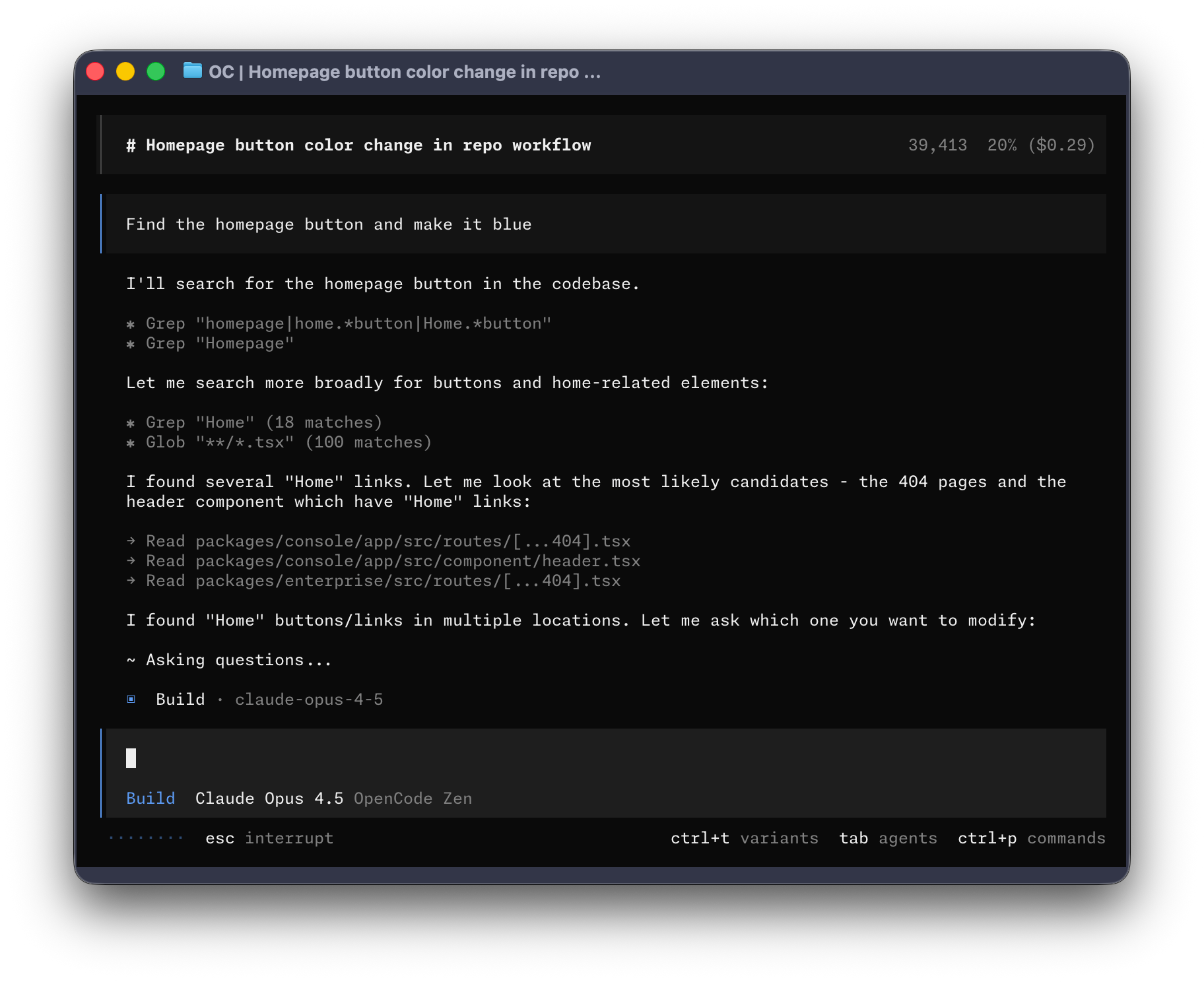
You'll see. opencode reading your file, explaining the error in plain language, and proposing or applying the fix — running entirely inside your terminal.
Cost. The opencode tool itself is free and open source. You only pay your model provider for the tokens a session uses (set up in the next lesson) — this first small fix is a few cents at most.
Takeaway. opencode turns a plain-English request into real edits in your own project, right where your code already lives — the terminal.