Automation is useful when a repeated handoff is already understood. A person submits a request. Six details must become a record. Someone could copy those details into a file every time, but copying is easy to forget, mistype, or perform inconsistently. A small workflow can make the same transfer in the same order each time.
Choose one recurring handoff from your own work that is worth automating. This book explains the mechanism through one optional, deliberately small n8n workflow:
Form Trigger -> Edit Fields -> Convert to File (CSV)
The workflow accepts a synthetic form submission, keeps six named values, and creates a CSV file for that one execution. It does not make decisions, contact people, store a history, append to a spreadsheet, or use AI. Those limits are a feature of a first automation. They make it possible to follow every value from the moment it is typed to the moment it appears in the output.
Read this as preparation for later hands-on work, not as a timed class. You do not need to have n8n open while reading. When you later use an approved test workspace, the examples give you a known, safe route through the editor and a way to tell a real result from a plausible-looking one. The values in this book are invented. Do not substitute personal details, production requests, passwords, access tokens, unpublished work, or information about another person.
The central claim is modest and testable: for each complete form submission, the workflow produces a separate one-row CSV whose six columns correspond to the six submitted fields. We will reason through two different submissions, distinguish a rejected form from a failed workflow execution, create one intentional safe failure, recover the original path, and leave the workflow inactive.
Choose your recurring task
Name the repeated task, why it matters, the event that starts it, the permitted input, one action or output, and the person who owns stopping it. Decide what a correct result looks like before building. The form-to-CSV example is available when you want a complete synthetic starting point; your project does not have to be a form or a CSV.
Keep your first n8n version small: one trigger, only the mapping needed, and one inspectable action in an approved test workspace. Use synthetic test values or explicitly permitted test material. Do not connect a live account, send messages, or alter production records for practice. If your real task needs those actions, represent the intended output as a draft in the test rather than activating the real handoff.
Inspect two distinguishable inputs and their outputs so a hard-coded sample cannot masquerade as a working mapping. Identify where invalid input stops. Plan one harmless failure in the isolated test, restore the intended path, and inspect a fresh recovery run. Check whether any earlier action already happened before retrying; a retry can duplicate a side effect. Finish inactive or unpublished and record where the off switch is.
Your deliverable is the small workflow and evidence of correct mapping, safe failure/recovery, and its final off state for your chosen task. The remaining node recipe, six-field names, output filenames and reference CSVs are the optional worked route, whose full stop/recovery instructions follow.
What this tool is
n8n is a workflow automation tool. In its editor, a workflow is drawn as connected nodes on a canvas. A node is one configured step. Some nodes wait for or receive an event, some reshape information, and some create an output or contact another system. A connection tells n8n where the result of one node should go next.
That description can sound abstract, so start with the small routine in this book. Imagine a lab that is practising an equipment-intake process. A colleague completes a short request form. The record needs an identifier, the item's name, an owner, a category, a status, and the time of the event. The colleague enters those six values once. The workflow makes a portable text file from them. It is not judging the request, finding a missing owner, or deciding a status. It is performing a predictable handoff.
| Workflow part | In this book | Plain-English job |
|---|---|---|
| Trigger | Form Trigger | Wait for a submitted form and receive its values. |
| Item | One submitted record | Carry one set of named values through the workflow. |
| Mapping | Edit Fields | Make a clean six-field version of that record. |
| File action | Convert to File | Encode the clean record as CSV binary data. |
| Output | Binary field data | Hold the one-row CSV created by that execution. |
An execution is one trip through the connected workflow. If a reader submits a form with SYN-201, that submission starts one execution. If the same reader later submits a form with SYN-202, that is a second execution. The executions have similar structure but are not the same event. They may have the same configured output filename, yet the output data belongs to each execution separately.
This distinction prevents a common misunderstanding. A workflow is not automatically a database. The Convert to File node can create CSV content, but it does not by itself preserve a growing table somewhere. In the example here, each run produces a separate one-row file. There is no connection to a disk folder, cloud drive, spreadsheet, or database that would collect results. If a later workflow needs durable storage, it needs an explicit storage step and a separate decision about access, retention, ownership, and recovery.
Why start with a form and a CSV?
Forms and CSV files are familiar enough that the automation itself remains visible. A form supplies named inputs. A CSV is plain text with one header row and one data row. Neither requires a hidden model, a proprietary business system, or a real account. The example lets you learn the vocabulary that transfers to larger workflows: trigger, item, field, expression, literal, mapping, execution, output, and error.
The form is also useful because it can reject missing required values before the workflow begins. This is input validation at the edge of the process. It is not intelligence. It is a clear agreement: this workflow only accepts a complete six-field record. A later node can then rely on the fields it was promised, while you still inspect the mapping rather than blindly trusting it.
CSV is useful because you can read it without special software. A spreadsheet may open it in columns, but it is still text. That makes its limitations easier to see. CSV has values and rows, not strong concepts of dates, people, permissions, categories, or file history. The text 2026-09-07T09:15:00Z looks like a time to a human, but in this first workflow it is deliberately carried as text. The workflow does not validate that it is a real timestamp or convert it to another time zone.
The small system, end to end
The following sequence is the system you are about to understand:
- A test form asks for six required text fields.
- A complete submission becomes one incoming item in the Form Trigger.
- Edit Fields reads the six incoming keys and writes six clean output keys.
- Convert to File turns that clean item into CSV content and places the binary result in
data. - You inspect the item and the file for that execution.
- You retain the first and second inspected files under different local names so their independence remains visible.
The companion diagram, prepared as /img/canvases/t05-l01-overview.svg, shows this flow. It is an explanatory diagram rather than a screenshot. It does not claim to show your n8n version or a captured run.
Nodes are instructions, not magic boxes
A node has a purpose and settings. Its purpose tells you broadly what it can do; its settings tell it what to do for this workflow. Two workflows can both use Edit Fields while producing completely different results because their mapped names and expressions differ. When something is wrong, the useful question is therefore not only “Which node is broken?” It is “What input did this node receive, what setting did it apply, and what output did it send?”
For the exercise, the nodes are intentionally arranged left to right. That arrangement is not a requirement of n8n, but it makes the data path readable:
submitted form
       |
       v
Form Trigger -- item with six named inputs
       |
       v
Edit Fields -- item with six deliberately mapped outputs
       |
       v
Convert to File -- binary CSV in data
Each arrow represents a handoff. A value can only appear downstream if it was supplied upstream or deliberately created by a node. This is called field lineage: the traceable origin and path of a field. In a simple workflow, lineage is a powerful debugging method. If the CSV owner column is blank, trace owner backwards. Was it entered in the form? Did Form Trigger expose it under the expected name? Did the Edit Fields expression read that exact key? Did the final item contain it before file conversion?
Items: one envelope of data
n8n processes data as items. For this book, think of an item as one labelled envelope carrying a small JSON-like record. You do not need to learn programming to use that model. You only need to notice that an item has named fields and values.
After the first form submission, the incoming data can be thought of as:
item_id: SYN-201
item_name: inventory note
owner: Mira Demo
category: lab
status: received
event_time: 2026-09-07T09:15:00Z
The actual execution view may include surrounding metadata or display values differently. Do not rely on undocumented extra keys. The six names above are the contract you configure in the form and then map explicitly. Edit Fields is set to keep only those six output fields, so its result is an especially useful checkpoint.
One form submission means one item in this simple path. Some later workflows may receive many items, branch them, merge them, or loop through them. That is not happening here. Avoid saying “the workflow creates a CSV” without adding “for this execution.” Precise language helps you avoid assuming that two form submissions automatically become two rows in one file.
Literals and expressions
The most important configuration choice in this workflow is whether a value is a literal or an expression.
A literal is fixed text you type into a setting. For example, synthetic-request.csv is a suitable literal filename. Every run is meant to start with that workflow filename. The deliberate failure message is also a literal because you want the same recognisable message in the controlled test.
An expression reads or calculates a value from available data. In Edit Fields, {{$json.owner}} means: use the owner value from the current item's JSON data. The expression is not the text that should appear in the file. It is an instruction for obtaining the text at run time.
| Setting | Correct kind here | Reason |
|---|---|---|
Output field name owner | Literal name | It defines the outgoing column name. |
Value {{$json.owner}} | Expression | It copies the current submission's owner. |
Filename synthetic-request.csv | Literal text | The configured file name is intentionally stable. |
Mira Demo in a form | Submitted input | It varies by execution. |
| Failure message | Literal text | It identifies the planned failure unambiguously. |
If you type Mira Demo into the Edit Fields value box as ordinary fixed text, the workflow will put Mira Demo into every output, including a later submission from Rowan Demo. The output can still look tidy, which is why comparing two independent records matters. A successful execution only proves that nodes ran. It does not prove that the mapping represents the submitted data.
A mapping is a deliberate translation
Mapping does not have to rename fields, but it always makes a choice about what crosses a boundary. In this book, the incoming and outgoing names are deliberately the same. That reduces cognitive load and lets you focus on the mechanism. The mapping still matters because it states six times, explicitly, which incoming value becomes which outgoing value.
| Incoming key | Edit Fields output | Meaning of the mapping |
|---|---|---|
item_id | item_id | Copy the item's synthetic identifier. |
item_name | item_name | Copy its short descriptive name. |
owner | owner | Copy the supplied owner text. |
category | category | Copy the supplied category text. |
status | status | Copy the supplied status text. |
event_time | event_time | Copy the submitted timestamp text without interpreting it. |
In a larger workflow you might map a form label such as contact-name to a system-specific key such as requester_name, or join two values into a display string. That introduces decisions which need their own tests. This first version makes no transformations. It copies values and removes unrelated fields. The narrow scope makes any mismatch easier to locate.
Meet the interface
Use an approved n8n test workspace in its ordinary browser interface when you later practise. n8n versions and workspace policies can change labels, panel locations, saved-execution behaviour, and download controls. This book describes the stable concepts and the configuration you need, not an invented universal click path.
The main working area is the workflow canvas. It is where you add nodes and connect their output and input handles. Selecting a node normally opens a configuration panel or drawer where you choose its operation and enter settings. A workflow name and save control may appear in a header. An active/inactive control may also appear there, but its exact appearance is version-sensitive. Leave the workflow inactive or unpublished for this lesson.
The parts you need to recognise are:
| Interface region | What you use it for | What to look for |
|---|---|---|
| Workflow canvas | Arrange and connect nodes. | Three nodes in one left-to-right line. |
| Node picker | Add a node by type. | Form Trigger, Edit Fields, Convert to File, and later Stop And Error. |
| Node configuration | Define fields, mappings, or conversion options. | Field names, expression controls, and output settings. |
| Test execution controls | Start a temporary waiting form test. | An available Execute Workflow action in the Form Trigger context. |
| Execution inspection | Examine what each node received and produced. | Current run data, error state, and binary data where permitted. |
| Workflow state control | Keep the draft from running outside the test. | A visible inactive or unpublished state. |
Screenshot placeholder SC-01: n8n workflow canvas with three connected nodes Intended view: the reader can identify Form Trigger, Edit Fields, and Convert to File connected from left to right. Caption: One form submission moves through explicit mapping before a CSV file is created. Reference: https://docs.n8n.io/integrations/builtin/core-nodes/n8n-nodes-base.formtrigger/ (opens in a new tab) Status: not captured; placeholder only.
Do not confuse the canvas with an execution. The canvas is the saved or unsaved definition of what should happen. An execution is one actual attempt to follow that definition. You edit the canvas before a test; you inspect an execution after or while it runs. If a value is wrong in an execution, edit the workflow definition and start a new execution. Do not “fix” the downloaded CSV by hand, because that only hides the broken mapping.
Orientation before action
When you open a new blank workflow, take a moment to identify its state. A draft can be saved without being active. Saving means the editor has retained the definition. Activating usually permits trigger behaviour beyond a manual test. Those are separate concepts. This lesson asks for the first and explicitly avoids the second.
The Form Trigger configuration is where the input contract is made. You add each form field, give it a machine-readable name, choose a type, and mark it required. The form interface shown to a person may display a label as well as a name. The later expressions depend on the name, not on whatever friendly label is visible. For this exercise, use the exact lowercase names printed below.
Edit Fields may be documented as the Set node. Names can vary in explanations, but the task is the same: manually define output fields. Make sure the value entry is in expression mode when you enter {{$json.item_id}} and similar values. An expression often has a visible mode toggle or an expression editor. If the editor displays the characters as ordinary static text rather than evaluating them, the output will contain those literal characters or otherwise fail to map as intended. Inspecting the node output tells you which occurred.
Convert to File is the boundary between structured item data and a file-like binary output. Its configuration identifies CSV as the desired format, enables a header row, sets data as the binary property name, and supplies a filename. It is not necessarily a persistent download action by itself. Your workspace may offer an inspection or download affordance for the binary result, but that is a capability of the execution interface and its permissions, not proof that the workflow saved the file in a shared location.
Screenshot placeholder SC-02: Form Trigger configuration with six required synthetic fields and a Test URL Intended view: the reader can distinguish field names, required-field settings, and the test form URL from a live workflow URL. Caption: The form is the input boundary: it accepts exactly six required synthetic values. Reference: https://docs.n8n.io/integrations/builtin/core-nodes/n8n-nodes-base.formtrigger/ (opens in a new tab) Status: not captured; placeholder only.
Test URL, live URL, and workflow state
A Form Trigger can provide a Test URL for a manual test. Use that URL for this lesson. A test URL is not a promise that every n8n deployment behaves identically, nor is it a reason to activate the workflow. It is a controlled route for sending the synthetic form data while an appropriate test execution is waiting.
Do not publish a URL from this book, share a test URL outside the approved workspace, or treat a link as a security boundary. A form URL can receive whatever a person types into it. The safety boundary in this lesson is practical: use only a test workspace, use only synthetic values, inspect the result, and leave the workflow inactive. If the workspace owner has additional rules, those rules take priority.
What you can honestly expect to see
The exact chrome of n8n is unverified here because no live n8n or browser execution was performed for this manuscript. You should expect to configure nodes with the named capabilities described in the cited documentation. You should not expect an exact button position, a particular saved-history screen, or an automatic download location. If your interface uses a different label, identify the concept first: a form trigger, manual mapping, CSV conversion, a binary output property, and a controlled test execution.
That is a useful professional habit. Documentation and user interfaces change. The workflow's data contract is more durable than a memorised click sequence. You can verify the contract by inspecting the six fields at each stage.
Install and connect
This book does not require a local installation, Docker setup, cloud account, spreadsheet connection, or credentials. You need access to an approved n8n test workspace in a browser. Local and cloud-hosted n8n can present different access routes and administration choices, but the learning task is the same once you reach an authorised editor: build and manually test a small inactive workflow.
If your course or organisation uses AI Lab as its availability and local-setup starting point, begin at https://ai.32dots.de/ (opens in a new tab). That portal can change, so this book does not reproduce a catalog, release listing, or installation clicks. A portal in a browser, a locally installed application, and an n8n workspace are different things. Do not infer access to an n8n test workspace merely because a portal page exists.
Ask the responsible instructor, lab, or workspace owner for the intended route if you do not already have access. They can tell you whether the workspace is local or cloud-hosted, how you authenticate, whether you may create a workflow, and whether manual execution data and binary downloads are retained. Do not solve lack of access by signing up for an unknown service with real details or by installing unapproved software.
Before you create anything, check the following in the browser:
| Check | Why it matters | Safe response if it is not true |
|---|---|---|
| You are in a test workspace. | The exercise is intentionally non-production. | Stop and ask for the approved test route. |
| You may create a blank workflow or use an assigned draft. | You need a safe place to configure nodes. | Ask the owner rather than changing a shared workflow. |
| The workflow is inactive or unpublished. | The form should not respond outside your supervised test. | Leave it off and ask if the state is unclear. |
| You have only the six synthetic values. | The examples are designed for harmless inspection. | Do not replace them with real records. |
| You can inspect current execution data. | Inspection is how you verify lineage. | Ask what inspection is permitted before claiming a result. |
If adding one of the built-in nodes asks for a credential, pause. Form Trigger, Edit Fields, Convert to File, and Stop And Error should not require a connection to email, cloud storage, a spreadsheet, or an external API for this exercise. A credential prompt can mean you selected a different node or entered a workspace with a custom policy. It is not a request to paste a password or token into the workflow.
Local versus cloud access, briefly
A local n8n instance runs under the control of a person or organisation on a machine or private environment. A cloud workspace is accessed through a provider-hosted web service. These descriptions alone do not tell you who can see workflows, how long executions are retained, whether a Test URL is externally reachable, or which features are enabled. Those questions are operational decisions outside this introduction.
For the reader, the relevant difference is simple. In either case, use the approved URL and account supplied by the responsible owner. Do not make claims about installation screens, provider availability, or permissions that you have not verified in your own environment. The rest of the book assumes only the minimum: an authorised browser editor and a test workflow that remains off when you finish.
Your first useful result
Your first useful result is not “a workflow with three nodes.” It is a CSV you can inspect and explain. Specifically, it is a one-row CSV whose headers and values correspond exactly to one complete synthetic form submission. The visual canvas helps you understand the route, but the file and the inspected node data are the evidence that the configured route handled the right values.
Create a new blank workflow in the n8n browser app. Name it something unmistakably test-only, such as T05-L01 synthetic request CSV. Do not rename, replace, activate, or repurpose an existing workflow. If you are given a shared instructor draft, ask before changing it and follow its local instructions.
Add a Form Trigger node. In its form-field area, create six fields with these exact names:
item_id
item_name
owner
category
status
event_time
Set every field to Text, or the equivalent text-input type in your n8n version. Mark every one as required. The exact names matter because they are the keys that later expressions read. Uppercase letters, spaces, hyphens, and a friendly visible label are not interchangeable with the names in this list.
| Field | What the synthetic example uses it for | Why it remains text in this introduction |
|---|---|---|
item_id | A harmless identifier such as SYN-201. | The workflow copies an identifier; it does not generate one. |
item_name | A short item description. | It is ordinary submitted text. |
owner | A synthetic name such as Mira Demo. | Required means the form will not accept an empty value. |
category | A short grouping such as lab. | The workflow does not validate a category list. |
status | A word such as received. | The workflow does not decide the status. |
event_time | ISO-like timestamp text. | It is copied literally, not parsed or converted. |
Configure the Form Trigger to respond when the form is submitted, using the available setting corresponding to that behaviour. Locate its Test URL, but do not yet start a test execution or open the URL. First configure and connect all three primary nodes. Starting with a complete path reduces ambiguity: when you submit the form, you want to know that the item can reach its intended file conversion step.
Add an Edit Fields node to the right of Form Trigger and connect the Form Trigger output to it. Select Manual Mapping. Create six output fields using exactly the same names. Set every mapped output value type to String, or the equivalent string type in your version. Then use expression mode for every value:
| Output field | Expression | Lineage statement |
|---|---|---|
item_id | {{$json.item_id}} | The output identifier comes from the current input item's identifier. |
item_name | {{$json.item_name}} | The output name comes from the current input item's name. |
owner | {{$json.owner}} | The output owner comes from the current input item's owner. |
category | {{$json.category}} | The output category comes from the current input item's category. |
status | {{$json.status}} | The output status comes from the current input item's status. |
event_time | {{$json.event_time}} | The output time text comes from the current input item's time text. |
Enable Keep Only Set Fields. This setting makes the node output intentionally narrow. It says that the clean record after mapping contains the six fields you configured, rather than any surrounding values that a trigger might also provide. It does not make values safer or more accurate by itself. It makes inspection more legible and prevents accidental dependence on extra trigger metadata later in this small workflow.
Now add Convert to File to the right of Edit Fields and connect Edit Fields to it. Configure the conversion with these values:
| Setting | Value | Why it is chosen |
|---|---|---|
| Operation | Convert to CSV | The desired output is a comma-separated text table. |
| Binary output field | data | This is where the converted file is placed in the execution result. |
| Header Row | enabled | The file needs visible column names for inspection. |
| File name | synthetic-request.csv | The workflow's per-run filename is clear and intentionally generic. |
Screenshot placeholder SC-03: Edit Fields manual mappings and Convert to File CSV settings Intended view: the reader can see six expressions, Keep Only Set Fields, the binary field
data, and the CSV filename setting. Caption: Each outgoing column has a visible origin in the submitted form; no sample value is hard-coded in the mapping. Reference: https://docs.n8n.io/integrations/builtin/core-nodes/n8n-nodes-base.converttofile/ (opens in a new tab) Status: not captured; placeholder only.
Your canvas should now read:
Form Trigger -> Edit Fields -> Convert to File
Save the draft if your workspace provides a save control, but leave it inactive and unpublished. Saving preserves the workflow definition. It does not make the workflow safe for unsupervised use, and it is not evidence that the workflow has been tested.
Read the expected result before running it
Before interacting with the Test URL, predict what each node should do for a record. This is not busywork. A prediction gives you something concrete to compare against when the execution view appears.
For Record 1, the form will receive:
| Form field | Record 1 value |
|---|---|
item_id | SYN-201 |
item_name | inventory note |
owner | Mira Demo |
category | lab |
status | received |
event_time | 2026-09-07T09:15:00Z |
The Form Trigger should emit an item containing those named values. Edit Fields should emit exactly those same six values under exactly those six names. Convert to File should create binary output under data whose CSV content is expected to be:
item_id,item_name,owner,category,status,event_time
SYN-201,inventory note,Mira Demo,lab,received,2026-09-07T09:15:00Z
The comma-separated first line is the header row. The second line is the one data row. There should not be a second record in this file, because only one item passed through this execution. There should not be an invented creation date, an execution identifier, or extra trigger metadata, because Edit Fields retained only the six mapped fields.
Work step by step
The steps in this section describe a later manual test. Read the reason for each step as well as the action. The goal is not to memorise the editor; it is to learn how to establish evidence for a small automation.
Step 1: inspect the configuration as a contract
Before Run 1, inspect the canvas instead of immediately submitting the form. Starting a test before the path is complete creates avoidable uncertainty. If only Form Trigger exists, you can show that a form submitted, but not that mapping or conversion worked. If Edit Fields exists with fixed example text, a run may reach the end while proving the wrong thing.
Use this configuration checklist:
| Question | Correct answer for this workflow |
|---|---|
| What starts the workflow? | A completed submission to the Form Trigger Test URL while a test execution is waiting. |
| How many required input keys exist? | Six: the exact names listed in this book. |
| What does Edit Fields retain? | Only its six explicitly mapped output fields. |
| Does a mapping read current data or fixed text? | Each value is an expression reading $json. |
| What is the final output? | CSV binary data in data, with a header row. |
| Is the workflow active? | No. It stays inactive or unpublished. |
This is the smallest useful form of change review: compare the intended data path with the actual configured path before asking it to run. In later work, the same habit catches accidental connections, an output sent to the wrong system, or a transformation that is no longer appropriate.
Step 2: Run 1, from submission to file
In the n8n browser app, start a test execution using the Form Trigger's available Execute Workflow action. The trigger should wait for a submission. Open the Test URL in a separate browser tab or window, keeping the editor available for inspection. Enter Record 1 exactly as shown:
| Form field | Record 1 value |
|---|---|
item_id | SYN-201 |
item_name | inventory note |
owner | Mira Demo |
category | lab |
status | received |
event_time | 2026-09-07T09:15:00Z |
Submit the form. A complete form should permit submission. The waiting execution should then proceed along all three nodes. This is the first point at which an observed result belongs to your own workspace rather than to this written example.
Inspect Edit Fields before inspecting the file. Its result should contain exactly six named values:
item_id: SYN-201
item_name: inventory note
owner: Mira Demo
category: lab
status: received
event_time: 2026-09-07T09:15:00Z
Why inspect this intermediate result? Because it separates two questions. First: did the form provide the intended inputs? Second: did the mapping turn them into the intended clean record? If the final CSV is wrong, this checkpoint tells you whether to look left at the trigger and mapping or right at the file conversion.
Then inspect Convert to File. Its result should expose binary output in the field named data. Depending on your n8n version and permitted workspace settings, the execution interface may offer a way to inspect or download that binary data. Use the affordance available in your interface. Do not assume a particular icon or label from another version.
If you can inspect the file, compare it character by character at first. Its headers will normally follow the mapped-field order shown in Edit Fields, but verify the actual header names and order rather than relying on that expectation. It should have one row whose six values match Record 1. If a permitted download is available, retain the inspected result locally under the distinct name synthetic-request-run-1.csv. The workflow itself may call the file synthetic-request.csv; the distinct local retention name prevents a later Run 2 download from obscuring the evidence from Run 1.
If your workspace provides no permitted binary inspection or download capability, do not create a substitute file by copying the expected CSV from this book. The exercise is blocked at the artifact-inspection step. Ask the workspace owner which approved route permits inspection or whether the intended learning activity differs. A copied expected result proves only that you can copy text.
Step 3: compare every Record 1 value
Use the table below to make the comparison explicit. The rightmost column describes the field lineage, not merely a visual similarity.
| CSV column | Expected value | Why it is correct |
|---|---|---|
item_id | SYN-201 | Form Trigger received it under item_id; Edit Fields read {{$json.item_id}}. |
item_name | inventory note | The name was submitted and then read by {{$json.item_name}}. |
owner | Mira Demo | The submitted owner was read by {{$json.owner}}, not typed as a fixed mapping value. |
category | lab | The submitted category was read by {{$json.category}}. |
status | received | The submitted status was read by {{$json.status}}. |
event_time | 2026-09-07T09:15:00Z | The timestamp-shaped text was copied literally by {{$json.event_time}}. |
If any result differs, do not edit the CSV. Return to the Edit Fields configuration in the browser app. Check the output field name, check whether the value is actually in expression mode, and compare the incoming key character for character. Then start a new execution. A new execution is necessary because the old result records the configuration that existed at that time.
Step 4: Run 2 proves independence
Before starting the second run, confirm that your inspected first output is retained as synthetic-request-run-1.csv, if local retention was permitted. Start a new Form Trigger test execution. Do not reuse the old submission and do not alter the first CSV. Open the Test URL again and enter a genuinely different synthetic record:
| Form field | Record 2 value |
|---|---|
item_id | SYN-202 |
item_name | calibration log |
owner | Rowan Demo |
category | equipment |
status | queued |
event_time | 2026-09-07T10:30:00Z |
Inspect Edit Fields for the current execution. It should show the Record 2 values, not Record 1 values. Then inspect binary data, and, where permitted, retain the inspected file as synthetic-request-run-2.csv. The expected CSV is:
item_id,item_name,owner,category,status,event_time
SYN-202,calibration log,Rowan Demo,equipment,queued,2026-09-07T10:30:00Z
The important evidence is the comparison between the runs:
| Field | Run 1 | Run 2 | What the difference demonstrates |
|---|---|---|---|
item_id | SYN-201 | SYN-202 | The current submission, not a static identifier, supplied the value. |
item_name | inventory note | calibration log | The expression follows a changed input. |
owner | Mira Demo | Rowan Demo | A fixed literal would have made this suspiciously unchanged. |
category | lab | equipment | Different submitted classification text survives mapping. |
status | received | queued | The workflow copies status; it does not decide it. |
event_time | 09:15:00Z ending | 10:30:00Z ending | The later literal text is independent of the earlier run. |
Both output files have one data row. They are not two views of one accumulating CSV. The configured filename can be the same in each execution because it labels the output created by that execution. Your distinct retained local names make your two inspected artifacts distinguishable outside the workflow.
Step 5: understand CSV without making it a spreadsheet course
CSV means comma-separated values. It is a simple text representation of rows and columns. A header row names columns. Each following row contains values in that order. In the Record 2 output, the first comma tells a reader that item_id and item_name are separate columns; it does not know anything about the meaning of those values.
CSV works well for a small inspectable transfer because it is portable and readable. It also has limits:
| CSV strength | Corresponding limit |
|---|---|
| A person can open it as text. | A person can also misread a value if they assume a type that is not encoded. |
| Headers make columns visible. | Headers do not enforce a schema or guarantee every row is valid. |
| It is widely supported. | Different applications can display or interpret values differently. |
| One row is easy to compare to one submission. | CSV alone does not preserve workflow provenance, permissions, or history. |
Commas, quotation marks, and line breaks inside values require CSV escaping rules. The synthetic values in this book avoid those complications so the first inspection can focus on mapping. That does not mean real data is always as simple. If a later workflow handles free-form notes or addresses, test how the relevant conversion and receiving application represent punctuation. Do not casually alter a CSV in a spreadsheet and assume the workflow did the same thing.
The file also does not prove that a value is true. received is just submitted text. event_time is just text that resembles a UTC timestamp. A real intake process might validate an allowed status, record server time, restrict who can submit, or store an audit trail. Those are separate requirements. Adding them is not necessary to understand this first pipeline.
Step 6: reject a missing field before execution
Required fields protect the start of this workflow. Start a new Form Trigger test execution. In the test form, deliberately leave one required field blank, for example owner, and attempt submission.
The anticipated result is a form-level rejection: the form should not accept the incomplete submission. Edit Fields and Convert to File should not receive an item from that attempt. Fill the missing field with a synthetic value or discard the attempt and start another test.
This event is useful, but name it accurately. It is not a failed n8n workflow execution. Nothing reached the workflow path after the form boundary. The form prevented an incomplete record from being created. The comparison below matters when you diagnose real systems:
| Event | Where it happens | Did Edit Fields run? | Did a CSV result follow? |
|---|---|---|---|
Required owner left blank | The form before submission enters the workflow | No | No |
| Stop And Error node runs | Inside the workflow after mapping | Yes | No, because execution ends at the error node |
Calling both events “an error” makes recovery harder. If a required form field is blank, correct the form input. If a workflow node reports an intentional or unexpected failure, inspect the execution path and node settings. The location of the stop tells you where to begin.
Step 7: create one genuine failed run safely
After you have completed the two successful comparisons, return to the workflow canvas. You will temporarily replace the final connection with a Stop And Error node. The purpose is to see a real execution failure in a harmless, controlled path. It should not contact another service or change external data.
- In the n8n browser app, disconnect Edit Fields -> Convert to File. Keep Convert to File on the canvas but disconnected for this test.
- Add Stop And Error after Edit Fields.
- Connect
Edit Fields -> Stop And Erroronly. Stop And Error is terminal; it has no onward connection. - Choose its error-message option and enter this exact literal text:
Intentional synthetic failure - T05-L01 test only
- Start a new Form Trigger test execution and submit any complete synthetic six-field record. Reusing Record 2 is acceptable because this run is evidence of controlled failure, not a third independent mapping comparison.
The anticipated result is that the execution reaches Edit Fields, then stops at Stop And Error and displays the chosen message. Convert to File should not run, because it is disconnected and the failure node terminates the path. No CSV should follow this execution. Inspect the current execution's failure state and message. If your workspace saves history, it may later show this run; do not assume history retention is enabled.
Screenshot placeholder SC-04: current execution stopped at Stop And Error Intended view: the reader can identify the deliberate error message and see that Convert to File did not run. Caption: A controlled execution failure is different from a form refusing an incomplete submission. Reference: https://docs.n8n.io/integrations/builtin/core-nodes/n8n-nodes-base.stopanderror/ (opens in a new tab) Status: not captured; placeholder only.
This test is safe because its input is synthetic, its terminal action is explicitly an error, and the original file node is not reached. Do not treat an intentional failure as a ritual to repeat in a live workflow. In real work, a failed run can have side effects before it stops. You first need to know what earlier nodes can change and whether retrying is safe.
Step 8: recover the original path
Recovery means returning the workflow to a known-good, inspected definition, not merely making the red error state disappear. On the canvas, remove the temporary Stop And Error node. Reconnect Edit Fields -> Convert to File. Then inspect the six mappings again:
item_id     {{$json.item_id}}
item_name   {{$json.item_name}}
owner       {{$json.owner}}
category    {{$json.category}}
status      {{$json.status}}
event_time  {{$json.event_time}}
Confirm that Keep Only Set Fields remains enabled and that Convert to File still uses CSV, header row enabled, binary output data, and filename synthetic-request.csv. Start a fresh test execution and submit Record 1 again. Inspect the current Edit Fields result and the binary output. The anticipated result is the same one-row Record 1 CSV as before. This new successful execution is evidence that the failure configuration was removed, not a reason to overwrite your earlier retained Run 1 artifact.
Recovery has a simple pattern you can reuse:
- Identify where the execution stopped.
- State what configuration was intentionally changed.
- Restore the known intended connection or setting.
- Inspect the inputs and outputs nearest the changed point.
- Run a new controlled test.
- Leave the workflow in its required final state.
The pattern is deliberately more careful than “click retry.” A retry can be useful when you understand the side effects and the cause, but blindly retrying a real workflow can duplicate an external action. This lesson uses no external action, yet it builds the habit of examining the path before running it again.
Step 9: find the off switch and hand over clearly
The safe final state is an inactive or unpublished workflow. Locate the active/inactive state in your n8n interface and confirm it is off. Saving a draft is fine; activating it is not part of this lesson. If the workflow belongs to an instructor or a shared space, ask before deleting it, altering its ownership, or changing its state.
Stopping is an ordinary part of automation. Before any workflow is enabled for real use, be able to answer:
- What event starts it?
- What information enters it?
- What output or external change can it make?
- Which person owns it?
- Where is its active/inactive control?
- How will a person inspect a failure and recover safely?
For this introductory workflow, the answers are visible: a test form submission starts it; six synthetic text values enter it; it produces one CSV output for that execution; the test workspace owner governs it; its state remains off; and recovery is to restore the direct Edit Fields-to-Convert-to-File connection, then run a new synthetic test.
If handing the draft to another learner or instructor, use a short factual handover. State the workflow name, that it remains inactive, the six-field contract, which two synthetic runs were inspected, whether binary download was permitted, and whether the intentional failure was removed. Do not claim that it is production-ready merely because the three nodes are connected.
Solve common problems
The table below starts from observable symptoms. Diagnose from the nearest visible evidence rather than guessing. In this small workflow, the item at Edit Fields is usually the best middle checkpoint.
| Symptom | Likely cause | What to inspect | Safe recovery |
|---|---|---|---|
| The test form will not submit. | A required field is empty. | The form's field prompt and the attempted values. | Fill every required field with synthetic data. This is form rejection, not workflow failure. |
| The workflow waits but nothing happens after you submit. | The wrong URL was opened, the test was not waiting, or workspace behaviour differs. | The current Form Trigger test state and whether you used its Test URL. | Start a fresh controlled test and ask the workspace owner if the trigger remains unavailable. |
Edit Fields shows Mira Demo for both records. | A fixed literal was typed instead of an expression. | The owner value mode and its contents. | Replace it with {{$json.owner}}, then submit a new Record 2 test. |
Edit Fields shows the characters {{$json.owner}} as output. | The value was entered as plain text rather than expression mode. | The mapping editor's mode. | Change to expression mode, save the mapping, and test again. |
| A CSV column is blank. | The form key and expression key do not match, or the input was absent. | The Form Trigger field name, incoming item, and matching expression. | Correct one mismatch; do not invent a substitute value downstream. Start a new complete test. |
| A CSV column has the wrong value. | The expression points to another field, or a literal is hard-coded. | The field lineage from form to Edit Fields to file. | Restore the exact matching expression and compare a new run to the submitted table. |
| The output contains extra values you did not expect. | Keep Only Set Fields is disabled or trigger metadata was retained. | Edit Fields settings and output. | Enable Keep Only Set Fields and run a new test. |
| The second output looks like the first. | The old execution was inspected, Run 2 was not a new submission, or constants remain. | Execution identity, submitted Record 2 values, and all six expressions. | Start a new execution, submit the second record, and retain its inspected output under a distinct local name. |
| You cannot find an older execution. | Manual execution history may not be saved or may be retained briefly. | Workspace settings or owner guidance. | Inspect the current run while it is available; ask the owner about approved retention if evidence must persist. |
You cannot inspect or download binary data. | The interface, role, or workspace policy does not offer a permitted affordance. | The current execution's binary area and workspace permissions. | Stop at the artifact check and ask the owner. Do not manufacture a file from the expected text. |
| No CSV appears after Stop And Error. | Stop And Error worked as designed. | The terminal node, error message, and disconnected Convert to File path. | Remove Stop And Error, reconnect the original path, and run a fresh success test. |
| The error message differs from the planned message. | The node's configured literal text changed or another failure occurred earlier. | The node configuration and execution path. | Identify the actual stop point. Restore the intended test message only in the isolated synthetic exercise. |
| Convert to File does not run after recovery. | The reconnection is missing or directed incorrectly. | Canvas arrows from Edit Fields to Convert to File. | Reconnect the two nodes directly, verify settings, and start a new test. |
| You are asked for credentials. | A different node was selected, or workspace policy requires action. | The selected node type and prompt context. | Do not enter secrets. Ask the workspace owner. |
| The workflow appears ready to activate. | It has been saved, but saving and activation are different. | The visible workflow state. | Leave it inactive or unpublished for this lesson. |
A diagnostic method that scales
When a workflow is larger, symptoms can tempt you to edit many settings at once. Resist that. Make the smallest correction justified by evidence. Here is the basic sequence:
- State the observed symptom without interpretation: “Record 2 owner is Mira Demo.”
- Find the closest point where the value is visible: inspect Edit Fields output.
- Trace backwards one boundary at a time: mapping expression, then incoming item, then form submission.
- Change only the setting that explains the mismatch.
- Run a new synthetic execution with a deliberately distinguishable value.
- Inspect the same checkpoint and the final output.
This method avoids two common errors. First, it avoids correcting a downstream file while leaving the root mapping wrong. Second, it avoids declaring success because a node turns green. A successful node can successfully process the wrong input. The two-record comparison is designed to expose that possibility.
Missing data is not a cue to make something up
Suppose owner is missing. The safe response in this workflow is to reject the submission before execution. Do not replace it with unknown, the name from a previous item, or an invented value in Edit Fields. A placeholder can be legitimate in a process only when the process owner has explicitly chosen that policy and downstream users understand it. This first automation demonstrates the safer default: require the actual field, then copy it exactly.
The same reasoning applies to a malformed-looking timestamp. Because event_time is plain text here, the workflow does not claim it has checked the time. If a future process requires time validation, define what counts as valid, who owns that definition, and what happens to invalid input. Do not quietly add a guess inside an otherwise transparent workflow.
Follow one input through the complete lineage
Field lineage becomes most useful when you follow one value through every boundary rather than checking only the beginning and end. Take the Record 1 owner value, Mira Demo. At the form boundary, a person enters those characters in the field whose machine-readable name is owner. The important pair is not merely the visible value; it is the key and value together: owner identifies the field, and Mira Demo is the submitted value for this execution. A correctly completed submission gives the Form Trigger an item containing that pair alongside the other five promised pairs.
The next boundary is the connection into Edit Fields. The connection does not know that an owner is a person or that the text is synthetic. It passes the item produced by the trigger. Inside Edit Fields, the outgoing field name owner is configured as a literal name, while {{$json.owner}} is configured as an expression. When the node processes Record 1, that expression reads the current input item's owner value. The result is a newly shaped item with the pair owner: Mira Demo. Because Keep Only Set Fields is enabled, the output should contain that pair and the other five deliberately mapped pairs, but not unrelated trigger metadata.
The final connection supplies that clean item to Convert to File. CSV conversion uses field names as headers and field values as row cells. The owner field therefore contributes the owner header and the Mira Demo cell in the same column. The resulting bytes are stored in the binary property data. The word binary here describes how n8n carries the file result; it does not mean the CSV is mysterious or unreadable. When inspected as CSV text, the owner column should still be traceable to the form entry through the intermediate mapped item.
Now repeat the reasoning with Record 2, not just the visual inspection. The form receives owner: Rowan Demo. The same saved expression reads the current item's owner; it does not remember Record 1. Edit Fields should therefore produce owner: Rowan Demo, and the second execution's CSV should contain Rowan Demo. This comparison tests the mapping more strongly than repeating Mira Demo twice. If both outputs contain Mira Demo, the lineage has broken somewhere between submission and mapping, even if every node reports that it ran.
The same trace applies to all six fields. For event_time, the lineage proves only that the submitted text reached the output unchanged; it does not prove that the text represents a real instant. For status, it proves that received or queued was copied; it does not prove that either status was authorised. Lineage answers “Where did this output value come from?” It does not answer “Is the person who supplied it correct?” or “Is this value valid for a production process?” Keeping those claims separate makes the workflow easier to inspect and prevents a simple copy operation from being described as validation or decision-making.
Separate executions, items, fields, and files
Four different units appear in this small workflow: an execution, an item, a field, and a file. They are related, but treating them as interchangeable leads to incorrect conclusions. An execution is the attempt to run the connected workflow after one accepted test-form submission. In the simple path used here, that execution carries one item. The item is the six-field record. Each field is one named value within that item. Convert to File represents the item as one data row in a file and places the file in data for that execution.
Start with Record 1. Its accepted submission starts one execution. The Form Trigger supplies one item, not six items. item_id, item_name, owner, category, status, and event_time are six fields inside that one item. Edit Fields outputs one item containing exactly those six mapped fields. Convert to File receives that one item and therefore produces a CSV with one data row. The six columns do not mean six executions, and the header row is not a second submitted item.
Record 2 starts a new execution. It likewise carries one item with six fields and creates one one-row CSV result. Nothing in the three-node path combines the two executions. Even though both conversion results are configured with the filename synthetic-request.csv, the shared configured name does not merge their contents. The first file remains associated with the first execution, and the second file remains associated with the second. Distinct local retention names are a human bookkeeping step used only when permitted: they stop one downloaded artifact from being confused with or overwriting another outside n8n.
This distinction also clarifies inspection. If the Edit Fields output shows six keys, you are looking at fields in one item, not six rows. If the binary area shows a property named data, that property holds the converted file; data is not a seventh CSV column. If the execution list or current-run view shows separate attempts, those attempts are not automatically rows in a shared table. A storage or aggregation node would be required to establish that different relationship, and this workflow has neither.
Use precise counting questions when the display feels ambiguous. How many submissions were accepted? How many executions were started? How many items reached Edit Fields in the current execution? How many mapped fields are present in that item? How many data rows appear in the current CSV? For this lesson's successful path, the answers for each run are one accepted submission, one execution, one item, six fields, and one data row. Across the two successful comparison runs, there are two separate executions and two separate one-row outputs, not one execution with two items and not one two-row file.
These boundaries matter later because larger workflows may process multiple items in one execution or write many items into one file. Do not import those possibilities into the present evidence. Describe only what the inspected path demonstrates. The current design demonstrates that one complete submitted item can be mapped into six fields and converted into one file result during one execution.
Test expressions by changing the source values
An expression and a literal can produce the same visible value in one run. Suppose the first form submission contains status: received. A correctly configured expression, {{$json.status}}, produces received. A mistakenly hard-coded literal, received, also produces received. If you inspect only Record 1, both configurations appear plausible. The node may complete in both cases, and the CSV may look exactly as predicted. That is why one attractive output is weaker evidence than a deliberately varied second input.
Record 2 changes every source value. In particular, its status is queued, its owner is Rowan Demo, and its identifier is SYN-202. The saved mapping should not need to be edited between runs. When the same expression configuration processes the new item, its output changes because $json refers to the current item. The expression for status reads queued; the expression for owner reads Rowan Demo; the expression for item_id reads SYN-202. The workflow definition remains stable while the data varies.
A literal behaves differently. If the status value in Edit Fields is fixed text received, Record 2 still produces received. That output is not evidence that the form submitted the wrong status. It is evidence that the mapping ignored the current status and supplied its own constant. Likewise, if Mira Demo was typed as a literal owner, every execution can finish successfully while attributing records to the wrong synthetic owner. The defect is semantic: the workflow completed its configured instruction, but the instruction did not implement the intended handoff.
There are two separate configuration elements to inspect. The outgoing name, such as status, is intentionally literal because it defines the stable output key. The outgoing value must be an expression because it varies with each input. Making both parts expressions would not improve the mapping; making both parts literals would freeze the value. The required pattern is a stable literal field name paired with an expression that reads the corresponding current input field.
The expression text also has to be evaluated as an expression. Merely typing {{$json.status}} into a plain-text value box does not guarantee evaluation. If the current node output contains those braces and characters, the editor treated the entry as text. The remedy is not to adjust the submitted form or edit the CSV. Change the mapping value to expression mode, inspect that it evaluates against the incoming item, and start a new execution.
This is a general testing technique: choose inputs that make competing explanations produce different outputs. Repeating the same values cannot distinguish a dynamic mapping from a coincidentally matching constant. Two records with deliberately different values can. The records here change all six fields so that every mapping can be checked, but the principle does not require a large test set. A small, purposeful contrast is enough to show whether the output follows the current input.
Compare predictions with observed node output
A prediction is useful only when it is specific enough to be disproved. Before the first submission, do not predict merely that “the workflow will work” or that all nodes will become green. State the expected evidence at each boundary. A successful first run means a completed execution in which Edit Fields contains exactly the six submitted values under the six expected names and Convert to File exposes a binary result under data. A completion indicator alone is not sufficient, because a node can successfully apply an incorrect literal or map the wrong key.
For Form Trigger, predict that the accepted Record 1 submission supplies the six named inputs. The actual display may contain metadata in addition to those values, so compare the promised keys and their values rather than assuming the whole trigger object has a particular undocumented shape. If owner is Mira Demo and status is received at this boundary, the trigger evidence agrees with the submitted form for those fields. If one is absent or named differently, downstream inspection should not begin with Convert to File; first resolve the input contract.
For Edit Fields, make a stricter prediction: its output should have exactly six fields because Keep Only Set Fields is enabled. Their names should be item_id, item_name, owner, category, status, and event_time, and their values should match Record 1 character for character. Compare count, names, and values. Six fields with one incorrect name do not satisfy the prediction. Correct names with Mira Demo hard-coded everywhere do not satisfy it either. This checkpoint tests the intended shape as well as the visible data.
For Convert to File, predict the existence of binary data, a CSV header row, and one data row corresponding to the mapped item. Then inspect what the workspace actually permits you to see. Verify the actual header names and order instead of inferring them from the configuration or from this book. The mapped-field order shown here is the normal expectation, but the produced artifact is the authority for the execution you are examining. Compare each value under its actual header so that a reordered column is not mistaken for corrupted data.
Record the difference between expected and observed facts in neutral terms. “Expected six Edit Fields keys; observed five, with event_time absent” is more useful than “CSV failed.” “Expected binary property data; observed no permitted binary inspection control” distinguishes a workflow result from an access limitation. “Expected Record 2 owner Rowan Demo; observed Mira Demo” directs attention to a literal or stale execution. Precise observations narrow the next inspection without inventing a cause.
Prediction also protects against retrospective reasoning. Without a written or clearly stated expectation, it is easy to accept whatever appears because it looks orderly. A tidy CSV can have the wrong owner, missing fields, or values under unexpected headers. The disciplined sequence is predict, submit, inspect the intermediate item, inspect the file, and compare. Only then describe the execution as matching the contract. If the evidence differs, the mismatch is information, not a reason to edit the output until it resembles the example.
Read CSV escaping without misreading the record
The two required records avoid commas, quotation marks, and line breaks so their first inspection remains simple. Real text often contains those characters, and CSV must represent them without turning one value into several columns. Understanding one worked example helps you distinguish correct escaping from a broken mapping. This is explanation for reading CSV, not an additional required submission or a claim about an unperformed run.
Imagine a separate synthetic item whose item_name value is sensor, portable and whose owner value is Casey "CJ" Demo. A valid CSV representation would normally surround each value containing a comma or quotation mark with quotation marks, and double a quotation mark that belongs inside the value. With the same six headers, the explanatory row would look like this:
item_id,item_name,owner,category,status,event_time
SYN-203,"sensor, portable","Casey ""CJ"" Demo",lab,received,2026-09-07T11:00:00Z
The comma inside "sensor, portable" is data, not a column separator, because the whole cell is quoted. The doubled quotation marks inside "Casey ""CJ"" Demo" represent quotation marks that are part of the owner text. A CSV-aware reader interprets that cell as Casey "CJ" Demo. The doubled marks are not evidence that Edit Fields duplicated characters. They are part of CSV's encoding rules.
Line breaks inside a value create a similar need for quoting. A CSV-aware application may display one logical row across multiple physical text lines when a quoted cell contains a line break. Counting visible lines in a text editor can therefore be misleading for complex input. This first workflow avoids such values, so its expected files can be checked directly as one header line and one data line. If later work accepts free-form text, use a CSV-aware inspection method and compare parsed cells, not only visual line count.
Escaping is different from changing a value's meaning. Convert to File may add the punctuation required to encode a cell safely, while the logical value remains the same. The mapping should still carry the original field value into conversion. If an inspected CSV shows quotation marks around a cell, ask whether they are CSV delimiters before concluding that extra characters entered the data. Conversely, opening a CSV in a spreadsheet can hide delimiters and apply display formats, so a tidy grid does not prove that the underlying text has the expected headers, encoding, or value spelling.
This is why artifact inspection matters. Edit Fields proves what structured values reached the conversion boundary. The CSV proves how those values were represented in the output artifact. Comparing both lets you separate a mapping defect from normal CSV encoding. If the Edit Fields owner is correct but a CSV-aware reading of the owner cell is wrong, investigate conversion or inspection. If Edit Fields is already wrong, changing CSV settings cannot repair the source lineage. Keep the required two-record test uncomplicated, but carry this distinction into workflows that accept punctuation-rich text.
Diagnose rejection, failure, and wrong success from evidence
Not every unsuccessful outcome is the same kind of event, and not every completed execution is correct. Consider three symptoms: the browser form refuses an empty owner, Stop And Error displays the planned message, and Record 2 completes but contains Record 1's owner. Each symptom points to a different boundary. A useful diagnosis states the symptom, identifies the closest evidence, tests a cause, and changes only what that evidence supports.
For the blank owner, the symptom is that the form does not accept the submission. The closest evidence is the required-field prompt at the form boundary. Because no accepted item entered the workflow, there should be no expectation that Edit Fields or Convert to File ran for that attempt. The root cause in this controlled case is incomplete input against the required-field contract. Recovery is to provide a synthetic owner and submit a complete record. Editing mappings, reconnecting nodes, or retrying an execution would address the wrong layer.
For the planned Stop And Error run, the symptom is a failed execution with the literal message Intentional synthetic failure - T05-L01 test only. The closest evidence is the execution path: Form Trigger supplied a complete item, Edit Fields ran, and Stop And Error terminated the path. Convert to File was disconnected and should not have run. The root cause is the intentional temporary configuration, not missing form data and not a CSV defect. Recovery is to remove that node from the path, restore the original connection, inspect the restored settings, and create a new controlled execution.
For a completed Record 2 whose owner remains Mira Demo, the symptom is subtler. The form accepted the input and the workflow may show completion, yet the result violates the prediction. Start with Edit Fields for that same execution. If its incoming item shows Rowan Demo but its output shows Mira Demo, the evidence localises the defect to mapping. Inspect whether owner is a literal or whether its expression reads the wrong key. Correct only that mapping, then submit a fresh distinguishable record. If Edit Fields output is Rowan Demo but the inspected CSV owner is not, move the investigation one boundary right instead.
This reasoning prevents broad, speculative repair. Rebuilding the workflow because one field is fixed text discards known-good configuration and creates more opportunities for error. Editing the downloaded file makes the artifact look correct while preserving the defective workflow. Repeatedly submitting the same values weakens the test. The smallest reliable correction follows the evidence to the first point where actual output differs from predicted output.
Use execution identity as part of the evidence. A correct Record 2 mapping can appear wrong if you are still viewing Record 1. Confirm the submitted values and current execution before changing configuration. Then describe the diagnosis in a short chain: symptom, nearest observed boundary, first mismatch, corrected setting, new-run result. That chain is more defensible than guessing from a final filename or from node colour alone, and it scales to longer workflows because each connection remains an inspectable handoff.
Recover the mapping, not merely the appearance
Recovery is complete only when the intended workflow definition is restored and a new execution demonstrates the restored behaviour. After the deliberate failure, removing the visible error message is not enough. Stop And Error could remain disconnected while Convert to File is also disconnected, leaving a canvas with no final action. Alternatively, Convert to File could be reconnected while one mapping was accidentally changed. A canvas that looks calmer is therefore not the same as a recovered data path.
Begin with the known intended route: Form Trigger connects to Edit Fields, and Edit Fields connects directly to Convert to File. There is no branch and no terminal error node in the final path. Inspect connection direction as well as node presence. A node sitting nearby on the canvas does nothing unless the execution path reaches it. This is why recovery instructions name the connection rather than saying only “put the file node back.”
Next inspect the boundary contract. Edit Fields should have six literal output names, each paired with the matching expression: item_id with {{$json.item_id}}, through event_time with {{$json.event_time}}. Keep Only Set Fields should remain enabled. The purpose of this review is not to reconfigure every setting from memory; it is to compare the current definition with the small known-good definition already tested. If five mappings are correct and one differs, correct that one rather than rebuilding all six.
Then inspect Convert to File's relevant settings: CSV conversion, header row enabled, binary output property data, and the literal filename synthetic-request.csv. These settings establish what evidence should appear in a recovered run. They do not establish that the run has happened. Saving the workflow after restoration retains the definition, but saved configuration is still a prediction until a new item traverses it.
Use Record 1 again for the recovery test because its expected item and artifact are already known. Start a fresh waiting test, submit the complete synthetic record, and identify the new execution. At Edit Fields, require exactly the six Record 1 fields and values. At Convert to File, require binary data and inspect the actual CSV where permitted. Verify its headers and row rather than accepting a completed status alone. The new artifact belongs to the recovery execution; it does not replace the independent evidence previously retained from Run 1.
If the recovery run differs from the prediction, stop at the first mismatch. If the trigger item is correct and Edit Fields is wrong, repair mapping. If Edit Fields is correct and no Convert to File execution follows, inspect the connection. If conversion ran but the property is not data, inspect that output setting. This ordering avoids toggling unrelated controls. It also makes recovery explainable to another person: you can state what changed, what was restored, and what new evidence confirmed the route.
Finally, return the workflow to its required inactive or unpublished state. Recovery of function and recovery of operating state are both necessary here. A correctly mapped but accidentally active test workflow does not meet the lesson's final condition. The bounded objective is not to make the workflow generally production-ready; it is to restore this three-node synthetic path, demonstrate it once with known data, and leave it off.
Make stopping and handover bounded decisions
A useful handover tells the next person what exists, what was observed, and what remains deliberately unclaimed. For this exercise, begin with identity and state: the workflow is named T05-L01 synthetic request CSV or the approved equivalent, and it is inactive or unpublished. State the input contract: six required text fields with the exact machine-readable names used throughout the book. State the output contract: one accepted item is mapped to those six fields and converted into a separate one-row CSV result under binary data for that execution.
Then report evidence, not confidence. Record 1 and Record 2 were intended to differ in all six values. If you actually performed the exercise, say which current executions and binary artifacts you inspected and whether permitted downloads were retained as synthetic-request-run-1.csv and synthetic-request-run-2.csv. If download was unavailable, say that artifact inspection was blocked; do not imply that an expected example was observed. Mention that the controlled Stop And Error configuration was removed and that a fresh recovery run matched the restored path only if you inspected that result.
Stopping also requires knowing what not to do. Do not activate the workflow to make the handover feel complete. Do not add storage so the two records appear in one place. Do not connect email, spreadsheets, cloud drives, or other services. Do not use real details to make the test seem realistic. Those actions would change the risk, access, retention, and recovery questions. The lesson's finish line is a bounded, inactive demonstration whose lineage can be explained.
The off decision should be based on the final state, not on an assumption that test URLs are harmless. Confirm the visible inactive or unpublished state available in the workspace. If ownership or permissions prevent you from changing or confirming that state, report the limitation to the responsible owner rather than guessing. Likewise, do not delete a shared draft merely because the lesson is finished. Inactivity, deletion, and loss of access are different outcomes and may be governed by local instructions.
A concise handover can answer seven questions in plain language. What starts the workflow? Which exact data enters? How does Edit Fields map it? What artifact does conversion create? Which runs were actually inspected? Was the temporary failure path removed? Is the workflow currently off? These answers let another person distinguish configuration from evidence and expected behaviour from observed behaviour. They also expose gaps: if no one inspected binary data, the handover should show that the artifact claim remains unverified.
Boundaries keep the demonstration honest. This workflow does not retain a combined history, validate timestamp meaning, authorise statuses, identify a real owner, or guarantee how long execution data remains available. Those are not hidden defects in the lesson; they are capabilities outside its stated contract. A good handover names them only as limits, without proposing speculative expansion. The next person can then decide whether a different real process requires storage, validation, access controls, or operational monitoring. Until such requirements exist, the correct stop is to preserve the inspected small workflow, leave it inactive, and communicate exactly what the evidence supports.
Apply the check to your chosen handoff
For your own task, compare the actual trigger, mapped values, output, failure point, recovery result and off state with the contract you wrote. Record whether each observation was made; do not copy expected example results into your evidence. The checklist below is specifically the optional six-field form-to-CSV route.
Check your result
The exit artifact for later practice is two independently inspected local files, where workspace permissions allow downloads:
synthetic-request-run-1.csv
synthetic-request-run-2.csv
They are retained under distinct names so you can compare two separate submissions. They are not evidence that n8n stored a shared file. If your workspace does not permit binary inspection and download, the artifact portion of this exercise is blocked until the owner supplies an approved route. Do not use copied example text as substitute proof.
Pass the practical check only when every statement below is true:
| Check | Pass condition |
|---|---|
| Canvas path | Form Trigger connects to Edit Fields, which connects to Convert to File. |
| Input contract | Form Trigger has all six exact required text field names. |
| Mapping | Edit Fields uses Manual Mapping, six expressions, string values, and Keep Only Set Fields. |
| File configuration | Convert to File makes CSV with header row enabled, binary output data, and filename synthetic-request.csv. |
| Run 1 | The inspected output corresponds exactly to Record 1 and is retained separately if download is permitted. |
| Run 2 | The inspected output corresponds exactly to Record 2 and is retained separately if download is permitted. |
| Independence | You can identify a changed input and its changed output for every field across the two runs. |
| Missing field | You observed that an incomplete form was rejected before workflow execution. |
| Genuine failure | You inserted Stop And Error after Edit Fields, observed its intentional message, and saw no following CSV. |
| Recovery | You removed Stop And Error, restored the original connection, and completed a fresh successful test. |
| Final state | The workflow is inactive or unpublished. |
Use a newcomer-comprehension check as well. Explain the workflow aloud without looking at the canvas:
A trigger starts the workflow. One complete form submission creates one item. The item carries six named values. Edit Fields maps each value with an expression and keeps only those six fields. Convert to File turns that clean item into one CSV in
data. A blank required field is rejected before the workflow runs. Stop And Error is a real in-workflow failure, so I inspect it, restore the known path, test again, and leave the workflow off.
If you can explain each sentence and point to the corresponding configuration or output, you understand more than the visual recipe. You can tell where data enters, where it changes form, where it becomes a file, and where to stop before a small test becomes an unattended process.
What this result does and does not establish
Completing the check establishes that your approved test workspace produced inspected results for the small configuration you made. It does not establish that the workflow is suitable for production, that a public form is secure, that CSV values are validated, that files are persisted, or that another workspace has the same controls. It also does not establish that a real operational request should be accepted.
That boundary is useful. Good automation begins with an honest statement of what was actually tested. A narrow, inspectable result is a stronger foundation than a large workflow whose assumptions are invisible.
Sources and limitations
This manuscript relies on a bounded source packet of four official n8n documentation pages:
- Form Trigger (opens in a new tab) supports Test URLs, form fields, required fields, submitted-form behaviour, and Execute Workflow testing concepts.
- Edit Fields (Set) (opens in a new tab) supports manual mapping and retaining only fields set by the node.
- Convert to File (opens in a new tab) supports CSV conversion, header rows, a named binary output field, and filenames.
- Stop And Error (opens in a new tab) supports deliberately ending an execution with a specified error message.
No live n8n or browser run was performed while writing this manuscript. The form records, expected CSV content, failure message, and anticipated results are synthetic teaching examples, not observed execution evidence. Interface labels, exact panel positions, binary inspection controls, execution-history retention, active-state locations, and permissions can vary by n8n version, hosting arrangement, and workspace policy. Verify those details in the approved environment rather than treating this text as a screenshot or a provider-specific operations guide.
The workflow described here creates per-execution CSV output. It does not append rows to a shared spreadsheet, persist records in a database, save files to a drive, send notifications, validate business meaning, manage credentials, or make decisions. It also does not include AI. Those capabilities introduce separate technical and human responsibilities and should be designed, reviewed, and tested as separate work.
All four screenshot references are text placeholders only. No screenshots were captured, reused, or licensed for this draft. The companion SVG is an original explanatory diagram prepared alongside the manuscript; it is not a simulated n8n interface and is not published by this draft.
How this book was made
- Source manuscript: published T05-L01, written by Terra, revised here rather than replaced from scratch.
- Research: the four official n8n documentation pages linked in Sources and limitations.
- Examples: synthetic; not executed in n8n during authoring.
| Agent | Work in this revision | Reported tokens | Recorded tool calls |
|---|---|---|---|
| Luna, OpenAI | Reused source packet; reader and media check | 38,821 | No tool calls; supplied-text review |
| Terra, OpenAI | Expanded draft and original canvas | 73,747 | 1 apply_patch |
| Sol, OpenAI | Final expansion and targeted corrections | 52,185 | 1 apply_patch |
- Revision total: 164,753 reported tokens, including cache and reasoning; coordinator usage excluded.
- Earlier publication effort: 466,685 tokens; cumulative book total: 631,438.
- Checks passed: manuscript format, source baseline and reading length. XML validity alone did not catch canvas text overflow.
- Screenshots: not captured. Canvas: corrected after owner feedback; not a screenshot.
- Learning: measure section length before handoff and inspect the rendered canvas, not just its XML.
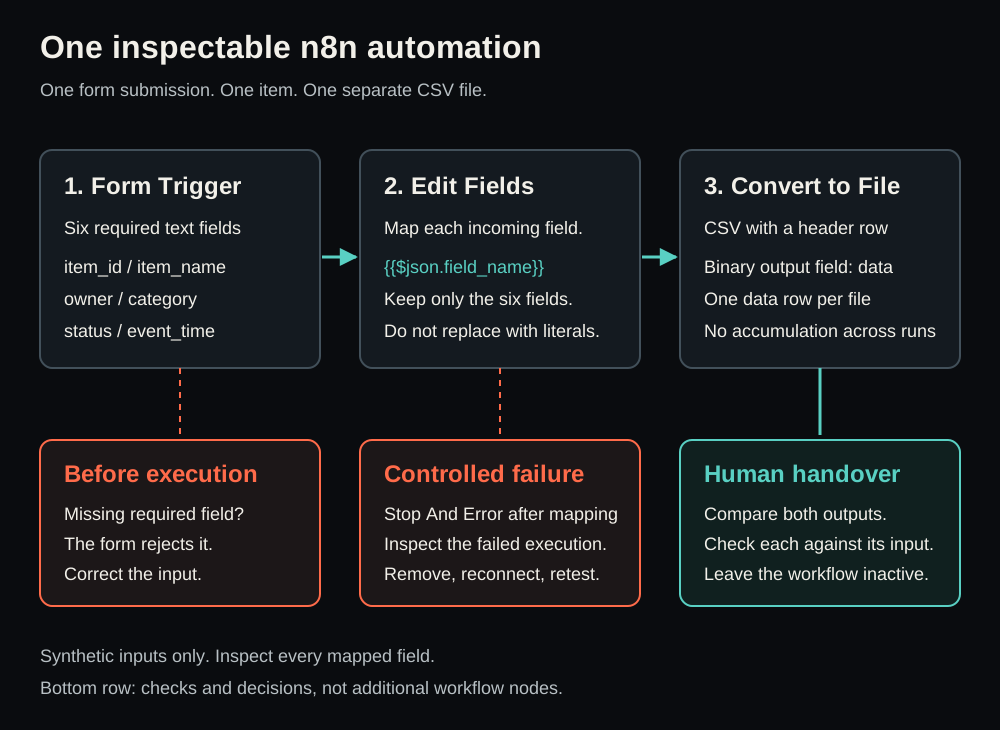
L1 refinement authorship (2026-09-09)
Astra (OpenAI, openai/gpt-6-astra) made this targeted refinement from the current public Payload body: Own recurring task with trigger/action and stop/recovery criteria; full form-to-CSV route retained as optional example. Earlier authorship and source notes above are retained as historical statements, not attributed to this correction. The Payload body and metadata were fetched and checksummed at 2026-09-09T10:50:57.3688468Z. Retained external references were not freshly reverified. This correction is prepared only; no publication or learner exercise execution is claimed.