A useful first automation saves someone a repeated transfer. A request arrives, six details need to reach a sheet, and a person would otherwise retype those details every time. By the end of this book you will understand how to build that small handoff in n8n, inspect the actual values it produces, hold an unsuitable record for a person, and stop the workflow safely.
Your working interface is the n8n workflow editor in a browser. You add connected nodes on a canvas, configure each node in its panel, and inspect a test execution to see what actually passed between them. You do not need an AI model or a spreadsheet account for the example. You need an approved n8n test workspace when you later practise.
Choose a recurring handoff from your own work if you already have one. A new permitted file might need a log entry, or a submitted request might need a draft acknowledgement. Your trigger and useful output remain valid; the supplied example is an optional complete route through the same capability.
Our worked route begins with the original three-node pipeline:
Form Trigger -> Edit Fields -> Convert to File (CSV)
It accepts one synthetic form submission, keeps six named values, and creates a separate one-row CSV for that execution. We then make that output useful to a recipient: a person checks and transfers its row into a small practice intake sheet. One improvement adds a status branch, so an unfamiliar status reaches a visible human-review result rather than the ready-to-copy CSV path.
Here, sample sheet means a small synthetic practice table for intake records. It is not a biological sample manifest or an instrument-ready file. The records concern an inventory note, a calibration log and a sample-rack note; they do not represent real people, samples or equipment. This is a bounded design slice of the app-workflow-automation example: a trigger, explicit mapping, a conditional handoff and a person who can take over. The catalogue concept is not evidence that an application was built or that these runs have happened.
Read this as preparation for later hands-on work, not as a timed class. The expected outputs below are predictions you can compare with your own execution. No n8n execution was performed during this revision.
Learning objectives
- Define a worthwhile recurring handoff by its trigger, permitted input, useful output and responsible person.
- Build and explain a small n8n path using a form trigger, field expressions and CSV conversion.
- Trace two distinguishable submissions through their node data into separate output files.
- Improve the sample-sheet handoff with a simple status branch and a visible human fallback.
- Distinguish form rejection, a review outcome, an execution failure and a completed run with wrong data.
- Restore an intentionally interrupted path, avoid duplicate handoffs and finish with the workflow inactive or unpublished.
Core concepts
Choose your recurring task
Name the repeated task, why it matters, the event that starts it, the permitted input, one action or output, and the person who owns stopping it. Decide what a correct result looks like before building. The form-to-CSV example is available when you want a complete synthetic starting point; your project does not have to be a form or a CSV.
For our example, imagine someone maintaining a practice intake sheet. The recurring work is moving an accepted request's six details into a row. The n8n output removes the need to retype those values. The recipient still decides whether to put the record in the sheet. The recipient's inspection is a real part of the handoff, not a claim that n8n has saved a row to a shared service.
The first version copies any complete six-field submission. The improved version applies one deliberately small rule: received and queued can reach CSV conversion; any other status needs clarification. Even those two statuses are only permitted text values for this exercise, not proof that the request itself should be accepted.
For your own handoff, use the same boundary sentence:
When [specific event] occurs, take [permitted inputs] and create
[one inspectable output] for [responsible recipient].
If [specific condition prevents the handoff], stop or hold it for
[responsible person], who can complete [manual fallback].
The workflow owner can stop it at [actual state control].
Keep your first version small: one trigger, the mapping needed, and one inspectable action in an approved test workspace. Use synthetic test values or explicitly permitted material. If your real task would send messages or alter production records, represent the intended result as a draft during practice. The example's manual sheet transfer is a way to finish a useful test handoff without connecting a live spreadsheet account.
What this tool is
n8n is a workflow automation tool. In its editor, a workflow is drawn as connected nodes on a canvas. A node is one configured step. Some nodes wait for or receive an event, some reshape information, and some create an output or contact another system. A connection tells n8n where the result of one node should go next.
Imagine a lab practising an equipment-intake process. A colleague completes a short request form. The record needs an identifier, the item's name, an owner, a category, a status, and the time of the event. The colleague enters those six values once. The initial workflow makes a portable text file from them. It is not finding a missing owner, choosing a status or confirming an event time. It is performing a predictable transfer.
| Workflow part | In the first version | Plain-English job |
|---|---|---|
| Trigger | Form Trigger | Wait for a submitted form and receive its values. |
| Item | One submitted record | Carry one set of named values through the workflow. |
| Mapping | Edit Fields | Make a clean six-field version of that record. |
| File action | Convert to File | Encode the clean record as CSV binary data. |
| Output | Binary field data | Hold the one-row CSV created by that execution. |
| Human handoff | Recipient's local practice sheet | Receive the inspected row through a deliberate manual transfer. |
An execution is one trip through the connected workflow. A form submission with SYN-201 starts one execution. A later submission with SYN-202 starts a second. The executions have similar structure but are not the same event. They may have the same configured output filename, yet the output data belongs to each execution separately.
A workflow is not automatically a database. Convert to File creates CSV content, but does not by itself preserve a growing table somewhere. Each run here produces a separate one-row file. There is no connection to a disk folder, cloud drive, spreadsheet or database that collects the results. The recipient's local practice sheet is a separate artifact that the person creates and updates. A later automated storage step would need an explicit destination and a separate decision about access, retention, ownership and recovery.
Why start with a form and a CSV?
Forms and CSV files are familiar enough that the automation itself remains visible. A form supplies named inputs. A CSV is plain text with a header row and data rows. Neither requires a hidden model or a connection to a real business system. The example teaches vocabulary that transfers to larger workflows: trigger, item, field, expression, literal, mapping, execution, output and error.
The form can reject missing required values before the downstream workflow begins. That is input validation at the edge of the process. It is not intelligence, and it is not complete validation of the values' meaning. A required text field does not establish that an owner exists, that whitespace is useful content, or that a submitted status belongs to an agreed list.
CSV is useful because you can read it without special software. A spreadsheet may open it in columns, but it is still text. CSV has values and rows, not strong concepts of dates, people, permissions or file history. The text 2026-09-07T09:15:00Z looks like a time to a human, but this workflow carries it as text. It does not validate a timestamp or convert a time zone.
The small system, end to end
The initial system has six steps:
- A test form asks for six required text fields.
- A complete submission becomes one incoming item in Form Trigger.
- Edit Fields reads the six incoming keys and writes six clean output keys.
- Convert to File turns the clean item into CSV content and places the binary result in
data. - You inspect the item and the file for that execution.
- You retain the first and second inspected files under different local names so their independence remains visible.
The original companion diagram shows this initial flow. It is an explanatory diagram, not a screenshot or evidence of a captured run. Its three-node path describes the foundation; the later status branch is shown separately in text.
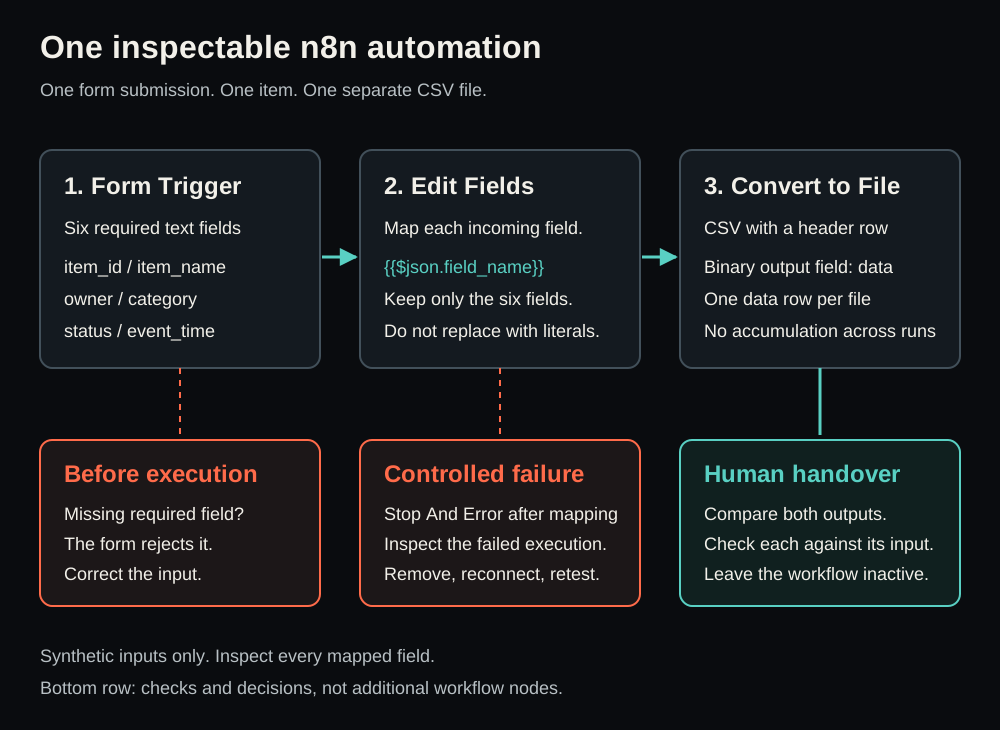
For the exercise, the nodes are arranged left to right. That is not an n8n requirement, but it makes the data path readable:
submitted form
       |
       v
Form Trigger -- item with six named inputs
       |
       v
Edit Fields -- item with six deliberately mapped outputs
       |
       v
Convert to File -- binary CSV in data
       |
       v
person inspects and copies the row into a local practice sheet
Each arrow represents a handoff. A value can only appear downstream if it was supplied upstream or deliberately created by a node. This is field lineage: the traceable origin and path of a field. If the CSV owner column is blank, trace owner backwards. Was it entered in the form? Did Form Trigger expose it under the expected name? Did the Edit Fields expression read that exact key? Did the final item contain it before conversion?
The last arrow is deliberately labelled as a person doing work. A CSV in execution output is not a row in the recipient's sheet. Knowing where the automation ends is part of owning it.
Nodes are instructions, not magic boxes
A node has a purpose and settings. Its purpose tells you what it can do; its settings tell it what to do for this workflow. Two workflows can both use Edit Fields while producing different results because their mapped names and expressions differ. When something is wrong, ask: “What input did this node receive, what setting did it apply, and what output did it send?”
A completed node is evidence that its configured instruction ran, not that the instruction was correct. A node configured to put yesterday's owner in every row may execute perfectly while creating a bad handoff. You need a value comparison as well as an execution status.
Items: one envelope of data
n8n processes data as items. Think of an item as one labelled envelope carrying a small JSON-like record. You do not need to learn programming to use that model. Notice the field names and values.
After the first form submission, the incoming data can be thought of as:
item_id: SYN-201
item_name: inventory note
owner: Mira Demo
category: lab
status: received
event_time: 2026-09-07T09:15:00Z
The actual execution view may include surrounding metadata or display values differently. Do not rely on undocumented extra keys. The six names above are the contract you configure in the form and map explicitly. Edit Fields is set to keep only those six output fields, so its result is an especially useful checkpoint.
One form submission means one item in this simple path. Its six fields are not six items. The improved path later sends that one item through one of two branches; it still does not combine submissions. Avoid saying “the workflow creates a CSV” without adding “for this execution.” Two form submissions do not automatically become two rows in one file.
Literals and expressions
The most important configuration choice in this workflow is whether a value is a literal or an expression.
A literal is fixed text you type into a setting. synthetic-request.csv is a suitable literal filename. Every run is meant to start with that workflow filename. The deliberate failure message is also a literal because you want the same recognisable message in the controlled test.
An expression reads or calculates a value from available data. In Edit Fields, {{$json.owner}} means: use the owner value from the current item's JSON data. The expression is not the text that should appear in the file. It is an instruction for obtaining the text at run time.
| Setting | Correct kind here | Reason |
|---|---|---|
Output field name owner | Literal name | It defines the outgoing column name. |
Value {{$json.owner}} | Expression | It copies the current submission's owner. |
Filename synthetic-request.csv | Literal text | The configured filename is intentionally stable. |
Mira Demo in a form | Submitted input | It varies by execution. |
| Failure message | Literal text | It identifies the planned failure unambiguously. |
If you type Mira Demo into the Edit Fields value box as ordinary fixed text, the workflow puts Mira Demo into every output, including a submission from Rowan Demo. The output can still look tidy. Comparing two independent records exposes that error.
The outgoing name, such as status, is intentionally literal because it defines the stable output key. The outgoing value must be an expression because it varies with input. Making both parts expressions would not improve the mapping; making both parts literals would freeze the value.
A mapping is a deliberate translation
Mapping does not have to rename fields, but it always makes a choice about what crosses a boundary. Here the incoming and outgoing names are deliberately the same. That reduces cognitive load and lets you focus on the mechanism. The mapping still matters because it states explicitly which incoming value becomes which outgoing value.
| Incoming key | Edit Fields output | Meaning of the mapping |
|---|---|---|
item_id | item_id | Copy the item's synthetic identifier. |
item_name | item_name | Copy its short descriptive name. |
owner | owner | Copy the supplied owner text. |
category | category | Copy the supplied category text. |
status | status | Copy the supplied status text. |
event_time | event_time | Copy the submitted timestamp text without interpreting it. |
In a larger workflow you might map contact-name to requester_name, or join values into a display string. That introduces decisions which need their own tests. This mapping makes no transformations. It copies values and removes unrelated fields. The later branch reads the mapped status but does not silently rewrite it.
Meet the interface
Use an approved n8n test workspace in its ordinary browser interface. Versions and workspace policies can change labels, panel locations, saved-execution behaviour and download controls. The documentation consulted for this revision describes the capabilities below; the actual interface in your workspace remains to be observed.
The main working area is the workflow canvas, where you add nodes and connect their output and input handles. Selecting a node opens its configuration panel, where you choose an operation and enter settings. A workflow name and save control may appear in a header. Current documentation describes publishing a workflow for production use; some versions use an active/inactive control. Leave this new workflow unpublished or inactive.
| Interface region | What you use it for | What to look for |
|---|---|---|
| Workflow canvas | Arrange and connect nodes. | Initially three nodes in one left-to-right line. |
| Node picker | Add a node by type. | Form Trigger, Edit Fields, Convert to File, Stop And Error, and later If. |
| Node configuration | Define fields, mappings, comparisons or conversion options. | Field names, expression controls and output settings. |
| Test execution controls | Start a temporary waiting form test. | Execute Workflow for the whole connected path. |
| Execution inspection | Examine what each node received and produced. | Current run data, branch output, failure state and binary data where permitted. |
| Workflow state control | Keep the draft from running outside the test. | A visible inactive or unpublished state. |
Screenshot placeholder SC-01: n8n workflow canvas with three connected nodes Intended view: Form Trigger, Edit Fields and Convert to File connected from left to right. Proposed caption: One form submission moves through explicit mapping before a CSV file is created. Reference: https://docs.n8n.io/integrations/builtin/core-nodes/n8n-nodes-base.formtrigger/ (opens in a new tab) Capture status: not captured; placeholder only.
Do not confuse the canvas with an execution. The canvas is the saved or unsaved definition of what should happen. An execution is one actual attempt to follow that definition. You edit the canvas before a test; you inspect an execution after or while it runs. If a value is wrong, edit the workflow definition and start a new execution. Do not fix the downloaded CSV by hand to hide broken mapping.
Orientation before action
When you open a new blank workflow, identify its state. A draft can be saved without being published or active. Saving retains the definition. Publishing or activating permits production trigger behaviour. Those are separate concepts. This lesson asks for a saved test definition and an off state outside manual testing.
Form Trigger is where the input contract is made. Current documentation distinguishes Field Label, which a person sees, from Field Name, which becomes the key in node output. The expressions depend on the output key. Set both label and name to the exact lowercase names in the recipe so the first form is easy to compare with its data. If an older version offers different controls, inspect the emitted keys rather than assuming a friendly label becomes the intended key.
Edit Fields may be documented as the Set node. Its Manual Mapping mode lets you define outgoing names and values. Use the value's Fixed / Expression control to select expression mode before entering {{$json.item_id}} and the other expressions. If the output contains the braces as ordinary text, the value was not evaluated as intended.
The Edit Fields documentation calls the narrowing option Keep Only Set Fields and also describes Include in Output. Depending on the node version, the interface may instead expose input-inclusion controls. Choose the setting that excludes all unconfigured input fields: enable Keep Only Set Fields where available, or disable inclusion of other input fields. The observable contract is always the same: exactly the six fields you set, without extra trigger metadata.
Convert to File is the boundary between structured item data and a file-like binary output. Convert to CSV selects the format. Put Output File in Field names the binary property; use data. Its CSV options include Header Row and File Name. The execution interface may offer inspection or download of the result, but creating binary output is not itself a save to a shared folder.
Screenshot placeholder SC-02: Form Trigger configuration with six required synthetic fields and a Test URL Intended view: field labels and names, required-field settings, and Test URL distinct from Production URL. Proposed caption: The form asks for six required values; its acknowledgement alone does not prove a CSV was created. Reference: https://docs.n8n.io/integrations/builtin/core-nodes/n8n-nodes-base.formtrigger/ (opens in a new tab) Capture status: not captured; placeholder only.
Test URL, acknowledgement and workflow state
Form Trigger provides a Test URL for building and manual tests. The official documentation distinguishes two actions: Execute Step runs the trigger node when the form is submitted, while Execute Workflow runs the connected workflow. Use Execute Workflow here. A successful trigger-only test cannot establish that Edit Fields or Convert to File worked.
n8n may open the test form when you start execution. If it does not, open the displayed Test URL in another browser tab while the test is waiting. Do not switch to the Production URL to solve a test problem, and do not publish the workflow for this lesson.
The Respond When setting is also important. We use Form Is Submitted, which acknowledges receipt as soon as the form is submitted. That response does not wait for CSV creation and does not prove the recipient received a row. The documentation also describes Workflow Finishes, which waits for completion and can report a workflow error. That is a different acknowledgement policy. In this exercise, the editor's current execution and the inspected output establish what happened downstream.
Do not share the Test URL outside the approved workspace or treat an obscure URL as access control. A form can receive whatever a person types into it. Use synthetic input and the workspace owner's approved authentication settings. A required-field check is a useful guard for ordinary form use, not a complete security boundary for a public service.
Install and connect
This book does not prescribe local installation, Docker setup, a cloud account, a spreadsheet connection or external-service credentials. You need an approved n8n test workspace in a browser. The learning task is the same once you reach an authorised editor: build and manually test a small workflow that remains off outside the test.
If your course or organisation uses AI Lab as its availability and local-setup starting point, begin at https://ai.32dots.de/ (opens in a new tab). The portal can change, so this book does not reproduce its catalogue or installation clicks. A portal in a browser, a locally installed application and an n8n workspace are different things. A portal listing alone does not establish access to n8n.
Ask the responsible instructor or workspace owner for the intended route if you do not already have access. They can tell you whether it is local or cloud-hosted, how you authenticate, whether you may create a workflow, and whether manual execution data and binary downloads are retained. Do not solve missing access by installing unapproved software or sending real records to another service.
| Before creating a workflow | Why it matters | Safe response if unavailable |
|---|---|---|
| Approved test workspace | The exercise is non-production. | Ask for the intended test route. |
| Permission to create a blank workflow | Shared workflows may have other owners. | Ask rather than altering someone else's workflow. |
| Visible inactive or unpublished state | The form should not run as an unattended production trigger. | Ask the owner if state is unclear. |
| Current execution inspection | Lineage must be inspectable. | Resolve access before claiming an output. |
| Permitted binary inspection and retention | The recipient needs the actual generated CSV. | Ask which approved route permits it. |
The data-processing nodes in this exercise do not need email, spreadsheet, cloud-drive or API credentials. Form Trigger itself supports authentication choices, and an approved workspace may require one. If a credential prompt appears, identify whether it belongs to approved form access or to an accidentally selected external-service node. Do not weaken workspace authentication or paste a secret into an expression to bypass it.
A local instance and a provider-hosted workspace can differ in URL reachability, data retention and permissions. Their hosting labels alone do not establish who can inspect executions. Use the approved URL and account, and keep all form values synthetic. If the workspace attaches real signed-in user metadata to a trigger, the six-field mapping removes it from the output file, not necessarily from execution history. Follow the owner's access and retention rules.
Runnable exercise
Prepare the useful handoff
The outcome is an inspectable record the recipient can use. First you will produce two separate CSVs. Then you will recover from an intentional failure, add the status review branch, and use the accepted outputs to make a small local sample sheet. The person transferring rows remains responsible for the final sheet and for avoiding duplicates.
In your file manager, create a new permitted local folder named T05-L01-sample-handoff. Keep the outputs and a short handoff note there if workspace policy permits downloads. Do not replace an existing operational sheet. In a plain-text editor, create a new file in that folder named sample-intake-sheet.csv with only this header:
item_id,item_name,owner,category,status,event_time
The header is supplied setup data, not execution evidence. You will add actual inspected output rows later. Starting with an empty receiving sheet makes it clear which entries you have transferred. A plain-text editor is enough for these simple synthetic rows. A spreadsheet app may be used to view the final file, but no spreadsheet account or n8n spreadsheet node is involved.
In the n8n browser app, create a new blank workflow and name it T05-L01 synthetic request CSV. Do not rename, replace or repurpose an existing workflow. If you were given a shared instructor draft, follow its owner's instructions before changing it.
Build the form
Add a Form Trigger node. In Form Elements, use Add Form Element to create six fields. For each, set Field Label and Field Name to the name below, choose Text as the Element Type and turn on Required Field.
item_id
item_name
owner
category
status
event_time
Exact names matter because expressions read those keys. Uppercase letters, spaces and hyphens are not interchangeable with the names above.
| Field | What the synthetic example uses it for | Why it remains text |
|---|---|---|
item_id | An identifier such as SYN-201. | The workflow copies an identifier; it does not generate one. |
item_name | A short item description. | It is ordinary submitted text. |
owner | A synthetic name such as Mira Demo. | Required prevents an ordinary empty-field submission, not a false name. |
category | A grouping such as lab. | The workflow does not validate a category list. |
status | A word such as received. | Initially copied; later compared with two explicit allowed values. |
event_time | Timestamp-shaped text. | It is copied, not parsed or converted. |
Set Respond When to Form Is Submitted. Keep the approved authentication configuration. Locate the Test URL, but complete the connected path before starting the full test. The expected acknowledgement is receipt of the form; downstream success will be checked in the editor.
Build the mapping and file action
Add Edit Fields to the right of Form Trigger and connect the Form Trigger output to it. Choose Manual Mapping. Create six output fields using the same names, with each value type set to String. Keep each output name fixed, but use expression mode for each value:
| Output field | Expression | Lineage statement |
|---|---|---|
item_id | {{$json.item_id}} | The output identifier comes from the current input identifier. |
item_name | {{$json.item_name}} | The output name comes from the current input name. |
owner | {{$json.owner}} | The output owner comes from the current input owner. |
category | {{$json.category}} | The output category comes from the current input category. |
status | {{$json.status}} | The output status comes from the current input status. |
event_time | {{$json.event_time}} | The output time text comes from the current input time text. |
Enable Keep Only Set Fields, or use your node version's output-inclusion controls to exclude all other input fields. This makes the output narrow and inspectable. It does not make the values accurate by itself. The target is exactly six mapped fields and no unrelated trigger metadata.
Add Convert to File to the right and connect Edit Fields to it. Configure:
| Setting | Value | Why |
|---|---|---|
| Operation | Convert to CSV | Create a comma-separated text table. |
| Put Output File in Field | data | Name the binary property containing the converted file. |
| Options: Header Row | enabled | Make the column names visible. |
| Options: File Name | synthetic-request.csv | Give each execution's output a recognisable filename. |
Screenshot placeholder SC-03: Edit Fields mappings and Convert to File CSV settings Intended view: six expressions, exclusion of other input fields, binary output field
dataand the filename setting. Proposed caption: Each outgoing column has a visible origin in the submitted form; sample values are not hard-coded. References: https://docs.n8n.io/integrations/builtin/core-nodes/n8n-nodes-base.set/ (opens in a new tab) and https://docs.n8n.io/integrations/builtin/core-nodes/n8n-nodes-base.converttofile/ (opens in a new tab) Capture status: not captured; placeholder only.
Your canvas should now read:
Form Trigger -> Edit Fields -> Convert to File
Save the draft if your workspace provides a save control, but leave it inactive or unpublished. Saving preserves the definition; it does not establish that the workflow has been tested.
Read the expected result before running it
For Record 1, enter the following values when you start the test:
| Form field | Record 1 value |
|---|---|
item_id | SYN-201 |
item_name | inventory note |
owner | Mira Demo |
category | lab |
status | received |
event_time | 2026-09-07T09:15:00Z |
Form Trigger should emit an item containing these named values. Edit Fields should emit exactly these six values under exactly these six names. Convert to File should create binary data with CSV content logically equivalent to:
item_id,item_name,owner,category,status,event_time
SYN-201,inventory note,Mira Demo,lab,received,2026-09-07T09:15:00Z
The first line is the header; the second is one data row. There should not be another record because only one item passed through this execution. There should not be an invented creation date or extra trigger metadata because Edit Fields retains only the mapped fields. Line endings or valid CSV quoting may differ without changing the logical cells; compare values under their actual headers.
Step 1: inspect the configuration as a contract
Before Run 1, inspect the canvas. If only Form Trigger exists, a test can show that a form submitted but not that mapping or conversion worked. If Edit Fields contains fixed example text, a run can reach the end while proving the wrong thing.
| Question | Correct answer for the initial workflow |
|---|---|
| What starts it? | A completed submission to the Test URL while a full-workflow test is waiting. |
| How many required input keys exist? | Six, with the exact names above. |
| What does Edit Fields retain? | Only its six explicitly mapped output fields. |
| Do mappings read current data? | Yes: each value is an expression reading $json. |
| What is the final automated output? | CSV binary data in data, with a header row. |
| Has a row been saved in the receiving sheet? | No: the recipient has not transferred one yet. |
| Is the workflow published or active? | No. |
This is a small change review: compare the intended data path with the configured path before asking it to run. Later, the same habit catches an output sent to the wrong system or a transformation that is no longer appropriate.
Step 2: Run 1, from submission to file
In the n8n browser editor, select Execute Workflow for the connected path. The trigger should wait for a submission and may open the form. If needed, open its Test URL in a separate browser tab, keeping the editor available. Enter Record 1 exactly as shown and submit it.
A complete form should permit submission. The waiting execution should proceed through all three nodes. This is the first point at which an observed result belongs to your workspace rather than to this written example. The form's acknowledgement is not enough; return to the editor.
Inspect Edit Fields for the current execution. Its result should contain exactly:
item_id: SYN-201
item_name: inventory note
owner: Mira Demo
category: lab
status: received
event_time: 2026-09-07T09:15:00Z
This checkpoint separates two questions: did the form provide the intended input, and did the mapping produce the intended clean record? If the final CSV is wrong, this tells you whether to look left at input and mapping or right at conversion.
Then inspect Convert to File. Its result should expose binary output in data. Use your workspace's permitted inspection or download control. Do not assume a particular icon or label from another version.
Compare the actual headers and their values. The mapped-field order is the expected order, but the output is the authority. It should have one data row matching Record 1. Where downloads are permitted, save the inspected result in your new local folder as synthetic-request-run-1.csv. The workflow may name it synthetic-request.csv; the distinct local name prevents Run 2 from overwriting the first artifact.
If your workspace offers no permitted binary inspection or download, do not create a substitute by copying the expected CSV from this book. The file-handoff exercise is blocked at that step. Ask the workspace owner for the approved route. A copied expected result proves only that you can copy text.
Step 3: compare every Record 1 value
| CSV column | Expected value | Why it is correct |
|---|---|---|
item_id | SYN-201 | Form Trigger received it under item_id; mapping read {{$json.item_id}}. |
item_name | inventory note | The submitted name was read by {{$json.item_name}}. |
owner | Mira Demo | The submitted owner was read by {{$json.owner}}, not supplied as a constant. |
category | lab | The submitted category was read by {{$json.category}}. |
status | received | The submitted status was read by {{$json.status}}. |
event_time | 2026-09-07T09:15:00Z | Timestamp-shaped text was copied by {{$json.event_time}}. |
If a result differs, do not edit the output file. In the browser editor, check the outgoing name, the expression mode and the exact incoming key. Correct the configuration and start a new execution. The old result records the configuration that existed at that time; it does not change because you fixed the canvas.
Step 4: Run 2 proves independence
Keep Run 1's inspected output separate. Start a new Execute Workflow test and submit a genuinely different record:
| Form field | Record 2 value |
|---|---|
item_id | SYN-202 |
item_name | calibration log |
owner | Rowan Demo |
category | equipment |
status | queued |
event_time | 2026-09-07T10:30:00Z |
Inspect Edit Fields for this execution. It should show Record 2, not Record 1. Then inspect binary data and, where permitted, save it as synthetic-request-run-2.csv. The expected content is:
item_id,item_name,owner,category,status,event_time
SYN-202,calibration log,Rowan Demo,equipment,queued,2026-09-07T10:30:00Z
| Field | Run 1 | Run 2 | What the difference demonstrates |
|---|---|---|---|
item_id | SYN-201 | SYN-202 | The current submission supplies the identifier. |
item_name | inventory note | calibration log | The expression follows changed input. |
owner | Mira Demo | Rowan Demo | The owner is not frozen to the first sample. |
category | lab | equipment | Different submitted grouping text survives mapping. |
status | received | queued | The mapping copies status; it does not decide it. |
event_time | 09:15:00Z ending | 10:30:00Z ending | The later text is independent of the earlier run. |
Both files have one data row. They are not two views of an accumulating CSV. The shared configured filename labels each run's result; it does not merge their contents. The distinct local names make your inspected artifacts distinguishable outside n8n.
An expression and a literal can produce the same visible value in one run. If Record 1 says received, both {{$json.status}} and the constant received yield the expected first output. Record 2's queued makes the competing explanations diverge. That is why a purposeful contrast is stronger evidence than repeating the same attractive sample.
Step 5: understand the CSV you will hand over
CSV means comma-separated values. Headers name columns; each following logical row contains values in that order. It is portable and readable, but it does not enforce a schema or preserve execution provenance, permissions or history.
| CSV strength | Corresponding limit |
|---|---|
| You can open it as text. | You can misread a value by assuming a type that is not encoded. |
| Headers make columns visible. | They do not guarantee that every row is valid. |
| Many applications support it. | Applications can interpret the same text differently. |
| One row can be compared with one submission. | The file does not prove who approved the handoff. |
Commas, quotation marks and line breaks inside values need CSV escaping. The required records avoid those complications so initial inspection can focus on mapping. The original punctuation example is still useful to read. Imagine another synthetic record whose item_name is sensor, portable and whose owner is Casey "CJ" Demo. A valid representation is:
item_id,item_name,owner,category,status,event_time
SYN-203,"sensor, portable","Casey ""CJ"" Demo",lab,received,2026-09-07T11:00:00Z
The comma inside "sensor, portable" is data, not a column separator. The doubled quotation marks in "Casey ""CJ"" Demo" represent the quotation marks inside the owner value. They are encoding, not evidence that Edit Fields duplicated the name. This is an explanatory example, not a required extra submission or an observed run.
A quoted cell can also contain a line break. A single logical CSV row can then occupy multiple physical lines, so counting text lines is not a general row-counting method. Use a CSV-aware reader for more complex input. For our simple required rows, one header line and one data line are easy to inspect.
Opening a CSV in a spreadsheet may hide delimiters and apply date or number formats. Compare parsed cells and the original text when meaning could change. For other, untrusted inputs, spreadsheet formula interpretation is another boundary: values beginning with formula syntax may be treated as instructions by a receiving application. The supplied records avoid that issue; do not assume this copying workflow sanitises arbitrary future submissions.
The six values also do not prove that a request is true. received is submitted text. event_time resembles a UTC timestamp. A real intake process might validate allowed values, record server time or retain an audit trail. The next improvement adds just one explicit status rule, leaving those other meanings with the person responsible for the handoff.
Step 6: reject a missing field before execution
Start another full-workflow test. In the form, deliberately leave owner blank and attempt submission.
The anticipated result is a form-level rejection. The incomplete attempt should not supply an item to Edit Fields or Convert to File. Observe the required-field prompt and the absence of a downstream result for that attempt. Complete the missing value with synthetic text or discard the form; stop any waiting test you no longer need.
This is useful evidence, but it is not a failed n8n execution at Stop And Error. The ordinary form boundary prevented the incomplete submission from reaching the processing path. Correcting the input is the right recovery; reconnecting nodes is not.
Do not infer that every invalid input is now handled. Required text fields do not check timestamp meaning or approved statuses. They do not find a responsible person when an arbitrary owner string is entered. Inspect what the guard actually rejects rather than describing it as general validation.
Step 7: create one genuine failed run safely
After the two successful comparisons, temporarily replace the final connection with Stop And Error. This gives you a real execution failure in a controlled path. It should not contact another service or change external records.
- In the browser canvas, disconnect Edit Fields -> Convert to File. Keep Convert to File on the canvas, disconnected.
- Add Stop And Error after Edit Fields.
- Connect Edit Fields -> Stop And Error only. Treat it as terminal; do not add an onward connection.
- Set Error Type to Error Message and enter this literal message:
Intentional synthetic failure - T05-L01 test only
- Start a new Execute Workflow test and submit a complete synthetic record. Reusing Record 2 is fine: this run demonstrates controlled failure, not a third independent mapping result.
The anticipated execution reaches Edit Fields, then fails at Stop And Error with that message. Convert to File should not run because it is disconnected. There should be no new CSV from this execution. Inspect the current failure state and message, not an old binary result still visible from a prior test.
Screenshot placeholder SC-04: current execution stopped at Stop And Error Intended view: the deliberate error message and evidence that Convert to File did not run in this execution. Proposed caption: A controlled workflow failure is different from the form refusing an incomplete submission. Reference: https://docs.n8n.io/integrations/builtin/core-nodes/n8n-nodes-base.stopanderror/ (opens in a new tab) Capture status: not captured; placeholder only.
This test uses synthetic input and an explicit terminal error. In a real workflow, a failed run can already have caused side effects in earlier nodes. Before retrying, identify what those nodes could change. Failure does not imply rollback. Also follow workspace rules for any configured error workflow: an intentional error may be visible to operators. Use a test draft whose error handling is approved for the exercise.
Step 8: recover the original path
Recovery means restoring a known intended definition and observing a new run, not merely making red indicators disappear. Remove the temporary Stop And Error node. Reconnect Edit Fields -> Convert to File. Inspect the mappings again:
item_id     {{$json.item_id}}
item_name   {{$json.item_name}}
owner       {{$json.owner}}
category    {{$json.category}}
status      {{$json.status}}
event_time  {{$json.event_time}}
Confirm that other input fields remain excluded and conversion still uses CSV, Header Row, binary output data and filename synthetic-request.csv.
Start a fresh full-workflow test and submit Record 1 again. Inspect the current mapped item and actual CSV. The anticipated result matches the original one-row Record 1 CSV. If you retain this recovery artifact, use synthetic-request-recovery.csv; do not overwrite Run 1 or count the recovery as a new intake request.
The reusable recovery pattern is:
- Identify where the execution stopped.
- State which configuration changed.
- Restore the intended connection or setting.
- Inspect inputs and outputs nearest the changed point.
- Run a new controlled test.
- Return to the required operating state.
This is more careful than clicking Retry. Even here, where n8n only creates a file result, a person could copy the same logical request into the receiving sheet twice. The request ID identifies the handoff; the execution identifies the attempt. A new execution is not automatically a new request.
Step 9: improve the same handoff with a status branch
The initial version is useful, but it has a concrete weakness: any nonempty status can become a ready-to-copy CSV. A recipient scanning several files might mistake needs-clarification for an accepted intake state. Improve that same handoff by separating routine records from records a person needs to resolve.
The rule for this synthetic exercise is exact and small:
status equals received OR status equals queued
    -> create the six-column CSV for human inspection
otherwise
    -> preserve the record in a visible review result; create no CSV
This is a deterministic comparison, not AI judgement. The workflow will not guess which allowed status an unfamiliar value was meant to represent. Received, queued with a trailing space, and needs-clarification should not be silently normalised into accepted values in this exercise.
In the browser canvas, keep the same inactive draft and make these changes:
- Disconnect Edit Fields -> Convert to File again, preserving both nodes and their settings.
- Add an If node between them and name it
Status allowed?. - Connect Edit Fields -> Status allowed?.
- In the If node's Conditions, select the String > is equal to comparison. Set its first value to expression
{{$json.status}}and its second value to fixed textreceived. - Choose Add condition. Add a second String > is equal to comparison with expression
{{$json.status}}and fixed textqueued. - Select OR between the conditions. Leave case-insensitive comparison off if your version offers it; the rule uses the exact lowercase strings. Do not add trimming or conversion expressions.
- Connect the If node's true output to the existing Convert to File node.
- Add another Edit Fields node named
Needs human reviewand connect the If node's false output to it.
In Needs human review, use Manual Mapping, String values and only the fields set below. The six expression mappings preserve the original record. The two additional fixed fields explain what the person should do.
| Output field | Value | Mode |
|---|---|---|
item_id | {{$json.item_id}} | Expression |
item_name | {{$json.item_name}} | Expression |
owner | {{$json.owner}} | Expression |
category | {{$json.category}} | Expression |
status | {{$json.status}} | Expression |
event_time | {{$json.event_time}} | Expression |
handoff | hold for correction | Fixed |
review_reason | Status must be received or queued; ask the responsible person before copying a row. | Fixed |
Do not connect Needs human review to Convert to File or add a Merge node. The two outcomes should remain visibly separate:
Form Trigger -> Edit Fields -> Status allowed?
                                  |
                     +------------+------------+
                     | true                    | false
                     v                         v
              Convert to File          Needs human review
              six-column CSV           original six values
                     |                 + reason and hold label
                     v                         |
             person inspects                   v
             then copies row           person resolves the input
             into sample sheet         before any sheet transfer
The review node creates an item in the current execution. It does not send a notification, assign a task to another person or persist a review queue. During this manual test, you or the named instructor are the watching recipient. If no person can inspect that output while it is available, the fallback is not operational: leave the workflow off and report the gap.
The new branch does not change the six-field mapping, accepted CSV format or recipient's authority. Its useful improvement is that an unresolved status no longer looks like an ordinary ready-to-copy file.
Step 10: see both branch outcomes on real test inputs
First start a new full-workflow test with Record 1. Inspect the If input and true output. Convert to File should produce the same six-column SYN-201 row; Needs human review should not run for that item. Retain the current output as synthetic-request-accepted-201.csv if permitted.
Repeat with Record 2 in another fresh full-workflow test. Its queued status should also reach true and produce its original six-column row. Retain it as synthetic-request-accepted-202.csv. This second accepted case matters: selecting AND instead of OR would require a status to equal both different strings at once, sending both records to review.
Now submit the new synthetic Record 3 in another fresh test:
| Form field | Record 3 value before clarification |
|---|---|
item_id | SYN-204 |
item_name | sample rack note |
owner | Casey Demo |
category | lab |
status | needs-clarification |
event_time | 2026-09-07T11:30:00Z |
The form is complete, so the required-field guard should let it enter. Edit Fields should still emit six values. The status matches neither condition, so the If node should send the item through false. The anticipated Needs human review output is:
{
  "item_id": "SYN-204",
  "item_name": "sample rack note",
  "owner": "Casey Demo",
  "category": "lab",
  "status": "needs-clarification",
  "event_time": "2026-09-07T11:30:00Z",
  "handoff": "hold for correction",
  "review_reason": "Status must be received or queued; ask the responsible person before copying a row."
}
Convert to File should not run for this item, and there should be no new CSV from that execution. The execution may complete successfully: the review outcome is intentional normal routing, not a technical failure. Keep the original six values and the reason together in your handoff note if retention is permitted. Do not replace an actual observation with the JSON prediction above.
For the optional worked continuation, play the responsible person's role using this synthetic clarification: “For SYN-204, the intended status is queued; the other five fields remain unchanged.” This supplied statement defines a practice correction. It is not a real approval and the workflow did not infer it.
Start a new full-workflow test. Submit Record 3 again with only status changed to queued. Keep item_id as SYN-204 because this is a corrected attempt for the same request, not a newly invented request. The anticipated true-branch CSV is:
item_id,item_name,owner,category,status,event_time
SYN-204,sample rack note,Casey Demo,lab,queued,2026-09-07T11:30:00Z
Inspect all six values and retain the actual file as synthetic-request-accepted-204.csv where permitted. Record that the earlier attempt was held and that a person supplied the corrected status. Do not edit the review execution's output to make it look as if the original submission was accepted.
Step 11: complete the sample-sheet handoff
Return to your local folder and open sample-intake-sheet.csv in the plain-text editor. This is the receiving artifact you created, not an n8n node output. Use the three actual inspected accepted files from the improved workflow.
For each file, compare its header names and order with the receiving header. With the supplied simple records and matching order, copy just the single data row, not another header. Before adding it, search the receiving sheet for its exact item_id. The expected policy is one row per request ID. Do not add the same ID twice just because a test or recovery produced another execution.
After adding the accepted SYN-201, SYN-202 and clarified SYN-204 rows, the expected receiving sheet is:
item_id,item_name,owner,category,status,event_time
SYN-201,inventory note,Mira Demo,lab,received,2026-09-07T09:15:00Z
SYN-202,calibration log,Rowan Demo,equipment,queued,2026-09-07T10:30:00Z
SYN-204,sample rack note,Casey Demo,lab,queued,2026-09-07T11:30:00Z
This block is a reference result, not a replacement for opening the generated files. Your artifact establishes a handoff only if you transferred and compared actual inspected output. It should contain one header, six columns and three distinct request IDs. The held needs-clarification attempt contributes no row. The earlier failure and recovery attempts contribute no extra requests. SYN-203 was an escaping illustration, not an intake record for this sheet.
The recipient can now use the sheet to see which three practice records need attention and which synthetic owner belongs to each. That is the connected useful result: the six details survived the trigger and mapping, the unresolved record was held, a person clarified it, and the recipient has a small usable table. The table was assembled manually from per-execution files; n8n did not append to it.
If an ID already exists with exactly the same six values, do not append it again. Note that this attempt repeated an already-transferred request. If the same ID exists with different values, stop and compare the source attempts with the responsible person. Do not silently overwrite a row or invent a new ID to hide the conflict. This small human rule gives the exercise a clear duplicate boundary without pretending the workflow has automated deduplication.
If you use a spreadsheet app to view the result, open this new local file rather than importing into a live shared workbook. Confirm that the timestamp text and identifiers were not reformatted unexpectedly. Keep the original generated CSVs intact so the receiving sheet can be compared with its sources.
Step 12: use a human fallback honestly
There are two different reasons a person might take over. A review result means the workflow ran and deliberately held the record. An unavailable editor, missing download permission or failed node means the automation could not deliver the promised artifact. Neither is permission to guess missing data.
For a held record, the person reads the six source values and the reason, asks for the needed clarification, and submits the corrected input through a fresh test when possible. That is what happened in the designed SYN-204 continuation. Until clarification exists, leave the receiving sheet without that row.
If the automation itself is unavailable, the responsible recipient can perform the original task manually: take the permitted source request, confirm the six values and allowed status, check whether its ID is already in the sheet, then enter one row. Describe its provenance in the handoff note as manual transfer from the source request, with the reason automation was unavailable. It can be a useful completed human handoff, but it is not evidence that an n8n CSV was generated.
If the source request is unavailable or ambiguous, hold it for the person who can supply it. Do not reconstruct it from an old execution, a filename or a sample in this book. When the automation becomes available again, compare the sheet before replaying the request: an earlier manual transfer may already have completed the work.
For practice you do not need to break workspace access to demonstrate this fallback. Explain it using the intentional Stop And Error case: no new CSV was produced, the known synthetic source remained available, and a person could have completed a clearly labelled manual transfer. The successful exercise still needs actual n8n output inspection; a fallback explains how work continues without manufacturing automation evidence.
Step 13: find the off switch and hand over clearly
The final definition is the improved path: Form Trigger, six-field Edit Fields, If with true to Convert to File and false to Needs human review. The temporary Stop And Error node has been removed. The original direct three-node route was restored and inspected before the improvement; the saved final draft intentionally includes the status branch.
Stop or cancel any waiting manual test, close the test form and confirm the workflow is inactive or unpublished in the editor. Closing the browser alone does not change workflow state, and an inactive production trigger does not necessarily mean a temporary manual test has stopped waiting. Save the intended draft if permitted. Do not publish it to make the handover feel complete.
In your local folder, create a short new note named handoff-note.md. Use the following prompts to record your own observations; leave unavailable evidence explicitly unknown rather than copying predictions into the blanks:
Workflow name and workspace:
Trigger and permitted input:
Responsible recipient and workflow owner:
Accepted output and manual receiving-sheet location:
Observed Run 1 / Run 2 execution references and retained files:
Observed blank-field rejection:
Observed intentional error message and fresh recovery result:
Observed true-branch received / queued cases:
Observed SYN-204 hold, human clarification and corrected attempt:
Receiving sheet request IDs and duplicate decision:
Manual fallback and how its provenance is recorded:
Final definition, off-control location and observed state:
Waiting manual test stopped:
Unobserved or blocked steps:
An execution reference can be an ID exposed by your workspace or another permitted way to distinguish the current attempts. History may not be retained, so record evidence while it is available under local policy. Do not invent identifiers or save sensitive URLs and credentials in the note.
Before enabling any workflow for real use, someone needs to know what starts it, which information enters, what output or external change it can make, who owns it, where to stop it and how to recover safely. In this exercise those responsibilities stay small and visible. If this is a shared draft, ask before deleting it or changing its ownership; leaving it off and deleting it are different actions.
Apply the result to your own handoff
For a learner-chosen trigger and output, keep the same reasoning rather than forcing your project into these six fields. Show two distinguishable inputs reaching the intended artifact, identify where unsuitable input stops or reaches a person, recover from one harmless test failure and name the manual fallback. A branch is useful when your task has two meaningfully different outcomes; do not invent an irrelevant status policy simply to reproduce this canvas.
Compare the actual trigger, mapped values, output, failure point, recovery and off state with your own contract. If your output is a draft message, inspect its contents and recipient placeholder. If it is a permitted file log, inspect the file identity and log entry. Keep real side effects out of the practice path, and state which parts remain human work. Your own usable handoff is the goal; the sample sheet is one route to it.
Solve common problems
Diagnose from the nearest visible evidence rather than guessing. In the foundation, Edit Fields is usually the best middle checkpoint. In the improved version, inspect the same mapped item and then the If output for that execution.
| Symptom | Likely cause or distinction | What to inspect | Safe recovery |
|---|---|---|---|
| The test form will not submit. | A required field is empty. | The field prompt and attempted values. | Complete the synthetic input; do not call this a Stop And Error execution. |
| Only Form Trigger runs. | Execute Step may have tested only the trigger. | Which execution action you selected. | Use Execute Workflow for the complete connected path. |
| The workflow waits after a submission. | Wrong URL, test no longer waiting or workspace behaviour differs. | Current test state and Test URL. | Start a fresh full-workflow test; ask the owner if access remains unavailable. |
| The form said submitted, but no CSV exists. | Acknowledgement was immediate; downstream work may have failed or gone to review. | Current execution and Respond When setting. | Diagnose the actual downstream result; do not trust the form response as file evidence. |
Edit Fields shows Mira Demo for both records. | A fixed literal may replace the expression. | owner value mode and current input. | Use {{$json.owner}} in expression mode and test with Record 2 again. |
The output contains the characters {{$json.owner}}. | The value was entered as fixed text. | The mapping value's Fixed / Expression control. | Select expression mode and run a new submission. |
| A column is blank or wrong. | Key mismatch, wrong source field or absent input. | Form key, current incoming item and matching expression. | Correct the first mismatch; do not invent a downstream substitute. |
| Output has extra fields. | Other input data was retained. | Edit Fields inclusion settings and output keys. | Keep only the configured fields and inspect a new run. |
| Run 2 looks like Run 1. | Stale execution, repeated input or constants. | Current execution identity and all six expressions. | Submit the second record in a fresh test and retain its actual output separately. |
| An older execution is missing. | History may not be saved or retained. | Workspace policy. | Inspect the current run and ask about permitted evidence retention. |
Binary data cannot be inspected or downloaded. | Role, interface or policy may block it. | Current binary output and permissions. | Ask for an approved route; record the artifact step as blocked. |
| No CSV follows Stop And Error. | The controlled failure worked as designed. | Error message and disconnected file node. | Restore the direct path and observe a fresh recovery run. |
| Error text differs from the planned message. | Another failure occurred or the message changed. | Actual stopped node and its settings. | Diagnose the actual failure rather than relabelling it as the planned test. |
| Conversion does not run after recovery. | Connection missing or misdirected. | Arrows from Edit Fields to Convert to File. | Restore that direct connection before adding the later branch. |
Both received and queued reach review. | Conditions may use AND, fixed left-hand input or wrong strings. | If conditions, OR and current status. | Restore the two exact comparisons and test both accepted cases. |
needs-clarification produces a CSV. | True/false connections or condition may be wrong. | Current If output, connection handles and comparison values. | Correct the branch; remove any wrongly transferred test row with an explicit note, then retest the source. |
| Review completes successfully but no person is alerted. | The review node only emits data in the execution. | Needs human review output and who is watching. | Have the named recipient inspect it; leave unattended use off. |
| Sheet contains the same ID twice. | A recovery or corrected attempt was copied as a new request. | Source files and handoff note for that ID. | Reconcile with the responsible person; keep one agreed row and document the correction. |
| Header repeats between sheet rows. | Entire one-row files were concatenated. | Receiving file and source headers. | Keep one receiving header and transfer data rows under matching columns. |
| A node asks for credentials. | It may be form authentication or an unintended external-service node. | Node type and approved workspace settings. | Follow the owner-approved route; do not paste secrets into mappings or bypass authentication. |
| The draft appears ready to publish. | Saved configuration is being mistaken for operating approval. | Workflow state and waiting test. | Keep it inactive or unpublished and stop any waiting manual test. |
Follow one input through the complete lineage
Take Record 1's owner, Mira Demo. At the form boundary a person enters those characters in the field named owner. The key and value belong together: owner identifies the field, while Mira Demo is its value for this execution. A completed submission supplies that pair along with the other five promised pairs.
The connection into Edit Fields passes the item. It does not know whether the owner exists. Inside Edit Fields, outgoing owner is a fixed field name and {{$json.owner}} is an expression. For Record 1 it reads Mira Demo, producing a clean item with that pair and the other five configured fields. Excluding other input fields removes unrelated metadata from this output shape.
In the foundation, the item goes directly to Convert to File. In the improved path, If first reads the status; received follows true. The branch does not rewrite owner. Conversion uses field names as headers and values as cells. The owner field contributes the owner header and Mira Demo in that column. The bytes are held in binary data. Binary describes how n8n carries a file; it does not make the CSV unreadable.
The recipient then opens the actual file and copies the inspected row into the new local sheet. That last boundary can introduce its own mistake: a repeated header, a second copy of the same ID or a cell copied under the wrong heading. Inspecting the receiving sheet completes the lineage; stopping at a green Convert to File node would leave the user's useful result unexamined.
Repeat the reasoning with Record 2. The form supplies owner: Rowan Demo; the same expression reads the current item, not Record 1's owner. The status queued also passes the branch. The second file and receiving row should contain Rowan Demo. If both files contain Mira Demo, compare the current input and mapping. If files differ correctly but both sheet rows contain Mira Demo, the first mismatch is in the human transfer, not n8n.
For event_time, lineage proves only that submitted text reached the output unchanged. For status, it proves that the text was copied and, in the improved route, matched one of two allowed values. It does not prove the timestamp is true or the request authorised. Keep origin, format, policy and real-world correctness separate.
Separate executions, items, fields and files
An execution is an attempt to run the workflow after an accepted submission. In this path it carries one item. The item contains six mapped fields. On the true branch, Convert to File represents it as one data row with six columns and holds the file in data.
Record 2 creates another execution, item and file. Nothing combines it with Record 1 automatically. The binary property data is not a seventh CSV column, the header row is not a second submitted item, and the execution list is not the receiving sheet.
On the false branch, the review node keeps the six original values and adds two fields. That eight-field review item is intentionally different from the six-field CSV contract. It is not a failed CSV file or a record automatically saved to a review database. The person watching the execution must act or retain its permitted details.
The recipient's three-row sheet has a different counting rule: one row for each distinct accepted request. It can therefore contain three rows even though you performed more than three executions. The base tests, controlled failure, recovery, branch tests and corrected submission are attempts with different purposes. Counting executions as requests would inflate the sheet.
Ask precise questions when the display is ambiguous: how many submissions were accepted, how many items reached the current node, which branch received this item, how many fields does its output contain, and which request IDs appear in the receiving artifact? Those units are related, but not interchangeable.
Compare predictions with observed output
Predict something specific enough to be disproved. “The workflow will work” is too vague. For Form Trigger, predict the six submitted keys and values without assuming its entire metadata shape. For Edit Fields, predict exactly six keys with those values. For the true branch, predict binary data, six named CSV columns and one data row. For the false branch, predict the preserved record plus the hold label and reason, with no new CSV.
Record mismatches neutrally. “Expected six mapping keys; observed five, with event_time absent” is more useful than “CSV failed.” “Expected Rowan Demo; observed Mira Demo in the current Edit Fields output” directs attention to a constant or wrong key. “No permitted binary download control” distinguishes an access limitation from wrong file contents.
Change only the setting that explains the first mismatch, then use a fresh distinguishable input. Rebuilding every node because one mapping is fixed text discards known-good settings and adds new opportunities for error. Editing the downloaded file makes the artifact look right while preserving the broken automation.
The same reasoning applies after the human transfer. If an actual source file is correct but the local sheet is wrong, preserve the source and correct the receiving artifact with a note of what changed. That is a legitimate repair at the boundary where the defect occurred; it is different from rewriting output to conceal a bad mapping.
Distinguish rejection, review, failure and wrong success
| Event | Where it happens | Meaning | Appropriate response |
|---|---|---|---|
| Required owner blank | Ordinary form submission boundary | No complete item entered the downstream path. | Complete the missing synthetic input. |
Status needs-clarification | If false output, then review node | Workflow ran and intentionally withheld the CSV handoff. | Ask the responsible person; preserve the source and reason. |
| Planned Stop And Error | In-workflow terminal error | Execution failed at the configured point. | Restore the intended path and inspect a fresh recovery run. |
| Record 2 contains Mira Demo | A completed mapping or transfer | An action ran but produced the wrong useful result. | Find the first value mismatch and repair that boundary. |
Calling all four “an error” hides the location of the problem. Calling every green execution “accepted” is equally misleading. A review result can be technically successful while a handoff remains unfinished. A failed execution may have no CSV here, but a different workflow may already have sent a message before failing.
Missing information is not a cue to make something up. Do not fill owner with a name from the preceding record or quietly map an unfamiliar status to received. A placeholder policy can be legitimate only when a responsible owner explicitly defines it and the recipient understands it. This exercise instead keeps the original text visible and asks a person to resolve the uncertainty.
Recover the definition and the operating state
Recovery is complete only when the intended definition is restored and a new execution supports the claimed behaviour. Removing Stop And Error is not enough if Convert to File is still disconnected. Reconnecting conversion is not enough if a mapping changed. Saving is not a substitute for a new item traversing the path.
For the deliberate failure exercise, the known route is the direct three-node foundation. Inspect its connections, six expressions and CSV options, then run Record 1 again. For any later correction after the improvement, use the final branched definition as the reference. Restore the intended true and false paths rather than accidentally bypassing the status rule.
The final off state is part of recovery too. A correctly mapped but inadvertently published test workflow does not meet this lesson's finish condition. Stop the temporary manual listener and confirm the visible inactive or unpublished state. If permissions prevent you from confirming it, report that limitation to the owner rather than assuming closing a tab stopped the workflow.
Exit check
The inspectable exit artifact is your small handoff package: the saved inactive workflow, its actual inspected outputs, the local receiving sheet and a short factual handoff note. For the worked example, the sheet is T05-L01-sample-handoff/sample-intake-sheet.csv. The generated files remain separate so another person can trace its rows to the executions you actually inspected.
| Check | Pass condition for the optional sample-sheet route |
|---|---|
| Foundation | You built the three-node form/mapping/CSV path and can explain what each node does. |
| Input and mapping | Six exact required text keys map through six current-item expressions, with other input fields excluded. |
| Independent outputs | Two distinguishable submissions produced actual inspected one-row CSVs with the corresponding six values. |
| File configuration | CSV conversion uses Header Row, binary data and filename synthetic-request.csv. |
| Input rejection | You observed an empty required field rejected before downstream processing. |
| Genuine failure | You observed the planned Stop And Error message and no new CSV from that execution. |
| Recovery | You removed the temporary error node, restored the direct path and inspected a fresh successful run. |
| Useful improvement | The final If uses exact status comparisons joined by OR; received and queued reach CSV, while the clarification case reaches review without CSV. |
| Human resolution | The held record preserves its input and reason; a clearly identified synthetic human clarification precedes the corrected attempt. |
| Receiving artifact | Three rows represent SYN-201, SYN-202 and corrected SYN-204, once each, with values traced to inspected accepted outputs. |
| Duplicate handling | Recovery and repeated attempts did not become extra sheet rows. |
| Fallback | You can explain who completes a manual transfer, which source they use and how it is labelled as manual. |
| Final state | The improved draft remains inactive or unpublished, the temporary error node is removed and no manual test is left waiting. |
If a required output cannot be inspected, mark that part blocked. A hand-written expected file is not substitute evidence. If a person completed the transfer manually after an automation failure, report the useful manual result and the unfinished automation separately. You can own a sound fallback without claiming a successful n8n run.
For your chosen handoff, use the same conditions expressed in its real fields and artifact: a correct small transfer, distinguishable inputs, an unsuitable-input response, a harmless failure and recovery, a responsible manual fallback and a confirmed off state. The sample filenames and status rule are not compulsory for another project.
Explain the result aloud without looking at the canvas:
A trigger starts the workflow. One complete form submission creates one item carrying six values. Edit Fields copies the current values with expressions. The initial path converts them to one CSV per execution. The improved path first checks whether status is received or queued; other values stay visible for human review. A person inspects accepted files and transfers each request once into the practice sheet. I can distinguish rejection from review and failure, restore the path after a controlled error, and leave the workflow off.
If you can point to the configuration and observed output behind each sentence, you understand more than the visual recipe. You know where data enters, where it changes form, who completes the handoff and what to do when automation cannot.
Source notes
- Public baseline: Your First Automation With n8n (opens in a new tab). This revision used the complete local source at
editorial/drafts/l1-refinements/T05-L01.mdand the exact public-body hash supplied by the completion brief. It did not independently fetch or recompute the current public baseline. - Assigned example direction:
app-workflow-automation, used only as a trigger-to-sample-sheet design slice. The practice records, status policy, clarification statement, receiving sheet and predicted results are synthetic teaching material, not an institutional process or a catalogue application's execution record. - Form Trigger (opens in a new tab): consulted on 11 September 2026 for form labels/names, required fields, Test and Production URLs, Execute Step versus Execute Workflow, authentication options, Respond When and publication behaviour.
- Edit Fields (Set) (opens in a new tab): consulted on 11 September 2026 for Manual Mapping, fixed/expression values and inclusion of input fields. The prose distinguishes version-sensitive controls from the observable six-field output contract.
- Convert to File (opens in a new tab): its CSV section was consulted on 11 September 2026 for CSV conversion, Put Output File in Field, File Name and Header Row. No other file-format pathway is claimed as exercised.
- If (opens in a new tab): consulted on 11 September 2026 for conditional outputs, string equality and OR combinations. The two-branch lesson does not use Merge, loops or legacy execution-order behaviour.
- Stop And Error (opens in a new tab): consulted on 11 September 2026 for deliberate failed executions using Error Type: Error Message and a specified message.
The previous refinement recorded a Payload body/metadata fetch and checksum at 2026-09-09T10:50:57.3688468Z; its retained external references were not freshly checked in that refinement. That date is historical evidence, not a check performed in this session. The five official pages above are the bounded fresh product-source pass for the changed instructions here. Documentation reading is not product execution.
Unknowns and limitations
No live n8n execution, installation, browser interaction, screenshot capture, spreadsheet run or classroom result was observed during this revision. Required-field rejection, expected mappings, branch outcomes, CSV content, deliberate failure and recovery remain predictions for the learner's approved environment. No tests, lint, typecheck, manuscript validation or browser checks were run by this author; consolidated verification belongs to the coordinator after integration.
Exact interface labels, panel positions, binary inspection/download controls, history retention, form reachability and off-control location can vary with version and policy. The draft describes documented settings and an inspectable contract, not a captured universal UI. The four screenshot callouts remain unfilled text placeholders. No screenshots were captured, reused or licensed in this revision. The original explanatory SVG and its attribution are retained; its rendering and public availability were not freshly checked here.
The workflow creates per-execution CSV output. The local sample sheet is manually assembled by a recipient. There is no automatic spreadsheet append, database persistence, notification, durable review queue, automated duplicate detection or background monitoring. A review item requires someone to inspect it while it is available. The fallback does not make an unattended process reliable.
The required-field form and two-status comparison are bounded guards. They do not validate all input content, authorise a request, establish that an owner exists, sanitise arbitrary spreadsheet-bound data or confirm timestamp meaning. The six-field output does not erase upstream execution history. The synthetic sample sheet is not a biological manifest, scientific result or instrument-ready submission.
No AI is involved in executing this example. A workflow can be useful because it follows known instructions predictably. Later AI, storage or external-action nodes would change the responsibilities; this book's evidence does not cover them.
How this book was made
Coordinator editorial update, 11 September 2026: The independent Terra reader accepted this revision. The account below records authoring-stage work; learner execution and classroom outcomes remain unobserved.
Current example-led revision — 11 September 2026
The single substantive author in this fresh session was gpt-6-astra, provider OpenAI, exposed model ID openai/gpt-6-astra, working through the OpenCode harness. No other author or review agent participated in this revision. The author read the full completion brief, STYLE, LEARNINGS, authoring template and complete previous manuscript, consulted the five bounded official documentation pages listed above, and wrote this one output file using apply_patch.
The work retained the full instructional route through n8n's form, expressions, mapping, per-execution CSVs, two original records, CSV-escaping example, deliberate failure, recovery, diagrams and troubleshooting. The substantive addition connects those outputs to a recipient's sample sheet, then improves that same handoff with an exact status branch, visible review data, a synthetic human clarification, duplicate-aware manual transfer and a truthful fallback.
The production lesson is to carry the useful result through the last human boundary. A generated file is not yet a row in someone's sheet, and a completed review branch is not a notification. Naming those boundaries made the lesson more useful without introducing another service or pretending a successful run had been observed.
This manuscript is prepared for coordinator integration and consolidated verification. It has not been independently accepted or published by this author. Current token, cache, reasoning and cost counters are unavailable; no zero-cost or total-usage claim is made. Source reading and manuscript writing are observed activities; actual learner executions and outcomes remain unknown.
Retained historical contributions
The earlier manuscript credits Terra for the source writing, Luna for supplied-text reader/media work, Terra for expansion and the original canvas, and Sol for final expansion and targeted corrections. These original contributions are retained and are not attributed to the present writer.
| Historical contributor | Work recorded in the previous manuscript | Previously reported tokens | Previously recorded tool calls |
|---|---|---|---|
| Luna, OpenAI | Reused source packet; reader and media check | 38,821 | No tool calls; supplied-text review |
| Terra, OpenAI | Expanded draft and original canvas | 73,747 | 1 apply_patch |
| Sol, OpenAI | Final expansion and targeted corrections | 52,185 | 1 apply_patch |
The previous manuscript reported 164,753 revision tokens including cache and reasoning, excluding coordinator usage; an earlier publication effort of 466,685 tokens; and a then-cumulative total of 631,438. These are retained historical reports, not independently audited telemetry or totals for this revision. It also reported that manuscript format, source baseline and reading-length checks passed, that XML validity alone missed canvas text overflow, and that the canvas was corrected after owner feedback. No such checks were repeated in this author session.
The historical lesson remains useful: inspect the rendered explanatory diagram, not only its XML. The diagram is not a screenshot; screenshots remained uncaptured in that account.
Retained L1 refinement authorship — 9 September 2026
Astra, OpenAI, openai/gpt-6-astra, made the previous targeted refinement around the learner's own recurring task, trigger/action and stop/recovery criteria, retaining the full form-to-CSV route as optional. That account recorded the Payload fetch/checksum at 2026-09-09T10:50:57.3688468Z and explicitly did not claim fresh external-source verification or learner execution. Its then-prepared status was a historical statement; the completion brief identifies that edition as the published baseline for this new draft.