Session 5
Copilot in the terminal: the CLI
Goal. Bring the same assistance to the command line with the Copilot CLI.
▶ Try this prompt
Write a shell command that finds every .fasta file under this folder and counts the sequences in each.
Run Copilot CLI in your terminal and describe the task — it suggests the command and can run, test, and debug from there.
- 1Start the Copilot CLI in your terminal. It greets you and confirms you're logged in, then waits for a task — type
?for help or describe what you want. - 2Describe a command or a job in plain English. Copilot can write, test, and debug code right from your terminal, mentioning files with
@and running/commands. - 3Read each suggested command before running it. The CLI is handy for the glue work — file wrangling, quick scripts, git steps — without switching to the editor.
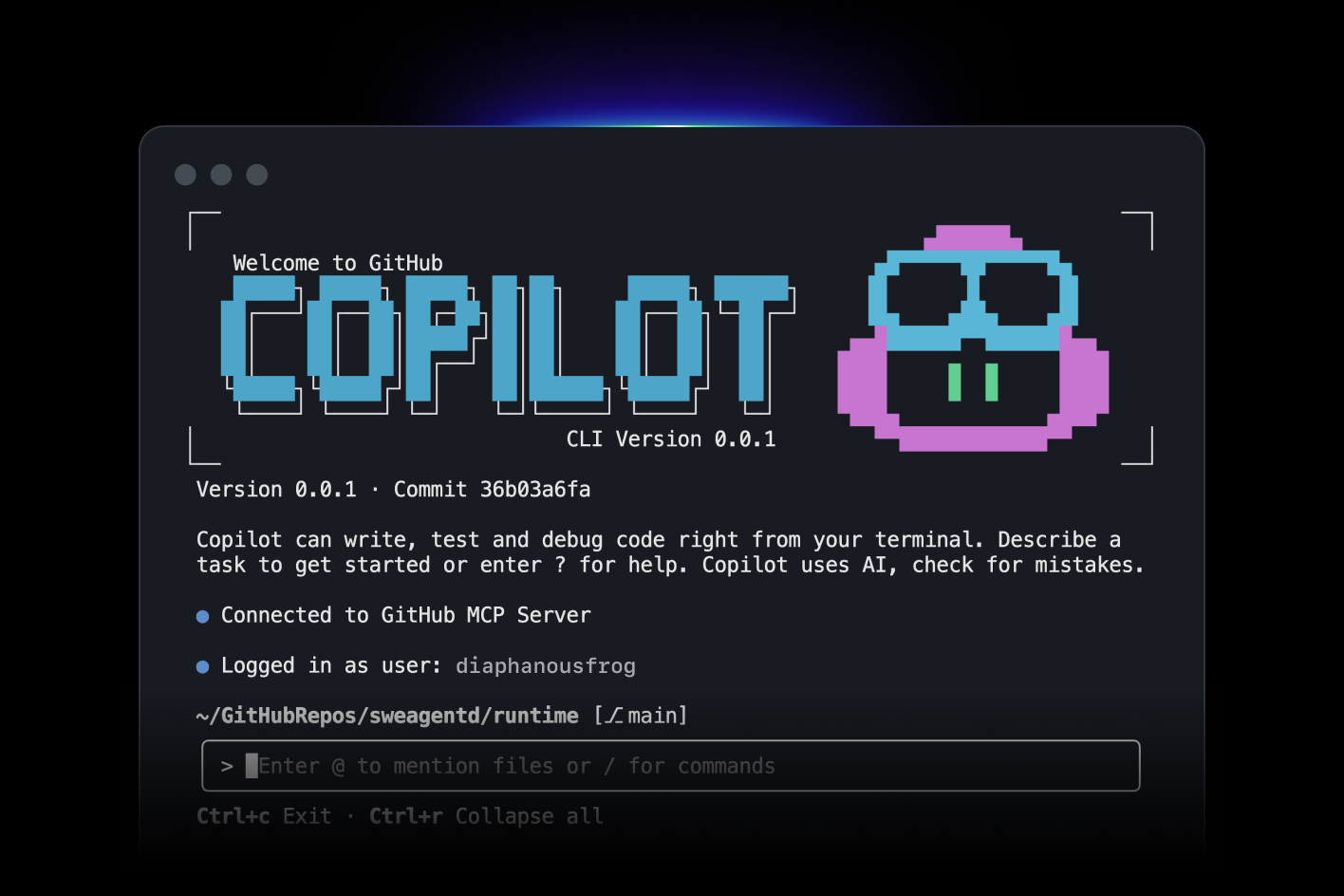
@ to mention files and / for commands. Source: https://github.com/features/copilotYou'll see. The Copilot CLI welcome screen in your terminal, ready to turn a described task into a command it can run and debug.
Cost. CLI features consume AI Credits (like chat and agents), so they draw on your plan's monthly Credit allowance — completions remain the only free-of-credits feature.
Takeaway. Copilot isn't editor-only — the CLI puts the same write-test-debug help wherever you work in the terminal.