Session 4
Add a backend: one-click databases
Goal. Make your app store real data by connecting a database — no schema wiring by hand.
▶ Try this prompt
Add a database so each contact-form submission is saved, and show the saved messages in an admin table.
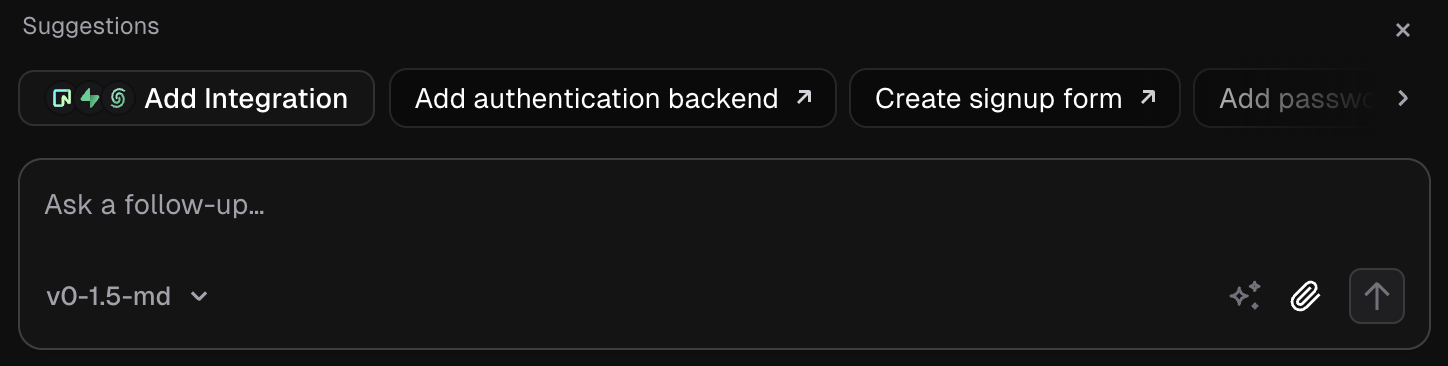
When v0 suggests Add Integration / Add authentication backend, accept it — or just ask v0 to add a database integration.
- 1Open Project Menu ⋯ → Integrations (or click the suggested action in chat) and pick a provider from the Marketplace — Supabase, Neon, Upstash or Vercel Blob — and accept its terms. v0 provisions the account and adds the needed environment variables for you.
- 2Ask v0 to save and read your data. For SQL providers, v0 can generate and run the SQL to create and update tables.
- 3Submit the live form, then check the provider's table (or an admin view in your app) to confirm a new row landed.
You'll see. A real row appearing in your database after you submit the form — your front end is now a working full-stack feature.
Cost. The providers have free tiers; adding the integration is free and wiring it up spends normal messages. The integration creates your own account on that provider, which you manage.
Takeaway. v0 is full-stack now: one click adds a real database — yours to own and manage, not a hidden no-code layer.