Session 3
Refine visually: Design Mode & versions
Goal. Fine-tune the look without writing a new prompt, and roll back safely when an experiment goes wrong.
- 1Open Design Mode from the prompt-bar toolbar (the same bar where you type). It overlays visual tools on your running app — click any element and change its typography, colour, spacing and layout, or describe the change in plain language; the edits apply back to your code.
- 2Design Mode works on the latest version of a chat using the latest preview runtime — not on read-only chats or mobile viewports. It's included on the free plan.
- 3Every code change v0 makes creates a version. Use the version dropdown (top-right) to switch between them, and restore an earlier one if a change broke something — restoring just adds a new version, so nothing is lost.
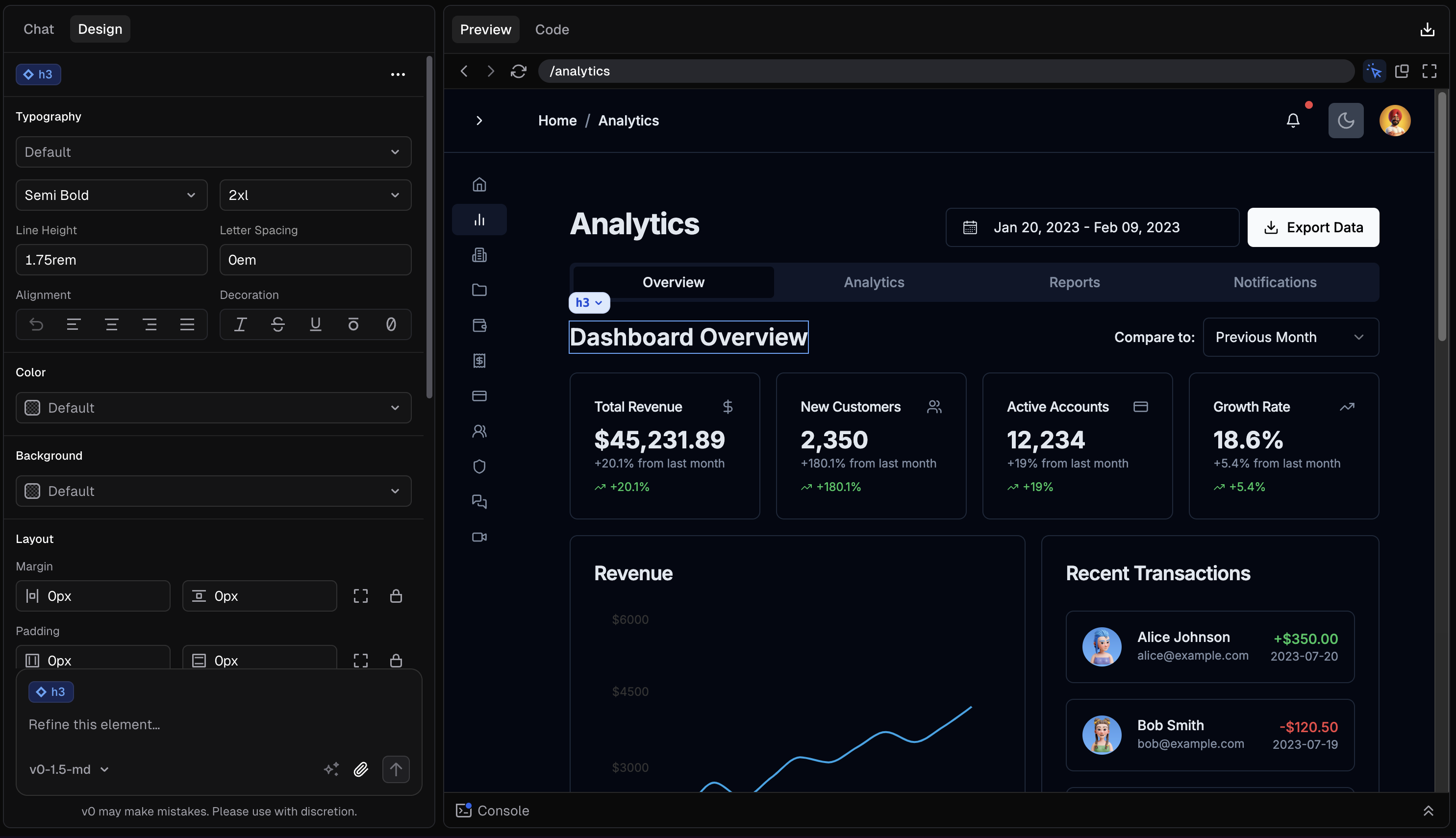
You'll see. Visual edits applied directly to your code, and a clean rollback through version history.
Cost. Adjusting the look in Design Mode means you don't spend a chat message on layout, and restoring a version is free — both are cheaper than re-prompting in chat.
Takeaway. Use Design Mode for look-and-feel and prompts for structure — and lean on versions so experiments are never risky.