Session 2
Start from a design: Figma, mockups & templates
Goal. Skip the blank page — turn a Figma file, a screenshot mockup, or a community template into a working app.
▶ Try this prompt
Here's a screenshot of the dashboard I want — rebuild it as a responsive React page with the same layout, colours and components.
Click the attachment icon (or drag the file into the chat) to add the image. v0 analyses the layout, colours and components and generates code that closely replicates it.
- 1From an image: attach a screenshot or mockup. v0 reads the layout and infers likely functionality from the visible UI — use a high-resolution image for the best accuracy.
- 2From Figma: paste a Figma link via the attachment icon. v0 pulls the visual layout and design tokens (colours, spacing), usually giving higher fidelity than a screenshot. Keep each design within a single, clearly structured frame.
- 3From a template: browse the Templates gallery at v0.app/community, fork one as your starting point, then prompt your changes. You can later publish your own chat as a template from Project Menu ⋯ → Template.
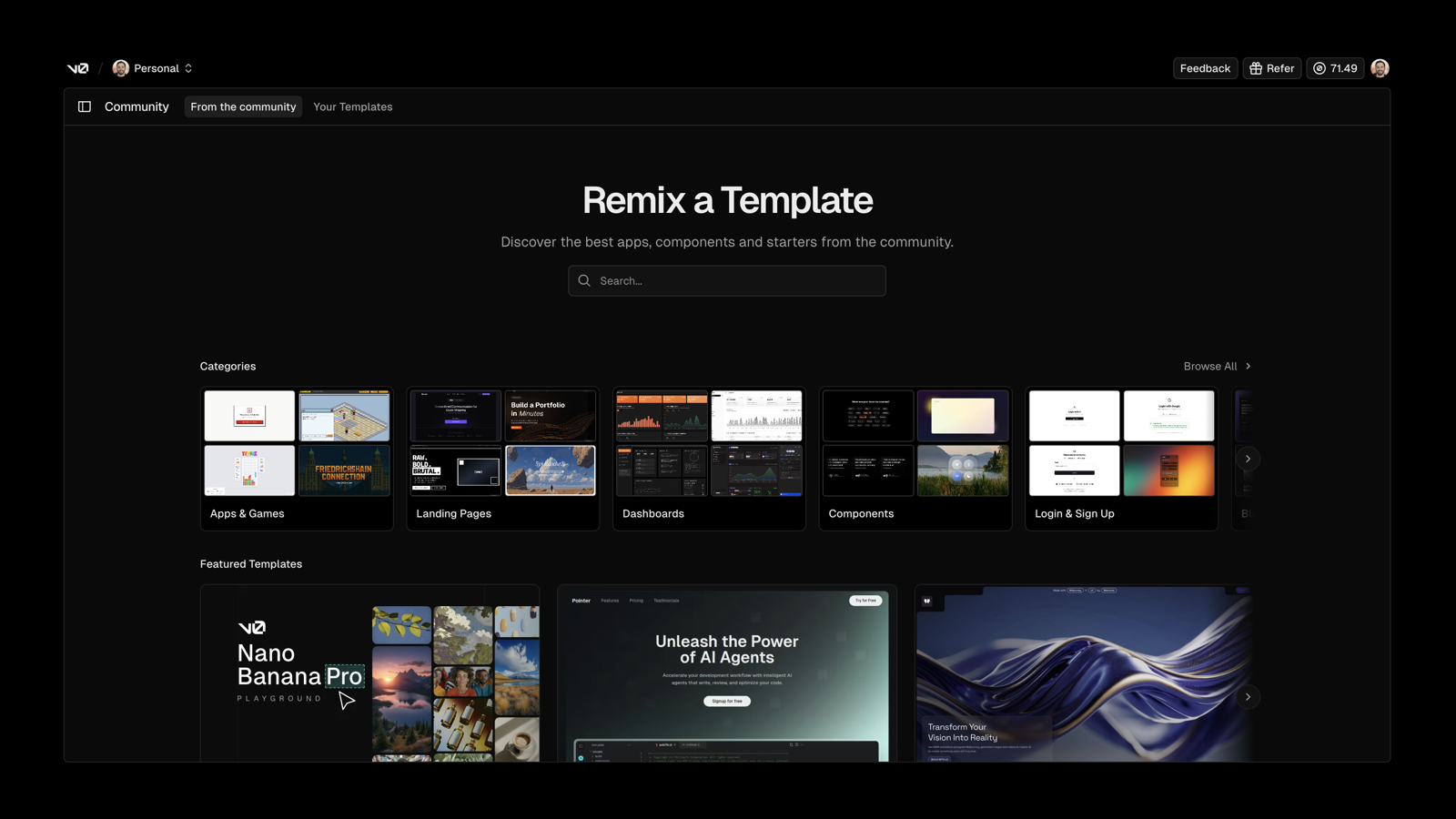
You'll see. A high-fidelity app generated from your design or template, ready to refine by prompt.
Cost. Generating from an image, a Figma link or a template is a normal metered generation like any other prompt.
Takeaway. v0 doesn't need a text-only start — feed it a picture, a Figma file or a template and it matches the design.