Your first AI agents in n8n — run it before you explain it
5 lessons2026-08-06AI-generated
1Overview
Five sessions that get a working AI agent running in n8n before anything is explained. You open a pre-built workflow, run it, and only then take it apart — the same pattern every session follows: run first, understand second, make it yours. By the end you have wired a chat trigger to a model, put Whisper speech-to-text in front of it, grounded answers in a real paper, and routed one message down different pipelines with a Code and an IF node. → Start here if you have never opened n8n; the advanced chapter assumes these five.
1.1After this chapter you can
→Open and run a pre-built AI agent in n8n without any setup
→Connect Whisper STT and a chat trigger into a working voice → AI loop
→Build a document Q&A workflow grounded in a real paper or page
→Route the same chat message to different AI pipelines using a Code + IF node
2Lessons 5
2.1Run an AI workflow in n8n
This course is hands-on from the first minute. Instead of reading about AI agents, you open one that already works, send it a message and watch what it does. Everything after this lesson refers back to that experience.
Execute a complete AI example before analysing its parts
TryOpen n8n.32dots.de, run the "cos-03" workflow and send it one question. Then open its canvas and name the trigger node, the model node and the response node out loud.
You are not expected to understand the nodes yet. Running it first is the point — the explanation comes in the next lesson.
Open the workflow cos‑03 from the dashboard list
Click Execute workflow to start the run
Enter a short question in the input field and press Enter
You'll see The workflow runs and returns an answer, showing the three phases of every lesson
Takeaway Running the example first gives you a concrete reference for later understanding and building
Check What three phases become visible when you run the example workflow and submit a question in the input field?
2.2Run your first AI agent
You are about to talk to an AI agent running on our university server. You did not build it. You do not know how it works yet. That is fine. Run it first.
Execute an AI agent workflow and observe its answers
TryWhat is CRISPR and how does it work?
What are the main ethical concerns about using CRISPR in humans?
What did Professor Müller publish last week?
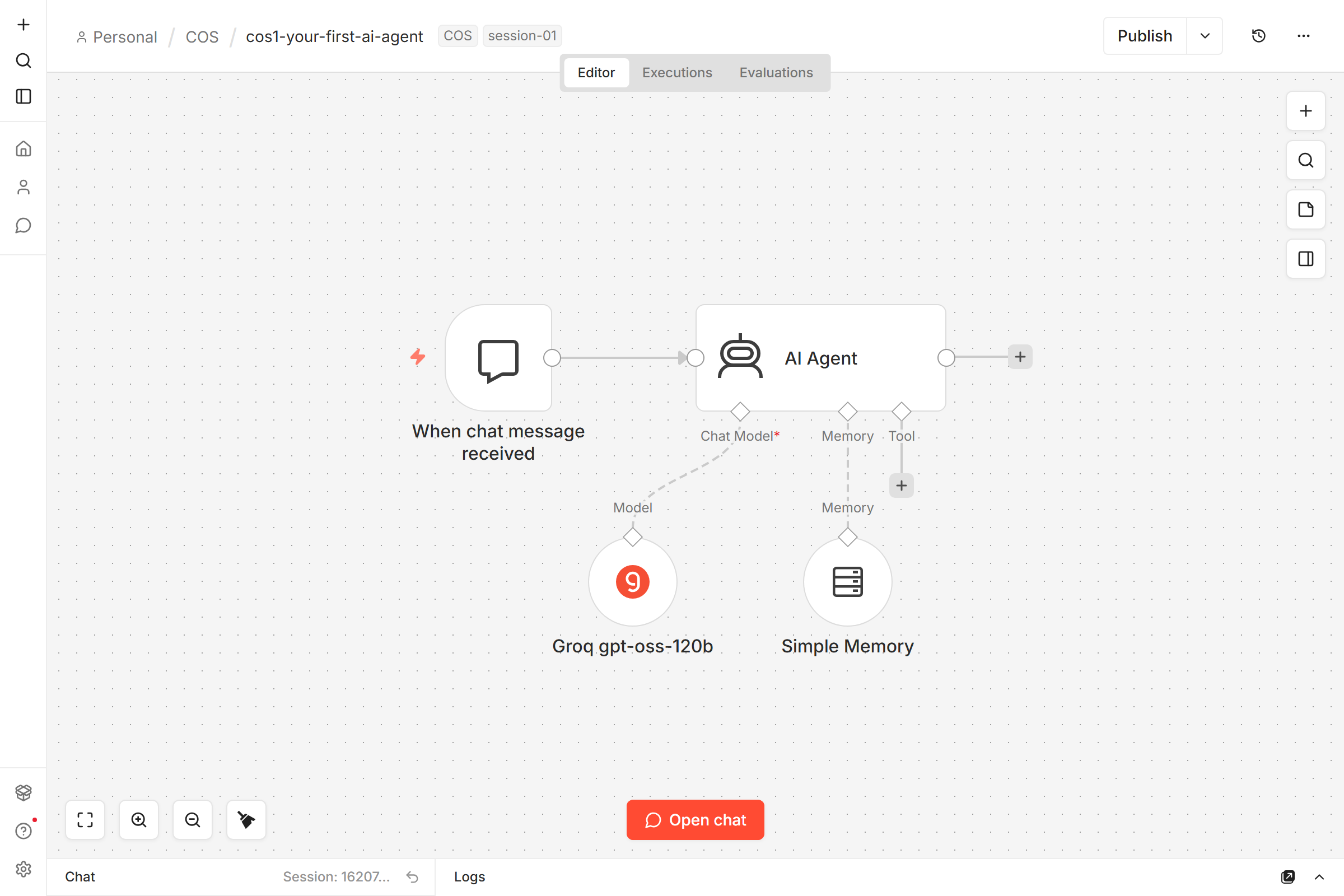
After duplicating and opening the workflow, click the Chat button in the bottom‑right corner. Paste each question into the chat input (one at a time) and press Enter. Observe that the first two answers are detailed while the third is vague or incorrect.
1What it rememberswithout this every message starts cold
2Talk to it nowno deploy needed to try the flow
Best viewed on desktop — tap Enlarge to read the numbered controls.
Open https://n8n.32dots.de in your browser
Log in using the email and password from your curriculum signup
Click Workflows in the left sidebar and locate “Session 01 — Your first AI agent”
Select the ⋯ menu on that workflow, choose Duplicate, then open your copy
In the workflow editor click the Chat button at the bottom‑right and type a question such as “What is CRISPR and how does it work?”
The workflowthe real, live n8n canvas — click to pan & zoom, or copy it onto your own
You'll see Responses appear for all three questions, with the third answer noticeably vague or incorrect
Takeaway Running an AI agent first reveals both its immediate strengths and its inevitable limitations
Check After duplicating and opening the “Your first AI agent” workflow, what type of response pattern do you observe when you ask a complex scientific question?
2.3Ask the lab via Mattermost
Today the AI lives where you already talk. Mattermost (#lab-ai) is the chat surface where you post the question and read the reply; n8n is where the workflow that powers the bot lives. You'll try the bot in Mattermost first, then open the workflow in n8n to see how Whisper + the AI Agent are wired together.
Paste this text into the message box of the #lab‑ai channel on Mattermost and hit Enter. Wait a few seconds and verify that the lab‑bot replies with your question quoted under “> Input (text):” followed by an answer.
Open https://mattermost.32dots.de in a new tab and log in with your credentials
Join the #lab-ai channel if you are not already a member
Send a typed question in #lab-ai, e.g., “What is PCR in two sentences?”
Click the microphone icon in Mattermost’s message box, record a voice query and send it
Observe the bot reply with the transcribed question and its answer
Click Open workflow in n8n to view the connected nodes
The workflowthe real, live n8n canvas — click to pan & zoom, or copy it onto your own
You'll see A reply from lab‑bot showing ‘> Input (text):’ or ‘> Input (voice):’ followed by its answer
Takeaway A single n8n workflow links Mattermost, Whisper transcription and an AI agent to answer typed or spoken questions instantly
Check How does the bot indicate whether it processed a typed question versus a voice query in the Mattermost #lab‑ai channel?
2.4Query a document using AI
You will import a pre-built n8n workflow that fetches a public webpage and answers questions about it. No embeddings, no vector database — just an HTTP request and a smart system prompt.
Get answers that are only based on the content of a chosen web page
TryWhat is a transformer architecture?
What is the difference between a language model and an embedding model?
Who invented the Higgs boson?
After importing the workflow, open the Chat panel (bottom right) and paste each line one at a time, pressing Enter after each. Watch that the first two queries return answers from the page while the third yields a “not in document” response.
Download the session file ‘Session 3 — AI that reads your documents’ from Downloads (curriculum.32dots.de/share).
In n8n, click the ⋯ menu → choose Import from file, then select the downloaded JSON.
Open the workflow and click Chat in the bottom‑right to show the chat panel.
Type “What is a transformer architecture?” and press Enter.
Type “What is the difference between a language model and an embedding model?” and press Enter.
Type “Who invented the Higgs boson?” and observe the refusal message.
Open the Document URL node, edit the URL to any Wikipedia page about your research topic, then re‑run the queries.
The workflowthe real, live n8n canvas — click to pan & zoom, or copy it onto your own
Loading the live workflow…
You'll see You got grounded answers for the first two questions and a correct refusal (or honest 'not in document') for the third.
Takeaway n8n’s AI workflow turns a single HTTP‑fetched web page into an on‑demand Q&A engine that only returns answers found in the document and declines otherwise
Check When querying the imported document workflow, what determines whether the AI provides an answer or returns a refusal message for a given question?
2.5Route and transform text with AI
This workflow reads your message, detects whether you want a summary or key-fact extraction, and routes it to the right AI pipeline. Two different AI agents, one decision node.
Send a single piece of text and receive different formatted responses based on keywords
TrySummarize this: The gut microbiome plays a crucial role in immune system regulation through multiple mechanisms including metabolic signaling, barrier maintenance, and modulation of inflammatory pathways.
Extract key facts from: The gut microbiome plays a crucial role in immune system regulation through multiple mechanisms including metabolic signaling, barrier maintenance, and modulation of inflammatory pathways.
Paste the two lines exactly as shown into the n8n Chat panel after importing the workflow. Watch that the first reply is 3‑5 sentences while the second appears as a numbered list.
Download the session file from Downloads (curriculum.32dots.de/share)
Click Import from file in n8n and open the workflow
Open the chat panel, type a summarisation prompt and send it
Observe that the reply is presented as 3‑5 sentences
Enter an extraction prompt and note that the reply appears as a numbered list
Try using “bullet points” or “list” in your prompt to trigger the extract route
The workflowthe real, live n8n canvas — click to pan & zoom, or copy it onto your own
Loading the live workflow…
You'll see Two clearly distinct response formats appear from the same source text, each triggered by the wording of your prompt
Takeaway Keyword detection routes input to specialised agents that automatically change output format
Check Which keywords in your prompt cause the workflow to switch from a summarisation response format to a numbered list extraction format?
3Cheat sheet
Every expression you need while building, on one page — open it full-screen ↗ or keep it here beside the lessons.
4Templates 4 from n8n.io
Real workflows other people built and published, each with its live canvas.
Open one, read the nodes, copy what you need.
What it does. The canonical agent template — a chat trigger wired straight into an AI Agent node with one chat model behind it. No memory, no tools. The single smallest thing that counts as an 'agent'.
When you'd use it. Starting point for any new idea. Copy it, add one tool or a memory node, and you've got your own thing. Great for testing that a credential works before layering on complexity.
What it does. Fetch a webpage, hand the HTML to an AI Agent, get a clean summary back. The agent holds a HTTP Request tool it can call more than once (e.g. follow links).
When you'd use it. A lab-news digest, summarising a pre-print's abstract, pulling protocol highlights from a supplier page. Anything where 'read a page and tell me the gist' is the whole task.
What it does. Send a voice note to a Telegram bot → Whisper transcribes it → an AI Agent drafts a polished email → Gmail sends (or saves as draft). Same shape as your Session 02 cos2 workflow, different post-process.
When you'd use it. Replying to supervisor / collaborator emails while walking between the wet-lab and the desk. Talk once, Gmail draft sits there when you're back at the keyboard.
What it does. Polls Gmail every hour. An AI classifier tags each email (urgent / FYI / needs reply / spam). An AI Agent drafts a reply only for the 'needs reply' bucket. Human approves in a second step before sending.
When you'd use it. A PI's inbox, a lab-manager alias, a shared student-help address. Keeps the Agent from auto-sending anything risky — the human stays in the loop.
Different source formats (e.g., Wikipedia vs. PubMed) affect how well the model can answer, revealing strengths and limits of the fetch-and-stuff method
Are there ready-made workflows I can start from instead of building from scratch?
Yes — n8n has a public template library with thousands of community-built workflows covering a huge range of use cases. You can browse by category, preview what each workflow does, and load one directly into your editor with a single click. Templates are an excellent way to learn how experienced users structure their automations and a much faster starting point than building from scratch.
How do I get my workflow to actually run automatically — it only works when I click 'Test'?
You need to activate the workflow. In the top-right corner of the editor there is an 'Inactive / Active' toggle switch. While it is set to Inactive, the workflow will not respond to real triggers — it only runs when you manually click Test. Switch the toggle to Active (it turns orange) and save, and your workflow will begin listening for events and running on its own.
The Schedule node lets you define when a workflow should start, using cron expressions or simple interval settings. It’s the entry point for any recurring automation.
The HTTP Request node can call any RESTendpoint. By supplying your Perplexity API key in the headers, you retrieve JSON‑formatted news data for further processing.
The Gemini node (Google AI) performs text completion. Feeding it the news summary lets you generate multiple stylistic LinkedIn post variations automatically.
Want to convert a base64 image into a Drive file you can share
The Google Drive node can upload binary data as a file, then return a public web view URL. Converting the image from base64 to binary first ensures proper upload.
Collect an email and preferred install date via a web form
A Form Trigger node creates a public URL that serves a web form. When the form is submitted, it starts the workflow and outputs the entered fields as JSON data.
Pinning data on a trigger node stores a fixed JSON payload, so each execution returns that same data without needing to re‑submit the form. This speeds up iteration and debugging.
Split requests that occur within a week from later ones
The IF node evaluates expressions per incoming item. By comparing the preferred install date to ‘now + 7 days’, you can split the flow into true (within a week) and false branches.
Need to ping Slack with requester email and install date
The Slack “Send Message” action uses credentials to post into a workspace. You can compose the message by mixing static text and expressions that pull values from previous nodes.
Activating a workflow switches it from test mode to production. Once active, every incoming request (e.g., via the form URL) triggers real executions that are logged under the Executions tab.
A Form Trigger captures data when a user submits a web form and passes that data as the first node in an n8n workflow. It works by listening to a specific form URL, so any new submission automatically fires the workflow.
The Google Sheets node can append or update rows using data from previous nodes. By mapping form fields to sheet columns, each new lead is recorded automatically.
n8n expressions let you compute values on‑the‑fly. Using double curly braces with $now() inserts the current date/time, which can be stored alongside form data.
The If node evaluates a condition and routes execution down “true” or “false” branches. By checking the budget field, you can automatically flag leads that don’t meet your minimum spend.
The Switch node evaluates a value against multiple cases and directs execution down different paths. It lets you send high‑budget leads one email template and low‑budget leads another.
The Executions view shows each step’s input and output, helping you verify data mapping and spot errors. It’s essential for troubleshooting new workflows.
The 'On Form Submission' node captures data from a custom form you define within n8n, providing the initial payload for the rest of the workflow. It works by exposing a temporary URL that can be embedded in any web page or shared directly.
The ‘Google Sheets – Append/Update Row’ node writes incoming data into a spreadsheet. By mapping each field to a column you create a persistent record without writing any code.
The Switch node creates multiple branches based on different condition values, allowing parallel handling of distinct cases (e.g., engineer vs doctor).
The Gmail ‘Send Message’ node sends an email using your connected Gmail account. By inserting variables from previous nodes, you can personalize the message for each lead.
A Merge node with mode ‘Wait for All’ synchronizes multiple incoming paths, allowing you to continue processing after all conditional routes have finished.
By attaching an OpenAI chat model to the AI Agent node and configuring system prompts with specific output formatting, you can force the LLM to return only the desired list items, reducing token usage.
Adding Simple Memory to an AI Agent stores the last N interactions, allowing follow‑up questions to inherit prior context without re‑prompting the user.
Want a workflow to fire when you get a chat message
A trigger node defines the event that launches an n8n workflow, such as receiving a chat message or clicking a manual button. It provides only output data, which becomes the input for downstream nodes.
Want one workflow step to use the previous step’s output
In n8n, each node’s output payload automatically becomes the next node’s input, allowing seamless data flow without manual mapping. This chaining creates linear or branched workflows.
n8n lets you set a field as a fixed literal or as an expression that pulls data from previous nodes. Expressions enable runtime values, while fixed values stay constant across runs.
A Simple Memory node stores a configurable number of past interactions, allowing an AI agent to recall earlier user inputs within the same workflow execution.
When a trigger fires I need multiple actions at once
n8n supports branching by connecting one node’s output to multiple downstream nodes. Each branch runs independently, enabling simultaneous actions like posting to Slack and sending an email.
A Google Sheets trigger node watches a spreadsheet for added or updated rows and fires the workflow each time. It requires setting up OAuth credentials in Google Cloud, then selecting the sheet and event type.
Want to turn raw order data into a ready‑to‑send email
The OpenAI node can call a language model (e.g., GPT‑4o) to transform incoming JSON into a custom summary. By passing fields as variables, the prompt adapts to each order without code.
Node Types Overview — building blocks of n8n workflows
n8n workflows consist of four core node categories: Trigger (starts execution), Action (performs a task), Data Transformation (modifies data), and Logic (controls flow). Knowing each type helps you design clear, maintainable automations.
The Schedule trigger node initiates any n8n workflow on a timed interval. By setting the interval to 'Days' and specifying hour/minute, you can have the workflow start automatically every morning at 6 AM.
The Open Weather node is a pre‑built integration that calls the OpenWeather API. After adding your API key once, you can reuse the credentials in any workflow to retrieve live weather information.
Want to email the current temperature and location
The Gmail node sends emails using OAuth credentials. You can insert data from previous nodes by dragging fields into the subject or body, creating fully personalized messages.
A Form Submission trigger captures user input, and a Switch (logic) node can branch the flow using numeric comparisons. This pattern lets you automatically separate high‑value from low‑value leads.
The HTTP Request node lets you perform GET or POST calls to any public endpoint. By supplying URL, method, headers and query parameters, you can integrate services that n8n doesn’t ship with pre‑built nodes for.
A Form Trigger node starts a workflow when someone fills out a form you create inside n8n. It collects each field as data that can be passed to later nodes.
The Google Sheets node can append or update rows using credentials you set up once. Mapping form fields to sheet columns saves each submission automatically.
A Filter node acts as a checkpoint; it only lets data continue when a condition is true. Here it blocks students from proceeding further in the workflow.
The best 'where do I even start' video. Watch before opening n8n so you learn the fundamentals in the right order instead of jumping straight to agents.
The architecture question you'll face in your own projects. Cole gives a decision framework, not hype — useful for anyone planning to move beyond the course into real research automation.
The reference course. Don't watch end-to-end — use it as a lookup when you hit a specific node or pattern you haven't seen before. Bookmark and return.
Nick's guide is the one to watch when 'it works in test but breaks in prod'. Heavy on error handling, retries, and the un-glamorous parts of automation engineering.
The canonical 'RAG in n8n' build from one of the most respected AI-agent educators. Watch when you want your agent to answer from your own documents, not just general knowledge.
9FAQ 9
What is n8n and what can I use it for?
n8n is a visual workflow automation tool that connects different apps and services so they can pass information between each other automatically, without you writing code. You build automations by placing 'nodes' — each representing one app or action — on a canvas and drawing connections between them. A researcher could, for example, set up n8n to automatically collect papers from PubMed, summarize them with AI, and write the results to a Google Sheet — all triggered on a schedule.
Can I run a workflow on a schedule — for example, every day at 9 AM?
Yes. Use the Schedule Trigger node as the first node in your workflow. You can choose simple intervals (every X minutes, hours, or days) without any technical knowledge, or use a cron expression for precise schedules like 'every weekday at 9 AM'. The node also has a timezone setting so your schedule reflects your local time rather than the server's timezone.
How do I connect n8n to an app like Google Sheets or Gmail?
Each app integration in n8n requires a 'credential' — the login or access key that lets n8n talk to that service on your behalf. When you add a node for a service, n8n prompts you to add a credential. For Google services you click 'Connect my account' and log in via OAuth (the familiar 'Sign in with Google' popup). For other services you paste in an API key copied from that service's settings page. Credentials are stored securely and reused across all your workflows.
Are there ready-made workflows I can start from instead of building from scratch?
Yes — n8n has a public template library with thousands of community-built workflows covering a huge range of use cases. You can browse by category, preview what each workflow does, and load one directly into your editor with a single click. Templates are an excellent way to learn how experienced users structure their automations and a much faster starting point than building from scratch.
Do I need to know how to code to use n8n?
No — most workflows can be built entirely by clicking and dragging without writing a single line of code. However, n8n does have a steeper learning curve than some alternatives like Zapier: features such as expressions, error handling, and connecting AI tools require some patience and self-study. Non-coders who are willing to practice consistently report becoming comfortable with the interface after building a few simple workflows.
What is a node in n8n?
A node is a single building block in your workflow — it represents one action, service, or piece of logic. For example, a 'Gmail' node can send an email, a 'Google Sheets' node can write a row of data, and a 'Code' node lets advanced users add custom logic. Trigger nodes are a special type that start the whole workflow when a specific event happens (like a new file being uploaded or a schedule being reached).
How does n8n compare to Zapier or Make — which is easier for a complete beginner?
For someone with no technical background, Zapier is the easiest of the three: it uses a step-by-step wizard and requires no technical decisions. Make sits in the middle with a visual canvas. n8n has the steepest learning curve because it uses expressions, webhooks, and a more flexible but complex interface. That said, n8n is the most powerful and cheapest at scale, and its growing library of AI tools and templates is closing the gap.
What is a webhook and why does n8n use it?
A webhook is like a doorbell: instead of your workflow constantly checking whether something new has happened, an external app rings the bell (sends a message) the instant an event occurs. In n8n, the Webhook node gives your workflow a unique URL address; when another service sends data to that address, your workflow starts immediately. This is more efficient than scheduled polling and enables real-time responses — for example, triggering a workflow the moment someone submits a form.
How do I get my workflow to actually run automatically — it only works when I click 'Test'?
You need to activate the workflow. In the top-right corner of the editor there is an 'Inactive / Active' toggle switch. While it is set to Inactive, the workflow will not respond to real triggers — it only runs when you manually click Test. Switch the toggle to Active (it turns orange) and save, and your workflow will begin listening for events and running on its own.
10Glossary 20 terms
Show the 20 terms
n8n
Workflow
A saved sequence of connected steps (nodes) that n8n runs automatically to move or transform data between apps.
Node
A single building block in a workflow — each node performs one action, such as sending an email, filtering data, or calling an API.
Trigger node
A special node that sits at the start of a workflow and decides when it runs — for example, on a schedule, when a form is submitted, or when another app sends a signal.
Action node
A node that does something in an external service — such as creating a row in Google Sheets, sending a Slack message, or reading an email.
Core node
A built-in utility node that handles data processing or flow control without connecting to an external service — examples include IF, Filter, Merge, and Code.
Connection
The arrow drawn between two nodes on the canvas that tells n8n to pass data from one node to the next when the workflow runs.
Canvas
The visual drag-and-drop workspace inside n8n where you build a workflow by placing and connecting nodes.
Execution
One complete run of a workflow — n8n records what happened at each node so you can inspect inputs, outputs, and any errors afterward.
Credentials
Securely stored login details (such as API keys or passwords) that let n8n connect to an external service on your behalf without exposing secrets inside the workflow.
Webhook
A URL that n8n creates for you so that an outside app can instantly start your workflow by sending data to that address.
Expression
A small piece of JavaScript written inside double curly braces ({{ }}) that lets you pull in data from a previous node or do a quick calculation instead of typing a fixed value.
Item
A single unit of data travelling through a workflow — for example, one email, one spreadsheet row, or one API result.
Schedule trigger
A trigger node that starts a workflow automatically at a set time or repeating interval, similar to a calendar alarm.
IF node
A core node that checks a condition and sends each data item down one of two paths — True or False — so different actions can happen depending on the data.
Sub-workflow
A separate workflow that another workflow calls like a reusable function, helping you keep complex automations organised and avoid repeating the same steps.
Error handling
A set of features in n8n — including dedicated error workflows and the Stop And Error node — that let you define what should happen if a node fails instead of silently stopping.
Data mapping
The act of telling a node where to find its input by dragging a field from a previous node's output onto the current node's input — no code required.
Sticky note
A text annotation you can place anywhere on the canvas to explain what part of a workflow does, without affecting how it runs.
Template
A pre-built workflow shared by the n8n community that you can import and adapt instead of building from scratch.
Manual execution
Running a workflow by clicking the Execute button yourself, used for testing before you switch the workflow on for automatic production runs.
 n8n
n8n


