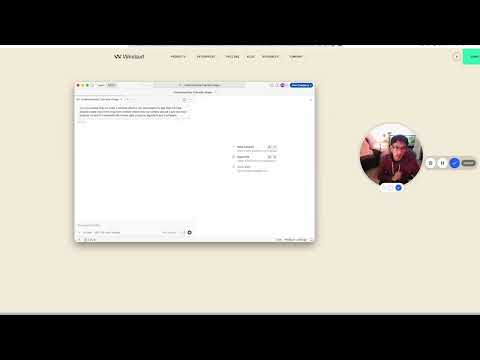
Want to filter orders and mark many as shipped
Operations staff can filter and bulk-update orders directly in Django admin without a custom internal tool build.
AI-native IDE whose agent codes whole tasks alongside you
A VS Code fork rebuilt around Cascade as an agent 'command center' rather than a single autocomplete feature — since 2026's rename from Windsurf, old bookmarks to windsurf.com redirect straight to its new home at devin.ai.
Devin Desktop (formerly Windsurf) is an AI-native code editor (built on VS Code) whose centrepiece is Cascade — an autonomous agent that reads your whole project, plans changes across multiple files, runs terminal commands, and iterates until the code works. Unlike Copilot, which completes single lines, Cascade handles whole tasks. → Cognition renamed Windsurf to Devin Desktop in 2026; existing installs updated over the air, plans and settings carried over.
Handing off a whole task in plain English — "parse this BLAST output and plot an e-value histogram" — rather than completing one line at a time.
Free Cascade quota runs dry in 2–3 days of real use. Cognition (maker of Devin) owns the product now, having renamed it from Windsurf in 2026.
Free plan: unlimited Tab autocomplete + a light Cascade quota. Pro $20/mo; Max $200/mo for heavy users.
Cascade is Devin Desktop’s AI agent that can read your whole project, plan coordinated edits across files and run terminal commands for you.
Add a new /status API endpoint by letting Cascade generate and apply all required code changes
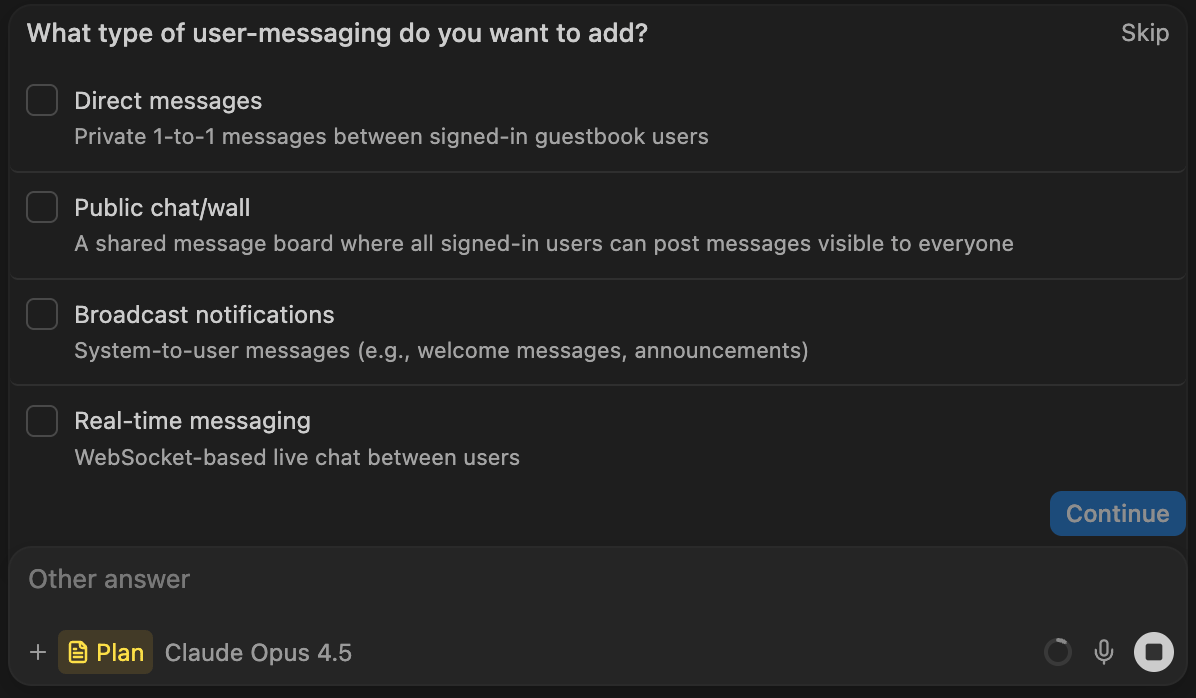
Best viewed on desktop — tap Enlarge to read the numbered controls.
npm test or python manage.py test)Cascade is Devin Desktop’s AI agent that can create and edit code across your whole project.
You will have a new Python file containing a reusable utility function added to your workspace.
slugify(text: str) -> str that lower‑cases the string, replaces spaces with hyphens, and removes non‑alphanumeric characters.”slugify function.Explain and Fix is a context‑menu feature that sends highlighted errors to Cascade for analysis and automatic correction.
Repair a failing line of code directly from the editor
Queued messages let you line up several Cascade instructions while it finishes a current task.
You will have added a test file and updated the README in one uninterrupted workflow.
slugify from utils and includes two basic test cases.”slugify.”tests/test_utils.py is created with the requested tests; then README.md is modified to show the example snippet.Cascade can generate Django‑admin customisations such as list filters and bulk actions from natural‑language prompts.
Add date‑range and status filters plus a “Mark as shipped” bulk action to the Order model in Django admin
python manage.py makemigrations followed by python manage.py migrate in the Terminalpython manage.py runserverA checkpoint is a snapshot of your project state that you can return to later.
You will be able to roll back the recent changes made by Cascade with a single action.
slugify to make_slug in utils.py.slugify; the rename disappears from utils.py.Cascade can maintain a Todo list and long‑term plan for extended tasks.
You will complete a refactor that moves the slugify function to a new package, updating all imports automatically.
slugify into a new package called textutils. Create the package, move the function, and update every import.”pytest in the terminal” and accept the tool‑call to execute the command.textutils contains the function, all source files import it from the new location, and the test suite passes with no errors.Want to filter orders and mark many as shipped
Operations staff can filter and bulk-update orders directly in Django admin without a custom internal tool build.
Never know a contact acted until you refresh
Sales reps see contact activity in real time without manually refreshing the page, catching follow-up moments they previously missed.
Need to assign an entire project in plain English
The Cascade panel lets you give the agent a natural-language description of an entire task, not just a single file
Task description is vague
Providing a clear English task lets Cascade generate, explain, and run code automatically
Need to check auto‑generated script before using it
You retain control by reviewing the generated script and its explanations before applying them
Want the generated script to run on its own
If Python is installed, Cascade can run the script and show its output without manual steps
Need to specify exact script edit
Guides Cascade to edit the exact part you want without ambiguity
Need to change a few things at once
Allows Cascade to apply multiple small changes together, saving quota and keeping context
You can pause and resume work without losing prior state, treating Cascade like a teammate
Need to make lots of edits but keep quota low
Reduces agent quota consumption by grouping related modifications
Need code suggestions that don’t eat your usage
You can insert suggested code instantly with Tab, and it never counts against your agent quota
Want to change a piece of code right where it is
You can modify a specific piece of code directly in place, and the edit is unlimited and free
All the errors listed in the editor
You can hand all listed problems from the editor directly to Cascade, letting it propose fixes across relevant files without manual copying
Can’t tell why a line throws an error
A single error can be explained and automatically fixed right in the editor, saving you from describing it yourself
Review each suggestion before accepting
You retain control by reviewing each suggestion before accepting, ensuring only correct fixes are applied
Want to change several related files in one go
Providing a multi-file request lets Cascade edit several related files in one coordinated run
Need to undo a change
You can undo any change made by the agent with a single click
Trying risky agent tasks
You can try aggressive agent tasks, then roll back if the result isn't satisfactory
You can always confirm current tier costs and quota limits on the official pricing page
Need an AI that can plan and run multi‑step tasks
It plans and executes multi-step tasks instead of just completing the current line
Can’t copy an error message from the editor
Fix an error without copying the message out of the editor
Yes. Cascade natively supports the Model Context Protocol (MCP), which lets it connect to outside tools and services such as GitHub for repository and file management, PostgreSQL for database access with schema inspection, Slack, Brave Search, filesystem access, and a persistent memory store. The easiest way to add one is the MCP marketplace: click the MCPs icon at the top of the Cascade panel, browse, and select Install on the server you want. You can also configure servers manually by editing the mcp_config.json file and supplying the required arguments and tokens. On Enterprise, admins can whitelist approved MCP servers for the whole team.
Both are AI-native editors built on VS Code, so the layout, extensions and keybindings feel the same and the learning curve is small if you have used VS Code. The big overlap is an agent that handles multi-file tasks plus fast Tab autocomplete. Where they differ is pricing and quota mechanics: the Devin Desktop Free plan keeps Tab completions and inline edits unlimited and gives a light agent quota, with Pro at $20/month unlocking OpenAI, Claude and Gemini frontier models. The practical differentiators on the Devin Desktop side are checkpoint snapshots for one-click rollback of agent changes and Send to Cascade / Explain and Fix for error handling. Try both on the free tier and see which agent flow fits you.
Go to devin.ai/desktop (windsurf.com now redirects there, since Cognition renamed Windsurf to Devin Desktop in 2026) and download the desktop app, then sign in. The Free plan needs no credit card. Because it is built on VS Code, the editor will feel familiar immediately. To begin, open a project folder, open the Cascade panel (Cmd/Ctrl+L or the Cascade icon), and type a task in plain English describing what you want done. Cascade reads your whole project, proposes the edits, and lets you review them before you accept. You do not need to copy code or errors out of the editor to use it.
In Devin Desktop (formerly Windsurf), Tab completions are lightweight, in-the-flow suggestions: as you type, it predicts the next lines of code and you press Tab to accept. They are unlimited on every plan, including Free, and never count against your agent quota. Inline edits work the same way for small local changes: select a block of code, describe the tweak in place, and it is applied without opening a full Cascade task; these are also unlimited on Free. The practical rule is to use Tab and inline edits for the small stuff (rename a variable, tweak a loop, add a docstring) and save Cascade tasks for multi-file, multi-step work.
Yes. Cascade creates checkpoint snapshots of your project as it works, and you can revert all code changes back to an earlier step in one click, so a multi-file agent task is safe to try and roll back if you do not like the result. Nothing is silently overwritten. This is what makes it safe to let the agent loose: kick off the bold version of a task, review it, and if it is wrong, revert and re-prompt with a sharper instruction. One caveat from the docs: a revert is currently irreversible, meaning you cannot redo a revert, so make sure you actually want to roll back before you do.
When Cascade edits files during a task and its own changes introduce lint errors, it flags them (for example, 5 new lint errors) and, with Auto-fix on, corrects them itself before finishing, so the task lands with clean, working code instead of leaving you to clean up. It happens inside the same Cascade task rather than as a separate charge. The docs note that when Cascade fixes lint errors it created itself, it may discount those edits as credit-free, so self-correction does not necessarily burn extra quota. You can still open the diff on any edit to see exactly what changed and intervene only if a fix is not what you wanted.
The same set on /recipes, filtered by tool and role.
The fastest possible start. Watch to get installed and see one result before deciding to go deeper.
The honest 'what's it actually like to finish something' video. Watch to set realistic expectations.
A short, concrete build that shows the agent — now called Devin Desktop — doing real work. A good first taste.
Yes. Cascade natively supports the Model Context Protocol (MCP), which lets it connect to outside tools and services such as GitHub for repository and file management, PostgreSQL for database access with schema inspection, Slack, Brave Search, filesystem access, and a persistent memory store. The easiest way to add one is the MCP marketplace: click the MCPs icon at the top of the Cascade panel, browse, and select Install on the server you want. You can also configure servers manually by editing the mcp_config.json file and supplying the required arguments and tokens. On Enterprise, admins can whitelist approved MCP servers for the whole team.
Both are AI-native editors built on VS Code, so the layout, extensions and keybindings feel the same and the learning curve is small if you have used VS Code. The big overlap is an agent that handles multi-file tasks plus fast Tab autocomplete. Where they differ is pricing and quota mechanics: the Devin Desktop Free plan keeps Tab completions and inline edits unlimited and gives a light agent quota, with Pro at $20/month unlocking OpenAI, Claude and Gemini frontier models. The practical differentiators on the Devin Desktop side are checkpoint snapshots for one-click rollback of agent changes and Send to Cascade / Explain and Fix for error handling. Try both on the free tier and see which agent flow fits you.
Go to devin.ai/desktop (windsurf.com now redirects there, since Cognition renamed Windsurf to Devin Desktop in 2026) and download the desktop app, then sign in. The Free plan needs no credit card. Because it is built on VS Code, the editor will feel familiar immediately. To begin, open a project folder, open the Cascade panel (Cmd/Ctrl+L or the Cascade icon), and type a task in plain English describing what you want done. Cascade reads your whole project, proposes the edits, and lets you review them before you accept. You do not need to copy code or errors out of the editor to use it.
In Devin Desktop (formerly Windsurf), Tab completions are lightweight, in-the-flow suggestions: as you type, it predicts the next lines of code and you press Tab to accept. They are unlimited on every plan, including Free, and never count against your agent quota. Inline edits work the same way for small local changes: select a block of code, describe the tweak in place, and it is applied without opening a full Cascade task; these are also unlimited on Free. The practical rule is to use Tab and inline edits for the small stuff (rename a variable, tweak a loop, add a docstring) and save Cascade tasks for multi-file, multi-step work.
Yes. Cascade creates checkpoint snapshots of your project as it works, and you can revert all code changes back to an earlier step in one click, so a multi-file agent task is safe to try and roll back if you do not like the result. Nothing is silently overwritten. This is what makes it safe to let the agent loose: kick off the bold version of a task, review it, and if it is wrong, revert and re-prompt with a sharper instruction. One caveat from the docs: a revert is currently irreversible, meaning you cannot redo a revert, so make sure you actually want to roll back before you do.
When Cascade edits files during a task and its own changes introduce lint errors, it flags them (for example, 5 new lint errors) and, with Auto-fix on, corrects them itself before finishing, so the task lands with clean, working code instead of leaving you to clean up. It happens inside the same Cascade task rather than as a separate charge. The docs note that when Cascade fixes lint errors it created itself, it may discount those edits as credit-free, so self-correction does not necessarily burn extra quota. You can still open the diff on any edit to see exactly what changed and intervene only if a fix is not what you wanted.
argparse--inputevalueimport csvNameErrorTypeErrorCascadecheckpointSend to CascadeAuto-fixAsk, share, or report — over on the Heidelberg AI community forum.