 Onyx
OnyxWant to know what we already have on a topic?
A single place to ask "what do we already know about X?" and get an answer grounded in your own papers, protocols and notes.
Open-source ChatGPT over your team's docs, apps & people — cited answers, agents, deep research
Onyx: an open-source, MIT-licensed AI chat layer that answers from your team's own connected apps, not just the model, with every claim traceable back to its source.
A support team asks one question in chat and gets an answer stitched from Slack, Google Drive, Confluence and GitHub at once — each claim cited back to the source doc. Onyx (onyx-dot-app, MIT open-source) is the application layer for LLMs: an all-in-one AI chat and enterprise search that connects to 50+ apps with plug-and-play connectors, then answers with agentic RAG — hybrid search, contextual retrieval and LLM-built knowledge graphs — grounded in your own knowledge. Build custom AI agents with their own instructions, knowledge and actions; run deep research, a sandboxed code interpreter and web search; reach external tools through Actions and MCP. Works with any model — self-hosted (Ollama, vLLM, LiteLLM) or the frontier (Anthropic, OpenAI, Gemini) — and runs as managed Onyx Cloud or self-hosted on your own Docker/Kubernetes. → Unlike AnythingLLM, where you drop files into a workspace, Onyx keeps living apps in sync as a team-scale knowledge base, with SSO and role-based access on top.
Support pulls a single cited answer into Slack from Drive, Confluence and past tickets instead of searching each tool by hand; a company self-hosts one private, permissioned knowledge base with SSO over all its tools.
You want a ChatGPT that already knows your team's living apps (not just files you upload), with connectors kept in sync, role-based access, and the choice of managed cloud or self-hosting on infrastructure you control.
Connectors (50+, plus MCP), agentic RAG with citations, custom AI agents (own instructions/knowledge/actions), deep research, code interpreter, web search, Actions/MCP, SSO + role-based access; runs on Onyx Cloud or self-hosted Docker/K8s.
Onyx provides an AI chat that answers using connected living sources, automatically indexing them and citing the exact document for each claim.
Get a cited answer from a real source in under 20 minutes
What does our onboarding doc say a new hire should do in week one?Paste this into the Chat screen of Onyx after your Google Drive connector has finished syncing. Verify that the answer includes a Citation link and click it to confirm the source document contains the referenced information.
Onyx can answer across multiple connected apps, mirroring each app’s access permissions so users only see content they are allowed to view.
Do this first Chat with Onyx using a connected document
Get a single answer that pulls information from several connected sources while respecting their access controls
Summarise what we decided about the pricing change — pull from the Slack thread and the Confluence page.Paste the prompt into the Onyx chat input field and hit Enter. Verify that the response shows citations from both Slack and Confluence, confirming multiple sources were consulted.
Onyx uses hybrid search and a knowledge graph to locate relevant documents regardless of phrasing, then presents citations for verification.
Do this first Ask a question across multiple apps at once
Identify the correct source for a query and decide whether to trust the response
What is error code ERR42 in the payment API?
Explain the issue when payments fail but without using the error code.
Who owns the pieces of the onboarding flow, and where is each documented?
Paste the three questions into the Onyx chat input (one per line) and press Enter. After each answer, click the Citations tab to verify the source; ensure every response shows at least one citation before trusting it.
Custom AI agents in Onyx have dedicated instructions, scoped knowledge connectors, and defined actions, ensuring they answer only within their domain.
Do this first Find the right document and verify its answer
Turn Onyx into a scoped expert that stays on‑topic
In Onyx, click **Create new agent**, name it *PolicyBot*, and set its instructions to:
"You answer questions about company policy. Answer only from the connected handbook, always cite the section, and if it isn’t covered, say so."
Then in the **Knowledge** tab, add only the *HR Handbook* connector. Save the agent.
Paste this into the New Agent dialog on the Onyx dashboard; after saving, verify the agent lists only the HR Handbook under its scoped connectors.
Deep research lets Onyx run multi‑step investigations across internal sources, the web, and sandboxed code execution to produce a structured, cited brief.
Do this first Create a custom AI agent
Perform automated multi‑source investigations and compute results
Compare how our docs describe feature X with how competitors position it publicly, and summarise the gaps.Paste this sentence into the Onyx chat input box and press Enter. After the brief appears, expand each citation to verify that internal documents and web sources are both listed.
Actions and MCP let an Onyx agent call external tools, enabling it to perform read‑only lookups or write operations under tightly scoped permissions.
Do this first Run deep research and analyse data with Onyx
Let an agent execute external tools as part of its workflow
Enable the read‑only “Ticket Lookup” Action on agent Alpha, then type: Look up the status of ticket 4821 and summarise the last update.In Onyx, go to Agents → Alpha → Actions, toggle on the Ticket Lookup action, save, then return to the chat window and paste the prompt. Verify that a tool‑call card appears showing the ticket data before the summary.
Onyx can be configured for team‑wide, role‑based access; upcoming changes replace Curator roles with group‑based permissions, mirroring connector ACLs.
Do this first Enable agents to perform actions
Turn your Onyx instance into a shared knowledge base where each user sees only authorised sources
Open the Onyx web UI, navigate to **Team Settings**, click **Add Member**, enter alice@example.com and choose **Member** as the role, then confirm.Do this in the browser where your Onyx instance is running. Watch for the new member appearing in the team list with the correct role.
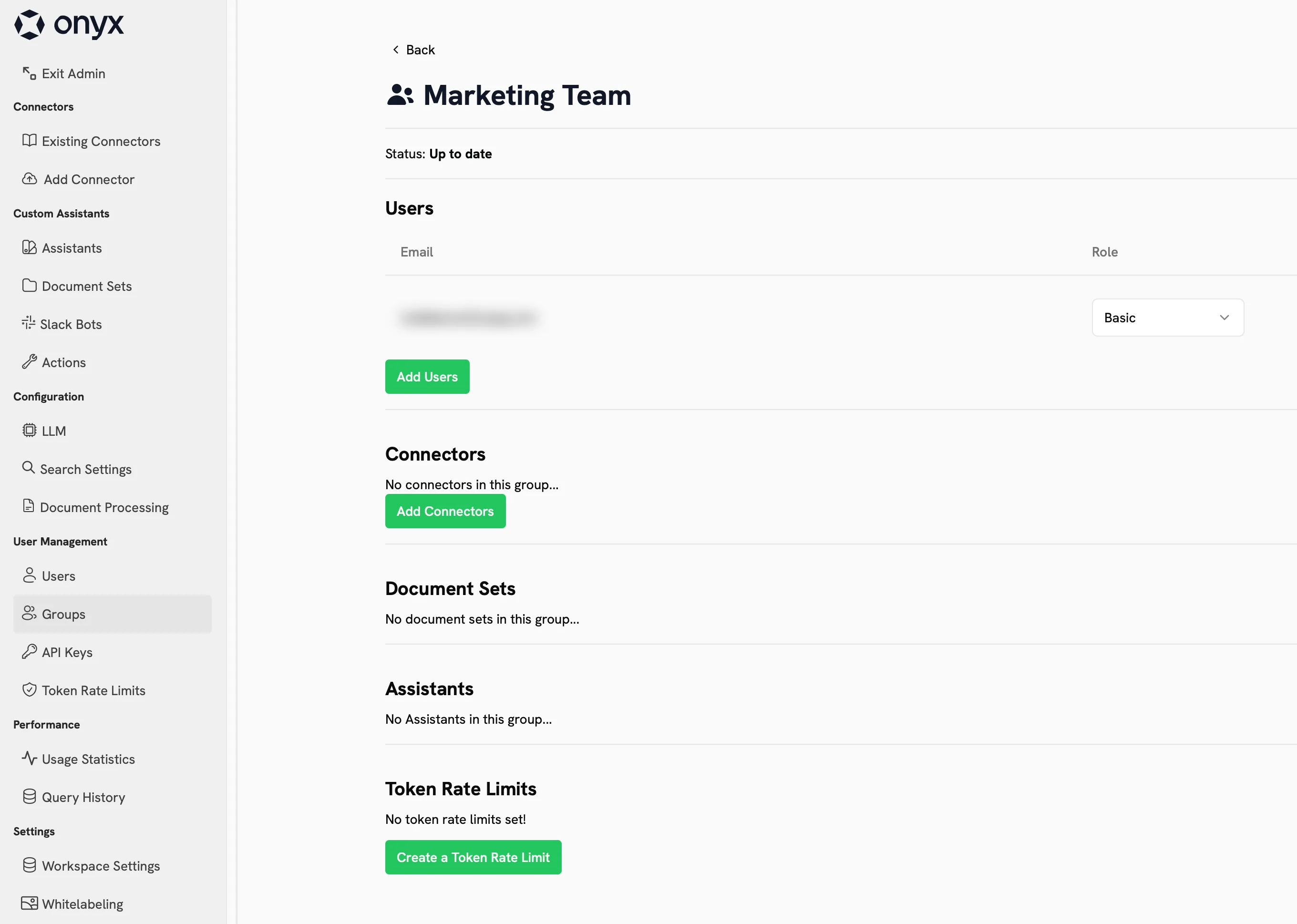
Best viewed on desktop — tap Enlarge to read the numbered controls.
15 outcomes in all — one per recipe below.
Want to know what we already have on a topic?
A single place to ask "what do we already know about X?" and get an answer grounded in your own papers, protocols and notes.
Need an internal searchable FAQ where each team only sees its own docs
A company-wide "ask anything" that respects who can see what — with your data staying on infrastructure you control.
Internal documents plus web search needed
A research brief that blends your internal knowledge with current public sources — with every claim traceable.
Can't find help‑center answer while chatting
Faster, more consistent support replies grounded in your real docs — with links agents can verify before sending.
Need exact policy answers without bothering ops
A reusable internal expert that stays on-policy and points to the exact clause — no more pinging the ops lead.
Need a quick account brief without copying data
A grounded, cited one-pager per account, built from your live systems instead of copy-pasting between tabs.
Need an AI chat without installing anything
You can start using Onyx instantly without installing anything
Can’t pull docs from Google Drive
Linking a live document store lets Onyx index and cite real content
Want to query many apps at once
You can bring more apps into Onyx so a single query pulls from all of them
A single prompt can retrieve information from all connected apps, saving you separate searches
You can verify which document contributed to each part of the answer
If you lack permission in a connected app, Onyx will not surface that content
Connecting the apps you switch between most yields the biggest productivity boost
A single stitched answer can eliminate the need to search each tool separately
Onyx can still locate the right source even when you describe the problem without using the exact term
You should trust an answer more when several independent sources agree and the citations hold up
Testing a difficult, cross-document query reveals strengths and gaps in Onyx's retrieval
Can't find the source you need
Connecting a missing source or rephrasing the query can fix retrieval gaps
Need the bot to use one tone and auto‑hand off
The agent consistently speaks in the desired voice and knows when to hand off to a human
The agent avoids guessing and maintains credibility by refusing unsupported requests
Team keeps hearing the same question
A single, scoped assistant can eliminate a common interruption for the whole team
Need to see trends in my CSV data
You can upload a CSV (or reference a connected file) and ask Onyx's sandboxed code interpreter to compute statistics and render visualisations
Need a quick brief with trusted citations
By framing a question that needs both internal knowledge and live web data, you can generate a brief suitable for forwarding with trustworthy citations
Need to query an external system without risking data changes
Enabling a read-only Action or MCP tool lets an agent call an external system without risking data changes
Need the status of a ticket
You can ask the agent in natural language to perform the external lookup and it will call the configured tool
Onyx shows exactly what action was taken, letting you confirm that the external call succeeded and returned expected data
Need to stop accidental data changes
Requiring explicit confirmation and narrowly scoped credentials prevents accidental or malicious data modifications
Identifying a common manual lookup gives you a high-impact candidate for automation
Need a read‑only action with the smallest credential set
Wiring the Action with the smallest possible credential set reduces security risk
Running the Action on multiple real cases confirms it works reliably before broader use
Need a clear checkpoint before allowing writes
Documenting a single line safeguard creates an explicit checkpoint before enabling any write capability
Choose the hosting model that matches your data-residency and operational needs
Confirm that users only receive answers from sources they are allowed to see
Want users to log in with your existing identity provider
Enable single sign-on so users authenticate with your existing identity provider
Keep connectors up-to-date so answers remain accurate
Onyx (by onyx-dot-app) is an open-source AI chat and enterprise-search platform — the application layer for LLMs. You connect your team's apps (Google Drive, Slack, GitHub, Confluence, Salesforce and 50+ more) and then ask questions in plain English; Onyx answers with agentic RAG — hybrid search, contextual retrieval and LLM-built knowledge graphs — and cites each claim back to the source document. On top of search it adds custom AI agents, deep research, a sandboxed code interpreter, web search, and Actions/MCP to reach external tools. Think of it as a ChatGPT that already knows your organisation's living knowledge, with role-based access so people only see what they should. It is open source under the MIT license.
Onyx's Community Edition is free and open source under the MIT license — you can self-host it at no license cost on your own Docker or Kubernetes, paying only for the infrastructure and any LLM API keys you add. The managed Onyx Cloud has a Business plan at about $20 per user per month (annual billing) with a free trial, which includes the chat and search UI, custom agents, 50+ connectors, web search, deep research and the code interpreter. The Enterprise plan adds OIDC/SAML SSO, on-premise and region-specific deployment, white-labeling and custom integrations at custom pricing. So you can run it entirely free by self-hosting, or pay per seat to let Onyx host it for you.
Both are open-source, self-hostable 'private ChatGPT over your own knowledge' tools, but they start from different ends. AnythingLLM is workspace- and file-centric: you drop PDFs, docs or folders into a workspace and chat with them, ideal on a desktop app for one person or a small shared server. Onyx is connector- and team-centric: instead of uploading files, you connect living apps (Drive, Slack, GitHub, Confluence, Salesforce…) that Onyx keeps in sync, then search across all of them at once with citations, role-based access and SSO. Reach for AnythingLLM when you want to chat with a set of files, especially fully offline on a local model; reach for Onyx when you want a team-scale, always-current knowledge base spanning many apps.
Yes. You can self-host the Community Edition entirely on your own infrastructure with Docker or Kubernetes, and point it at a self-hosted model provider (Ollama, vLLM or LiteLLM) so that neither your documents nor your queries leave machines you control. Onyx supports role-based access controls and document-level permissions so each user only sees the sources they are allowed to. If you prefer, you can still bring your own key for a frontier provider (Anthropic, OpenAI, Gemini) — in that case your prompts go to that provider, so the fully private setup pairs self-hosting with a local model.
Onyx ships 50+ indexing connectors out of the box — including Google Drive, Slack, GitHub, Confluence, Salesforce, Notion and many more — and you can add further sources via the Model Context Protocol (MCP). For language models it is provider-agnostic: it works with self-hosted options (Ollama, vLLM, LiteLLM) and proprietary ones (Anthropic, OpenAI, Gemini), and you choose which model powers chat and agents. For web results it can use providers such as Serper, Google PSE, Brave or SearXNG. This lets you match both your data-residency needs and your budget.
An Onyx AI agent is a custom assistant you configure with its own standing instructions, a scoped set of knowledge (which connectors it may read), and actions it is allowed to take — for example a 'policy' agent that answers only from the HR handbook and cites the clause, or a support agent scoped to your help centre. Deep research is a mode where an agent plans a multi-step investigation across your connected sources and the web, then writes a structured, cited brief — useful for questions too broad for a single lookup. Both build on the same agentic-RAG core, so their answers stay grounded in your sources with citations you can open and verify.
The same set on /recipes, filtered by tool and role.
The practical 'stand it up and connect your sources' build. Watch when you're ready to go past the demo and run it yourself.
The tightest 'what is this' video, straight from the source. Watch first to see the whole product before going deep.
Onyx (by onyx-dot-app) is an open-source AI chat and enterprise-search platform — the application layer for LLMs. You connect your team's apps (Google Drive, Slack, GitHub, Confluence, Salesforce and 50+ more) and then ask questions in plain English; Onyx answers with agentic RAG — hybrid search, contextual retrieval and LLM-built knowledge graphs — and cites each claim back to the source document. On top of search it adds custom AI agents, deep research, a sandboxed code interpreter, web search, and Actions/MCP to reach external tools. Think of it as a ChatGPT that already knows your organisation's living knowledge, with role-based access so people only see what they should. It is open source under the MIT license.
Onyx's Community Edition is free and open source under the MIT license — you can self-host it at no license cost on your own Docker or Kubernetes, paying only for the infrastructure and any LLM API keys you add. The managed Onyx Cloud has a Business plan at about $20 per user per month (annual billing) with a free trial, which includes the chat and search UI, custom agents, 50+ connectors, web search, deep research and the code interpreter. The Enterprise plan adds OIDC/SAML SSO, on-premise and region-specific deployment, white-labeling and custom integrations at custom pricing. So you can run it entirely free by self-hosting, or pay per seat to let Onyx host it for you.
Both are open-source, self-hostable 'private ChatGPT over your own knowledge' tools, but they start from different ends. AnythingLLM is workspace- and file-centric: you drop PDFs, docs or folders into a workspace and chat with them, ideal on a desktop app for one person or a small shared server. Onyx is connector- and team-centric: instead of uploading files, you connect living apps (Drive, Slack, GitHub, Confluence, Salesforce…) that Onyx keeps in sync, then search across all of them at once with citations, role-based access and SSO. Reach for AnythingLLM when you want to chat with a set of files, especially fully offline on a local model; reach for Onyx when you want a team-scale, always-current knowledge base spanning many apps.
Yes. You can self-host the Community Edition entirely on your own infrastructure with Docker or Kubernetes, and point it at a self-hosted model provider (Ollama, vLLM or LiteLLM) so that neither your documents nor your queries leave machines you control. Onyx supports role-based access controls and document-level permissions so each user only sees the sources they are allowed to. If you prefer, you can still bring your own key for a frontier provider (Anthropic, OpenAI, Gemini) — in that case your prompts go to that provider, so the fully private setup pairs self-hosting with a local model.
Onyx ships 50+ indexing connectors out of the box — including Google Drive, Slack, GitHub, Confluence, Salesforce, Notion and many more — and you can add further sources via the Model Context Protocol (MCP). For language models it is provider-agnostic: it works with self-hosted options (Ollama, vLLM, LiteLLM) and proprietary ones (Anthropic, OpenAI, Gemini), and you choose which model powers chat and agents. For web results it can use providers such as Serper, Google PSE, Brave or SearXNG. This lets you match both your data-residency needs and your budget.
An Onyx AI agent is a custom assistant you configure with its own standing instructions, a scoped set of knowledge (which connectors it may read), and actions it is allowed to take — for example a 'policy' agent that answers only from the HR handbook and cites the clause, or a support agent scoped to your help centre. Deep research is a mode where an agent plans a multi-step investigation across your connected sources and the web, then writes a structured, cited brief — useful for questions too broad for a single lookup. Both build on the same agentic-RAG core, so their answers stay grounded in your sources with citations you can open and verify.
connectoragentic RAGhybrid searchknowledge graphAI agent (Onyx)ActionsMCPdeep researchOnyx CloudCommunity Edition (CE)Onyx Litedocker compose upAsk, share, or report — over on the Heidelberg AI community forum.

