Want to search your PDFs locally and get cited answers
A grounded, citeable assistant over sensitive or licensed papers, with zero risk of the PDFs reaching a cloud provider or training set.
Private, all-in-one ChatGPT for your documents — chat, agents, connectors, all local or your own key
A private, all-in-one AI workspace (MIT open-source, Mintplex Labs): chat with your own PDFs/docs/folders — with citations — in a ChatGPT-style UI, running a local model (nothing leaves your machine) or your own cloud key.
A researcher drops 50 PDFs into a workspace and chats with them — with citations — on a model running entirely on their own laptop, nothing sent to the cloud. AnythingLLM (Mintplex Labs, MIT open-source) is an all-in-one private AI workspace: drop in PDFs, docs, or whole folders and ask questions grounded in them, then pull in whole GitHub repos and websites with Data Connectors, and summon an @agent that searches the web, queries a database, runs no-code Agent Flows, and uses MCP servers and Community Hub skills. Point it at a local model (Ollama, LM Studio) and it stays fully offline; bring your own OpenAI/Anthropic key when you want the frontier. Runs as a one-click desktop app or a self-hosted Docker server. → Unlike Ollama, LM Studio or Jan, which run the model, AnythingLLM adds document-RAG and agents on top — a private assistant over your own knowledge.
A researcher chats with 50 papers offline; a team self-hosts one shared private knowledge base over its docs; an analyst points the @agent at a read-only database and asks questions in plain English.
You want ChatGPT over your own documents without shipping them to the cloud — or a private assistant you can extend with connectors, agents, MCP and no-code flows, however you choose to run it.
Workspaces (isolated document sets), built-in RAG with citations, Data Connectors (GitHub, websites, YouTube…), @agent + skills (web search, SQL, Agent Flows), MCP servers, the Community Hub, and a developer API.
A workspace that stores your uploaded PDF documents for private querying.
Chat privately with your own PDFs using AnythingLLM
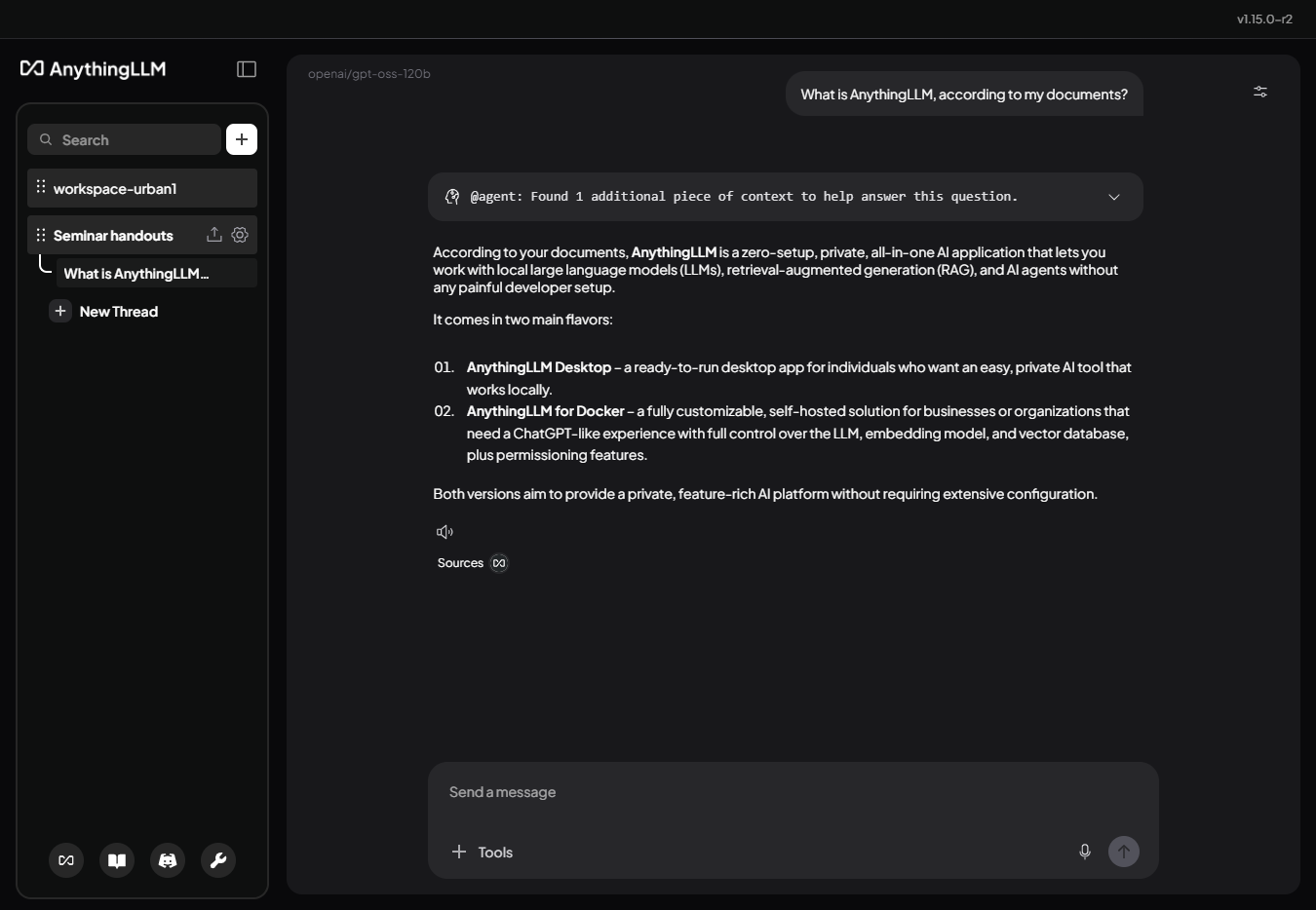
Best viewed on desktop — tap Enlarge to read the numbered controls.
Chat mode and Query mode settings that control source citation behaviour.
Do this first Install AnythingLLM & chat with your first PDFs
Make every answer show its sources and choose the appropriate chat mode.
Best viewed on desktop — tap Enlarge to read the numbered controls.
Separate workspaces that keep document collections independent.
Do this first Get cited answers: Chat vs Query mode
Keep each project's context clean with separate workspaces
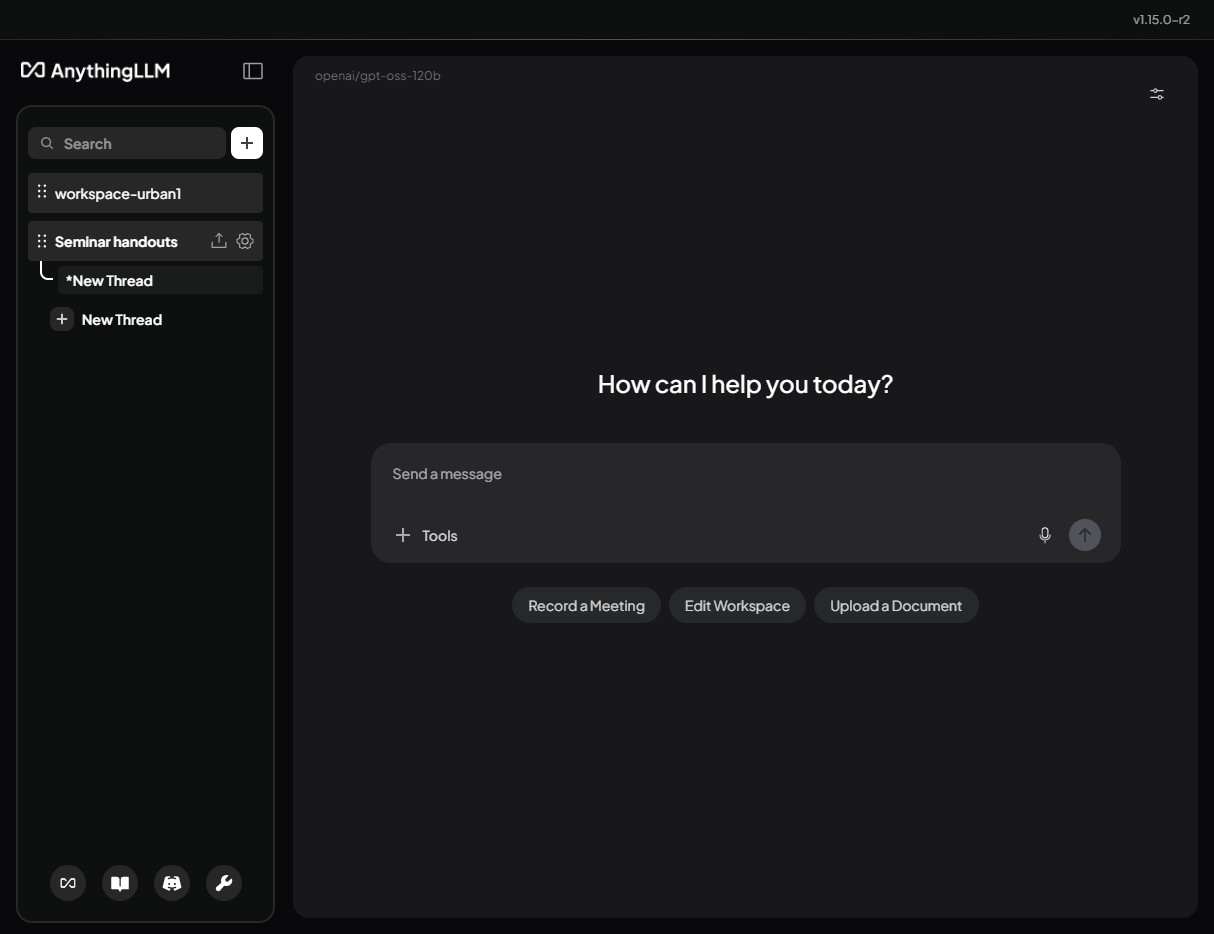
Best viewed on desktop — tap Enlarge to read the numbered controls.
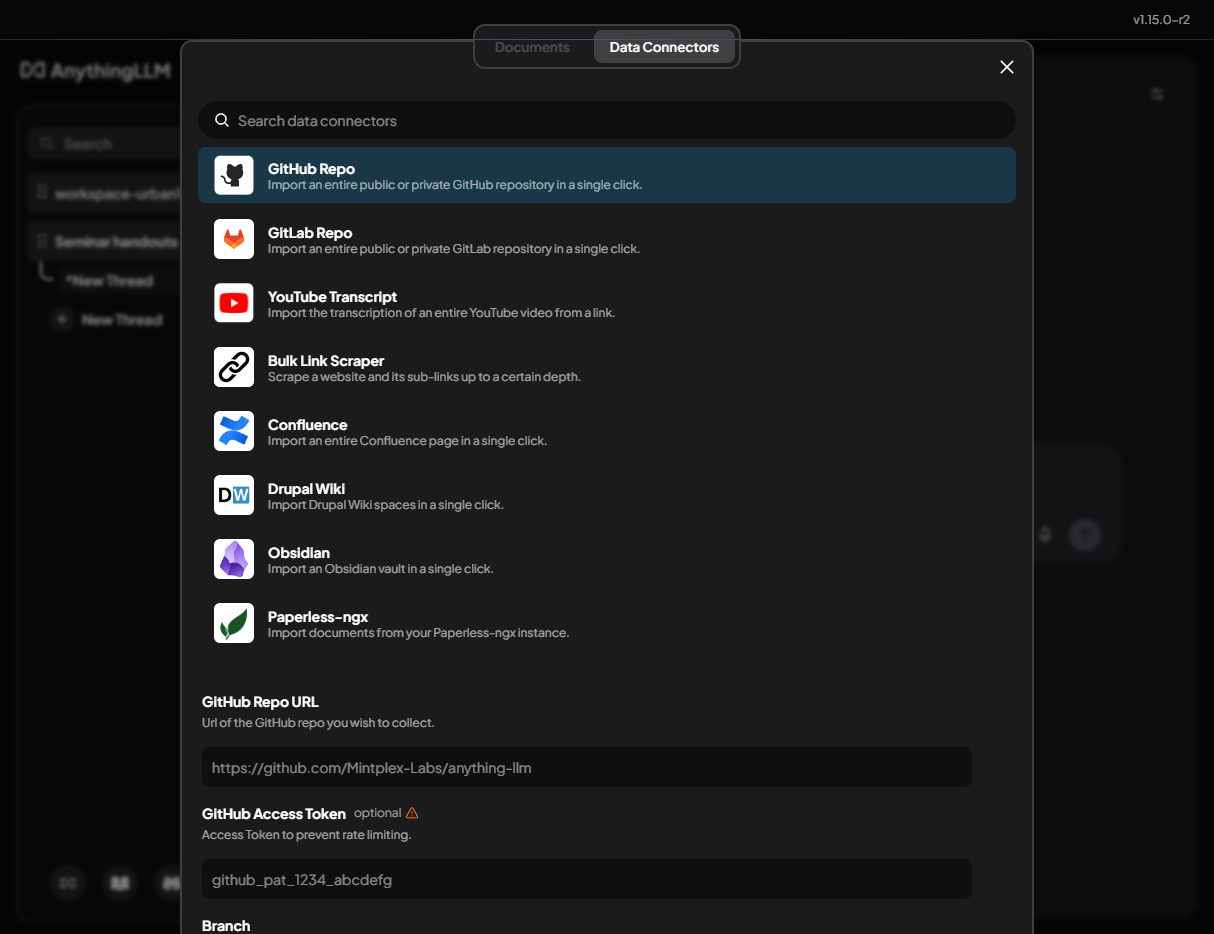
Data Connectors that import web pages, repositories and video transcripts into a workspace.
Do this first Organise your work with workspaces
Fill a workspace with web content using Data Connectors
Best viewed on desktop — tap Enlarge to read the numbered controls.
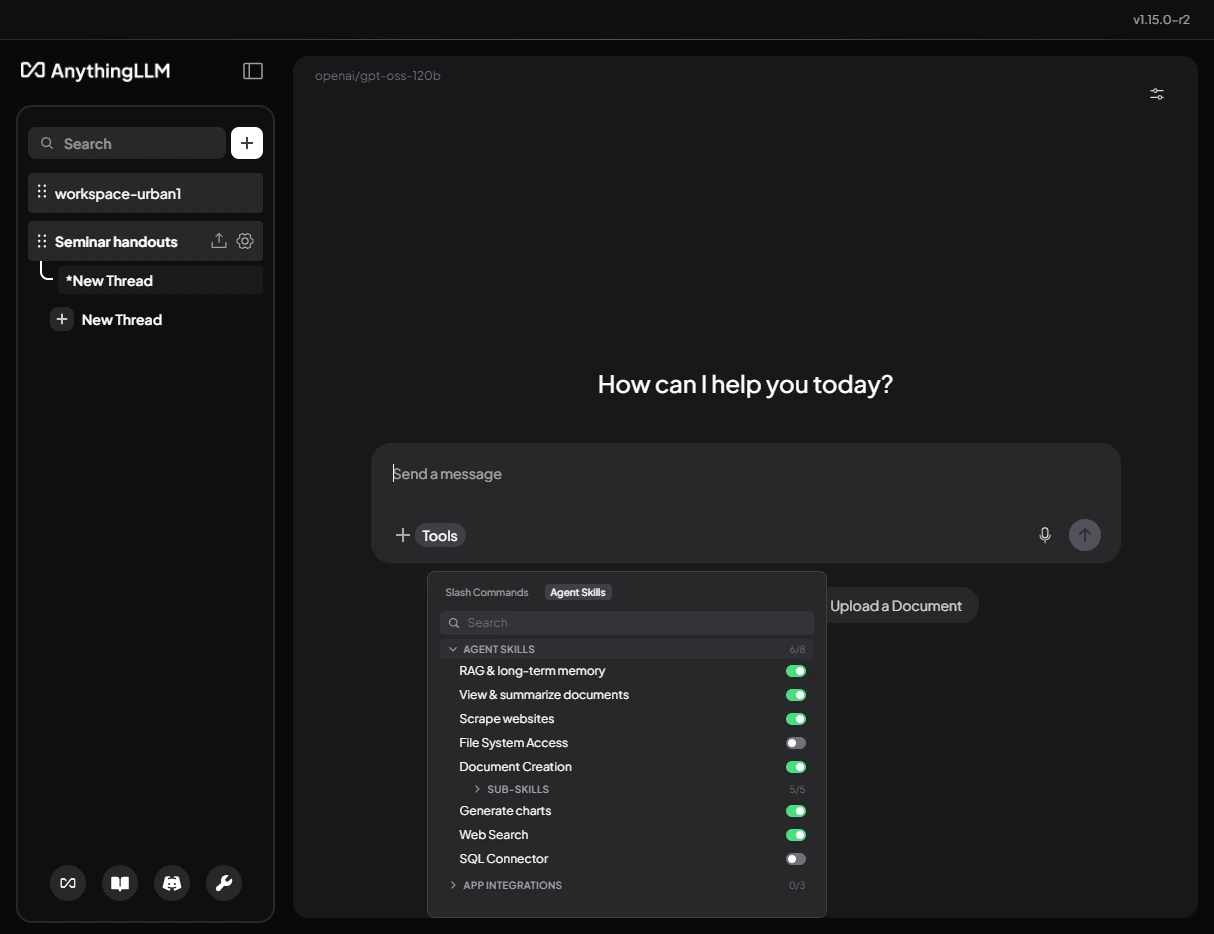
The Tools menu’s Agent Skills panel where individual skills are enabled or disabled.
Do this first Get cited answers: Chat vs Query mode
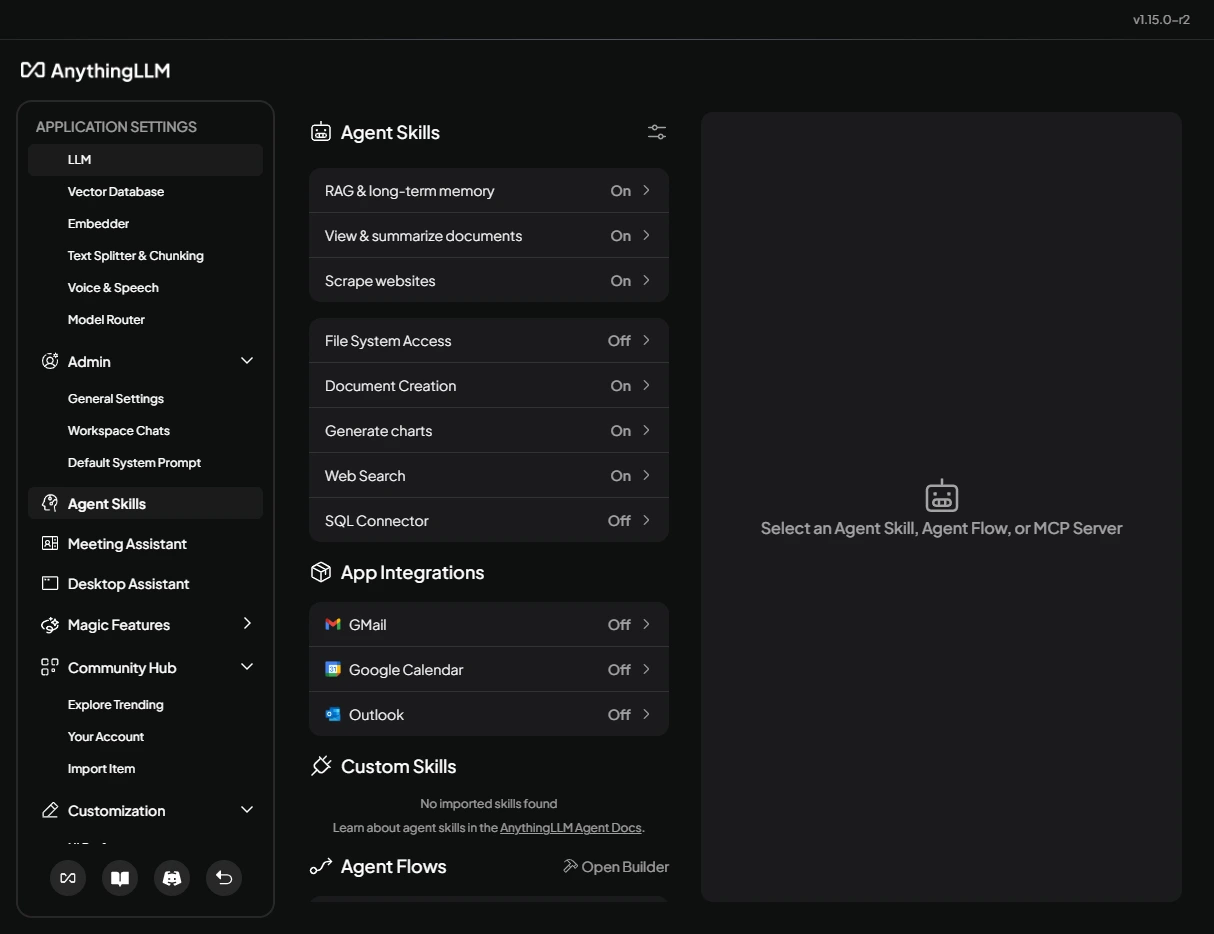
Give a workspace agent the tools it is allowed to use, and see at a glance which are on
Best viewed on desktop — tap Enlarge to read the numbered controls.
6/8Web Search skill with DuckDuckGo provider and read‑only SQL connector configuration.
Do this first Switch on the agent's skills from the Tools menu
Enable web search and read-only SQL skills so @agent can retrieve live info and query a database.
Best viewed on desktop — tap Enlarge to read the numbered controls.
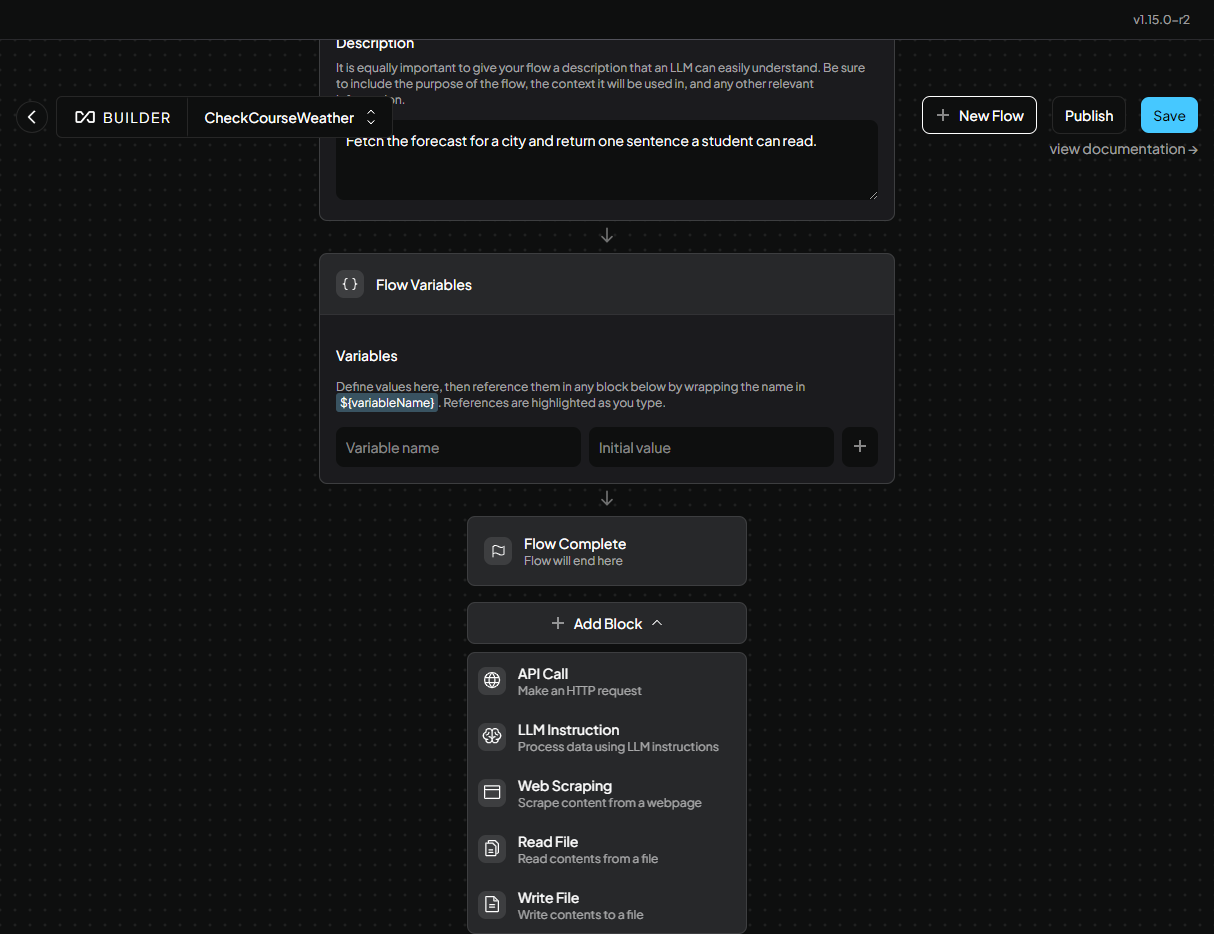
@agent … query, then type /exit to finish.@agent … a plain-English SQL question.A no‑code Agent Flow composed of blocks such as Web Scraper, API Call, LLM Instruction and Write File.
Do this first Switch on the agent's skills from the Tools menu
Create a reusable no-code Agent Flow skill
Best viewed on desktop — tap Enlarge to read the numbered controls.
@agent can run the whole chain by name. Credit: AnythingLLM Desktop v1.15.0-r2, captured for this courseMCP server entries in anythingllm_mcp_servers.json and imported Community Hub skill definitions.
Do this first Switch on the agent's skills from the Tools menu
Add an MCP server and import a Community Hub skill to extend the agent.
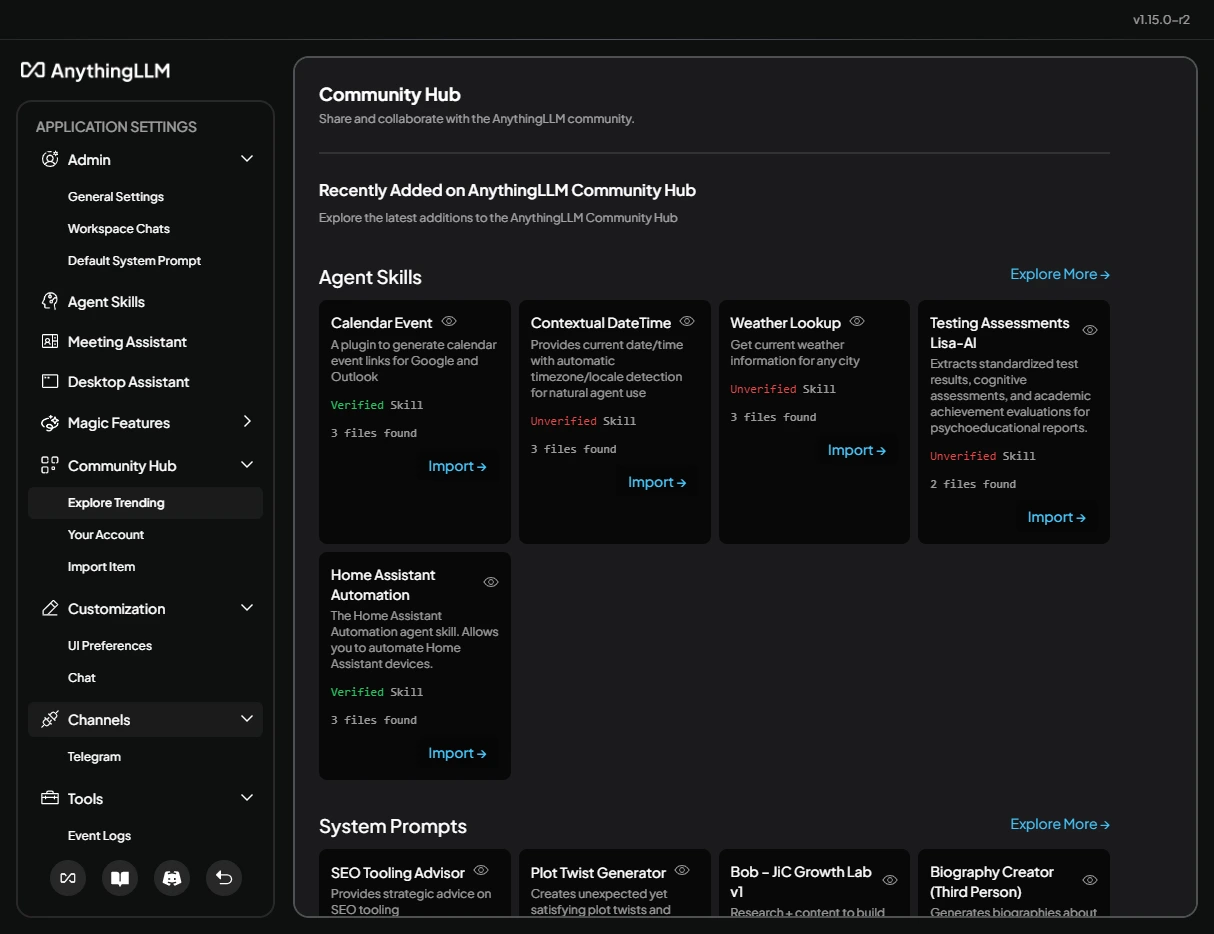
Best viewed on desktop — tap Enlarge to read the numbered controls.
The AnythingLLM Docker container with its web UI, user management and OpenAI‑compatible API endpoint.
Do this first Install AnythingLLM & chat with your first PDFs
Run the AnythingLLM Docker server, add users, generate an API key, and test it.
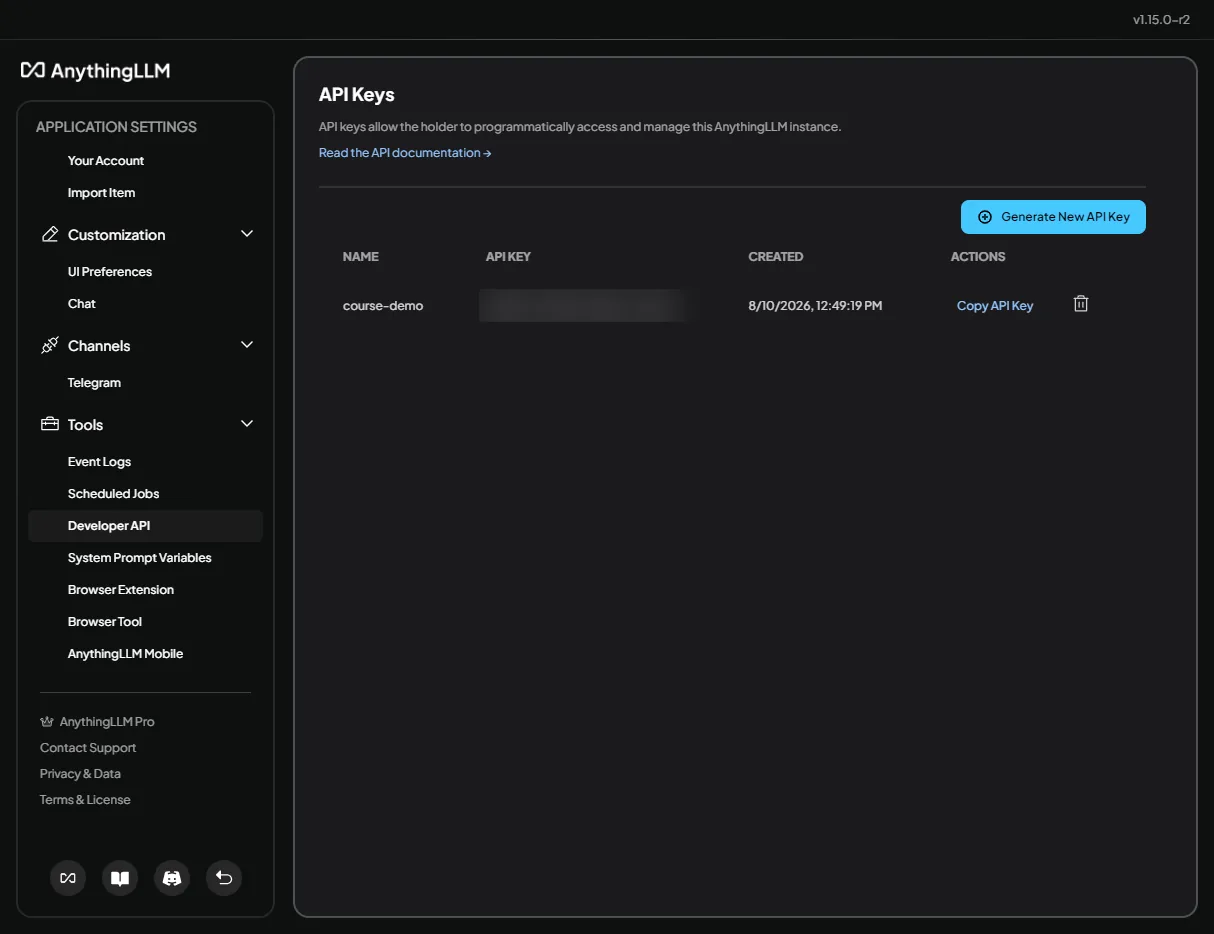
Best viewed on desktop — tap Enlarge to read the numbered controls.
/api/docs) to send a workspace a question and get a document-grounded answer back without opening the browser. Credit: AnythingLLM Desktop v1.15.0-r2, captured for this course59 outcomes in all — one per recipe below.
Want to search your PDFs locally and get cited answers
A grounded, citeable assistant over sensitive or licensed papers, with zero risk of the PDFs reaching a cloud provider or training set.
Find which accounts have manual journal entries
Auditors navigate large workpaper sets in natural language with cited source references, without any confidential financial data leaving the internal network.
Can’t find company policy answers fast
Staff get instant, cited answers from company docs without a SaaS chatbot ever holding the proprietary text on external servers.
Support agents need quick private answers from our KB
New support agents ramp faster using a private, citeable knowledge base that keeps sensitive customer and product data entirely in-house.
Can't send compliance docs to the cloud
Compliance queries are answered in seconds with direct citations, reducing the risk of relying on memory or an outdated spreadsheet, with no proprietary filings exposed to a cloud API.
New hires keep asking the same onboarding questions
New hires get instant answers to onboarding questions around the clock without HR fielding repeat enquiries, and proprietary process docs stay within the building.
Need policy answers without exposing docs
Managers get accurate, cited policy answers immediately rather than waiting for an HR email, and the policy documents remain within the organisations network.
On‑call engineers stuck digging through wikis
On-call engineers resolve incidents faster by querying a cited internal knowledge base instead of digging through scattered wikis, with no internal system architecture or past incident data leaving the local network.
Can't tell if a bug is fixed in a given version
Support agents answer version-specific questions accurately with source citations, without searching wikis manually or asking engineering, and with internal release notes staying on-premise.
Can't locate the sales talk track fast
Reps surface the right talk tracks and objection responses in seconds with source citations, without proprietary sales methodology leaving the internal network.
Need fast support answers that stay private
First-draft support answers in seconds that are anchored to real documentation, with no per-token cost and no customer data sent to a cloud API.
You can retrieve answers drawn directly from your uploaded PDFs without any cloud request
A single workspace lets you ask questions that require synthesis across several documents
Need answers that come just from my uploaded documents
In Query mode the model will refuse to answer when no relevant document exists, preventing hallucinations
Want answers that draw from my docs and the model’s own knowledge
Chat mode lets the model supplement missing information with its general knowledge, useful for brainstorming
Unsure if you need citable answers or a creative chat
Setting a default chat mode aligns the tool with whether you need citable rigor or creative assistance
Ensures that each workspace only answers from the documents you intended for it
Shows that identical questions produce different answers when asked in separate workspaces
Provides a quick overview of projects (workspaces) and their conversations (threads)
My research folders are a mess
A deliberate naming and rule system prevents future mis-uploads and saves time
You can ask the agent to enumerate all uploaded documents instantly
The agent can condense one or more documents into short, readable summaries
The agent can fetch a web page and return the most relevant points
I need to see numbers from my file as a graph
You can ask the agent to create a chart based on numbers found in your uploads
Repeating a multi‑step workflow over and over
You can create a single, reusable `@agent` command that performs a common multi-step task consistently
Need to set up a new AI instance
Your instance is ready to answer queries using the language model you choose
Need teammates to access shared knowledge base
Multiple people can log into the same private knowledge base
Need a scriptable way for my app to talk to my workspace
You obtain a secret token that lets scripts call the developer API
You confirm the API returns answers based on your workspace documents
Want a chatbot on your website
You can drop a ready-made chat interface onto external webpages
Want to save a web page or snippet to your notes
You can push any page or selected text directly into your knowledge base, even behind logins
Need to query your private docs from a script
You can automate queries to your private knowledge base from any command line or script
Can’t upload files one by one
You can open the Data Connectors interface to see a card for each connector and start importing content without manual file uploads
I only want part of a documentation site
You can pull a specific portion of a docs site into a workspace by setting crawl depth and link limits
You can ask a question that draws on several imported sources and see exactly which connector supplied each fact
Want an up‑to‑date, searchable hub for a project
By populating one workspace with several connectors you create an up-to-date, searchable knowledge hub for any project
Want to add web search without setting up any keys
You can start using web search instantly without configuring an API key
The agent can answer questions with live data and include source citations
Let an AI assistant run queries on your database without risk
You can let the agent run SELECT queries against your database safely
Want weekly order totals for last month
The agent can translate natural-language questions into SELECT statements and return results
Need a way to keep the agent from changing data
Using a read-only database user prevents the agent from modifying data
Need a reusable named workflow for your agent
Creates a named, describable flow that the agent can later invoke by name
Want to pull web page or API data as the first step
Allows the flow to fetch raw data from a web page or API as its first step
Need to save the LLM’s final answer
Saves or returns the final LLM output so the agent can deliver it to the chat
Need the flow always on for agents
Persisting the canvas registers the flow as a skill that can be called instantly
Run a saved workflow from chat
Executes the entire block chain with a single chat command, returning the final output
A clear name/description lets the agent pick the right flow when multiple exist
Need a ready‑made skill or flow
The hub lets you bring in pre-built agent skills, flows, prompts, or slash commands with a single import string
Hub imports get blocked in my Docker container
Self-hosted Docker installations block hub imports until an environment variable is set, protecting against untrusted code
Old Docker packages still installed
Removing any previously installed Docker components prevents conflicts with the new installation
System lacks required packages for Docker
Installing ca-certificates, curl and gnupg ensures the system can fetch and verify Docker's repository securely
Apt can’t verify Docker packages
Adding Docker's official GPG key lets apt verify packages from Docker's repo
No official Docker package source
Configuring the official Docker apt source enables installation of the latest stable engine
Want Docker on your machine
Installing docker-ce, its CLI, containerd and related plugins gives you a fully functional Docker runtime
Running the official hello-world container confirms that Docker Engine is correctly installed and can pull/run images
Anyone who can access /var/run/docker.sock effectively has full root privileges on the host
Membership in the docker group grants the same power as root because it allows access to the Docker socket
Need to run Docker without typing sudo
Adding your account to the docker group lets you run Docker commands without sudo
Group membership changed but session still shows old rights
You must start a new login session or use newgrp for the group membership to take effect
Running a Docker command without sudo confirms the group membership is active
If Docker still fails, confirming the docker group exists helps diagnose the issue
Know which architecture your Mac uses to anticipate Docker image compatibility
Need Docker Desktop installer for macOS
Obtain the official Docker Desktop DMG that matches your macOS version
Docker isn’t in your Applications folder
Place Docker Desktop into the standard macOS Applications folder for easy launching
First run asks for your macOS password to install helper tools
Allow Docker to install its privileged helper tools so it can manage containers
Confirm Docker Desktop is running and ready to accept commands
Ensure the Docker command-line interface is installed and reachable from Terminal
Need an Intel‑only Docker image on Apple Silicon
Override Docker's default ARM64 runtime to pull/run an image built for Intel CPUs
Docker won’t launch after a macOS update
Ensures Docker can start by granting it the required virtualization permission
Docker Desktop won’t start after an OS upgrade
Restores missing or corrupted files that can block startup after an OS upgrade
Slow file sharing on Apple Silicon builds
Improves build performance by embedding files directly into the image instead of mounting them at runtime
Docker volume mounts are slow on Apple Silicon
Specifies a concrete host location, helping Docker resolve the mount faster on Apple Silicon
Identifies which local process is using a Docker-exposed port so you can free it
Docker can’t start because a port is busy
Frees the occupied port so Docker can bind to it
Default Docker port is taken
Allows containers to run on an alternative host port when the default is taken
You can quickly tell if WSL2 is already set up on your machine
Need a Linux environment on Windows
Installs the Linux kernel, required Windows features, and a default Ubuntu distro
Confirms that the installed distro is running under WSL2
First time opening Ubuntu in WSL2 and need a Linux login
You need a Linux username/password to log into the WSL2 distro
Docker Desktop fails to run
Docker Desktop requires Intel VT-x or AMD-V to run the WSL2 VM
You can confirm Docker Desktop is running and see its version and storage driver
An empty table proves the Docker client can talk to the engine and that no containers are currently active
Successfully pulling the image confirms network access and that the Docker daemon can retrieve layers from Docker Hub
Running the test container shows that Docker can create, start, and clean up a container in one step
Understanding ephemerality prevents confusion when `docker ps` shows no containers after a run
My WSL2 uses too much memory
You can prevent WSL2 from consuming too much RAM on low-memory machines
You can visually confirm that a Linux VM is running under Windows
You can see which Linux distributions are active and their version/status
You can quickly assess how much storage Docker images, containers, and volumes are using
You can see real-time CPU, memory, network, and I/O usage for each running container
You can explain how Docker Desktop, WSL2, and the Docker Engine interact
Understand the trade-off between a full-featured Docker Desktop UI and a lightweight, free WSL2-native Docker engine
Learn where to find Windows-level error logs that explain why Docker Desktop fails to start
Docker Desktop won’t start because of a Hyper‑V conflict
Resolve Docker Desktop startup failures caused by Hyper-V conflicts by disabling and re-enabling the hypervisor
Containers can’t reach the internet
Fix container internet connectivity by changing Docker Desktop's network mode
Containers failing to resolve external sites
Bypassing Docker's default DNS resolves internet-access failures inside containers
Identify which Windows process is occupying a Docker-mapped port so you can free it or change the mapping
A Docker port is blocked by a Windows process
Stop the offending Windows process so Docker can bind to its required port
AnythingLLM, by Mintplex Labs, is an all-in-one private AI workspace. You drop in PDFs, Word docs, CSVs, or a whole folder, and chat with them in a familiar ChatGPT-style interface that shows citations back to your source files. Its angle versus a plain chatbot is document RAG plus built-in AI agents bundled together. It is provider-agnostic: run a fully local model so nothing leaves your machine, or bring your own cloud key from OpenAI, Anthropic, Azure, AWS, or Gemini. It ships as a one-click desktop app for Mac, Windows, and Linux, and as a Docker server you can self-host as a shared team endpoint. It is open source under the MIT license.
Yes, the self-hosted server exposes a full developer API. The docs state you can use it to manage, update, embed, and even chat with your workspaces. You generate an API key inside the app, then call endpoints with that key in the request header; accounts with the right access level can create and delete keys on the fly. The complete, browsable endpoint reference for your specific instance is served at /api/docs on the running server. The server build also exposes an OpenAI-compatible endpoint at /api/v1/openai, so existing OpenAI client code can target your private, document-grounded model by swapping the base URL. Keep your API key secret, since anyone holding it can use your instance.
Ollama and LM Studio are model runners: their job is to download, manage, and serve local LLMs, and they go deeper on browsing and one-click model downloads. AnythingLLM sits a layer above that. It is not primarily about managing raw models; it turns a model, local or cloud, into a private assistant over your own knowledge, with document RAG, citations, workspaces, and AI agents built in. In fact AnythingLLM can use Ollama or LM Studio as its underlying model provider. So a common setup is to run models in Ollama or LM Studio and use AnythingLLM as the document-chat and workspace layer on top. Pick AnythingLLM when the goal is chatting with your documents, not just running a model.
AnythingLLM is free and open source under the MIT license. Both the one-click desktop app and the self-hosted Docker server cost nothing to download and run, and the desktop app needs no account. The only thing you might pay for is an optional cloud LLM provider: if you add a key for OpenAI, Anthropic, Gemini, or similar, you pay whatever that provider charges per token. If you instead use a fully local model (the built-in option, or via Ollama or LM Studio), there is no usage cost at all. There is no AnythingLLM subscription or per-seat fee for running it yourself.
The fastest path is the desktop app. Download the one-click installer for Mac, Windows, or Linux from anythingllm.com and run it; no account is required. On first run, pick an LLM provider. Choosing the built-in local provider downloads a small model so nothing leaves your machine, which is the zero-setup option; you can instead point it at Ollama, LM Studio, or a cloud key. Then click New Workspace in the left sidebar, name it, and upload a few PDFs. AnythingLLM reads and indexes them locally. Ask a question grounded in those documents and you have a private document chat running in minutes.
It depends on the model you pick. When you point AnythingLLM at a local model, whether the built-in one or via Ollama or LM Studio, nothing leaves your machine: your documents are stored and processed locally by default, and the desktop app is built as a single-player application offering full privacy. If you instead add a cloud key for OpenAI, Anthropic, or Gemini, then your prompts and the relevant document text are sent to that provider to generate answers, just as with any cloud LLM. So privacy is a choice you control per workspace by choosing local versus cloud. For sensitive material, use a local model.
A workspace containerises a set of documents into its own chat thread, so the context for one project never bleeds into another. Instead of one giant pile of files where the model has to guess which of fifty papers you mean, you give each project its own workspace: one for a thesis chapter, one for a side project, one for course reading. Each answers only from its own files, which keeps answers focused. Within a workspace you can also start separate threads for distinct lines of questioning while the documents stay shared. Think of workspaces as top-level folders and threads as conversations inside them.
Need your AI app’s data to survive restarts
You can run AnythingLLM in Docker while keeping data between restarts by mounting a host folder as the container's storage volume
Looking for ready‑made agent prompts and commands
Discover how to access community-contributed agents, system prompts, and slash commands to extend your assistant
Keep all your data private while getting AI answers from it
Configure AnythingLLM to use Ollama as the LLM provider, its built‑in embedder, and LanceDB as the vector store. All components stay on your laptop, giving you a fully offline retrieval‑augmented generation system.
Document searches give vague results
Adjust chunk size, overlap, similarity threshold, and max snippets in AnythingLLM to balance precision, context, and speed for your specific documents. Smaller chunks give precise matches; higher similarity thresholds filter out irrelevant results.
Need a local AI chat workspace
After installing AnythingLLM you click Get Started, choose an LLM provider (e.g., local model or NVIDIA NIM), select the model, and name your workspace. This initializes the app with your chosen backend and creates the main dashboard for chatting and agent work.
Want your chatbot to make visual charts
Agent skills are modular capabilities that can be toggled in the Settings → Agent Skills panel. Enabling a skill like “Generate Charts” adds the function to any agent you create, letting it output visual data without external tools.
Need info from a huge PDF
RAG (Retrieval‑Augmented Generation) lets the agent embed a document, then answer questions by searching its vector store. Uploading a 137‑page PDF and tagging the agent with “rag” enables fast, citation‑backed answers.
Need current facts for your query
The Web Search skill connects the agent to DuckDuckGo (or other providers). When enabled, the agent can fetch up‑to‑date information from the internet and incorporate it into its response.
Need a quick time‑management web app
With an agent that has code generation enabled, you can describe a small application and the model will output ready‑to‑run source files. This demonstrates using local LLMs for rapid prototyping.
The same set on /recipes, filtered by tool and role.
Straight from the maker. Watch to see where AnythingLLM is heading and how local AI stops being desk-bound.
The hands-on 'chat with your own PDFs, fully private' build. Pair it with the Ollama videos if you haven't set up a local model yet.
The tightest 'what is this and how do I start' video. Watch first to see the whole tool before going deep on RAG.
AnythingLLM, by Mintplex Labs, is an all-in-one private AI workspace. You drop in PDFs, Word docs, CSVs, or a whole folder, and chat with them in a familiar ChatGPT-style interface that shows citations back to your source files. Its angle versus a plain chatbot is document RAG plus built-in AI agents bundled together. It is provider-agnostic: run a fully local model so nothing leaves your machine, or bring your own cloud key from OpenAI, Anthropic, Azure, AWS, or Gemini. It ships as a one-click desktop app for Mac, Windows, and Linux, and as a Docker server you can self-host as a shared team endpoint. It is open source under the MIT license.
Yes, the self-hosted server exposes a full developer API. The docs state you can use it to manage, update, embed, and even chat with your workspaces. You generate an API key inside the app, then call endpoints with that key in the request header; accounts with the right access level can create and delete keys on the fly. The complete, browsable endpoint reference for your specific instance is served at /api/docs on the running server. The server build also exposes an OpenAI-compatible endpoint at /api/v1/openai, so existing OpenAI client code can target your private, document-grounded model by swapping the base URL. Keep your API key secret, since anyone holding it can use your instance.
Ollama and LM Studio are model runners: their job is to download, manage, and serve local LLMs, and they go deeper on browsing and one-click model downloads. AnythingLLM sits a layer above that. It is not primarily about managing raw models; it turns a model, local or cloud, into a private assistant over your own knowledge, with document RAG, citations, workspaces, and AI agents built in. In fact AnythingLLM can use Ollama or LM Studio as its underlying model provider. So a common setup is to run models in Ollama or LM Studio and use AnythingLLM as the document-chat and workspace layer on top. Pick AnythingLLM when the goal is chatting with your documents, not just running a model.
AnythingLLM is free and open source under the MIT license. Both the one-click desktop app and the self-hosted Docker server cost nothing to download and run, and the desktop app needs no account. The only thing you might pay for is an optional cloud LLM provider: if you add a key for OpenAI, Anthropic, Gemini, or similar, you pay whatever that provider charges per token. If you instead use a fully local model (the built-in option, or via Ollama or LM Studio), there is no usage cost at all. There is no AnythingLLM subscription or per-seat fee for running it yourself.
The fastest path is the desktop app. Download the one-click installer for Mac, Windows, or Linux from anythingllm.com and run it; no account is required. On first run, pick an LLM provider. Choosing the built-in local provider downloads a small model so nothing leaves your machine, which is the zero-setup option; you can instead point it at Ollama, LM Studio, or a cloud key. Then click New Workspace in the left sidebar, name it, and upload a few PDFs. AnythingLLM reads and indexes them locally. Ask a question grounded in those documents and you have a private document chat running in minutes.
It depends on the model you pick. When you point AnythingLLM at a local model, whether the built-in one or via Ollama or LM Studio, nothing leaves your machine: your documents are stored and processed locally by default, and the desktop app is built as a single-player application offering full privacy. If you instead add a cloud key for OpenAI, Anthropic, or Gemini, then your prompts and the relevant document text are sent to that provider to generate answers, just as with any cloud LLM. So privacy is a choice you control per workspace by choosing local versus cloud. For sensitive material, use a local model.
A workspace containerises a set of documents into its own chat thread, so the context for one project never bleeds into another. Instead of one giant pile of files where the model has to guess which of fifty papers you mean, you give each project its own workspace: one for a thesis chapter, one for a side project, one for course reading. Each answers only from its own files, which keeps answers focused. Within a workspace you can also start separate threads for distinct lines of questioning while the documents stay shared. Think of workspaces as top-level folders and threads as conversations inside them.
@agentmintplexlabs/anythingllm/api/docsrequestsworkspace@agentdocker runShow CitationsAsk, share, or report — over on the Heidelberg AI community forum.