▸How-to Everyone
Need the Open Notebook source and Docker files
You obtain the Docker Compose files and app code needed to start the service
An open-source, privacy-focused alternative to Google's Notebook LM
Open Notebook: a self-hosted, Apache-2.0 alternative to Google's Notebook LM — the same idea, but the code and your data stay on hardware you control.
Open Notebook is a self-hosted, open-source AI workspace that lets you upload PDFs, web pages, audio, and video — then chat with them, generate multi-speaker podcasts, and search intelligently across all your content. It supports 18+ AI providers (OpenAI, Anthropic, Ollama, LM Studio…) so you can run everything locally for free or use cloud models for more power. Unlike Google's Notebook LM, your data never leaves your machine, you control the AI models, and you can generate professional podcasts with 1–4 custom speakers. → Unlike AnythingLLM (which is a private ChatGPT over your documents), Open Notebook adds podcast generation, video/audio understanding, and a more polished note-taking UI on top of the same RAG foundation.
You want a polished note-taking workspace with podcast generation and multi-modal content (audio/video) — and you care about keeping your data on your own machine.
Docker Compose deployment, 18+ AI providers (cloud or local), multi-speaker podcast generation, full-text + vector search, and notebook organisation.
AnythingLLM is simpler (desktop app, no Docker) and has Community Hub skills. Open Notebook trades that simplicity for multi-speaker podcasts, audio/video ingestion, and tidier notebook organisation — running via Docker Compose instead of a single download.
Launch Open Notebook locally and connect it to an AI provider
Do this first Run Open Notebook locally and link it to an AI provider
Add PDFs and web pages to a notebook and receive answers that cite them
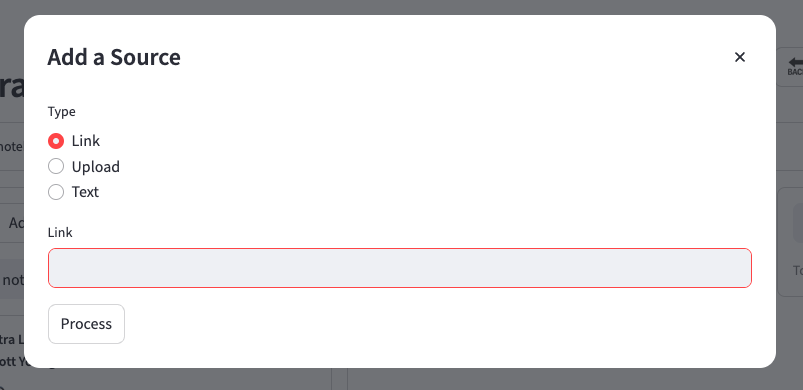
Best viewed on desktop — tap Enlarge to read the numbered controls.
Do this first Upload PDFs and web pages then ask questions
Organise research material into separate notebooks for easy navigation
Do this first Create and organise notebooks
Generate an MP3 podcast from notebook content with custom speaker voices
Do this first Create a multi‑speaker podcast from your notes
Deploy Open Notebook on a remote server so a team can access it via a browser
48 outcomes in all — one per recipe below.
Need the Open Notebook source and Docker files
You obtain the Docker Compose files and app code needed to start the service
Need to use a live web article as a source
You can pull in web pages so the AI can answer from live articles or reports
Need a quick literature review across several PDFs
You can quickly generate a comparative summary of several PDFs, with citations to verify each point
Need separate notebooks for each research topic
Separate subjects into their own notebooks so you can switch context instantly
Organise existing documents
Placing files in the right notebook keeps information grouped by relevance
Want to turn a webpage into a searchable note
You can turn any online resource into a searchable document without manual copy-paste
Audio recordings aren’t searchable
Audio content becomes searchable text, expanding your knowledge base beyond PDFs
You can discover how a concept appears across different topics and compare contexts
Start a podcast with all source docs ready
You can start a podcast project by opening a notebook that contains the source documents
Want different voices for each line
You can define up to four distinct speakers so each line sounds like a different person
Need a consistent voice for your podcast
The overall style of the podcast can be set to match your audience
Can’t tell which notebooks to use
You control exactly which notes feed into the script and audio
Want to listen to a podcast
You can immediately review the result in your browser or save it locally
Two papers clash
You can showcase opposing viewpoints by feeding two contradictory documents and selecting the debate tone
Want to see how tone changes your text
Switching tones lets you see how style affects the representation of content
You obtain a remote machine where the app can run and be reachable by your team
Need the codebase on your VPS
You get the codebase needed to launch the application
Missing AI credentials
Open Notebook can call external AI APIs or a local Ollama server once it knows the key or endpoint
External users can't reach my notebook
Network traffic on the Open Notebook port can reach the server
Can’t open your notebook on other computers
Team members can interact with the app via a standard web browser
Custom domain with HTTPS
A friendly domain with TLS encryption makes access safer and easier
Your personal notebooks live only on your PC
Your team's collective notes become available in a central location
A simple link confirms that access permissions and networking are correctly configured
In any notebook, click ‘Add Source’ and choose ‘Web Page’. Paste the URL of the article and confirm; the page is fetched, its text is indexed like a PDF, and you can search it later.
Create separate notebooks for each topic (e.g., ‘RNA‑seq methods’, ‘Grant proposals’) and drag or upload the relevant files into them. If a document belongs to more than one topic, add it to each notebook so it appears in both contexts.
Yes. Upload an MP3 or WAV file to a notebook and the system will generate a transcript, turning the spoken content into searchable text alongside your PDFs and web pages.
Create a new notebook (for example, ‘Literature Review’), upload the three PDFs you want to compare, then ask a question like “What are the three main findings across these papers about [topic]?” The AI will synthesize the answers and provide citations you can click to verify each claim.
The search returns results grouped under each notebook where the term is found, letting you see how the concept is discussed in different contexts without mixing unrelated material.
No API keys set for your AI models
The platform supports multiple LLM, embedding, TTS, and STT providers. Adding your API keys lets the notebook route requests to the chosen models, unlocking full functionality like chat, summarization, and podcast generation.
My files are all over the place
You can upload files, paste URLs, or enter raw text as sources. The notebook indexes their content, allowing you to ask natural‑language questions that are answered using only the provided material.
Need a podcast from my notes
Using built‑in podcast templates, Open Notebook can synthesize audio by feeding selected sources into TTS models, producing multi‑speaker episodes. This automates content creation for tutorials, interviews, or summaries.
Need a private AI notebook on your computer
The video shows how to pull the Open Notebook Docker image, provide an OpenAI API key, and start the container. This gives you a self‑hosted instance that runs on your machine without needing to compile code.
Want to pull in PDFs, web pages, etc. as data sources
After the server is running, you can create data sources by uploading files or providing URLs. The tool embeds these sources into a vector store so they can be queried later.
Need to select embedding and chat models for a notebook
The platform requires you to select both an embedding model (for vectorizing sources) and a chat model (for answering queries). Selecting the correct models in the Settings panel enables context‑aware conversations.
Need a private research‑chat notebook like Google’s
Open Notebook is an open‑source, Docker‑first application that provides the same research‑chat experience as Google NotebookLM but runs on your own server. By running it locally you keep all uploaded documents private and can choose any LLM provider.
Need automatic research summaries from documents
Open Notebook exposes a REST API that lets you programmatically add sources, trigger summarisation, and retrieve answers. This enables integration with CI pipelines, Slack bots, or custom dashboards without manual UI interaction.
Want a spoken version of any doc
The built‑in podcast generator can turn any uploaded source into an audio narration using selectable speaker profiles. By configuring multiple speakers you can simulate a dialogue (e.g., product manager vs. backend engineer) to make dense material more engaging.
Want lower cost or keep data private
Open Notebook abstracts the model layer, allowing you to point it at hosted APIs (e.g., OpenAI, Anthropic) or local models served via Ollama. Changing the provider lets you balance response quality, latency, and data sovereignty.
Need a brand‑new AI‑assisted notebook for your project files
You open the Microsoft 365 Copilot experience, select the Notebooks tab and click “Create copilot notebook”. Naming the notebook gives you a dedicated workspace where all added content is linked, not copied.
Can't find my Word docs inside a notebook
Within a notebook you can search or browse OneDrive, Teams channels, and recent files. Selecting a file creates a sharing link that stays in its original location while being accessible from the notebook.
Want each notebook to answer in its own style
Each notebook can store its own set of behavior guidelines. By adding “Copilot instructions”, you tell the AI how to respond (tone, format, focus) for all queries in that notebook.
When you type a query in the notebook’s chat, Copilot searches exclusively the linked references and notes inside that notebook, ignoring external data. This yields concise answers tailored to your project.
Need a fast way to review notebook notes
After gathering all relevant documents, you can click “Create audio overview”. Copilot synthesizes a spoken summary that reads like a podcast, allowing quick auditory review of the project.
Want a local AI notebook but hate command‑line installs
Claude Code provides an interactive terminal that automates the installation of Docker, pulls the Open NotebookLM repository and configures it for you. This removes manual command‑line steps and lets you get a running notebook in minutes.
Need Open NotebookLM but don’t want to install anything
Docker packages all dependencies into an isolated container, so you don’t need to install Python libraries or manage system paths. The video shows pulling the pre‑built image and running it with a single command.
Want a free local Llama model in Open NotebookLM
Olama offers open‑source Llama models that can run on your CPU/GPU without API costs. The video demonstrates selecting Olama in Claude Code, letting the script download the Gemma 34B model and register it with Open NotebookLM.
Can't find relevant passages in my notebook sources
Embedding models turn text into vectors that enable fast similarity search across added sources. The video adds an XY embedding tool via the settings UI, allowing notebooks to retrieve relevant passages from uploaded documents or web pages.
Want a private notebook server on your VPS
Deploying Open Notebook via Docker on a virtual server gives you full control and privacy over your data. By pulling the GitHub repository into a Docker compose setup, the service runs in an isolated container that can be started with a single command.
Can’t get the notebook to talk to an AI model
Open Notebook separates code from secrets; you must edit its configuration file to insert your own API key, otherwise the container cannot call external models. The YAML editor lets you replace placeholder values with real credentials safely.
Not sure which AI model to use in your notebook
After configuring the API key, you must activate specific model endpoints (language, embed, speech) in the Settings → Models page. This tells Open Notebook which provider and model to use for each task, allowing customized private assistants.
I want a personal notebook for my files and notes
Notebooks let you upload files, links, or plain text as source material and add personal annotations. The system then uses only this curated data for answering queries, giving highly specific results while keeping everything on your VPS.
Want to keep AI provider keys safe in a notebook
Open Notebook stores API credentials inside its Docker container's YAML configuration to avoid leaks. By editing the YAML file you can securely add keys for OpenAI or other providers, enabling chat and embedding models.
Private research space with sources and notes
Each notebook isolates its data, so adding URLs, files, or plain text as sources keeps information scoped to that topic. Notes let you annotate findings, while the chat pane lets the selected model answer questions using only that notebook’s content.
Want to make your notes searchable and audible
By configuring embedding models and audio models in the YAML file, Open Notebook unlocks vector search, transcription, and text‑to‑speech capabilities, allowing you to turn research notes into podcasts or perform semantic searches.
Want PDFs, docs, webpages and videos in one notebook
You can import PDFs, Google Drive documents, websites, and YouTube videos into a notebook as sources. This lets the AI read and reference all of them when answering questions.
The chat panel can query all added sources at once, and the response includes numbered citations that link back to the exact source content.
Want to keep an AI answer for later reference
After generating an answer, you can click Save as note to store it on the right‑hand side, making it easy to collect key insights for later reference.
I can’t search my own notes
User‑written notes can be converted into source entries, allowing the AI to treat them like any other imported document when answering queries.
My notebook is a mess of PDFs and web articles
Clicking the auto‑tag icon lets NotebookLM analyze your imported files and automatically assign them to logical groups, keeping large notebooks organized.
Want to see how ideas link across several docs
The Studio can create visual mind maps that connect ideas across chosen sources, helping you see relationships without reading every document.
Need a spoken recap of your sources
Using the Studio’s audio option, you can produce a podcast‑style summary of selected sources, choosing language, length, and focus areas.
Need a private, offline AI notebook for documents
Open NotebookLM is an open‑source web interface that lets you upload documents, create notebooks and query them with LLMs running on your own machine. Because everything runs inside Docker it stays offline, giving full privacy and no usage limits.
No GPU but need a local LLM
Llama.cpp compiles LLM weights into an efficient CPU‑only binary, allowing you to run models like Gemma 3 1B without a GPU. The tool works with Open NotebookLM as the backend model for chat and tools.
Need keyword‑free searching of notes
An embedding model converts text chunks into vector representations that can be compared for similarity, powering fast keyword‑free searches across your knowledge base.
Open NotebookLM can send text to a TTS service (e.g., ElevenLabs) and stitch the audio into a podcast, letting you repurpose notes or research as spoken media without leaving the platform.
Want to run Open Notebook without any installs
Docker packages all dependencies of Open Notebook into a self‑contained image, letting you run the app on any machine without manual installs. This isolation ensures consistent behavior and easy cleanup.
Want the full Open Notebook code on your machine
Cloning the repository copies all required files to your local machine, giving you a complete, version‑controlled copy of the open‑source project ready for configuration.
Open Notebook can’t find my server or API keys
The .env file supplies environment variables that tell Docker where the app lives, which port to use, and which AI provider credentials to load. Editing it tailors the deployment to your network and chosen model.
Need a private AI notebook on your server
`docker compose up -d` reads docker‑compose.yml and the .env variables, builds any needed images, and starts the services in detached mode, making the web UI available on your network.
The same set on /recipes, filtered by tool and role.
Shows how to use Google NotebookLM for adding various source types, saving AI replies as notes, and converting custom notes into searchable sources.
Shows how to work with the new Microsoft 365 Copilot Notebooks features
Shows how to use the Open Notebook API to automate research summaries, switch LLM providers, and self‑host a NotebookLM workspace
Shows how to set up the free, private Open Notebook on a VPS with Docker and configure an AI model API key
In any notebook, click ‘Add Source’ and choose ‘Web Page’. Paste the URL of the article and confirm; the page is fetched, its text is indexed like a PDF, and you can search it later.
Create separate notebooks for each topic (e.g., ‘RNA‑seq methods’, ‘Grant proposals’) and drag or upload the relevant files into them. If a document belongs to more than one topic, add it to each notebook so it appears in both contexts.
Yes. Upload an MP3 or WAV file to a notebook and the system will generate a transcript, turning the spoken content into searchable text alongside your PDFs and web pages.
Create a new notebook (for example, ‘Literature Review’), upload the three PDFs you want to compare, then ask a question like “What are the three main findings across these papers about [topic]?” The AI will synthesize the answers and provide citations you can click to verify each claim.
The search returns results grouped under each notebook where the term is found, letting you see how the concept is discussed in different contexts without mixing unrelated material.
Add SourceWeb PagePDFNotebookSidebarDragUploadMP3WAVSearchWorkspacePodcast dialogSpeakerTone.envgit cloneUFWport 3000web UIDNSTLSLet's EncryptCertbotAsk, share, or report — over on the Heidelberg AI community forum.