Claude in your browser — chat, write, analyze, and code
7 lessons2026-08-13AI-generated
1Overview
Anthropic's own chatbot, reachable from any browser with nothing to install.
Claude (Anthropic) runs in any browser tab with a genuinely useful free tier: strong at writing, analysis, and explaining concepts, and it reads the PDFs, CSVs, and images you upload. → The web app has limited integrations — for one-click MCP connectors or local-file access, use Claude Desktop or Claude Code instead.
Claude is Anthropic’s frontier chatbot — zero setup, a genuinely useful free tier, and a strong hand at writing, analysis, and explaining. Below: what it’s best at, and when to move up to Claude Desktop or Claude Code.
→Draft, analyze, and explain with Claude straight from a browser tab
→Upload PDFs, CSVs, and images and reason over your own documents
→Know when to graduate to Claude Desktop or Claude Code for integrations
1.3Best for
Careful writing and reasoning, and thinking a problem through with a model that explains its steps well.
1.4Watch out
Stepping outside the browser tab means switching apps entirely: Desktop unlocks connectors and your local files, Code puts it to work inside your own repo.
1.5Free vs paid
Free tier with daily limits; Pro $20/mo ($17 annual); Max $100–200/mo for heavier use. No payment needed to start.
2Lessons 7
2.1Get a useful answer from Claude
Claude is an AI chatbot you run in your browser, a hosted end‑user app you simply open and prompt.
Receive a useful answer to an actual query on your first try
TryI'm a biology researcher. In plain language, explain what a p-value actually tells me and what it does NOT tell me — at a level I could repeat to a first-year student. Then give one concrete example from a typical wet-lab experiment.
Type your question in the box at claude.ai and press Enter. Ask in any language you like — Claude answers in the language you write in. There's nothing to install.
The claude.ai composer is all there is to it — type your question in plain language, pick a model (here Opus 4.5), and press Enter. No install, no setup.Credit: support.claude.com ↗
Visit claude.ai and sign in using a Google account or email address
Enter your real question in the composer and press Enter
Add follow‑up prompts such as “go deeper on the example” or “I didn’t follow step 2” to continue the conversation
You'll see A clear plain‑language response appears instantly and the chat window stays ready for further replies
Takeaway Claude works as a simple browser conversation – sign in free, pose a real question, and keep refining the reply
Check Why should you treat Claude's first reply as the start of a dialogue rather than a final answer, and what does that mean for how you respond to it?
Cost Free plan: no credit card, with daily message limits that reset every few hours. Pro raises those limits and adds heavier features; Max goes higher still. Start free.
2.2Create precise prompts for Claude
Claude is an AI chatbot accessed through a web interface, ready‑to‑use without building custom agents.
Get sharper answers by giving context, assigning a role, specifying the output format and iterating instead of restarting
TryYou are a careful biostatistics reviewer.
<context>
I ran a 3-arm dose-response experiment (control, low, high), n=6 per arm, and used a one-way ANOVA followed by Tukey's test.
</context>
<task>
List, as a numbered checklist, the assumptions I should have checked before trusting this analysis, and for each one name the quick diagnostic I'd run.
</task>
Anthropic's own guidance: wrap distinct parts of a prompt in simple tags like <context> and <task> so Claude can tell instructions from data. Setting a role ("You are a careful biostatistics reviewer") focuses its tone and rigor.
Provide context and assign a role, e.g., “You are a careful biostatistics reviewer” followed by relevant background
Request a specific output format such as a numbered checklist, bullet points or a short paragraph
Wrap each part of the prompt in tags like , and to keep sections distinct
If the response misses something, reply with a targeted correction like “tighten point 3” instead of re‑asking
You'll see A focused, correctly‑formatted answer that updates when you request small corrections
Takeaway Define the persona, supply background, specify output shape and use tags, then refine by replying rather than starting over
Check Why does Anthropic recommend wrapping distinct parts of a prompt in tags like and , and what problem does it prevent?
Cost Free on every plan — prompt-craft costs nothing and is the single biggest lever on answer quality, on the free tier as much as on Pro.
2.3Get answers from PDFs, CSVs and images
Claude is an AI chatbot you interact with through its hosted web interface, not a development platform you code against.
Upload a document or picture and receive answers that reference its actual contents
TryHere's the PDF of a paper. Summarize the study design, the main result, and the single biggest limitation in three short paragraphs. Then quote the exact sentence where they state their primary outcome.
Click the attachment (paperclip / "Add files or photos") button below the message box, attach the file, then ask your question. Asking Claude to QUOTE the exact sentence keeps it honest and lets you verify against the source.
Attach a file using the attachment button (PDF, Word, TXT, CSV or PNG/JPG/GIF/WebP)
Ask a question about the content, such as “Which statistical test did they use?” or “What does this gel image show?”
Request an exact quote by adding “quote the exact sentence you’re basing that on”
You'll see Claude returns answers that include exact quotes and data extracted from the attached file
Takeaway Attach files instead of copy‑pasting and always ask for source quotations to verify claims
Check When Claude summarizes a document you've uploaded, why should you explicitly ask it to quote the exact sentence it's basing each claim on?
Cost File upload works on the free plan. Limits to know: up to ~500MB and 20 files per chat; Claude reads text and visuals in PDFs under ~100 pages, and text-only for very long PDFs. Heavy use hits the free daily cap faster.
2.4Get up‑to‑date answers with source links
Claude is an AI chatbot you access through a web interface, delivering conversational answers directly to users.
Receive current responses that include citations and verify at least one source yourself
TrySearch the web for the current recommended reference gene(s) for qPCR normalization in human cell lines, and tell me how that recommendation has changed in the last few years. Give me the source links so I can check them, and flag anything where sources disagree.
When a question needs current facts, Claude can search the web and cite what it found. The trick: explicitly ask for the source links and ask it to flag disagreement — then click through and read at least one source yourself.
Claude attaches a source pill to each claim it draws from the web — here Microsoft, the TypeScript docs, and Stack Overflow. The same mechanism gives you a link to click through and check on any web-sourced answer, including a qPCR reference-gene claim.Credit: official Anthropic web search launch video (x.com/AnthropicAI)
Type your question into the chat input field and press Send
Add “Give me the source links” to request citations
Click a citation link to open the source
Include “flag where sources disagree” to highlight contested points
You'll see A reply showing clickable citation pills and, if requested, a note marking where sources disagree
Takeaway Checking a cited source turns a confident guess into a verified fact
Check Why does asking Claude to flag where sources disagree give you a more trustworthy research answer than asking for a clean summary?
Cost Web search is available on the free plan. It's most valuable exactly when your own knowledge (or Claude's) might be out of date — current literature, evolving methods, recent tools.
2.5Build an editable Artifact beside the chat
Claude is an AI assistant accessed as a hosted chatbot in your browser, generating editable Artifacts beside the chat.
Create a document, diagram or mini‑tool that appears in its own side panel and can be refined through conversation
TryCreate a flowchart of a standard RNA-seq differential-expression pipeline, from raw reads through QC, alignment, quantification, normalization, to the final DE table. Make it an artifact I can edit, and keep the boxes short.
When Claude builds something substantial — a diagram, a document, a chart, a snippet of working code — it opens an Artifact in a side panel. You then edit it by replying ("add a 'batch correction' step before normalization") instead of regenerating from scratch.
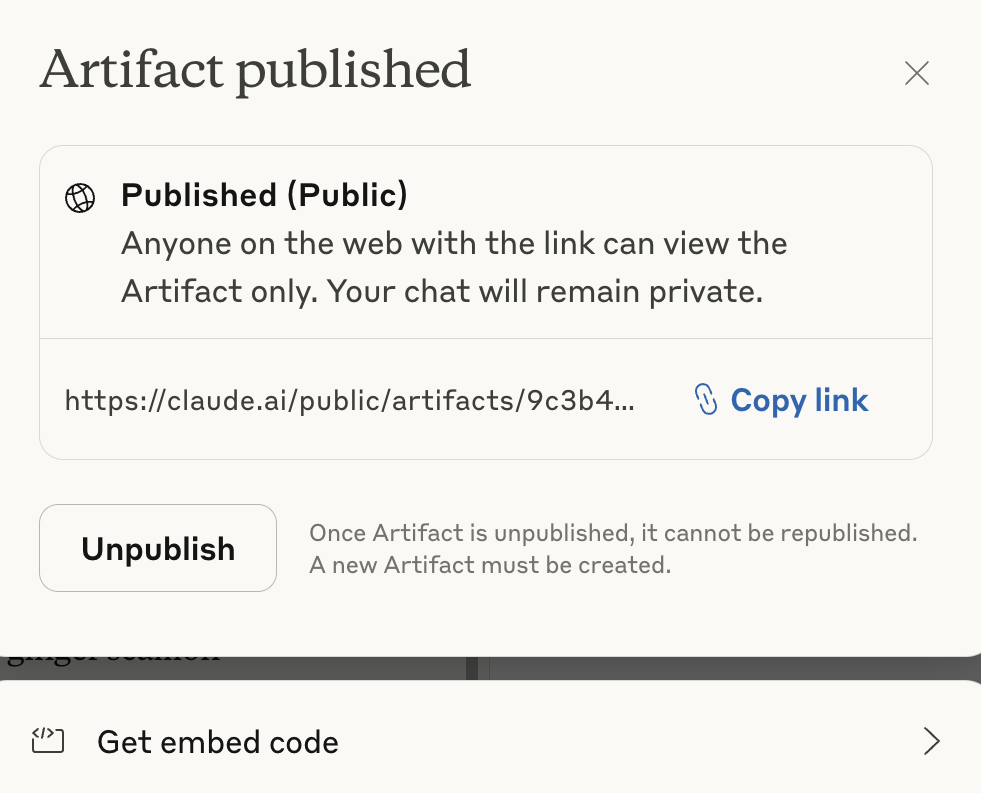
2Remove public accessartifact becomes private and cannot be republished
3Embed artifact snippetallows insertion into external pagesWhy this exists →
Best viewed on desktop — tap Enlarge to read the numbered controls.
Once an Artifact is built, publish and share it: Claude gives you a public claude.ai link (your chat stays private) that you can copy, unpublish, or embed elsewhere.Credit: support.claude.com ↗
Enter a prompt asking Claude to generate a flowchart, protocol, table, SVG figure or interactive calculator
Refine the output by typing instructions such as “make the boxes blue” or “add a QC failure branch”
Click Copy to copy the Artifact to the clipboard
Click Download to save the Artifact locally
Click Share to obtain a public link for the Artifact
You'll see A live flowchart (or document, chart, or calculator) displayed in a side panel, updating as you edit it and ready to copy, download or share
Takeaway Ask for an Artifact to turn text requests into usable, editable outputs that you can shape by talking to the model
Check What is the key difference between Claude's Artifacts and ordinary text replies, and why does that difference matter when you need to iterate on a deliverable?
Cost Artifacts are available on all plans, including free; to run code or generate downloadable files you may need to turn on "Code execution and file creation" in Settings. Heavy generating eats the free daily limit faster. Note: Claude does not generate photographic images — it makes diagrams, SVGs, and code, not AI photos.
2.6Create a Project that provides reusable context for Claude chats
Claude is an AI chatbot accessed through its web interface, designed for direct conversation and task assistance.
Start each new Claude chat with your uploaded files, style instructions and ongoing work already loaded
TryCreate a project called 'Thesis — methods'. In the project instructions, tell Claude: I'm writing a molecular-biology thesis, prefer British spelling, always ask for the exact statistical test before drafting, and keep explanations PI-level not student-level.
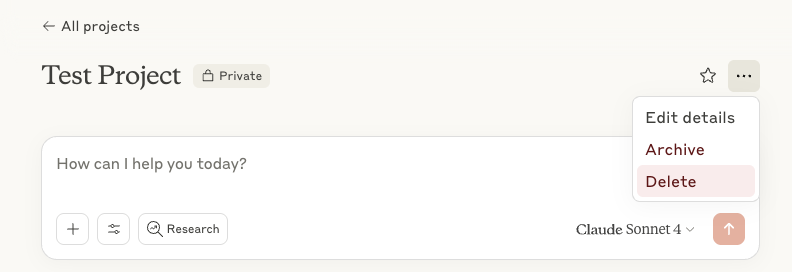
Open Projects in the left sidebar, create one, and add a knowledge base (upload your key papers/protocols) plus project instructions. Every chat inside that project inherits the documents and the instructions automatically.
2Project settings buttonmodify name, description, privacyWhy this exists →
Best viewed on desktop — tap Enlarge to read the numbered controls.
Every Project gets its own chat compose box, name, and privacy setting — start a chat inside it and that Project's documents and instructions apply automatically.Credit: support.claude.com ↗
Click Create project in the sidebar, give it a name and upload the relevant documents to its knowledge base
Open Project settings, add instruction text such as “prefer British spelling” or “always cite sources”
In Settings → Profile Instructions, add any account‑wide preferences you want applied to all projects
Go to Settings → Capabilities and toggle Memory on to let Claude build a running summary that persists per Project
You'll see A Project where every new conversation automatically knows your uploaded files, preferred style and ongoing work
Takeaway Define context once in a Project and let Claude’s memory retain it for future chats
Check What is the difference between project instructions and the memory feature in Claude, and when would you want to use each one?
Cost Projects, project/profile instructions, and memory are all on the free plan; free accounts get up to 5 Projects, while Pro/Max give unlimited Projects and a much larger knowledge-base capacity. (Searching across all your past chats — Chat Search — is a paid feature.)
2.7Analyse a research paper with Claude
Claude is a conversational chatbot accessed through a web interface, not a development platform you code against.
Run Claude over an uploaded paper, have it reason step‑by‑step, verify its conclusions and reveal the strongest reviewer objection
TryHere's the PDF of a paper in my field. Work through it carefully and reason step by step before answering:
<questions>
1. State the central claim in one sentence, and quote the sentence where the authors make it.
2. Walk through their methods — does the design actually support that claim? Where are the gaps?
3. Examine the statistics: tests used, sample sizes, anything that should make me skeptical.
4. List the three weaknesses a tough reviewer would raise first.
</questions>
Before you give your final answer, re-check your reasoning against the actual text and correct anything you got wrong.
The trick that lifts quality on hard analysis: ask Claude to reason step by step AND to verify its own answer against the source before finishing. Combined with file upload (Lesson 2) and quoting, this turns a summary into a genuine critical read.
Upload the PDF by clicking Upload the paper and provide Claude with the numbered question set for a structured review
Prompt Claude to reason by selecting Ask it to reason, using phrases such as “reason step by step” and “re‑check your reasoning against the actual text before you conclude”
Challenge Claude with a reviewer stance by clicking Pressure-test and asking “what’s the single strongest objection?”, then verify any quoted passages in the paper yourself
You'll see A structured, quote‑backed critique showing claims, method gaps, statistical red flags and a hard reviewer objection
Takeaway Combine uploading, stepwise reasoning and self‑verification to produce a defensible critical read
Check Why does asking Claude to re‑check its reasoning against the actual text and correct anything it got wrong before it finishes improve the quality of a critical paper analysis?
Cost Everything here runs on the free plan; a long, multi-question deep-read will use up the free daily message limit quickly, where Pro/Max simply let you keep going. Careful step-by-step reasoning works best on Claude's strongest models, available across the plans.
3You’ll know it worked 5 checkable outcomes in this chapter
✓The browser displays the generated diagram or chart.
✓A reputable source matches the fact and contradicts any fabricated detail.
✓Claude’s answer includes live web results with source citations.
✓Claude's reply references information from later sections of the pasted text.
✓Claude now references past conversation details automatically
4FAQ, Tips & How-to 8
one problem, one solution, one action
?FAQClaudeEveryone
What are Projects, and should I use them for my coursework or research?
Projects are self-contained workspaces inside Claude with their own chat history and file storage. You upload your own documents (lecture notes, protocols, papers) to a project's knowledge base, and Claude can reference them throughout all conversations in that project. This is useful for organizing materials by course or research topic so you don't have to re-upload files every session.
Claude cannot generate photographs or illustrations the way image-generation tools like DALL-E or Midjourney do. What it can do is create diagrams, charts, and interactive visuals using HTML and SVG code, which appear directly in your chat. It can also analyze and describe images you upload to it. If you need a polished scientific figure, you would create it in a dedicated tool and then use Claude to help you interpret or caption it.
Yes, Claude can 'hallucinate' — generating information that sounds authoritative but is not grounded in fact. The Anthropic Help Center explicitly warns that Claude may fabricate quotes, lack up-to-date data, or produce plausible-sounding but incorrect details. For scientific work, treat Claude as a starting point or writing aid, not a primary source: always check its claims against textbooks, original papers, or databases like PubMed. Do not cite Claude as a source in academic work.
How is Claude different from ChatGPT — which one should I use?
Both are capable AI assistants at a similar price point ($20/month for paid tiers). Claude tends to produce more natural, collaborative writing and is particularly strong at working with long documents — its large context window means you can paste in an entire research paper and it holds the full content in mind. ChatGPT has broader built-in tools including image generation and a web browsing agent. Neither is universally better; many people use both for different tasks. For reading and discussing lengthy scientific papers, Claude's long-context strength is a practical advantage.
Can I upload PDFs, research papers, or images to Claude?
Yes. Claude accepts PDF, DOCX, TXT, CSV, XLSX, and other document formats, plus JPEG, PNG, GIF, and WebP images. In a regular chat you can upload up to 20 files at once, with a maximum of 500 MB per file. Claude can read and analyze text and visual content in PDFs under 100 pages (including charts and figures); for very long PDFs it extracts text only. You can also paste or upload images directly and ask Claude to describe or interpret them.
By default Claude works from its training data, which has a knowledge cutoff. However, Claude includes a web search feature you can switch on by clicking the slider icon in the chat input and toggling 'Web search.' When enabled, Claude searches the live web and includes direct source citations in its response. This means you can ask about recent publications, news, or current data and get up-to-date answers.
The context window is the total amount of text Claude can 'see' at once within a single conversation — your messages, its replies, and any uploaded files all count toward it. On paid plans, most models support a 200,000-token context window, which is roughly 500 pages of text. This means you can paste in an entire journal article or lengthy lab report and Claude will keep the full content in mind while responding.
Claude does not automatically carry memory between separate conversations by default — each new chat starts fresh. However, a Memory feature lets Claude automatically summarize key insights from your past chats and use them as context in future conversations. You can turn this on in Settings > Capabilities. If you want a persistent workspace where Claude always has access to specific documents and notes, you can use Projects for that purpose instead.
The course-style intro if you learn by following along. Watch after Kevin's video to go from 'I can use it' to 'I use it well'.
6FAQ 8
What are Projects, and should I use them for my coursework or research?
Projects are self-contained workspaces inside Claude with their own chat history and file storage. You upload your own documents (lecture notes, protocols, papers) to a project's knowledge base, and Claude can reference them throughout all conversations in that project. This is useful for organizing materials by course or research topic so you don't have to re-upload files every session.
I need a lab‑report figure but can’t draw it — get an SVG chart displayed in chat
Claude cannot generate photographs or illustrations the way image-generation tools like DALL-E or Midjourney do. What it can do is create diagrams, charts, and interactive visuals using HTML and SVG code, which appear directly in your chat. It can also analyze and describe images you upload to it. If you need a polished scientific figure, you would create it in a dedicated tool and then use Claude to help you interpret or caption it.
When you need scientific facts from an AI — it may hallucinate, so double‑check everything
Yes, Claude can 'hallucinate' — generating information that sounds authoritative but is not grounded in fact. The Anthropic Help Center explicitly warns that Claude may fabricate quotes, lack up-to-date data, or produce plausible-sounding but incorrect details. For scientific work, treat Claude as a starting point or writing aid, not a primary source: always check its claims against textbooks, original papers, or databases like PubMed. Do not cite Claude as a source in academic work.
How is Claude different from ChatGPT — which one should I use?
Both are capable AI assistants at a similar price point ($20/month for paid tiers). Claude tends to produce more natural, collaborative writing and is particularly strong at working with long documents — its large context window means you can paste in an entire research paper and it holds the full content in mind. ChatGPT has broader built-in tools including image generation and a web browsing agent. Neither is universally better; many people use both for different tasks. For reading and discussing lengthy scientific papers, Claude's long-context strength is a practical advantage.
Can I upload PDFs, research papers, or images to Claude?
Yes. Claude accepts PDF, DOCX, TXT, CSV, XLSX, and other document formats, plus JPEG, PNG, GIF, and WebP images. In a regular chat you can upload up to 20 files at once, with a maximum of 500 MB per file. Claude can read and analyze text and visual content in PDFs under 100 pages (including charts and figures); for very long PDFs it extracts text only. You can also paste or upload images directly and ask Claude to describe or interpret them.
My AI only knows old info — enable web search for up‑to‑date answers
By default Claude works from its training data, which has a knowledge cutoff. However, Claude includes a web search feature you can switch on by clicking the slider icon in the chat input and toggling 'Web search.' When enabled, Claude searches the live web and includes direct source citations in its response. This means you can ask about recent publications, news, or current data and get up-to-date answers.
Need an AI to read a multi‑page file in one go — it keeps up to 200 K tokens in view
The context window is the total amount of text Claude can 'see' at once within a single conversation — your messages, its replies, and any uploaded files all count toward it. On paid plans, most models support a 200,000-token context window, which is roughly 500 pages of text. This means you can paste in an entire journal article or lengthy lab report and Claude will keep the full content in mind while responding.
My AI forgets earlier chats — it now references past conversation details automatically
Claude does not automatically carry memory between separate conversations by default — each new chat starts fresh. However, a Memory feature lets Claude automatically summarize key insights from your past chats and use them as context in future conversations. You can turn this on in Settings > Capabilities. If you want a persistent workspace where Claude always has access to specific documents and notes, you can use Projects for that purpose instead.
7Glossary 8 terms
Show the 8 terms
Claude
<context>
An XML-style tag you wrap around background information in a Claude prompt so Claude can clearly distinguish it from your instructions or question.
<task>
An XML tag recommended by Anthropic for wrapping the specific instruction you want Claude to carry out, keeping it distinct from background context in the same prompt.
<data>
An XML tag used to enclose raw data (such as a table or CSV snippet) inside a prompt so Claude can tell it apart from your instructions and context.
Artifact
A document, diagram, chart, or runnable code snippet that Claude generates in a side panel where you can refine, copy, download, or share it.
Project
A named workspace in claude.ai that holds its own documents and instructions so every chat inside it starts with shared context without re-pasting.
Memory
An optional capability where Claude builds a running summary of your role and ongoing work so new chats start already informed about you.
role
A persona or expert identity you give Claude at the start of a prompt (e.g. 'a careful biostatistics reviewer') to steer the depth and tone of its answers.
web search
A live internet lookup Claude can perform when a question needs current information, returning cited sources you can open and verify.
 Claude Everyone
