Heidelberg AICurriculum
Track 2 · Beginner
2.2

Gemini

Google's AI — built into Docs, Sheets, and Gmail

9 lessons 2026-08-13 AI-generated

1Overview

Google DeepMind's assistant (2023) — built into Google Workspace, multimodal by default, with a context window up to a million tokens (Gemini 2.5 Pro).

Gemini (Google DeepMind) is the frontier chatbot wired into Google Workspace: it drafts a formatted Google Doc, fills a Sheets table, or writes a Gmail reply with no copy-paste, is multimodal by default, and reads up to a million tokens at once. → Workspace integration is the real differentiator; for pure coding or deep literature search, Claude or Perplexity outperform it.

Gemini is Google's frontier chatbot, wired straight into Google Workspace. Below: where its Docs / Sheets / Gmail integration wins, and where another tool does better.

1.2After this chapter you can
Generate and edit Google Docs, Sheets, and Gmail drafts without copy-paste
Use its long context and native multimodality on big PDFs and images
Know where it wins (Workspace) and where to pick another tool
1.3Best for

Working inside Google Docs, Sheets, and Gmail with no copy-paste; digesting a whole thesis PDF or an image in one prompt.

1.4Watch out

Its edge disappears the moment you leave Docs, Sheets or Gmail — outside Workspace, reach for a tool built for the job instead.

1.5Free vs paid

Free tier (Gemini 2.5 Flash) at gemini.google.com. Google AI Plus $20/mo, Pro $30/mo, Ultra from $50/mo; also bundled in Workspace Business Standard.

2Lessons 9

2.1 Complete a Gemini research task

The model selector at the top of the Gemini chat window is where you pick which model answers your prompt3.5 Flash is the free-tier default for everyday questions, and 3.1 Pro is the heavier option you switch to mid-conversation when a task needs deeper reasoning.

Open Gemini with a Google account, use the free tier and run a real research prompt

TryI'm a biologist preparing a journal club. In plain language, explain the mechanism of CRISPR base editing vs. prime editing, then give me three discussion questions a non-specialist audience could engage with.

Just type it into the prompt bar at gemini.google.com — no setup, no API key. Gemini answers in whatever language you write in.

  1. Open gemini.google.com and sign in with any Google account
  2. Enter a real research prompt into the conversation input box
  3. Select 3.1 Pro from the model selector when deeper reasoning is required
  • You'll see A plain‑language answer that includes a structured response and three discussion questions
  • Takeaway The free tier can handle whole tasks in natural language; switch to 3.1 Pro only for hard reasoning
  • Check Which model did you switch to partway through the conversation, and why did you wait to switch instead of starting with it?
  • Cost Free. The Gemini free tier includes 3.5 Flash, limited 3.1 Pro, and the major features (Deep Research, Live, Canvas, Gems). Paid Google AI plans raise usage limits and unlock the newest models — covered in later lessons.

2.2 Craft targeted Gemini responses

The prompt itself is the control surface here: giving Gemini a role, an audience, and an output format in the same message shapes the answer before it is generated, and refining in the same thread lets you correct one part without re-explaining the whole task.

Do this first Complete a Gemini research task

Generate sharper answers by assigning a role, audience and output format then refining within the same conversation

TryYou are a grant reviewer for the DFG. Here is my one-paragraph project summary: [paste]. Critique it as a reviewer would: list the three weakest points, then rewrite the paragraph to address them. Keep it under 150 words.

Give it a role (grant reviewer), the material (your summary), the task (critique + rewrite), and a format constraint (under 150 words).

  1. SET the role and audience for Gemini, e.g., “You are a grant reviewer” or “Explain this to a first‑year master’s student”
  2. SPECIFY the exact output format you need, such as a table, five bullet points, a 150‑word abstract, or a numbered protocol
  3. ITERATE in the same thread by asking for refinements like “make point 2 more specific” or “turn this into a table”
  • You'll see The reply includes both a generic improvement and a reviewer‑grade critique formatted exactly as requested
  • Takeaway Define who Gemini is, what it sees and how to answer, then refine without restarting
  • Check What three things did you specify in your prompt that turned Gemini's answer from generic advice into a reviewer-grade critique?
  • Cost Free. Prompt-craft costs nothing and works identically on every plan — it's the single biggest lever on answer quality.

2.3 Ask Gemini questions using your own files and Google Workspace

The Upload button (the paperclip in the prompt bar) lets Gemini read a file directly rather than you pasting its contents into the chat, while the separate Connect Google Workspace step is what lets it search your own Gmail, Drive and Docs instead of only the file you attached.

Do this first Craft targeted Gemini responses

Upload a PDF, image or other file and ask Gemini questions that draw on your Gmail, Drive and Docs

Try[Upload a 40-page review PDF] Summarise the key findings in five bullets, then list the three references cited most often as foundational to this field, with the exact section each appears in.

Click the upload button (the + / paperclip in the prompt bar) and attach the file before sending. Gemini reads the document itself — you don't paste its contents.

  1. Click Upload and select the PDF, image or file you want Gemini to read
  2. Press Connect Google Workspace and authorise access to Gmail, Drive and Docs
  3. Ask Gemini a question and add “and tell me which page/section it’s on” to receive source locations
  • You'll see A concise summary of the uploaded document together with a ranked list of its most‑cited references and links to the exact locations in your files
  • Takeaway Upload the real artifact and connect Workspace so Gemini answers from your own documents and email rather than just from memory
  • Check What phrase did you add to your prompt to make Gemini report which page or section a finding came from, and why does that matter for checking its work?
  • Cost Free tier supports file upload and Workspace/Photos connections. Higher usage limits and larger document handling come with paid Google AI plans.

2.4 Get web‑sourced answers from Gemini

The arrow chip at the end of a grounded Gemini answer opens the "Related content and sources" panel — it is the mechanism that turns a claim into something traceable back to an actual web page rather than the model's own paraphrase.

Do this first Ask Gemini questions using your own files and Google Workspace

Receive up‑to‑date facts with clickable source links you can verify yourself

TryWhat are the most recent (2025–2026) clinical trial results for lecanemab in early Alzheimer's disease? Give me the headline outcomes and link the primary sources you used.

Ask for recent, factual information and explicitly request sources. Some Gemini responses are grounded on live Google Search results.

  1. Ask Gemini for current information and explicitly cite your sources in the prompt
  2. Click the arrow chip at the end of the response to open the “Related content and sources” panel
  3. Open each listed link in a new tab to read the original page
  4. Paste a specific claim into a fresh Gemini query and request verification with the exact source sentence
  • You'll see An answer that includes live‑web citations and an arrow chip revealing a related content panel
  • Takeaway Validate the information by checking the cited pages rather than trusting the model’s summary
  • Check After opening a source card in the related-content panel, what should you check on the original page before trusting the claim Gemini made about it?
  • Cost Free. Search grounding is available on the free tier; it's about how you check answers, not which plan you're on.

2.5 Create and analyse images with Gemini

The Describe your image box on the image-generation screen turns a text prompt into a picture, and the same screen accepts an uploaded file for Gemini to analyse instead — the Create image chip is what tells it to render an image rather than reply with text.

Do this first Get web‑sourced answers from Gemini

Generate a diagram from text and interpret an uploaded picture using Gemini

TryGenerate a clean, labelled schematic diagram of the central dogma (DNA → RNA → protein) suitable for a lecture slide, with clear arrows and no decorative clutter.

Type the request; Gemini generates the image inline. Image generation is available on the free tier.

Gemini's image-generation screen: pick a starting style or skip straight to describing your own image in the prompt box below.
  1. Style tiles — optional presets (Monochrome, Sketch, Cinematic, …) to steer the look before you type.
  2. Describe your image — the prompt box where you describe what you want generated.
  3. Create image chip — confirms this message will generate an image rather than text.
Credit: gemini.google.com ↗
  1. Enter a description in the Describe your image prompt box and click Create image to generate a picture
  2. Drag or select an image file onto the upload area to provide Gemini with a picture to analyse
  3. Ask Gemini to describe the uploaded image, read any embedded text, or flag anomalies
  4. Specify a local edit (e.g., “relabel the third arrow ‘translation’ and make the background white”) and click Create image again to apply the modification
  • You'll see A labelled diagram produced from one sentence and a textual description of the image you uploaded
  • Takeaway Gemini can both synthesise visual content and read real‑world images while preserving existing elements during local edits
  • Check Why should a local edit request name only the one detail that's wrong, rather than asking Gemini to regenerate the whole diagram from scratch?
  • Cost Image generation and editing are on the free tier (downloads at 1K resolution). Google AI plans add 2K-resolution downloads and the higher-detail Nano Banana Pro regeneration for text-heavy images and infographics.

2.6 Create a reusable assistant and edit drafts side‑by‑side

A Gem is a saved persona with standing instructions (and optionally reference files) that you reopen instead of retyping a prompt; Canvas is a separate side-by-side editor for drafting and revising a document section by section rather than through chat replies.

Do this first Create and analyse images with Gemini

Build a Gem for a recurring task and use Canvas to write and revise longer pieces in a live editor

TryCreate a Gem called 'Methods Editor'. Instructions: You rewrite draft Methods sections to match the style of a high-impact biology journal — past tense, passive voice, precise reagent and concentration detail, no marketing language. Always ask for the organism and technique if I don't state them.

Open the Gems area, choose 'create your own', paste these instructions, and optionally upload reference files. Then chat with the Gem whenever you need that job done.

  1. Open the + button in the sidebar to launch the Gem manager
  2. Select a premade Gem such as Brainstormer, then click Create new Gem to set standing instructions and upload reference files
  3. Choose Canvas from the main menu to open the side‑by‑side editor
  4. Paste or import your draft in Canvas and press Revise section to have Gemini edit the selected part live
  • You'll see A Methods Editor Gem you can reopen at any time and a Canvas document that Gemini updates section by section
  • Takeaway Encode a repeated job once as a Gem and treat Canvas as a full‑featured editor for anything beyond a chat message
  • Check What problem does saving a recurring task as a Gem solve that simply keeping a saved chat prompt does not?
  • Cost Gems and Canvas are both available on the free tier. Some advanced capabilities (e.g. Canvas with the 3.x model and a 1-million-token context for large projects) are reserved for Google AI Pro and Ultra subscribers.

2.7 Generate a written overview and bar chart from CSV data in Sheets

The Gemini sidebar is the same assistant, docked inside a Google Workspace app instead of its own tab. Inside Sheets it can read the range you have selected — so the selection, not the prompt, is what tells it which numbers to describe, and what a chart it drafts is drawn from.

Do this first Create a reusable assistant and edit drafts side‑by‑side

Create a text summary and an editable bar chart directly from a CSV file opened in Google Sheets

  1. Open the CSV file in Google Sheets
  2. Select the range containing the data you want summarised
  3. Type a prompt into the Gemini sidebar requesting a description of table trends and a draft bar chart
  4. Press Enter to submit the request
  5. Click Insert chart on the generated result to add the chart image to the sheet
  • You'll see A paragraph summarising the data patterns appears alongside an inserted bar‑chart that matches those trends
  • Takeaway Gemini can turn tabular data into combined textual insight and visual draft
  • Check What do you have to select in the sheet before typing your prompt into the Gemini sidebar, and why does that selection matter for the summary it writes?

2.8 Run a saved Gemini assistant with a single click

A Gem is a saved prompt with a name. Everything you would otherwise retype — the instructions, the format, the role — is stored once and run from an icon, which is what turns a good one-off prompt into something you use every week.

Do this first Generate a written overview and bar chart from CSV data in Sheets

Execute your recurring Gemini workflow without re‑typing the prompt

  1. Open the Gemini sidebar in any Google Workspace app by selecting Gemini from the right‑hand panel
  2. Enter your full prompt for the recurring task in the input box
  3. Save the prompt as a custom assistant by clicking Save as Gem
  4. Provide a descriptive name in the Gem name field and confirm with Save
  5. Run the workflow later by clicking the saved Gem icon
  • You'll see The assistant runs automatically and displays its result, such as a side‑by‑side comparison table, after one click
  • Takeaway Custom Gemini assistants turn complex prompts into reusable tools that streamline repetitive workflows across Workspace
  • Check What are the two steps that turn a one-off Gemini prompt into a Gem you can rerun from the Workspace sidebar with a single click?

2.9 Generate a research report and reshape it in Canvas

Deep Research is a Gemini mode that first drafts a multi-step research plan for your approval, then browses and synthesises sources on its own — it behaves less like a chat reply and more like an analyst you brief, watch work, and then check.

Do this first Run a saved Gemini assistant with a single click

A complete, sourced research report is created, approved, and exported for further formatting

TryDeep Research: the current landscape of mRNA vaccine platforms for solid tumors — leading candidates, delivery systems, key 2024–2026 trial results, and the main open challenges. Produce a structured report with sources.

Select 'Deep Research' in the prompt bar, then enter the query. Deep Research is available on the free tier.
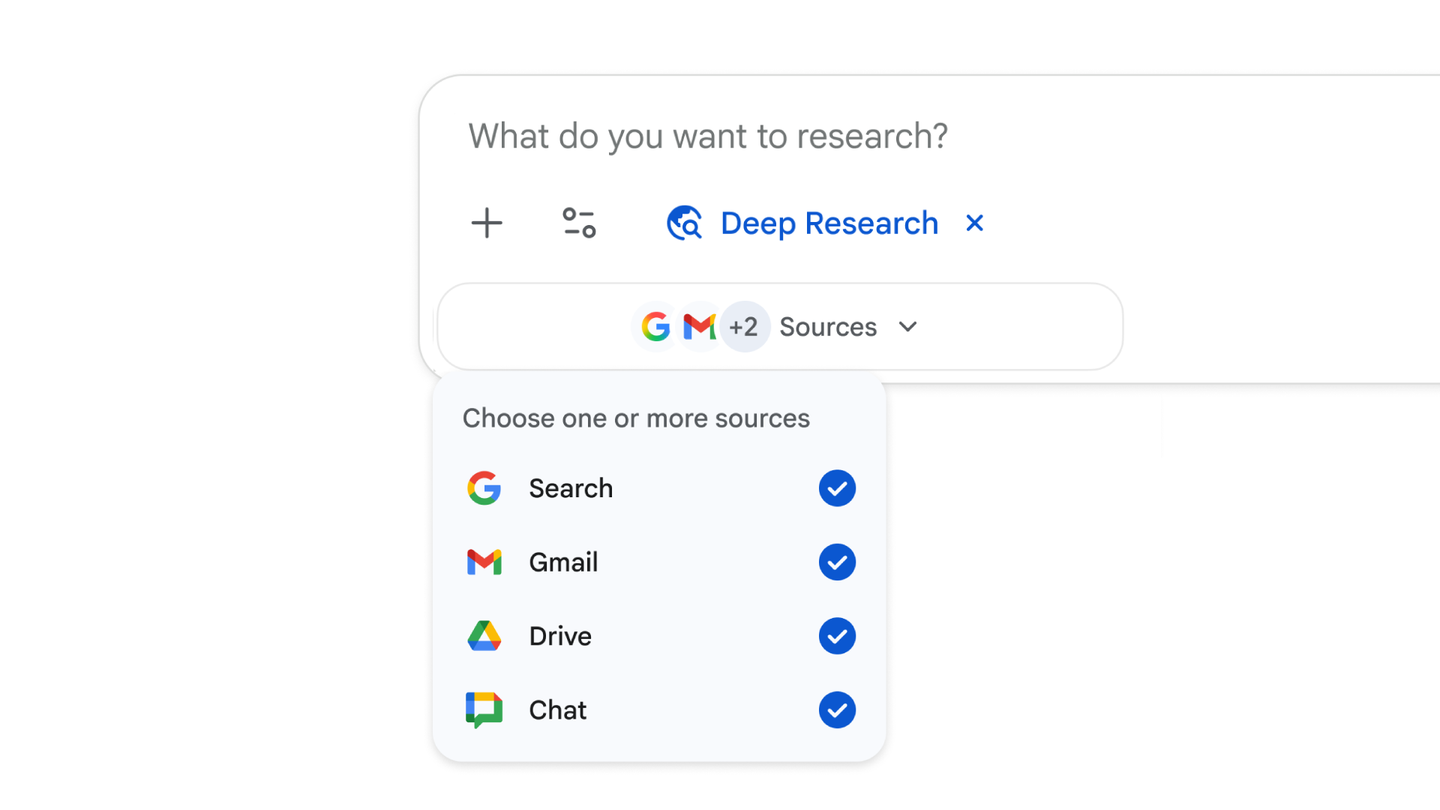
The Gemini Deep Research prompt bar with a "Sources" dropdown open, listing Search, Gmail, Drive, and Chat as selectable research sources, all checked.
  1. 1 button approve personalized research plan
  2. 2 tab view web search results live

Best viewed on desktop — tap Enlarge to read the numbered controls.

Deep Research's source picker: Google Search is on by default, and you can also let it draw on your own Gmail, Drive, and Chat content. Credit: gemini.google.com ↗
  1. Open Deep Research, review the personalised research plan, refine the scope, and approve it
  2. Watch the agent perform web, Gmail, Drive and Chat searches and analysis in real time
  3. Send the finished report to Canvas and convert it into a slide‑ready infographic, interactive quiz or one‑page brief
  • You'll see An approved plan, a live view of the agent searching and analysing, and a multi‑section report ready to be turned into a brief or infographic in Canvas
  • Takeaway Direct the analyst‑like Deep Research by approving its plan, letting it browse, then transform the output into a usable deliverable
  • Check Why is reviewing and amending the research plan before Deep Research starts searching the most effective point to control the quality of the final report?
  • Cost Deep Research is available on the free tier; paid Google AI plans give higher usage limits (more reports, more often) and early access to advanced reasoning like Deep Think on Ultra.

3You’ll know it worked 19 checkable outcomes in this chapter

  • A bar chart appears with labeled axes and trend description
  • A structured multi-section research brief with source links appears after browsing many pages
  • The gem runs the scheduled task automatically without manual input
  • Sheet shows a new column with theme labels, sentiment scores, and a 3-paragraph summary in a cell
  • Manager reads a concise summary of the complaint, timeline, actions taken and next steps without scrolling through 40 messages
  • The translated document matches the original medical instructions and any uncertain terms are flagged
  • You upload a combination of PDFs, images, and video links, ask a question requiring synthesis across formats, and receive a coherent answer that references all inputs accurately.
  • The chat displays the generated media or provides a detailed breakdown of an uploaded image/video.

19 outcomes in all — one per recipe below.

4FAQ, Tips & How-to 43

one problem, one solution, one action

Dashboards & analytics1

How-to Gemini Scientist +1

Need a quick summary of my CSV data and a ready‑to‑use chart

A quick description plus a draft visual, using Gemini's multimodal strengths.

~3 min · no code AI-generated

Content & marketing2

How-to Gemini Scientist +1

Need a quick diagram from a text description

A draft visual in seconds you iterate on, instead of fighting a drawing tool.

~3 min · no code AI-generated
How-to Gemini Physician

Patient handout needs a new language

A quick draft translation that helps a patient understand their care between visits — reviewed against the original before use, and via a certified translator for anything legally or clinically sensitive.

~3 min · no code AI-generated

Research & data tools3

How-to Gemini Founder +3

Need a quick map of a topic while you work elsewhere

A broad first map of a topic with links, assembled while you do something else.

~3 min · no code AI-generated
How-to Gemini HR / People

Need to narrow down dozens of resumes fast

A ranked shortlist with a one-paragraph rationale per candidate, turning a 2-hour CV screen into minutes.

~3 min · no code AI-generated
How-to Gemini HR / People

Lots of free‑form survey responses

A thematic breakdown of qualitative feedback in minutes, instead of days of manual coding.

~3 min · no code AI-generated

Knowledge & docs3

How-to Gemini Scientist

See agreements, disagreements and takeaways across docs

A synthesis across a stack of papers instead of reading each one cold, without ever leaving Drive.

~3 min · no code AI-generated
How-to Gemini Finance

Compare financial terms from two contracts without downloading PDFs

A structured comparison table of every financial clause across both documents, pulled right out of your inbox.

~3 min · no code AI-generated
How-to Gemini Support

A complete, accurate answer assembled from your own docs, not from the model's general knowledge.

~3 min · no code AI-generated

Internal tools & ops2

How-to Gemini Small biz +2

Need a repeatable task without re‑typing prompts

A one-click specialist instead of re-typing the same setup prompt.

~3 min · no code AI-generated
How-to Gemini Support

Escalation thread full of messages

A manager or second-line agent can read the situation in 2 minutes instead of scrolling 40 messages.

~3 min · no code AI-generated

CRM & sales1

How-to Gemini Sales

Need a competitor snapshot for calls

A one-page battlecard your reps can actually use on a call, built in minutes from public material.

~3 min · no code AI-generated
How-to Gemini Everyone

Want free‑tier AI models but don’t have an account

You can start using Gemini instantly with any Google account and get immediate access to its free-tier models

Free. The Gemini free tier includes 3.5 Flash, limited 3.1 Pro, and the major features (Deep Research, Live, Canvas, Gems). Paid Google AI plans raise usage limits and unlock the newest models — covered in later lessons. AI-generated
How-to Gemini Everyone

Don’t know which tone to use

Specifying a role and target audience changes Gemini's tone and depth dramatically

Free. Prompt-craft costs nothing and works identically on every plan — it's the single biggest lever on answer quality. AI-generated
How-to Gemini Everyone

Refine a reply without starting over

Continuing the conversation lets Gemini keep prior context, so each refinement builds on the previous answer

AI-generated
How-to Gemini Everyone

Can't copy text from a screenshot

Images are converted to searchable text, letting you query screenshots of figures or tables

The Google Workspace extension card in Gemini — once connected, Gemini can summarize and answer questions from your own Gmail, Docs, and Drive content.
  1. **Toggle** — turns the Google Workspace connection on for this chat.
  2. **@Gmail / @Google Docs / @Google Drive** — the three data sources Gemini can search once connected.
  3. **Example query** — a real "find it in my inbox" use case about a Grand Canyon hiking-trip email.
Credit: gemini.google.com ↗
Free tier supports file upload and Workspace/Photos connections. Higher usage limits and larger document handling come with paid Google AI plans. AI-generated
How-to Gemini Everyone

When you need to know where info comes from

Adding a request for page or section forces Gemini to cite the exact spot in the document

AI-generated
How-to Gemini Everyone

You receive answers that include clickable citations you can verify yourself

Click the arrow chip at the end of a Gemini answer to open its related content and sources — here, two cited pages back up the claim, so you can open and verify them yourself.
  1. **Arrow chip** — appears at the end of a paragraph when Gemini has related sources to show.
  2. **Related content and sources panel** — expands below the answer with numbered source cards.
  3. **Source cards** — link to the actual page (favicon + domain) so you can verify it.
Credit: gemini.google.com ↗
Free. Search grounding is available on the free tier; it's about how you check answers, not which plan you're on. AI-generated
How-to Gemini Everyone

You confirm whether the answer's claim matches what the original page actually says

AI-generated
How-to Gemini Everyone

You catch paraphrase errors or hallucinations before trusting the summary

AI-generated
How-to Gemini Everyone

Need a quick diagram or infographic from a single sentence

You can turn a single sentence into a labelled diagram or infographic instantly

Gemini's image-generation screen: pick a starting style or skip straight to describing your own image in the prompt box below.
  1. **Style tiles** — optional presets (Monochrome, Sketch, Cinematic, …) to steer the look before you type.
  2. **Describe your image** — the prompt box where you describe what you want generated.
  3. **Create image chip** — confirms this message will generate an image rather than text.
Credit: gemini.google.com ↗
Image generation and editing are on the free tier (downloads at 1K resolution). Google AI plans add 2K-resolution downloads and the higher-detail **Nano Banana Pro** regeneration for text-heavy images and infographics. AI-generated
How-to Gemini Everyone

Need to change just a detail in a picture

You can change specific details without regenerating the whole picture, preserving correct elements

AI-generated
How-to Gemini Everyone

Drafting a long document but want real‑time AI help

Use Canvas to draft and revise long documents with live Gemini feedback instead of scrolling through chat

The Gem manager, opened from the sidebar's + button — start from a premade Gem like Brainstormer or Career guide to see the pattern before building your own.
  1. **Premade by Google** — ready-made Gems you can try immediately, no setup required.
  2. **Brainstormer / Career guide / Learning coach** — each card shows the Gem’s name and its opening line.
  3. **Sidebar +** — where you click to create a custom Gem.
Credit: gemini.google.com ↗
Gems and Canvas are both available on the free tier. Some advanced capabilities (e.g. Canvas with the 3.x model and a 1-million-token context for large projects) are reserved for Google AI Pro and Ultra subscribers. AI-generated
How-to Gemini Everyone

Draft Methods need journal‑style formatting

A pre-configured Gem can automatically reformat Methods sections to match high-impact biology journal conventions

~3 min · no code AI-generated
How-to Gemini Everyone

Need to turn a research report draft into something interactive

Convert a research report draft in Canvas into quizzes, infographics, or mini web pages for teaching or onboarding

AI-generated
How-to Gemini Everyone

Need a research outline you can check before it runs

You control the research scope by approving or editing the AI-generated plan before it runs

Deep Research's source picker: Google Search is on by default, and you can also let it draw on your own Gmail, Drive, and Chat content.
  1. **Deep Research** — the mode selected in the prompt bar before entering a research query.
  2. **Sources dropdown** — choose one or more places Deep Research is allowed to search.
  3. **Search / Gmail / Drive / Chat** — Search is on by default; the rest opt in your own Workspace data.
Credit: gemini.google.com ↗
Deep Research is available on the free tier; paid Google AI plans give higher usage limits (more reports, more often) and early access to advanced reasoning like Deep Think on Ultra. AI-generated
How-to Gemini Everyone

When I need a detailed research report with citations

The agent delivers a ready-to-use multi-section report with citations and optional audio

AI-generated
How-to Gemini Everyone

Need a ready‑to‑use slide deck from a research report

Exporting to Canvas lets you repurpose raw research into slides, infographics, or quizzes

AI-generated
How-to Gemini Everyone

Need a deep dive on mRNA vaccine platforms for solid tumours

A well-crafted prompt guides the agent to produce a focused, sourced report on a complex topic

~3 min · no code AI-generated
How-to ChatGPT Everyone

ChatGPT excels at breaking down difficult concepts into clear, multi-step explanations

~3 min · no code Google — The Keyword (Gemini) ↗ Lesson → AI-generated
How-to Everyone

Select the tool that best matches your workflow: Gemini for live web data, ChatGPT for deep explanations

~5 min · no code Google — The Keyword (Gemini) ↗ Lesson → AI-generated
FAQ Gemini Everyone

What is the context window — how much can I paste into Gemini at once?

The context window is the total amount of text Gemini can read in one conversation. Free users get a sizable window (enough for a lecture handout or a short paper). Paid subscribers get a much larger window — up to around a million tokens, roughly a thousand-plus pages — letting them feed in entire textbooks or large datasets in one session.

Google ↗ AI-generated
FAQ Gemini Everyone

Can Gemini help me analyse images — a diagram from a textbook or a microscope photo?

Yes, Gemini is multimodal: you can upload an image and ask questions about it in plain language. Photograph a diagram from your textbook, a chart from a paper, or a microscope image and ask Gemini to describe what it shows, label structures, or explain a process. For highly specialised microscopy images it may still make errors, so cross-check any identifications with your course materials.

Google ↗ AI-generated
FAQ Gemini Everyone

Which Gemini model should I use — the fast one or the more powerful one?

The 'Flash' model is faster and optimised for quick, everyday questions. The 'Pro' model is slower but performs much better on complex, multi-step reasoning — detailed essay analysis, interpreting experimental data, or understanding a complicated mechanism. For routine questions in class, Flash is fine; for deep analytical work, Pro gives noticeably better results. Free users get the fast model by default; the Pro model requires a paid subscription.

Google ↗ AI-generated
FAQ Gemini Everyone

Can I upload a PDF, image, or document and have Gemini analyse it?

Yes. You can upload multiple files per prompt, including PDFs, images, spreadsheets, and most document types. Gemini can summarise the content, answer questions about it, and generate charts from data within the files, on both web and mobile. The very large context window (enough for many hundreds of pages) is available on paid plans.

Google ↗ AI-generated
FAQ Gemini Everyone

How does Gemini integrate with Google Docs, Gmail, and Drive?

You can connect your Google Workspace account to Gemini (with 'Keep Activity' enabled and Smart features on). Gemini can then summarise emails and documents, find information in your Drive files, and create Calendar events — all by asking in plain language. Note that it cannot access images or comments inside files, and school or work accounts require administrator permission first.

Google ↗ AI-generated
FAQ Gemini Everyone

What is Deep Research and can I use it for free?

Deep Research is a feature where Gemini automatically browses many websites, cross-references the results, and writes a structured, multi-page report with citations — similar to hours of manual research. Free users get a few Deep Research reports per month; paid subscribers get more and can also search their own Google Drive and Gmail content. The report can be exported to Google Docs and links back to all sources.

Google ↗ AI-generated
How-to Gemini Everyone

Gemini demonstrates superior reasoning and coding consistency, especially with large codebases and complex dependencies. It handles multi-step analytical problems better than competitors and maintains context across larger projects without degrading output quality.

Parker Prompts ↗ Lesson → AI-generated
How-to Gemini Everyone

Gemini natively supports a 1-million-token context window that accepts text, images, audio, video, and YouTube links simultaneously. This allows you to ask cross-modal questions without switching tools or manually transcribing content.

Parker Prompts ↗ Lesson → AI-generated
How-to Gemini Everyone

Need to combine web and Drive data into one report

Gemini’s research mode automatically searches the web, attaches Google Drive files or Notebook LM notebooks, and synthesizes them into a single editable canvas with source citations. This works because it combines live web retrieval with a structured output layout, saving hours of manual cross-referencing.

The AI Productivity Coach ↗ Lesson → AI-generated
How-to Gemini Everyone

Need to make or understand images and short videos in a chat

Gemini natively generates images and short videos directly within the chat interface and can analyze uploaded media or YouTube links. This works because Google’s infrastructure tightly integrates its diffusion models and video synthesis tools with the conversational UI, eliminating the need for external generators.

The AI Productivity Coach ↗ Lesson → AI-generated
How-to Gemini Everyone

Need answers from only my company docs

A Gemini ‘gem’ lets you feed an entire NotebookLM plus extra files into a custom LLM that answers queries using only your proprietary data, providing a secure, domain‑focused retrieval‑augmented generation (RAG) layer.

YouTube ↗ Lesson → AI-generated
How-to Gemini Everyone

Meeting video, slides, and whiteboard photo?

Gemini can ingest mixed media (video, audio, images, text) in a single request thanks to its multimodal capability and 1 million‑token context window, allowing it to synthesize information from all sources at once.

Jeff Su ↗ Lesson → AI-generated

The same set on /recipes, filtered by tool and role.

5Videos 3

6FAQ 6

What is the context window — how much can I paste into Gemini at once?

The context window is the total amount of text Gemini can read in one conversation. Free users get a sizable window (enough for a lecture handout or a short paper). Paid subscribers get a much larger window — up to around a million tokens, roughly a thousand-plus pages — letting them feed in entire textbooks or large datasets in one session.

Can Gemini help me analyse images — a diagram from a textbook or a microscope photo?

Yes, Gemini is multimodal: you can upload an image and ask questions about it in plain language. Photograph a diagram from your textbook, a chart from a paper, or a microscope image and ask Gemini to describe what it shows, label structures, or explain a process. For highly specialised microscopy images it may still make errors, so cross-check any identifications with your course materials.

Which Gemini model should I use — the fast one or the more powerful one?

The 'Flash' model is faster and optimised for quick, everyday questions. The 'Pro' model is slower but performs much better on complex, multi-step reasoning — detailed essay analysis, interpreting experimental data, or understanding a complicated mechanism. For routine questions in class, Flash is fine; for deep analytical work, Pro gives noticeably better results. Free users get the fast model by default; the Pro model requires a paid subscription.

Can I upload a PDF, image, or document and have Gemini analyse it?

Yes. You can upload multiple files per prompt, including PDFs, images, spreadsheets, and most document types. Gemini can summarise the content, answer questions about it, and generate charts from data within the files, on both web and mobile. The very large context window (enough for many hundreds of pages) is available on paid plans.

How does Gemini integrate with Google Docs, Gmail, and Drive?

You can connect your Google Workspace account to Gemini (with 'Keep Activity' enabled and Smart features on). Gemini can then summarise emails and documents, find information in your Drive files, and create Calendar events — all by asking in plain language. Note that it cannot access images or comments inside files, and school or work accounts require administrator permission first.

What is Deep Research and can I use it for free?

Deep Research is a feature where Gemini automatically browses many websites, cross-references the results, and writes a structured, multi-page report with citations — similar to hours of manual research. Free users get a few Deep Research reports per month; paid subscribers get more and can also search their own Google Drive and Gmail content. The report can be exported to Google Docs and links back to all sources.

7Glossary 18 terms

Show the 18 terms
Gemini
Gemini
Google's personal AI assistant that can answer questions, write text, analyze files, generate images and videos, and connect with Google apps like Gmail and Drive.
prompt
The message or question you type to Gemini to tell it what you want it to do.
context window
The maximum amount of text, files, and conversation history Gemini can read and hold at one time — like its working memory for a single session.
multimodal
Gemini's ability to work with multiple types of content at once — text, images, audio, video, and documents — all in the same conversation.
token
A small chunk of text (roughly a word or part of a word) that Gemini uses to measure how much it has read or generated; larger context windows allow more tokens.
Deep Research
A Gemini feature that automatically searches many sources, spends roughly 5–10 minutes analyzing them, and produces a detailed written report on any topic you ask about.
Deep Think
An advanced reasoning mode exclusive to Google AI Ultra subscribers where Gemini takes extra time to reason through complex or difficult problems before responding.
Gems
Custom AI assistants you build inside Gemini by giving it a name, specific instructions, and optional reference files, so it always behaves like a specialist for a particular task.
Canvas
A side-by-side workspace in Gemini where you can collaboratively create and edit documents, code, slides, apps, and more while chatting with the AI in real time.
Gemini Live
A feature that lets you have a natural, back-and-forth spoken conversation with Gemini using your voice, and optionally share your camera feed so it can see what you see.
Audio Overview
A podcast-style audio conversation that Gemini generates from a document, research report, or notebook so you can listen to the content instead of reading it.
Notebook
A dedicated project space in Gemini where you upload sources (PDFs, Drive files, websites, etc.) and have ongoing conversations that always remember your documents and past discussions.
Connected Apps
Google services (such as Gmail, Drive, Calendar, and Tasks) that you can link to Gemini so it can search your real emails, documents, and events when you ask questions.
Memory
An optional setting where Gemini learns details from your past conversations and uses that context to give more personalized answers in future sessions.
Imagen
Google's AI image-generation model, available inside Gemini, that creates photorealistic or illustrated images from a text description you provide.
Google AI Pro
A paid subscription tier for Gemini that gives 4× higher usage limits and a 1-million-token context window (supporting up to 1,500 pages of text).
Google AI Ultra
The highest Gemini subscription tier, offering the largest usage allowances and exclusive access to features such as Deep Think and enhanced Deep Research visuals.
NotebookLM
A separate Google AI tool focused on document research; Gemini's Notebook feature is integrated with it, so sources and changes sync automatically between both products.

8See also

💬 Discuss this chapter

Ask, share, or report — over on the Heidelberg AI community forum.