 Perplexity
A starting map of the literature with real links, not a black-box summary.
Track 2 · Beginner
2.3
Perplexity
AI search that cites real sources — not just summaries
1Overview
A search-first AI assistant, launched in 2022, that pulls live results from the open web into every answer with a link back to each source.
Perplexity is an answer engine, not just a chatbot: every answer links its source URLs so you can click through and verify, which makes it fast for literature triage and cited research. → Always check citations against the original paper — it can occasionally mis-attribute a quote even when the source link is correct.
Perplexity is an answer engine — a chatbot that cites its sources. Below: how to use it for cited research, and the one habit that keeps you safe.
1.1Before you start
1.2After this chapter you can
→Get cited, click-through answers backed by live web sources
→Triage recent papers fast — ask for results with DOIs and links
→Verify every citation against the original before you trust it
1.3Best for
Cited research and fast literature triage — ask for 'recent papers on X with DOIs' and get a structured, linked summary in seconds.
1.4Watch out
Double-check against the source paper itself — attribution isn't always exact, even when the link looks right.
1.5Free vs paid
Free tier with rate-limited searches; Pro $20/mo (or $200/yr) unlocks advanced models, unlimited Pro searches, file uploads, and API access. Student discount available.
2Lessons 9
2.1 Obtain a cited answer using Perplexity
Perplexity is an answer engine that returns a paragraph answer with numbered citations linking to source pages rather than a simple list of links.
Receive an answer with clickable, numbered citations for your research question
Try
Summarize the current understanding of the gut microbiome's role in immune regulation, and give me the sources you used.Go to perplexity.ai — no account needed for a basic search. Type the question in plain language (any language works) and press Enter. Perplexity is an answer engine: it searches the live web and writes you an answer with sources attached, not a list of ten blue links.
- Open perplexity.ai in a browser
- Enter your full research question into the input field and press Enter
- Read each sentence of the response, noting the numbered markers like [1] or [2]
- Hover over or click a citation number to preview the source page
- You'll see Paragraphs answering your query, each sentence marked with inline numbers that link to source pages listed below
- Takeaway Treat the generated prose as a draft claim and verify it using the inline citations
- Check Perplexity returns an answer with numbered inline citations — why should you treat the prose as a claim and the citations as the evidence you still need to check, rather than treating the answer as a finished fact?
- Cost Basic search is free and needs no account. The deeper modes and saved research threads in later lessons need a free login or a Pro plan.
2.2 Craft precise queries for structured answers
The search box on Perplexity accepts one query at a time, while follow‑up questions inherit the thread context.
Do this first Obtain a cited answer using Perplexity
Receive sharper, better‑sourced answers by specifying scope, recency and output format then refining with follow‑up questions
Try
Find 3 peer-reviewed papers from the last 2 years on CRISPR off-target effects in primary human cells. For each: one-sentence finding, the journal, the year, and a DOI or link.Notice what makes this strong: a number (3), a recency window (last 2 years), a source type (peer-reviewed), a population (primary human cells), and an exact output shape (finding + journal + year + DOI). Vague asks get vague, lightly-sourced answers.
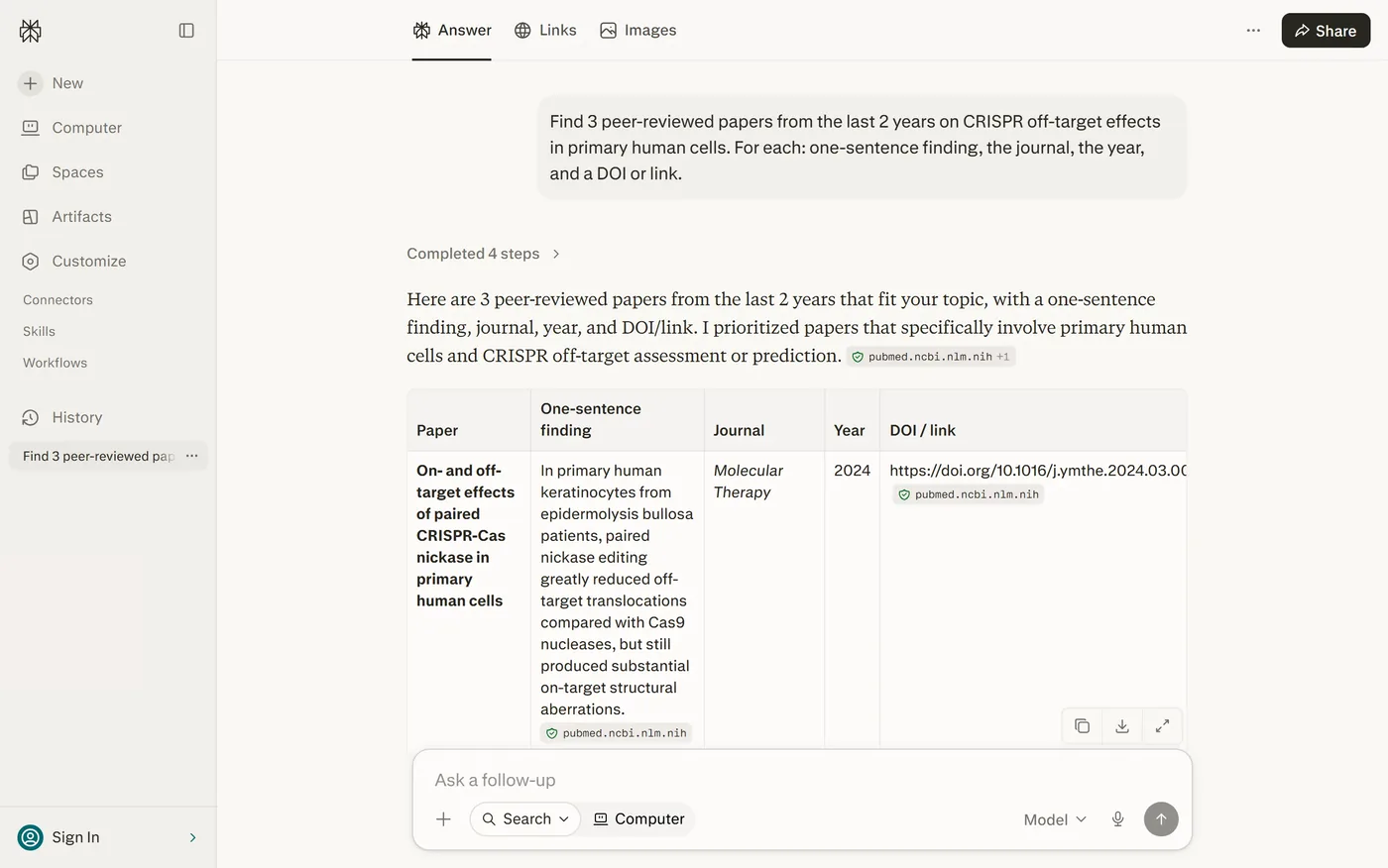
- 1 Integration options link external data sources
- 2 LLM selection choose underlying engine
Best viewed on desktop — tap Enlarge to read the numbered controls.
- Type your query in the search box, explicitly stating scope and recency (e.g., “peer‑reviewed”, “last 2 years”)
- Request a particular format in the same query, such as “as a table with columns finding / sample size / DOI” or “as three bullet points with one source each"
- Press Enter or click Search to submit the query
- Ask a follow‑up question in the same thread to narrow results (e.g., “now narrow that to in‑vivo studies”)
- Add a final clause like “…and list anything you could NOT find good sources for” to surface gaps
- You'll see A tidy, structured answer where each item carries its own citation, and follow‑ups sharpen it without losing the thread
- Takeaway Specificity is the whole game: name the scope, recency, source type and output shape — then refine with follow‑ups rather than starting over
- Check Why does adding a request to list anything it could NOT find good sources for give you more reliable output than asking only for the positive findings?
- Cost Free. Specific questions also tend to need fewer follow-up searches, which keeps you under the free-tier limits longer.
2.3 Pick the Perplexity mode that fits your query
The mode menu lets you choose where Perplexity searches and how deeply it works, such as Academic or Deep Research.
Do this first Craft precise queries for structured answers
Select the source scope and research depth so answers match your needs
Try
What does recent literature say about the link between sleep deprivation and amyloid-beta clearance?Run this twice: once on the default web search, once with the source set to Academic. Compare the citation lists — Academic should pull peer-reviewed papers (e.g. PubMed, arXiv, Google Scholar) instead of news sites and blogs.
- Open the top‑right menu button and choose Academic to limit results to scholarly literature
- Click Deep Research to have Perplexity break the question into sub‑steps and draw from many sources
- Use Search for a single quick answer when only a brief fact is required
- You'll see The same question answered twice – a quick web answer with mixed sources and an Academic answer citing journals and preprint servers
- Takeaway Two dials: where it looks (Academic for citable sources) and how hard it works (Deep Research for multi‑step questions)
- Check When should you switch Perplexity to the Academic focus and reach for Deep Research, and what kind of source ends up in the results if you leave both on their defaults for a claim you'll put in a paper?
- Cost Choosing the Academic focus is free. Deep Research is a paid mode — the free plan gives a limited preview, then a cooldown; Pro removes the cap.
2.4 Check each citation in a Perplexity answer
The Links tab underneath an answer lists every page the answer drew on, showing domain, URL and snippet.
Do this first Pick the Perplexity mode that fits your query
Verify that every source linked by Perplexity backs the claim it is cited for
Try
What is the reported efficacy of the most recent malaria vaccine, and what was the sample size of the key trial? Cite the primary source.Now do the verification: open the cited source and find the exact efficacy number and sample size yourself. Perplexity can link the right paper but mis-state a figure inside it — the link being real does not make the claim real.
- Click the citation link and locate the exact sentence, number or quote referenced by the answer
- Open the Links tab and note the source type shown (peer‑reviewed paper, preprint, press release or blog post)
- Look for weak patterns such as precise statistics paired with vague news‑site citations or claims that are absent from the linked page
- If an important figure appears, ask Perplexity to "double‑check that number against the primary source and quote the exact sentence", then open the source yourself to verify
- You'll see The opened page either contains the exact quoted statement or shows a mismatch you can spot
- Takeaway A citation is only a starting point and must be opened and checked to guarantee accuracy
- Check Why is a correct, clickable citation still not sufficient evidence that a specific number or claim in a Perplexity answer is accurate?
- Cost Free — verification is a habit, not a feature. It costs you a click and saves you from publishing something wrong.
2.5 Create a research workspace with your own files
A Space is a saved research thread with uploaded files and standing instructions; queries inside it are answered using those documents.
Do this first Check each citation in a Perplexity answer
Build a Space that stores your documents and instructions so every query uses them
Try
Create a Space called "Microbiome review", upload 2–3 PDFs of papers you're reading, add the instruction "Always cite which uploaded paper each point comes from", then ask: "What do these papers disagree on regarding methodology?"A Space is a saved research thread with its own sources and standing instructions. Questions asked inside it search your uploaded files and (optionally) the web, with citations back to your own documents.
- Open Spaces in the left menu and click New Space, then name it for the project
- Click Add Sources to upload papers, protocols or notes, or attach links
- Use the Add Instructions control to set standing rules such as concise answers or required source citations
- You'll see A persistent hub showing uploaded papers as sources, standing instructions applied to each answer, and citations linking back to your files
- Takeaway A Space turns Perplexity into a reusable workspace where your own sources and rules drive every response
- Check What does adding the instruction to flag any claim your uploaded sources do NOT support prevent that a plain Spaces setup without that instruction would not catch?
- Cost Spaces and file uploads are a Pro feature. Direct file attachments per thread and file-size limits apply; check Perplexity's current limits as they change.
2.6 Verify a claim using Perplexity
A verification workflow where Perplexity returns a verdict on a statement along with supporting documents.
Do this first Create a research workspace with your own files
Confirm or refute a factual assertion and retrieve the original source for each outcome
- Open Perplexity’s homepage and locate the query field
- Enter the claim into the query field and press Search (or hit Enter)
- Read the yes/no verdict and note the citation numbers displayed beside each supporting statement
- Click each numbered citation link to open the source in a new tab
- Verify that the opened page contains the referenced information
- You'll see A yes/no answer with numbered citations, each opening a page where the claim can be inspected directly
- Takeaway Cross‑check every cited document to ensure the information truly supports the verdict
- Check Why is opening every numbered citation link still necessary even after Perplexity has already given you a yes/no verdict on the claim?
2.7 Generate a cited literature overview with Perplexity
A quick, source‑linked snapshot of a research topic returned by the Perplexity answer engine.
Do this first Verify a claim using Perplexity
Create an overview of any academic area that includes clickable links to the original papers
- 1 Integration options link external data sources
- 2 LLM selection choose underlying engine
Best viewed on desktop — tap Enlarge to read the numbered controls.
- Open https://www.perplexity.ai in your web browser
- Enter a concise research question into the query box and press Enter
- Scan the answer block for inline citations marked with numbers or brackets
- Click each citation link to open the corresponding paper or article
- Copy the full answer, including citation numbers, into a document
- You'll see An answer paragraph summarising the topic together with numbered hyperlinks that open the original sources when clicked
- Takeaway Cited AI answers let you gather a literature map instantly while preserving traceability to primary sources
- Check What does clicking through every citation number in a Perplexity literature overview let you confirm that copying the answer text alone would not?
2.8 Create and return to a citation‑rich conversation in Perplexity
A persistent conversation space on Perplexity that keeps related questions and their citations together for later reference.
Do this first Generate a cited literature overview with Perplexity
Start a threaded session, add follow‑up queries and reopen it later with all answers and citations preserved
- Log in to Perplexity (or continue as a guest) and click New Thread to open a fresh conversation window
- Type your first question and press Enter to submit it
- Enter a follow‑up question that builds on the previous answer and press Enter
- Close the browser, reopen Perplexity later, and click the saved thread name in the sidebar to resume the session
- You'll see A single view showing multiple Q&A pairs, each with clickable citation links that persist after reopening the site
- Takeaway Persistent threads let you build an organised, citation‑backed knowledge base across sessions
- Check What happens to your earlier questions and their citations when you close and reopen a Perplexity thread later, and why does that make a thread different from a one-off search?
2.9 Generate a cited literature or market scan
Pro Search is the mode that turns one query into a short multi‑step search‑and‑synthesize pass, optionally extended by Labs for deeper reports.
Do this first Create and return to a citation‑rich conversation in Perplexity
Produce a verified, structured report for a research topic or market analysis and store it in a Space
Try
Researcher: "Give me a structured scan of the last 3 years of literature on lipid nanoparticle delivery for mRNA therapeutics — group by approach, cite peer-reviewed sources, and note open questions." Founder: "Scan the current market for at-home microbiome testing kits — list the main companies, their pricing, their claimed science, and link a source for each."Pick the prompt that fits you. Run it in Academic + Pro Search, then verify the load-bearing claims by opening their sources — this is the full workflow, not a single query.
- Create a Space for your topic to contain all results and future refinements
- Select the appropriate mode using Pro Search and request a structured output such as grouped sections or a table with sources per row
- Add follow‑up prompts like “only in‑vivo studies” or “include each company’s funding stage” to sharpen the scan without restarting
- Open each citation link from the results and mark any unverified claims as “unverified”
- If you have a Pro or Max plan, enable Labs to run deeper multi‑step research and generate a fuller draft, then verify its output as before
- You'll see A grouped report where each claim includes its source, weak points are flagged, and the document resides in a Space you can revisit and share
- Takeaway Scanning follows a repeatable workflow: define a specific ask → choose the right mode → request structured output → refine with follow‑ups → verify sources → keep everything in a Space
- Check Why is a complete Perplexity research scan described as a workflow rather than a single question — and what marks the point where output becomes something you can act on?
- Cost The scan and verification work on the free tier (within Pro Search limits). Spaces, higher limits, and Labs-style deep reports are Pro/Max features.
3You’ll know it worked 67 checkable outcomes in this chapter
- ✓User sees inline links to original papers in the answer
- ✓The generated brief contains citations for each point and covers recent news, funding history, hires, priorities, and public comments from the CTO or CFO
- ✓The response style and accuracy align with expectations for that model (e.g., more creative prose from Claude)
- ✓The output lists recent study titles, key results, and links to the original publications
- ✓The page shows a live URL that can be opened in any browser
- ✓You receive an email or in‑app notification with fresh results on schedule
- ✓Open the exported PPT file and see that all requested sections and visuals are present
- ✓When running a new computer task, select the custom skill and see it applied automatically
67 outcomes in all — one per recipe below.
4FAQ, Tips & How-to 89
one problem, one solution, one action
Research & data tools11
A fast, checkable briefing instead of an unsourced guess.
A quick, checkable verdict with links — not an unsourced yes/no.
Need to keep related questions and citations together
One organised, citation-rich thread instead of scattered one-off searches.
Need to track what’s changed with competitors or regulations
A lightweight, verifiable watch on the things that move, without a subscription service.
A cited, up-to-date set of inputs instead of an outdated number from memory.
Need a current regulatory brief
A cited briefing on the current status, effective dates, and key requirements, ready to pass to your auditor or legal team.
Where can I find accurate salary benchmarks for a role?
A cited pay range you can present to a hiring manager or use in a pay-equity review.
You reply with accurate information, not a guess — and you have the source if the customer escalates.
Need a fast, sourced market map of sector players
A first-pass market map with real sources in minutes, not a black-box summary you can't defend in IC.
Where can I find accurate salary benchmarks for a role?
A cited pay range to anchor the client conversation, not a number from memory you can't defend.
CRM & sales1
Need a fast, fact‑checked snapshot of a prospect
A 5-minute pre-call read that makes you sound prepared, with every fact checkable.
Hovering over a citation shows the underlying webpage without leaving the answer
Need a response in a specific format
Requesting a specific answer format (table, bullet list) yields structured results that are easier to verify
Want to tweak an answer without starting over
Using follow-up questions keeps context, sharpens answers, and saves free-tier quota
Can't tell which topics lack reliable sources
Appending a request for items you could not find highlights gaps in the literature before you trust the results
Need recent CRISPR off‑target data
A concrete prompt demonstrates how to combine scope, recency, and shape for a tidy answer
Need only scholarly articles
Select Academic to pull only peer-reviewed papers and preprints, ensuring citable sources
Want every answer to follow your style and citation rules
Ensures every answer follows your preferred style, citation policy, or expertise level
Need a fast market or competitor snapshot
Produces a quick, source-linked overview of commercial offerings
Want to tweak your search results without restarting
Lets you narrow or expand results efficiently by asking targeted follow-ups
Can't afford an AI research assistant
Get discounted or free Perplexity Pro by verifying a .edu email address
What exactly is Perplexity, and how is it different from just Googling something?
Perplexity is an AI-powered answer engine that searches the web in real time and writes a direct, readable answer to your question — with numbered citations you can click to verify every claim. Unlike Google, which returns a list of links you read yourself, Perplexity synthesizes multiple pages into one response. Unlike ChatGPT, it always cites its sources by default and pulls from live web content. Think of it as a research librarian that reads several articles for you and hands you a summary with footnotes.
What are Spaces and should I use them for a research project?
Spaces are persistent, project-specific workspaces where you can group related threads, upload your own files (PDFs, Word docs), set custom instructions, and invite collaborators. For a literature review you could create a Space, upload relevant PDFs, and ask questions that search both your files and the web at once. Spaces are useful for multi-session or group research rather than one-off questions.
Can I use Perplexity to cite sources in a paper — will my professor accept those citations?
Perplexity can help you find sources, but never copy a citation from it into your paper without verifying it first. Perplexity has been documented to produce citations with incorrect details or that don't support the stated claim. The correct workflow: use Perplexity to find a relevant paper, click the citation link, open the original article, read and verify it yourself, then format the citation from the actual paper. Professors expect citations to real, verified sources.
Does Perplexity hallucinate — can it confidently tell me something completely wrong?
Yes. Perplexity can state incorrect information with the same confident, citation-decorated formatting it uses for accurate information. A known failure mode is that its synthesis layer makes claims that go beyond, or contradict, what the cited source actually says — while still attaching that source's URL. This is why clicking through every cited source to verify it is non-negotiable for academic work.
What is Deep Research and how is it different from a regular Perplexity search?
Deep Research is Perplexity's most thorough mode: it runs many web searches automatically, reads dozens of sources over a few minutes, and produces a structured report with many citations. A regular search is near-instant and uses a handful of sources; Deep Research is much slower but produces something closer to a preliminary literature review. Use it to generate a starting-point overview, but still verify every citation.
Should I use Perplexity instead of Google Scholar or PubMed for finding biology papers?
Perplexity works best as a discovery and orientation tool, not a replacement for PubMed or Google Scholar. It's good for quickly understanding a topic, identifying key papers, and generating search terms — but it covers mainly open-access content and can misattribute information. For a real literature review, start with Perplexity to get oriented, then go to PubMed or Google Scholar directly to search systematically and access full texts.
What is a 'Pro Search' and why does it use up my daily limit?
A Pro Search is a more powerful, slower search that breaks your question into multiple steps, runs several sub-queries across the web, and compiles a thorough, well-sourced response — rather than a quick one-pass answer. It's best for complex questions like comparing research findings. Regular searches are unlimited and instant; Pro Searches are metered because they use significantly more compute.
Can I trust the citations Perplexity gives me? Could it make up a source?
You should not trust citations without verifying them yourself. Perplexity can 'hallucinate' — attaching a real-looking URL to a claim that the source doesn't actually support. A 2025 academic study found only about a quarter of AI-generated references were fully correct, with a large share erroneous or fabricated. The rule: click every numbered citation, open the actual page, and confirm the claim is there before using it. Treat citations as research leads, not finished references.
What is Academic focus mode and how do I turn it on?
Academic focus restricts Perplexity's results to peer-reviewed journals and scholarly databases rather than the general web. Click the 'Focus' control in the search bar and select 'Academic' — you can switch modes mid-conversation without losing your thread. It's the fastest way to surface citable scholarly sources, and it is available on the free tier.
Can Perplexity actually read papers from PubMed or full-text journal articles?
Perplexity can search and cite papers from sources like PubMed, arXiv, and Semantic Scholar — but full-text access depends on whether a paper is open-access. For paywalled articles it typically cites the abstract only. If your university library gives you journal access, follow the citation link and open the full paper there. Open-access biology content is well covered; closed-access papers in subscription journals are not.
How is Perplexity different from ChatGPT for finding scientific sources?
Perplexity is built as a search engine first — every answer comes with real-time web citations by default, and Academic focus targets peer-reviewed papers directly. ChatGPT is a conversational assistant that is better at writing and brainstorming, but does not cite sources unless you use its Deep Research mode. For finding and verifying sources, Perplexity is the better starting tool; ChatGPT is more useful once you already have sources and want help understanding them.
What are the different focus modes and which are useful for biology research?
Perplexity has several focus modes: Web (general internet, default), Academic (peer-reviewed databases — most useful for biology papers), Social (community discussions), Finance, and others. For finding scientific sources, Academic is the go-to; Web is useful for broad background reading. Core focus modes including Academic are available on the free plan; Deep Research requires Pro.
Need answers only from a certain site or date range
Perplexity supports Google‑style operators like site: and after:. By appending these to your query you limit the search to a particular domain or time range, ensuring more relevant and up‑to‑date answers.
I keep retyping the same prompt
Typing '/' opens a menu where you can save custom prompts as shortcuts. These shortcuts auto‑populate the query box with predefined instructions, saving time on repetitive tasks.
Want regular research updates
Perplexity Pro lets you schedule a query to run automatically at set intervals. This creates a hands‑free workflow for regular research or monitoring tasks.
Need answers that rely only on your uploaded docs
Spaces act like private workspaces where you can upload documents, add URLs, and set source toggles. Queries inside a space draw only from its contents (and any enabled sources), letting you ground answers in your own data.
When one model isn’t right for the job
Perplexity Pro lets you choose between models like Claude, Gemini, GPT, or the default ‘best’. Different models excel at research, writing, multimodal input, or logical reasoning; swapping them tailors output quality to the job.
Need a quick fact, an in‑depth report, or a generated spreadsheet
Perplexity offers three modes: Search (fast fact‑finding), Research (multi‑step deep dive with many sources), and Labs (AI agents that generate documents, spreadsheets, etc.). Selecting the right mode balances speed versus thoroughness.
Want AI answers from Chrome’s address bar
By adding Perplexity as a custom search engine in Chrome (or any Chromium browser) and setting it as default, you can invoke AI‑powered answers directly from the address bar, streamlining access.
Keep unpublished research private
Turning off AI data retention prevents Perplexity from storing the content you input, which safeguards sensitive results before publication. This setting gives researchers confidence that their proprietary data stays private.
When I need specialist answers for research
Customizing the occupation, field, and response style tells Perplexity to answer as a specialist, yielding more academic tone, synthesis first, then evidence, then gaps. This improves relevance for research queries.
Keeping literature‑review prompts, PDFs and guidelines together
Spaces act like dedicated workspaces where you can store prompts, uploaded PDFs, guidelines, and custom instructions for a single research task, eliminating repetitive file uploads.
Need a repeatable way to draft abstracts
Skills capture a sequence of prompts and formatting rules that can be invoked repeatedly, ensuring consistent output for tasks such as drafting abstracts or tables.
Need search to pull Wiley articles and Drive docs
Connectors link Perplexity to external repositories, ensuring that search results draw directly from trusted sources like Wiley journals or your own stored documents on Google Drive.
Need a quick literature review draft
The “Computer” feature runs multi‑step, parallel agents that gather sources, synthesize findings, and output a formatted draft, speeding up early‑stage review work.
Need a quick overview of recent clinical studies
Perplexity offers ready‑made workflows (e.g., “Research Update: summarize recent clinical studies”) that automate routine summarization tasks without custom coding.
Want the AI to keep your preferred tone in every chat
The profile tab lets you add custom instructions that apply to every conversation, similar to ChatGPT's custom instructions. This ensures the AI consistently follows your preferred tone, style, or role without re‑entering prompts each time.
Want answers only from academic papers or news feeds
Focus lets you restrict which categories of sources (e.g., academic, news, social) Perplexity searches, improving relevance and trustworthiness for specific queries like scientific data or real‑time news.
Want the same AI role and past answers in every new chat
Collections store a series of related threads plus an overarching instruction (e.g., “act as a travel agent”). New conversations within that collection inherit the role and can reference prior answers, streamlining multi‑step projects.
Want answers from a private PDF you upload
Free users can attach PDF files (including converted images) so Perplexity can cite information directly from those documents, enabling Q&A on private or offline content.
Hitting the free five‑search limit
Pro users get up to 600 searches per day and a richer set of sources, resulting in more detailed answers. This is useful for heavy research tasks where the free five‑search limit would be restrictive.
Need a detailed answer that shows reasoning and cites sources
Perplexity’s search lets you choose models and source filters (e.g., web, social, finance). By selecting the appropriate model and enabling opinion sources, the AI pulls from many cited sites and shows its reasoning steps, giving more accurate, nuanced results than plain chat.
I need a thorough, source‑backed report fast
The Deep Research button runs a timed search that gathers dozens of sources, creates a structured report, and can email you when finished. It’s ideal for thorough investigations with minimal hallucinations.
Have raw research notes and want a web page
Perplexity’s ‘Convert to Page’ feature formats research output with sections, images, and styling, then lets you edit, preview, and publish a shareable link.
When I need the same AI help repeatedly
Spaces act like custom GPTs: you give a system prompt, name the space, and it retains context across sessions, perfect for recurring workflows such as trip planning or stock screening.
Need a daily briefing without any effort
Perplexity’s Task feature lets you set a recurring query, choose model and sources, and define delivery method (email or WhatsApp). It runs automatically at the chosen time.
Need AI answers on WhatsApp
By linking your WhatsApp number, Perplexity can send you task results or answer queries directly in the messaging app, keeping interactions private and mobile‑friendly.
Need to pull research results into a Zapier flow
Using the Perplexity API key, you can call the intelligent search endpoint from tools like n8n or Zapier to automate research, summarization, and downstream actions (e.g., email podcast).
Want an offline version of your research page
After creating a page or report, you can export it in multiple formats for offline use or publishing, preserving citations and layout.
Need AI answers that sound like you
In the account settings you can edit the 'Introduce yourself' prompt to define tone, reasoning style, and accuracy preferences. This guides the model to prioritize first‑principles reasoning and ask clarifying questions, reducing hallucinations.
Need a deep research report with tables and sources
Switching the search mode to 'Deep research' tells Perplexity to compile an in‑depth report, pulling from multiple sources and structuring key takeaways, tables, and citations automatically.
Need regular AI answers sent to me
Perplexity lets you create a task that runs on a chosen cadence, using any prompt you define. You can set delivery method (email, notification) and expiration date, turning the AI into a personal monitoring service.
Need answers just from academic papers
You can toggle source types such as Web, Academic papers, Social media, or SEC filings. Restricting sources improves relevance for specific domains and reduces unwanted noise.
Want an easy way to see your research metrics
The Labs feature accepts a prompt describing desired visualizations, style, and data source. Perplexity builds an interactive dashboard that updates when you modify filters or remove outliers.
Want to co‑author a project with teammates
Spaces act like shared workspaces where threads, files, and instructions are stored. You can invite others via a link, allowing real‑time collaboration on itineraries, research, or any project.
Want to see Gmail or Drive info inside a chat
Connectors let you link Gmail, Outlook, Google Drive, Dropbox, or WhatsApp so that queries can fetch live emails, documents, or messages without leaving the platform.
Need a different AI for each query
Perplexity allows you to pick a model per query (Sonar, GPT‑4, Claude, etc.). Selecting a specialized model can improve accuracy for niche domains or reduce cost.
I want to share a whole conversation
After a conversation, you can convert the entire thread into a formatted page with sections, images, and citations. The page can be published via a link for easy sharing.
Need hands‑free answers
The platform includes a microphone icon that enables voice input and reads responses aloud, allowing hands‑free queries and accessibility for users who prefer speaking.
Perplexity automatically searches the web for each query and attaches clickable citations to every fact, letting you verify information instantly. This reduces hallucinations compared to static LLMs.
Need a full slide deck from one prompt
Computer mode treats your request as an AI agent workflow, breaking it into sub‑tasks, selecting optimal models for each step, and assembling slides automatically.
Want current numbers from your apps
Connectors let Perplexity access APIs of platforms such as Google Drive, Notion, YouTube Analytics, etc., so AI can read and act on your personal data securely.
Deep research runs an extended search, aggregates multiple sources, and formats results (including comparison tables) for complex analysis tasks.
Want to keep chats, files and prompts together for repeated work
Spaces act like folders that store related chats, files, and custom prompts, enabling you to reuse instructions across repeated tasks without re‑typing.
Want a search to run automatically every week
The scheduled search feature lets you define a query (or deep‑research/computer workflow) to run at set intervals, delivering results via notification or email.
When enabled, Perplexity sends your question to several top‑tier models, aggregates their responses, and returns a refined answer that reduces single‑model bias.
This mode breaks down a difficult concept into incremental steps, asks you to confirm understanding after each, effectively acting as an interactive tutor.
All files produced by Perplexity (reports, spreadsheets, presentations) are saved in the Artifacts tab, making it easy to retrieve past results without searching chat history.
Need a repeatable way to run the same computer steps
Skills are reusable instruction sets that tell Computer mode how to handle specific types of work (e.g., formatting reports), letting you standardize workflows across projects.
Perplexity is fine‑tuned for rapid information retrieval and returns concise answers with source citations. Using Google‑style search operators narrows results to trusted domains.
Split your query into three parts—Goal (what you want), Inputs (data sources to use), and Constraints (limits like time range). This forces the model to focus on what matters, yielding more accurate and useful responses.
Different models excel at different tasks: Claude for writing/research, ChatGPT for multi‑step reasoning and coding, Gemini for broad research, Sonar for fast fact retrieval. Picking the right model boosts accuracy and speed.
When I want answers that know my business details
Spaces let you upload private data and set custom instructions, giving Perplexity persistent knowledge about your role, goals, and assets. This turns generic answers into personalized advice.
Want answers just from my Slack, Gmail or Dropbox
Focus mode toggles between source categories (academic, finance, social, etc.) while connectors let Perplexity pull directly from tools like Slack, Gmail, Dropbox. This narrows results to the most relevant domain.
Need a deep analysis with sources and charts
Activating deep research tells Perplexity to gather more sources, create charts, and perform extended reasoning, producing in‑depth analyses like market studies or product launch plans.
Need regular updates like weekly stock summaries
Perplexity’s Tasks feature lets you schedule queries (e.g., weekly stock summaries) that run automatically on a chosen cadence, delivering results via notification.
Need a report, slides or dashboard without formatting
Labs provides a suite of agents that can create structured outputs (docs, slides, dashboards) from prompts. By crafting strong prompts you can produce professional assets without manual formatting.
The same set on /recipes, filtered by tool and role.
5Videos 3

How to Use Perplexity Comet Browser (2026 Full Guide)
The angle most newcomers are curious about — agentic browsing. Watch this and you'll know whether to switch your daily browser.
NotebookLM + Perplexity = Insane RESEARCH Workflow You NEED in 2026
If you write or study, this is the workflow that ties the two tools together. Watch when you're tired of switching between Perplexity tabs.

This Perplexity + NotebookLM Workflow Is Insane!
Pick Lipsky if you want the tight 12-minute version; pick Sadie above if you want the 'why this works for research' framing. Two takes on the same powerful pattern.
6FAQ 12
What exactly is Perplexity, and how is it different from just Googling something?
Perplexity is an AI-powered answer engine that searches the web in real time and writes a direct, readable answer to your question — with numbered citations you can click to verify every claim. Unlike Google, which returns a list of links you read yourself, Perplexity synthesizes multiple pages into one response. Unlike ChatGPT, it always cites its sources by default and pulls from live web content. Think of it as a research librarian that reads several articles for you and hands you a summary with footnotes.
What are Spaces and should I use them for a research project?
Spaces are persistent, project-specific workspaces where you can group related threads, upload your own files (PDFs, Word docs), set custom instructions, and invite collaborators. For a literature review you could create a Space, upload relevant PDFs, and ask questions that search both your files and the web at once. Spaces are useful for multi-session or group research rather than one-off questions.
Can I use Perplexity to cite sources in a paper — will my professor accept those citations?
Perplexity can help you find sources, but never copy a citation from it into your paper without verifying it first. Perplexity has been documented to produce citations with incorrect details or that don't support the stated claim. The correct workflow: use Perplexity to find a relevant paper, click the citation link, open the original article, read and verify it yourself, then format the citation from the actual paper. Professors expect citations to real, verified sources.
Does Perplexity hallucinate — can it confidently tell me something completely wrong?
Yes. Perplexity can state incorrect information with the same confident, citation-decorated formatting it uses for accurate information. A known failure mode is that its synthesis layer makes claims that go beyond, or contradict, what the cited source actually says — while still attaching that source's URL. This is why clicking through every cited source to verify it is non-negotiable for academic work.
What is Deep Research and how is it different from a regular Perplexity search?
Deep Research is Perplexity's most thorough mode: it runs many web searches automatically, reads dozens of sources over a few minutes, and produces a structured report with many citations. A regular search is near-instant and uses a handful of sources; Deep Research is much slower but produces something closer to a preliminary literature review. Use it to generate a starting-point overview, but still verify every citation.
Should I use Perplexity instead of Google Scholar or PubMed for finding biology papers?
Perplexity works best as a discovery and orientation tool, not a replacement for PubMed or Google Scholar. It's good for quickly understanding a topic, identifying key papers, and generating search terms — but it covers mainly open-access content and can misattribute information. For a real literature review, start with Perplexity to get oriented, then go to PubMed or Google Scholar directly to search systematically and access full texts.
What is a 'Pro Search' and why does it use up my daily limit?
A Pro Search is a more powerful, slower search that breaks your question into multiple steps, runs several sub-queries across the web, and compiles a thorough, well-sourced response — rather than a quick one-pass answer. It's best for complex questions like comparing research findings. Regular searches are unlimited and instant; Pro Searches are metered because they use significantly more compute.
Can I trust the citations Perplexity gives me? Could it make up a source?
You should not trust citations without verifying them yourself. Perplexity can 'hallucinate' — attaching a real-looking URL to a claim that the source doesn't actually support. A 2025 academic study found only about a quarter of AI-generated references were fully correct, with a large share erroneous or fabricated. The rule: click every numbered citation, open the actual page, and confirm the claim is there before using it. Treat citations as research leads, not finished references.
What is Academic focus mode and how do I turn it on?
Academic focus restricts Perplexity's results to peer-reviewed journals and scholarly databases rather than the general web. Click the 'Focus' control in the search bar and select 'Academic' — you can switch modes mid-conversation without losing your thread. It's the fastest way to surface citable scholarly sources, and it is available on the free tier.
Can Perplexity actually read papers from PubMed or full-text journal articles?
Perplexity can search and cite papers from sources like PubMed, arXiv, and Semantic Scholar — but full-text access depends on whether a paper is open-access. For paywalled articles it typically cites the abstract only. If your university library gives you journal access, follow the citation link and open the full paper there. Open-access biology content is well covered; closed-access papers in subscription journals are not.
How is Perplexity different from ChatGPT for finding scientific sources?
Perplexity is built as a search engine first — every answer comes with real-time web citations by default, and Academic focus targets peer-reviewed papers directly. ChatGPT is a conversational assistant that is better at writing and brainstorming, but does not cite sources unless you use its Deep Research mode. For finding and verifying sources, Perplexity is the better starting tool; ChatGPT is more useful once you already have sources and want help understanding them.
What are the different focus modes and which are useful for biology research?
Perplexity has several focus modes: Web (general internet, default), Academic (peer-reviewed databases — most useful for biology papers), Social (community discussions), Finance, and others. For finding scientific sources, Academic is the go-to; Web is useful for broad background reading. Core focus modes including Academic are available on the free plan; Deep Research requires Pro.
7Glossary 19 terms
Show the 19 terms
Perplexity
Answer Engine- What Perplexity calls itself — instead of returning a list of links like a search engine, it reads the web in real time and writes a direct answer with cited sources.
Thread- A single conversation in Perplexity where each follow-up question keeps the context from previous turns, so you never have to repeat yourself.
Citations- Numbered source links that appear inline in every Perplexity answer so you can click through and verify the original web page or paper.
Focus- A filter you apply before searching that tells Perplexity which part of the web to look in — for example Academic restricts results to peer-reviewed papers, Social searches Reddit and forums, and Video pulls from YouTube content.
Pro Search- A deeper search mode that breaks your question into multiple sub-queries, consults more sources, and synthesizes a more thorough answer than the default Quick Search.
Quick Search- The default, faster search mode suited for simple factual questions where a brief answer with a few sources is enough.
Deep Research- An autonomous research mode that spends several minutes performing dozens of searches across hundreds of sources and produces a structured, multi-section report — equivalent to asking a research analyst to investigate a topic for you.
Spaces- Collaborative workspaces inside Perplexity where you can group related threads, write custom instructions that apply to every search, and invite teammates to contribute.
Pages- A publishing feature that turns any Perplexity research thread into a formatted, shareable article with a public URL you can distribute or embed.
Connectors- Integrations that link Perplexity to your external apps — such as Gmail, Slack, Notion, or Google Drive — so it can pull live data from those tools into its answers.
Model Council- A premium feature that runs your query through three AI models simultaneously, then uses a fourth 'chair' model to synthesize their responses into one combined answer — available to Max subscribers.
Scheduled Searches- Automated queries you set up once that Perplexity re-runs on a daily, weekly, or monthly schedule and delivers to you as a notification.
File Upload- A feature that lets you attach PDFs, spreadsheets, images, or documents to a conversation so Perplexity can read and answer questions about their contents; free users get a daily limit, while Pro unlocks unlimited uploads.
Sonar- Perplexity's own family of AI models, optimised for fast, accurate web-grounded answers; the base Sonar model is the default search model, while Sonar Pro and Sonar Deep Research handle progressively more complex tasks.
Comet- An AI-native web browser made by Perplexity, built on Chromium, with a built-in assistant for summarising pages and automating multi-step browsing tasks, available on desktop and mobile.
Perplexity Pro- The paid subscription tier (around $20/month) that unlocks unlimited Pro Search, Deep Research, file uploads, model selection, and API credits.
Perplexity Max- A higher-tier subscription above Pro that adds features like Model Council, priority access to new models, and additional advanced capabilities.
Voice Mode- A conversational interface that lets you speak your questions aloud and hear Perplexity's answers spoken back, using a real-time speech model.
Sonar API- A developer interface that lets programmers embed Perplexity's web-grounded search capability into their own applications, using the same request format as the OpenAI API.
8See also
💬 Discuss this chapter
Ask, share, or report — over on the Heidelberg AI community forum.