Know which architecture your Mac uses to anticipate Docker image compatibility
Track 12 · Advanced
12.6.1
Docker on macOS
Install Docker Desktop on Mac — Apple Silicon vs Intel, and your first container
1Overview
Docker Desktop for macOS — runs Linux containers via a lightweight VM (Apple Hypervisor), so software runs in reproducible, self-contained boxes.
Docker on macOS is straightforward: Docker Desktop runs a lightweight Linux VM via Apple Hypervisor. This chapter covers the install for both Apple Silicon (M1/M2/M3/M4) and Intel Macs, shows you how to verify your setup, and gets you running your first container. Covers the key differences between Apple Silicon and Intel, disk space management, and the Docker Desktop free-tier license.
1.1Before you start
1.2After this chapter you can
→Install Docker Desktop on macOS and verify it is running
→Understand the difference between Apple Silicon and Intel Docker setups
→Run your first container (a local n8n workflow) and access it in your browser
→Manage Docker disk space and understand the free-tier license
1.3Best for
Getting a reproducible local dev/lab environment on a Mac — running tools like n8n, databases, or AI services with the cleanest of the three setups.
1.4Watch out
On Apple Silicon (M1–M4), Intel-only (amd64) images run through emulation — slower, and a few refuse to start without an explicit platform flag; image/build caches also grow and need pruning.
1.5Free vs paid
Docker Desktop is free for personal use, education, and companies under 250 employees / $10M revenue; larger orgs need a paid plan (~$9–24/user/mo). The engine + CLI are open source.
2Lessons 5
2.1 Run Docker Desktop on macOS
Install Docker Desktop on macOS and confirm it runs
- Check processor type in About This Mac
- Download the appropriate Docker Desktop for Mac – Apple Silicon or Docker Desktop for Mac – Intel Chip from the Docker website
- Open the DMG and drag Docker to the Applications folder
- Start Docker by double‑clicking Docker in Applications
- Run
docker --versionin Terminal
- You'll see The whale icon appears in the menu bar and docker --version prints a version number
- Takeaway Apple Silicon uses ARM64; Intel Macs use AMD64; most images support both
- Check After installing Docker Desktop, which command should you run in Terminal to verify that the Docker client is correctly installed?
2.2 Confirm Docker is working on macOS
Do this first Run Docker Desktop on macOS
Validate that Docker Desktop and its engine are correctly installed and can run containers
- Open Terminal and execute
docker infoto display system details - In Terminal, run
docker psto list any active containers (none should be shown) - Use Terminal to pull the test image with
docker pull hello-world - Start the container from Terminal by running
docker run hello-world
- You'll see The message “Hello from Docker!” appears and the container exits cleanly
- Takeaway Docker Desktop runs the Engine inside a lightweight Apple Hypervisor VM
- Check What output do you expect from
docker run hello-worldif Docker is functioning correctly?
2.3 Run a local n8n workflow in Docker
Do this first Confirm Docker is working on macOS
Start a local n8n workflow using Docker Compose
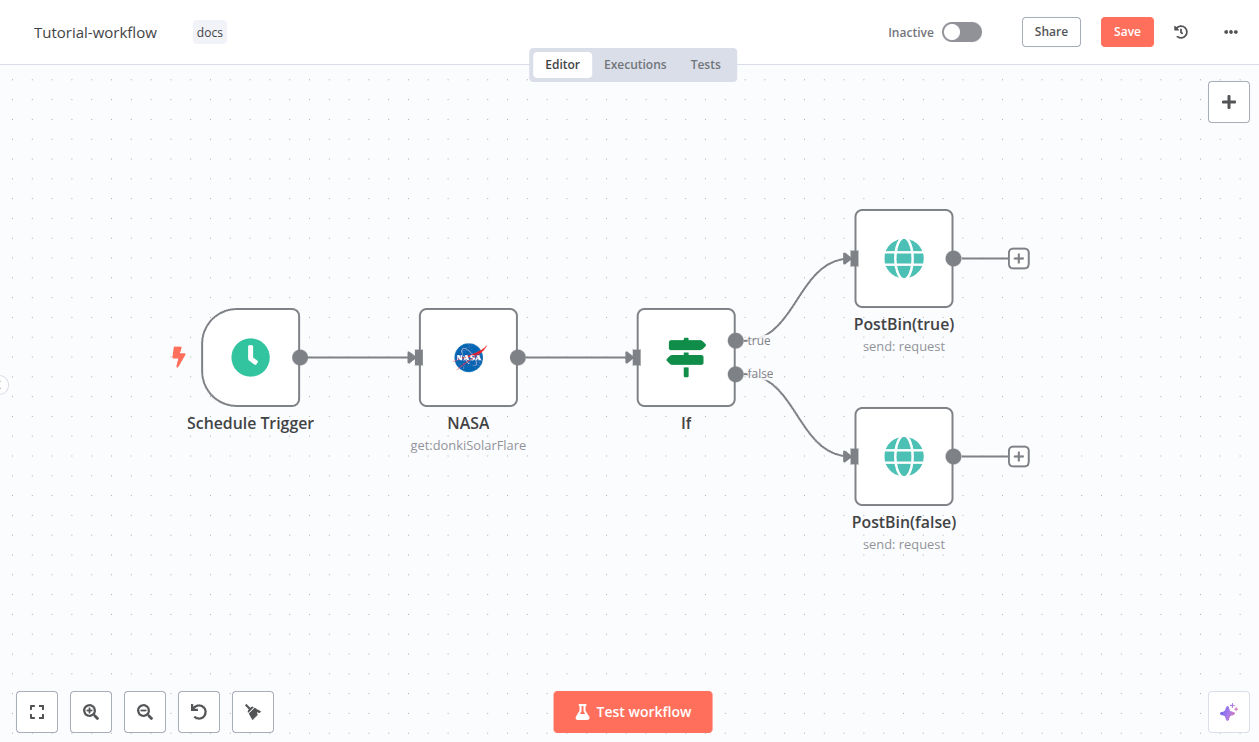
- 1 Workflow status indicates not running
- 2 Editor tab edit workflow nodes Why this exists →
- 3 Test button run workflow manually Why this exists →
Best viewed on desktop — tap Enlarge to read the numbered controls.
- Open Terminal and run
mkdir n8n-workspace && cd n8n-workspace - Launch a text editor, create a file named
docker-compose.yml, and paste the provided compose content - Return to Terminal and execute
docker compose up -d - Wait about thirty seconds, then open
http://localhost:5678in a web browser - In the n8n interface, create a free account and explore the dashboard
- You'll see n8n is reachable at http://localhost:5678 and you can create an account
- Takeaway Multi‑arch manifests let Docker automatically select the correct image for your architecture
- Check Which command launches the n8n containers in detached mode after creating the compose file?
2.4 Control Docker disk usage on macOS
Do this first Run a local n8n workflow in Docker
Keep Docker's disk usage under control on macOS
- Run
docker system dfto display current disk consumption - Run
docker system prune -ato delete all unused images, containers, networks and build cache - Open Docker Desktop → Settings → Resources → Disk image size and increase the maximum size if needed
- Run
docker volume lsto list existing volumes - Run
docker volume pruneto remove any dangling volumes
- You'll see Docker disk usage shown and unused images and volumes removed
- Takeaway Regularly pruning images and volumes prevents Docker from consuming excessive storage
- Check Which command removes all stopped containers, unused networks, dangling images, and build cache in one step?
2.5 Fix common Docker problems on macOS
Do this first Control Docker disk usage on macOS
Resolve three frequent Docker failures on macOS
- Open Docker Desktop and click Settings, then enable the Use Virtualization Framework toggle
- Download the latest Docker Desktop installer from the website and run it to reinstall the application
- Run a container with an absolute bind‑mount using
docker run -v /path/on/mac:/path/in/container … - Identify port conflicts by executing
lsof -i :5678in Terminal - Terminate the conflicting process with
kill
- You'll see All three issues are diagnosed and resolved
- Takeaway Choose Docker Desktop for GUI teams; use Colima/OrbStack for lightweight CLI workflows
- Check If a port conflict prevents a container from starting, which two commands help you locate and stop the offending process?
3You’ll know it worked 50 checkable outcomes in this chapter
- ✓The Docker whale icon is visible in the macOS menu bar
- ✓The terminal prints a table with size columns for Images, Containers, Local Volumes, and Build Cache
- ✓`docker images` lists an entry named hello-world with tag latest
- ✓Opening that URL shows the Nginx welcome page
- ✓Opening a command prompt and typing `docker version` shows Docker client and server versions
- ✓Disk usage drops after deleting an image and the image disappears from the list
- ✓Running `docker version` in Command Prompt shows the client and server versions without errors
- ✓Running `orb version` shows the installed version without errors
50 outcomes in all — one per recipe below.
4FAQ, Tips & How-to 65
one problem, one solution, one action
Need Docker Desktop installer for macOS
Obtain the official Docker Desktop DMG that matches your macOS version
Docker isn’t in your Applications folder
Place Docker Desktop into the standard macOS Applications folder for easy launching
First run asks for your macOS password to install helper tools
Allow Docker to install its privileged helper tools so it can manage containers
Confirm Docker Desktop is running and ready to accept commands
Ensure the Docker command-line interface is installed and reachable from Terminal
Need an Intel‑only Docker image on Apple Silicon
Override Docker's default ARM64 runtime to pull/run an image built for Intel CPUs
!Tip Everyone
Know that Docker Desktop on macOS runs inside a lightweight Linux VM managed by the built-in Apple Hypervisor
▸How-to Everyone
Confirm the Docker Engine is running inside Docker Desktop and see which architecture you're on
▸How-to Everyone
Ensure the Docker daemon is reachable and that there are currently no active containers
▸How-to Everyone
Fetch a known small image that can be used to prove Docker can pull from registries
▸How-to Everyone
Validate that Docker can start a container, execute code inside the VM, and return output to your terminal
▸How-to Everyone
You can see how much space images, containers, volumes, and the build cache are consuming
▸How-to Everyone
Docker disk space running out
Removes every image, container, network, and build cache that isn't currently in use, freeing disk space
▸How-to Everyone
Docker runs out of space on my Mac
Adjusting this limit lets Docker use more (or less) of your Mac's storage for images and containers
▸How-to Everyone
Shows every named volume on your system so you can identify which ones are no longer needed
▸How-to Everyone
Unused volumes taking up space
Deletes any volume that isn't referenced by a container, reclaiming space without affecting active data
Docker won’t launch after a macOS update
Ensures Docker can start by granting it the required virtualization permission
Docker Desktop won’t start after an OS upgrade
Restores missing or corrupted files that can block startup after an OS upgrade
Slow file sharing on Apple Silicon builds
Improves build performance by embedding files directly into the image instead of mounting them at runtime
Docker volume mounts are slow on Apple Silicon
Specifies a concrete host location, helping Docker resolve the mount faster on Apple Silicon
Identifies which local process is using a Docker-exposed port so you can free it
Docker can’t start because a port is busy
Frees the occupied port so Docker can bind to it
Default Docker port is taken
Allows containers to run on an alternative host port when the default is taken
▸How-to Everyone
Want to run Linux containers on Windows 11 with WSL 2
The video walks through downloading Docker Desktop, enabling virtualization and the Windows Subsystem for Linux feature, updating WSL, and completing the installer. Following these steps ensures Docker runs natively on Windows 11 using WSL 2 as its backend.
▸How-to Everyone
Want Docker on a Mac with Apple silicon
Download the correct Docker Desktop DMG for your chip (Apple silicon vs Intel), drag it into Applications, and grant system permissions during first launch. Selecting the right build ensures Docker can start the engine.
▸How-to Everyone
The `docker` command line tool communicates with the Docker Engine running in Desktop. Checking version and engine info confirms that the background service is active and your user has proper permissions.
▸How-to Everyone
Docker Hub hosts pre‑built images. Using `docker pull` downloads the image layers to your local machine, making it available for container creation without building anything yourself.
▸How-to Everyone
Need to verify an image runs once
A container is a runtime instance of an image. `docker run` creates the container, starts its main process, and then exits when that process finishes, demonstrating the basic lifecycle.
▸How-to Everyone
Want to run containers on an Apple Silicon Mac
The video walks through downloading the correct Docker Desktop DMG for Apple silicon, dragging it into Applications, and completing the setup wizard with recommended settings. This installs the Docker engine and CLI so you can run containers locally.
▸How-to Everyone
Running the official hello‑world image confirms that Docker Engine is correctly installed and can pull images from Docker Hub, start a container, and display output. The video shows how to run the command and interpret the result.
!Tip Everyone
Docker Desktop Installation — get Docker running on Windows, macOS, or Linux
Shows how to download and install Docker Desktop (or Docker Engine) for each OS, ensuring the daemon starts. It works because the installer sets up required hypervisor layers and configures the Docker service.
!Tip Everyone
docker run hello-world — verify Docker works by running a test container
Executes `docker run hello-world`, which pulls the official image if missing and runs a tiny program that prints a success message. Demonstrates pull, cache, and container execution.
!Tip Everyone
docker run -p — expose a container port to the host
Runs an Nginx container with `-p 8080:80` mapping host port 8080 to container port 80, allowing access via a web browser. Port publishing bridges isolated container networking to the host.
!Tip Everyone
docker run -e — pass environment variables into a container
Uses `-e VAR=value` to set runtime environment variables, demonstrated with a Python image printing them. This lets containers receive configuration without rebuilding images.
!Tip Everyone
docker run -v — persist data using a named volume
Creates a volume `mydata` and mounts it with `-v mydata:/app/data`. Data written inside the container remains after the container stops, illustrating stateful storage.
!Tip Everyone
Dockerfile — build a custom image with copied source code
Writes a Dockerfile using `FROM nginx:alpine`, `COPY ./static /usr/share/nginx/html`, then builds with `docker build -t mysite .`. Shows how layers work and how to embed application files.
!Tip Everyone
Multi‑stage Dockerfile — reduce final image size and remove build tools
Defines a builder stage that installs dependencies and compiles code, then copies only the compiled artifacts into a slimmer runtime stage. This removes unnecessary layers and improves security.
!Tip Everyone
docker-compose.yml — orchestrate front‑end, back‑end and MongoDB services
Creates a compose file with three services, each built from its own Dockerfile or pulled image, defines ports, volumes, and network links. `docker compose up` launches the whole stack with one command.
!Tip Everyone
docker push — publish a local image to Docker Hub
Tags the image with your Docker Hub repository name, logs in with `docker login`, then pushes using `docker push`. Demonstrates how to share images publicly or privately.
▸How-to Everyone
Need a container engine on Windows 11 without the Microsoft Store
The video walks through downloading the Docker Desktop installer directly from docker.com (avoiding the Microsoft Store), running it, and completing setup including accepting terms and skipping login. This ensures a clean installation that integrates with WSL for Linux container support.
▸How-to Everyone
Installed the wrong CPU version on my Mac
Docker Desktop provides a native Mac app that runs Docker inside a lightweight Linux VM. Macs have either Intel or Apple Silicon CPUs, and you must download the matching installer (intel‑dmg or Apple Silicon dmg) otherwise it will not run.
▸How-to Everyone
Containers keep failing due to CPU/RAM/disk limits
Docker runs inside a VM, so you can control how much of your host’s CPU, memory and disk space it may use. Raising these limits prevents out‑of‑memory or storage errors when running larger multi‑container workloads.
▸How-to Everyone
Can’t pull images freely
A free Docker ID removes download‑rate limits and lets you pull images from Docker Hub. Logging in via the desktop app stores credentials for CLI use.
▸How-to Everyone
Need the course code on your computer
Using Git you can copy the remote course repo to your Mac, giving you all sample Dockerfiles and YAML files needed for hands‑on practice.
▸How-to Everyone
The Containers section lists every active or stopped container with name, status, image, ports, and resource usage. You can start, stop, restart, view logs, or open an interactive terminal directly from the UI, which mirrors Docker CLI commands without typing.
▸How-to Everyone
Can't tell which local container images are unused
The Images page shows all locally stored image layers, their tags, sizes, and last‑used timestamps. Unused images accumulate disk space, so Docker Desktop lets you safely delete them with a single click, avoiding manual CLI pruning.
▸How-to Everyone
Volumes store container data beyond the container’s lifetime. The Volumes tab displays each volume, its size, and which containers are attached, helping you see where critical data resides before deleting anything.
▸How-to Everyone
Want to cap Docker’s CPU, memory and disk use on Windows 11
Settings expose CPU, memory, disk, and virtualization options that Docker Desktop uses under the hood. Adjusting these lets you balance performance with host system availability, and enabling WSL integration ensures Linux containers run efficiently on Windows.
▸How-to Everyone
Want a GUI for your containers
Extensions act like app store add‑ons that embed extra tools directly into Docker Desktop. Installing an extension (e.g., a database viewer) gives you graphical access to container services without leaving the dashboard.
▸How-to Everyone
Want to run containers on an Apple‑silicon Mac
The video walks through downloading the Docker Desktop DMG for Apple silicon, dragging it into Applications, and completing the first‑run setup (accepting terms, granting password). This works because Docker provides a native binary for M1/M2/M3/M4 chips that integrates with macOS security prompts.
▸How-to Everyone
After installing Docker Desktop, the `docker` command becomes available in the shell. Running `docker version` and `docker info` confirms that both client and server components are correctly installed and communicating.
▸How-to Everyone
Want to run containers on Windows 10 or 11
The video walks through downloading the correct Docker Desktop installer for Windows (AMD64), running it with administrative rights, accepting the license, and verifying installation via the command line. It also covers the required WSL2 setup that Docker prompts for during first launch.
▸How-to Everyone
Need to run containers locally
Download the installer from Docker's official site, run the .dmg (mac) or .exe (Windows), and follow system‑requirement prompts. The installation provides the Docker Engine, CLI, and a GUI client.
▸How-to Everyone
Want the same app environment everywhere
A Dockerfile is a plain‑text blueprint that lists the commands needed to assemble an application’s environment, including OS base, code, libraries and dependencies. Docker reads this file line‑by‑line to create a consistent container image every time.
▸How-to Everyone
Need to ship your app with all its libraries and settings
A Docker image is a read‑only snapshot created from a Dockerfile; it bundles the operating system layers, application code, libraries and configuration into one portable artifact. Because everything needed to run the app lives inside the image, it runs identically on any host that has Docker.
▸How-to Everyone
Need to run your app isolated from the host
A Docker container is a lightweight, runtime instance of a Docker image that uses the host kernel but isolates its filesystem, network and process space. Starting a container launches the application exactly as defined by the image’s CMD or ENTRYPOINT.
!Tip Everyone
runC — low‑level container runtime used by Docker
runC is the OCI‑compliant command‑line tool that actually creates and manages containers on a Linux host. Docker’s higher‑level daemon invokes runC under the hood to set up namespaces, cgroups and the filesystem for each container.
▸How-to Everyone
Need Docker on macOS but don’t want a manual download
OrbStack can be installed on macOS using a single Homebrew command, which simplifies setup compared to downloading the app manually. Homebrew handles dependencies and keeps the app up‑to‑date automatically.
▸How-to Everyone
Want each container on its own HTTPS address
Each running container gets a unique *.or.local domain and OrbStack automatically provisions TLS certificates, removing the need to configure ports or manual certs.
▸How-to Everyone
Inspect a running container without changing it
OrbStack provides a built‑in debug shell with common CLI tools, syntax highlighting and a package manager, letting you inspect minimal containers without modifying them.
▸How-to Everyone
Want to change a file in a running container without rebuilding
Container volumes are exposed in a local folder (`~/Library/Application Support/OrbStack`), so any file can be edited with native macOS apps and changes appear instantly inside the container.
▸How-to Everyone
Need a local dev Kubernetes without port‑forwarding
OrbStack includes an integrated lightweight K8s cluster where built images are instantly available, services get automatic *.k.or.local domains, and no port‑forwarding is required.
▸How-to Everyone
Need Linux tools but want to edit files in Finder
OrbStack can spin up a full Linux VM that shares the host’s file system, allowing you to run traditional Linux tools while editing files with macOS applications.
▸How-to Everyone
Need to change a running container’s UI fast
By replacing image files in the OrbStack storage folder, you can change a running container’s filesystem without rebuilding or redeploying, useful for quick UI tweaks.
The same set on /recipes, filtered by tool and role.
5Videos 4


The BEST way to use Docker on MacOS
Shows how to leverage OrbStack on macOS for dynamic container image switching, automatic HTTPS domains, and direct file editing via Finder
How to Install Docker on Mac (2026)
Shows how to set up Docker on a Mac, confirming the CLI works, pulling a test image, and installing Docker Desktop for Apple Silicon

Docker in 60 seconds you will never forget
Explains core Docker concepts and how to use them quickly
6FAQ 5
How can I find out whether my Mac uses Apple Silicon or Intel?
Open the Apple menu and choose “About This Mac.” The information shown tells you if your Mac is Apple Silicon (ARM64) or Intel (AMD64), which helps you know which Docker images will be compatible.
What are the steps to install Docker Desktop on my Mac?
Download the official Docker Desktop DMG from Docker’s website, then open the DMG and drag the Docker icon into your /Applications folder. Launch Docker from Applications; the first run will ask for your macOS password to install privileged helper tools needed for container management.
How do I know if Docker Desktop is actually running?
Look for the Docker whale icon in the menu bar at the top of the screen. When the icon appears, Docker’s daemon is active and ready to accept commands.
Can I run an Intel‑based (AMD64) image on an Apple Silicon Mac?
Yes, add the platform flag when pulling or running the image: `--platform linux/amd64`. This tells Docker to emulate the AMD64 architecture for that container.
My Mac is low on space; how can I free up disk usage from Docker?
Run `docker system prune -a` to remove all unused images, containers, networks, and build cache. You can also adjust the virtual disk size limit in Docker Desktop under Settings → Resources → Disk image size.
7Glossary 12 terms
Show the 12 terms
Docker on macOS
Apple Silicon- The ARM‑based processor family used in newer Macs.
Intel (AMD64)- The x86‑64 CPU architecture that older Macs use, also called AMD64.
ARM64- Another name for the 64‑bit ARM architecture used by Apple Silicon.
DMG- A macOS disk image file that you double‑click to install an application.
/Applications- The standard folder on a Mac where most apps are stored for easy launching.
`docker --version`- A Terminal command that prints the installed Docker version, confirming the CLI is available.
`--platform linux/amd64`- A flag you add to a Docker pull or run command to tell Docker to emulate an Intel‑based image on Apple Silicon.
Docker Desktop VM- A lightweight Linux virtual machine that runs behind Docker Desktop on macOS.
daemon- The background service (Docker Engine) that manages containers and responds to Docker commands.
`docker system prune -a`- A command that deletes all unused images, containers, networks, and build cache to free disk space.
Colima- A command‑line tool that runs Docker Engine in a lightweight VM as an alternative to Docker Desktop.
`COPY <source> <dest>`- A line you add to a Dockerfile to copy files from your Mac into the image during build, improving performance on Apple Silicon.
8See also
💬 Discuss this chapter
Ask, share, or report — over on the Heidelberg AI community forum.