You can quickly tell if WSL2 is already set up on your machine
Track 12 · Advanced
12.6.3
Docker on Windows
Install Docker Desktop on Windows — WSL2, troubleshooting, and your first container
1Overview
Docker Desktop for Windows — runs Linux containers on Windows via a WSL2 (Windows Subsystem for Linux 2) backend, so software runs in reproducible, self-contained boxes.
Docker on Windows is the most involved setup because it needs WSL2 (a lightweight Linux VM) underneath. This chapter walks you through the full install, verifies WSL2 is running, shows you how to check your Docker engine, and gets you running your first container — a local n8n workflow. Covers common Windows pitfalls: Hyper-V conflicts, firewall rules, and the WSL2 memory limit.
Install Docker on Windows and run your first container. Windows needs WSL2 (a real Linux kernel in a lightweight VM) under Docker Desktop, because containers are Linux-only.
1.1Before you start
Self-host on a private cloud— Reading Self-host on a private cloud equips you with deployment fundamentals and security practices for Docker on Windows.What is Docker, actually?— First understand containers, images, and volumes—the mental model that makes Docker work everywhere and powers every tool you’ll use.
1.2After this chapter you can
→Install Docker Desktop on Windows and verify WSL2 is running
→Understand the Windows → WSL2 → Docker engine architecture
→Run your first container (a local n8n workflow) and access it in your browser
→Troubleshoot the three most common Windows Docker issues
1.3Best for
Getting a reproducible local dev/lab environment on Windows — running tools like n8n, databases, or AI services without polluting your system.
1.4Watch out
The most involved setup of the three OSes: needs WSL2 installed and hardware virtualization (Intel VT-x / AMD-V) enabled in BIOS; Hyper-V can clash with other VM software.
1.5Free vs paid
Docker Desktop is free for personal use, education, and companies under 250 employees / $10M revenue; larger orgs need a paid plan (~$9–24/user/mo). The engine + CLI are open source.
2Lessons 5
2.1 Set up Docker Desktop with WSL2 on Windows
The WSL2 subsystem provides a lightweight Linux kernel that Docker Desktop uses as its container runtime on Windows.
Install WSL2, install Docker Desktop and verify the Docker engine is running.
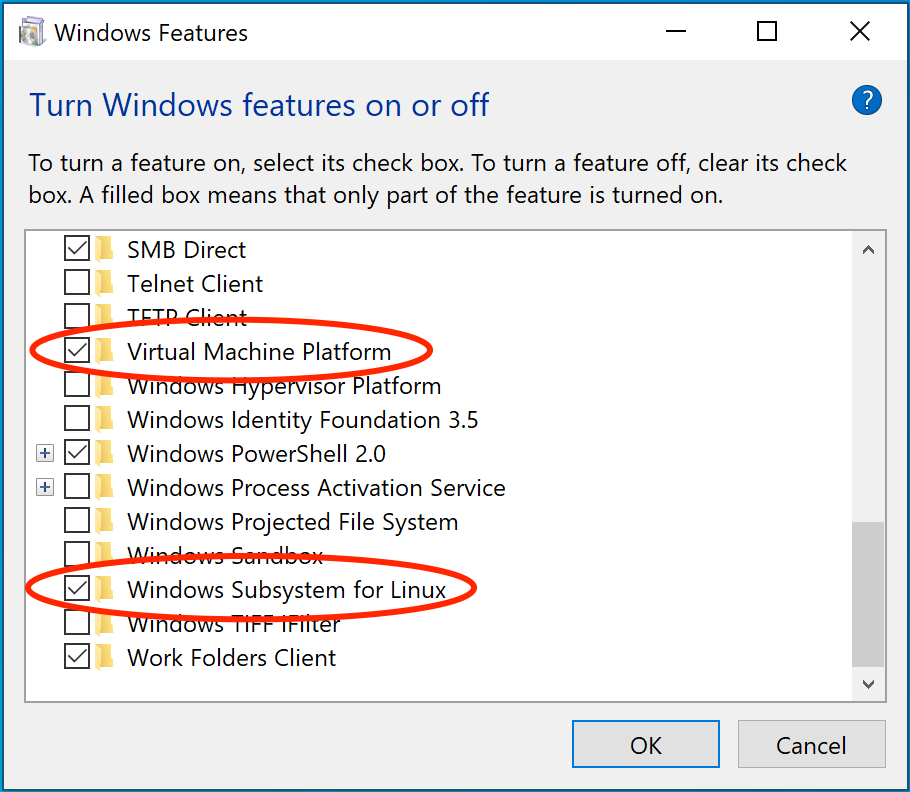
- 1 VM platform feature required for WSL2 operation
- 2 WSL feature enables Linux binaries on Windows Why this exists →
Best viewed on desktop — tap Enlarge to read the numbered controls.
wsl --install turns on Virtual Machine Platform and Windows Subsystem for Linux for you — this is what the installer verifies. Credit: docs.docker.com ↗- Open PowerShell as administrator and run
wsl -l -vto list existing distributions and their versions - If no distribution or not version 2, execute
wsl --installand thenwsl --set-versionto ensure a Version 2 distro is present2 - Download the Docker Desktop installer from docker.com and run the downloaded file
- Start Docker Desktop from the Start menu and wait until it reports that it is running
- Open a new PowerShell window and run
docker versionfollowed bydocker compose versionto confirm the engine is active
- You'll see The
wsl -l -voutput shows a Linux distribution with VERSION 2 anddocker versionreturns the client version, confirming Docker Desktop is running. - Takeaway WSL2 provides a genuine Linux kernel that Docker Desktop uses as its container runtime
- Check Which command sequence confirms both that WSL2 is running as version 2 and that the Docker engine is active on Windows?
2.2 Confirm Docker works on Windows
The hello‑world image is a minimal container used to verify that Docker can pull, run, and display output correctly.
Do this first Set up Docker Desktop with WSL2 on Windows
Confirm your Docker installation runs correctly on Windows
- Execute docker info in a PowerShell window
- Execute docker ps to list running containers
- Execute docker pull hello-world to download the test image
- Execute docker run hello-world to start the container
- You'll see The hello‑world container prints its message and then exits
- Takeaway Containers are ephemeral; a single run creates, executes, and stops them
- Check What series of Docker commands shows you can list information, view running containers, pull the hello‑world image, and run it to display its message?
2.3 Run your first n8n workflow
The n8n-workspace folder contains a docker‑compose.yml file that defines the services needed to launch an n8n workflow via Docker Compose.
Do this first Confirm Docker works on Windows
Start a local n8n workflow using Docker Compose
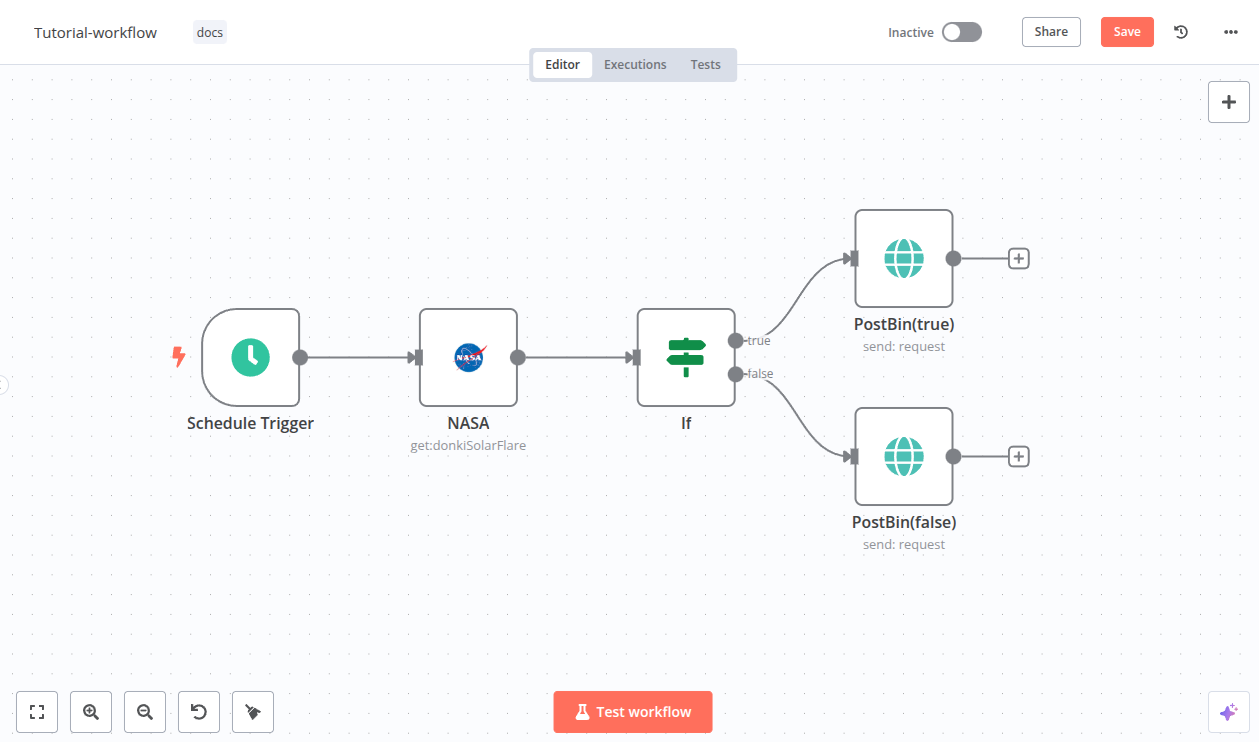
- 1 Workflow editor designs node connections Why this exists →
- 2 Run tests tab validates workflow logic Why this exists →
- 3 Test workflow button executes a trial run
Best viewed on desktop — tap Enlarge to read the numbered controls.
- Create a folder named n8n-workspace and change into it
- Create a file called docker-compose.yml containing the supplied configuration
- Run docker compose up -d in the terminal
- Open a web browser to http://localhost:5678
- You'll see The n8n setup screen appears at http://localhost:5678
- Takeaway Docker Compose launches multi‑container apps from YAML; volumes keep data across restarts
- Check After creating the docker-compose.yml file, which command starts the n8n workflow in detached mode and what URL should you open to see the setup screen?
2.4 Visualise Docker’s Windows architecture
The Task Manager Performance tab shows virtualization status while commands like wsl -l -v, docker system df and docker stats reveal WSL distributions, disk usage and container resource metrics.
Do this first Run your first n8n workflow
Map the relationship between Windows, WSL2 and the Docker engine
- Open Task Manager and select the Performance tab to view virtualization status
- Execute
wsl -l -vin a PowerShell window to list WSL distributions and their versions - Run
docker system dfin PowerShell to display Docker’s disk usage across layers - Type
docker statsin PowerShell to monitor real‑time resource consumption of running containers
- You'll see The hierarchy Docker Desktop → WSL2 → Docker Engine displayed in system tools
- Takeaway WSL2 consumes most RAM by design; adjusting its limit is safe but can affect performance
- Check Which tools and commands listed let you view virtualization status, WSL distribution versions, Docker disk usage, and real‑time container resource consumption?
2.5 Fix Docker startup problems on Windows
The Event Viewer Application log displays Docker error entries that help diagnose startup failures.
Do this first Visualise Docker’s Windows architecture
Resolve three common Docker issues that prevent containers from running correctly.
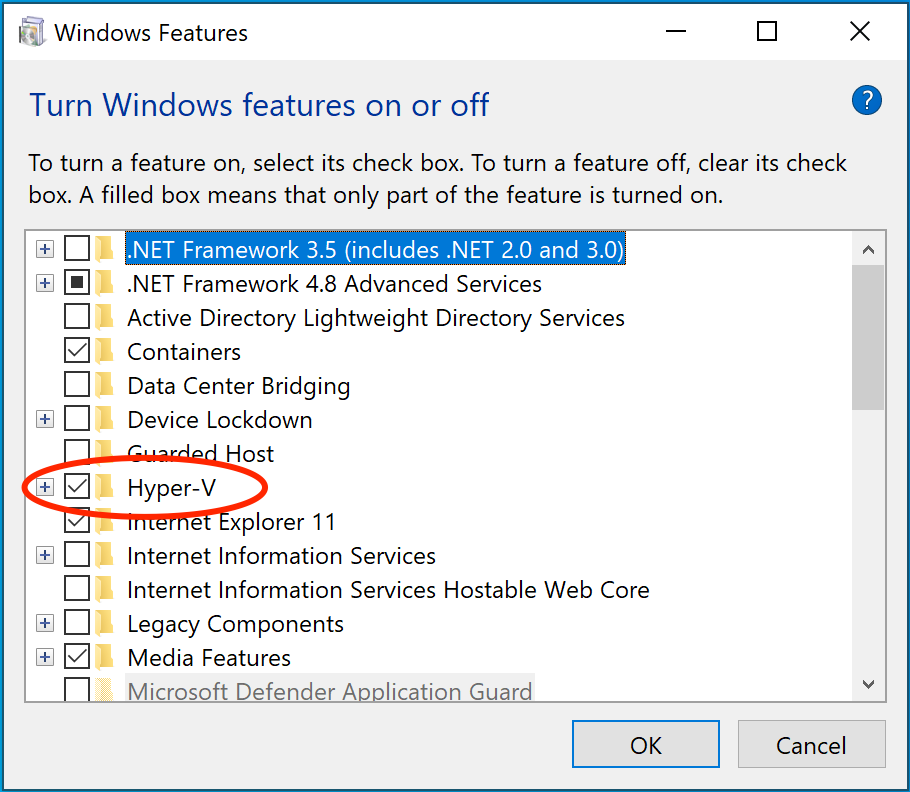
- 1 Containers feature required for Docker runtime Why this exists →
- 2 Hyper‑V feature enables virtualization support
Best viewed on desktop — tap Enlarge to read the numbered controls.
bcdedit fix. Credit: docs.docker.com ↗- Open Event Viewer → Windows Logs → Application and note any Docker errors
- Run
bcdedit /set hypervisorlaunchtype offin an elevated Command Prompt and reboot - Run
bcdedit /set hypervisorlaunchtype auto, reboot, then reinstall Docker Desktop if needed - Find the process using port 5678 with
netstat -ano | findstr :5678 - Terminate it via
taskkill /PIDor adjust the compose port mapping/F
- You'll see Docker starts, containers access the internet, and ports run without conflict
- Takeaway Choose Docker Desktop for GUI convenience or WSL2‑native Docker for a lighter, free setup
- Check What three troubleshooting steps does the lesson outline to resolve common Docker startup issues on Windows, including checking logs, adjusting hypervisor launch type, and handling port conflicts?
3You’ll know it worked 28 checkable outcomes in this chapter
- ✓Output shows a distro with "VERSION 2" listed
- ✓Both commands output version strings without error
- ✓A continuously updating table appears showing per-container metrics
- ✓A container started with `--dns 8.8.8.8` can resolve external hostnames
- ✓Running 'docker version' shows client and server versions without error
- ✓Running 'docker run --rm alpine ps -ef' shows only a few lines with PID 1 for the init process
- ✓Running `wsl --list --verbose` in a command prompt displays the installed distributions and their status
- ✓You can identify a volume used by a specific container and see its size displayed
28 outcomes in all — one per recipe below.
4FAQ, Tips & How-to 43
one problem, one solution, one action
Need a Linux environment on Windows
Installs the Linux kernel, required Windows features, and a default Ubuntu distro
Confirms that the installed distro is running under WSL2
First time opening Ubuntu in WSL2 and need a Linux login
You need a Linux username/password to log into the WSL2 distro
▸How-to Everyone
Want to run containers on Windows
Gets the official installer needed to run containers on Windows via WSL2
Docker Desktop fails to run
Docker Desktop requires Intel VT-x or AMD-V to run the WSL2 VM
▸How-to Everyone
Can't launch Docker from the Start menu
Starts the Docker engine and shows its status in the system tray
▸How-to Everyone
Confirms that the Docker client tools are correctly installed and reachable from the command line
!Tip Everyone
Docker Desktop architecture — forwards Docker commands to WSL2
Knowing that Docker Desktop proxies CLI calls to the WSL2 backend helps troubleshoot performance or connectivity issues
You can confirm Docker Desktop is running and see its version and storage driver
An empty table proves the Docker client can talk to the engine and that no containers are currently active
Successfully pulling the image confirms network access and that the Docker daemon can retrieve layers from Docker Hub
Running the test container shows that Docker can create, start, and clean up a container in one step
Containers are ephemeral — they disappear after the command finishes
Understanding ephemerality prevents confusion when `docker ps` shows no containers after a run
 n8n
n8nNeed current weather data
Retrieves external data that can be used later in the workflow
My WSL2 uses too much memory
You can prevent WSL2 from consuming too much RAM on low-memory machines
You can visually confirm that a Linux VM is running under Windows
You can see which Linux distributions are active and their version/status
You can quickly assess how much storage Docker images, containers, and volumes are using
You can see real-time CPU, memory, network, and I/O usage for each running container
Docker architecture on Windows — three-layer view
You can explain how Docker Desktop, WSL2, and the Docker Engine interact
Understand the trade-off between a full-featured Docker Desktop UI and a lightweight, free WSL2-native Docker engine
Learn where to find Windows-level error logs that explain why Docker Desktop fails to start
Docker Desktop won’t start because of a Hyper‑V conflict
Resolve Docker Desktop startup failures caused by Hyper-V conflicts by disabling and re-enabling the hypervisor
Containers can’t reach the internet
Fix container internet connectivity by changing Docker Desktop's network mode
Containers failing to resolve external sites
Bypassing Docker's default DNS resolves internet-access failures inside containers
Identify which Windows process is occupying a Docker-mapped port so you can free it or change the mapping
A Docker port is blocked by a Windows process
Stop the offending Windows process so Docker can bind to its required port
▸How-to Everyone
Want to run Linux containers on Windows 11 with WSL 2
The video walks through downloading Docker Desktop, enabling virtualization and the Windows Subsystem for Linux feature, updating WSL, and completing the installer. Following these steps ensures Docker runs natively on Windows 11 using WSL 2 as its backend.
▸How-to Everyone
Can't run containers on my PC
The installer provides a GUI that adds the Docker CLI, daemon and optional Kubernetes. It also creates a lightweight Linux VM (or uses WSL/Hyper‑V) to run containers on non‑Linux hosts.
▸How-to Everyone
Want to show a custom message in a container
Docker pulls the image layers from Docker Hub, creates an isolated container, and runs the provided command inside it. The '--rm' flag (implicit in this demo) removes the container after exit.
▸How-to Everyone
Want a local PostgreSQL server for testing
Using 'docker run' with '-e' sets environment variables (POSTGRES_PASSWORD) required by the official image, while '-p' maps host port 5432 to the container’s port, making it reachable from local tools.
▸How-to Everyone
Docker creates a PID namespace so processes inside see their own PID space starting at 1. This prevents containers from seeing host processes, improving security and reproducibility.
▸How-to Everyone
Container keeps maxing out the host CPU
Docker maps cgroup settings from command‑line flags. '--cpus=0.5' limits the container to half a CPU core, preventing it from monopolizing host resources.
▸How-to Everyone
Docker stores images as a stack of read‑only lower layers plus a writable upper layer. When you pull an image, each layer is downloaded separately; shared base layers are reused across images, saving space and bandwidth.
▸How-to Everyone
Need a container engine on Windows 11 without the Microsoft Store
The video walks through downloading the Docker Desktop installer directly from docker.com (avoiding the Microsoft Store), running it, and completing setup including accepting terms and skipping login. This ensures a clean installation that integrates with WSL for Linux container support.
▸How-to Everyone
Linux subsystem missing on Windows 11
Docker Desktop requires the Windows Subsystem for Linux (WSL) feature. The video shows how to install WSL via command line and then enable the optional feature through the Windows Features dialog, ensuring proper Linux kernel support for containers.
▸How-to Everyone
The Containers section lists every active or stopped container with name, status, image, ports, and resource usage. You can start, stop, restart, view logs, or open an interactive terminal directly from the UI, which mirrors Docker CLI commands without typing.
▸How-to Everyone
Can't tell which local container images are unused
The Images page shows all locally stored image layers, their tags, sizes, and last‑used timestamps. Unused images accumulate disk space, so Docker Desktop lets you safely delete them with a single click, avoiding manual CLI pruning.
▸How-to Everyone
Volumes store container data beyond the container’s lifetime. The Volumes tab displays each volume, its size, and which containers are attached, helping you see where critical data resides before deleting anything.
▸How-to Everyone
Want to cap Docker’s CPU, memory and disk use on Windows 11
Settings expose CPU, memory, disk, and virtualization options that Docker Desktop uses under the hood. Adjusting these lets you balance performance with host system availability, and enabling WSL integration ensures Linux containers run efficiently on Windows.
▸How-to Everyone
Want a GUI for your containers
Extensions act like app store add‑ons that embed extra tools directly into Docker Desktop. Installing an extension (e.g., a database viewer) gives you graphical access to container services without leaving the dashboard.
▸How-to Everyone
Want to run containers on Windows 10 or 11
The video walks through downloading the correct Docker Desktop installer for Windows (AMD64), running it with administrative rights, accepting the license, and verifying installation via the command line. It also covers the required WSL2 setup that Docker prompts for during first launch.
The same set on /recipes, filtered by tool and role.
5Videos 4

Complete Docker Course - From BEGINNER to PRO! (Learn Containers)
Teaches Docker basics from installation to running containers and a PostgreSQL instance

What is Docker Desktop on Windows 11 – Walkthrough for Beginners & Docker Desktop Tutorial
Shows how to use Docker Desktop on Windows 11 for managing containers, images, and volumes

Docker Desktop 2025 Installation Guide for Windows 11 Users!
Shows how to install Docker Desktop on Windows 11 and enable the required WSL integration.

How to install Docker on Windows - 2025 [ step by step guide ]
Shows how to install Docker Desktop on Windows using WSL 2
6FAQ 5
How can I check if WSL2 is already installed on my Windows machine?
Open PowerShell and run the command `wsl --list --verbose`. The output includes a VERSION column; a value of 2 means the distro is running under WSL2.
What steps do I need to take to install WSL2 and an Ubuntu Linux distribution?
Launch PowerShell as Administrator and execute `wsl --install`. This command installs the required Windows features, the Linux kernel, and sets up a default Ubuntu distro automatically.
Why does Docker Desktop require CPU virtualization to be enabled in the BIOS?
Docker Desktop runs its Linux VM through WSL2, which depends on hardware‑assisted virtualization (Intel VT‑x or AMD‑V). Enabling this option in the BIOS under “Virtualization” or a similar setting allows the VM to start.
How can I confirm that the Docker command‑line tools are installed and reachable?
Open a new PowerShell window and run `docker --version` followed by `docker compose version`. If both commands return version strings, the Docker client tools are correctly installed.
What is a quick way to verify that Docker can download images and run containers on my system?
Run `docker run hello-world` in PowerShell. The command pulls the hello‑world image from Docker Hub, creates a container, starts it, prints a confirmation message, and then removes the container, proving network access and proper engine operation.
7Glossary 12 terms
Show the 12 terms
Docker on Windows
PowerShell- A command‑line interface built into Windows for running scripts and commands.
wsl --list --verbose- A command that shows all installed Linux distributions on Windows and whether each is using WSL version 1 or 2.
wsl --install- A command that automatically enables the required Windows features, installs the Linux kernel, and adds a default Ubuntu distribution.
Ubuntu app- The shortcut in the Start menu that launches the Ubuntu Linux distribution inside WSL2.
Docker Desktop- A Windows program that provides a graphical interface and manages the Docker engine running inside WSL2.
BIOS/UEFI- The low‑level firmware that starts your computer and contains settings such as CPU virtualization support.
Intel VT-x / AMD-V- Hardware features that allow a computer to run virtual machines, required for Docker Desktop’s WSL2 backend.
docker --version- A command that prints the installed Docker client version number.
docker compose version- A command that shows the version of the Docker Compose plugin bundled with Docker Desktop.
WSL2- Windows Subsystem for Linux version 2, which runs a real Linux kernel inside a lightweight virtual machine.
.wslconfig- A text file placed in your user profile folder that lets you set limits such as maximum RAM for WSL2.
-d flag- An option added to `docker run` that starts the container in the background instead of tying up the terminal.
8See also
💬 Discuss this chapter
Ask, share, or report — over on the Heidelberg AI community forum.