No local installation needed
Start Flowise instantly in the browser without installing anything
Drag boxes on a canvas to build a chatbot, a RAG bot or a multi-agent flow
Flowise builds LLM apps by wiring nodes on a visual canvas — no code needed to get a working chatbot grounded in your own PDFs. It covers the whole arc: a first Chatflow, retrieval over your documents, giving the agent tools, an Agentflow where several agents share one job, a human-in-the-loop step, then tracing and evaluation before you embed or self-host it.
Flowise is the no-code path: drag nodes onto a canvas, wire them together, and you have a working chatbot or RAG bot. It goes further than a demo — tools, multi-agent Agentflows, human-in-the-loop, tracing, then embed or self-host.
Drag a chat node onto the canvas, connect it to a language model node, and configure the input and output settings; the flow runs instantly without writing code.
Yes—add a document loader node, point it at your PDFs, then wire a retrieval node into the chatflow so the assistant can answer questions grounded in those files.
Build an Agentflow by placing several agent nodes, linking them to share tasks, and optionally insert a human‑in‑the‑loop node for review before final responses.
Flowise lets you build LLM applications by wiring nodes on a visual canvas; the simplest is a Chatflow, which connects a chat model to optional components.
Create a free Flowise Cloud account and assemble a basic Chatflow that responds in the chat panel
Drag a Chat Model node onto the canvas, connect an OpenAI chat node to it, open the chat panel and ask: "Explain what retrieval-augmented generation is in two sentences."Open flowiseai.com, start a free Flowise Cloud account, and click New Chatflow — you build and test entirely in the browser.
RAG in Flowise uses four nodes: a PDF File loader, a vector store, and a chat model that only answers from retrieved passages.
Do this first Create your first AI agent flow
Build a chatbot that answers solely from the content of an uploaded PDF
Summarize the main method in this document.In a New Chatflow, drag in a PDF File loader and upload one paper, connect an OpenAI chat node plus a vector store, then open the chat panel and ask the question above.
A tool is a thing the agent may call — a search, a calculator, an API — and giving the agent tools is what turns it from something that talks into something that acts. The model decides whether to call one; you decide which ones exist.
Do this first Build a chatbot that answers from your PDF
Build a single‑agent chat assistant that can call external tools and retrieve information from your documents
When the user asks a factual question, search the web and cite your source; otherwise answer from the uploaded documents.Flowise has three builder types — Assistant, Chatflow, and Agentflow. A Chatflow is a single agent with tool calling and RAG; that's what you use here.
An Agentflow is the visual orchestrator for multi‑agent workflows; each node can be an agent, a tool, or a processing step, and connections define the hand‑off order.
Do this first Create a Chatflow assistant that uses tools and documents
Build a coordinated workflow where several agents pass work to each other to complete a multi‑step task
From a Start node, route to a Search Agent that gathers facts and a Get Request node that fetches data, then pass both to a Summarize node that writes the final answer.Use the third builder type, Agentflow — Flowise's canvas for multi-agent orchestration, where each node is a step or an agent and the connections set the order.
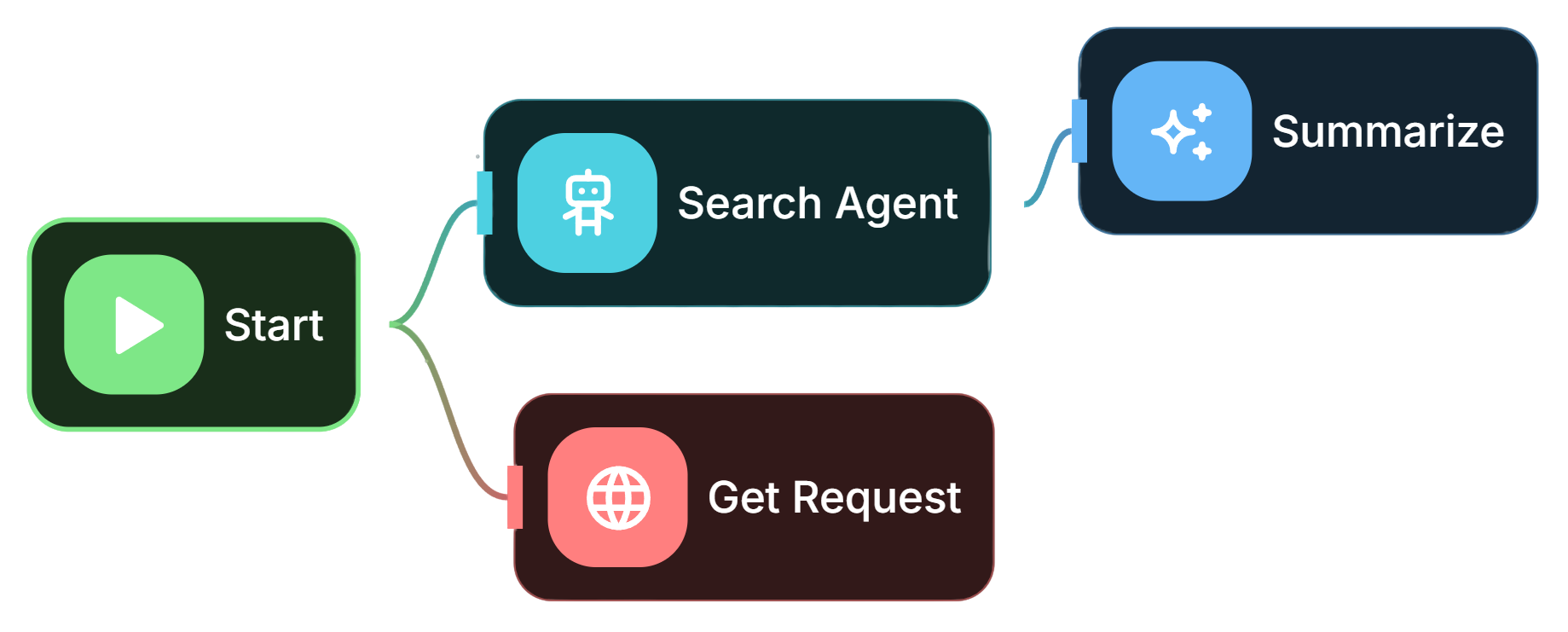
Best viewed on desktop — tap Enlarge to read the numbered controls.
A Human-in-the-loop node pauses execution and presents a review card where a person can approve, reject or edit the agent’s output before it proceeds.
Do this first Orchestrate multiple AI agents with an Agentflow
Stop an autonomous step until a human reviews and decides to proceed, reject or modify the result
Before sending the drafted message, ask the user to Proceed or Reject, and let them give feedback on the last assistant message.Flowise has built-in human-in-the-loop review — add it to a flow so the run stops for sign-off instead of acting unsupervised.
A trace records every step of a run, including inputs, outputs, duration and token usage; Evaluations add scoring against expected answers to measure quality over time.
Do this first Pause an agent for human approval
Inspect each step an agent took, view its resource use, and compare run quality across iterations
Open the trace for the last run and check which agent handled each step, how long it took, and how many tokens it used.Flowise includes tracing/analytics and Evaluations & Metrics (the latter is on every plan, including Free) for monitoring runs.
Publishing exposes a flow as an embeddable chat widget, an API endpoint, or a self‑hosted service, allowing real users to interact with the agent from a website or code.
Do this first Inspect an agent's execution and assess its performance
Deploy the finished agent so it can be used on a web page or called from application code
Publish this Chatflow as an embeddable chat widget, then grab its API endpoint to call from a script.A finished Flowise agent can ship as an embeddable chat widget or be called via API, CLI, and TS/Python SDKs — and you can self-host it, even air-gapped.
No local installation needed
Start Flowise instantly in the browser without installing anything
Want a local LLM workflow builder?
Learn how to get Flowise running locally on your machine
Want a bot that fetches live data
Learn how to let an agent automatically call external tools like web search or HTTP requests
The same set on /recipes, filtered by tool and role.
The deep build once the basics click. Watch when you want a Flowise assistant grounded in your own documents.
The 'blank canvas to working agent' walkthrough. Start here to learn the node types by building.
Best framing video if you already know n8n — it tells you when to reach for Flowise's LLM-first canvas instead.
Flowise is an open-source platform for building AI agents and LLM workflows visually, instead of writing code. You assemble apps by dragging boxes called nodes onto a canvas and connecting them, so you can see exactly how information flows. It is built for things like document-aware chatbots (RAG over your own PDFs), single chat assistants that can call tools, and multi-agent workflows where several agents hand work to each other. It connects to 100+ sources, tools, vector databases and memories, and major LLM and embedding providers, so most of the work is choosing and wiring nodes rather than programming.
A finished flow can ship two main ways. As an embeddable chat widget: Flowise gives you a small script snippet that imports the flowise-embed module and initializes it with your chatflow ID and API host, which you paste between the body tags of your web page; the widget is themeable. Or programmatically: each flow is exposed via an API, a CLI, and TypeScript and Python SDKs, so other software can call it. You choose where it runs: Flowise Cloud (managed) or self-host the open-source version, including fully air-gapped for sensitive data. Publishing is included on every plan, within your plan's prediction limits.
These are Flowise's three builder types. Assistant is the most beginner-friendly way to create an AI agent: a chat assistant with instruction-following, tool use and RAG. Chatflow is for single-agent systems, chatbots and simpler LLM flows, with support for techniques like Graph RAG and rerankers. Agentflow is the superset of the other two and is where you do multi-agent orchestration: several agents and steps wired together on a canvas, where the connections set the order of work. A good progression is to start with a Chatflow assistant, then move to an Agentflow once one agent is not enough for the task.
This is RAG (retrieval-augmented generation) and it is Flowise's sweet spot. Create a New Chatflow, drag a PDF File loader onto the canvas and upload your document. Add a vector store node and connect it: this indexes your PDF so the model can retrieve the relevant passages before answering. Then connect a chat-model node (for example OpenAI), open the chat panel, and ask something like 'Summarize the main method in this document.' The reply should be grounded in your uploaded file, not generic knowledge. You wire the vector store and embeddings visually instead of coding them, though those concepts do have a real learning curve.
Yes, Flowise has built-in human-in-the-loop review. You add a review step to a flow before the action you do not want fully automated, such as sending an email or finalising an answer. When the run reaches it, the flow pauses and shows the proposed output with Proceed and Reject controls, plus a box to give feedback on the last assistant message. Approving lets it continue; rejecting with a note sends the agent back to revise. The review adds no model cost while it waits, you only spend tokens when the agent resumes. This is how you ship agents you can trust on real tasks instead of running them unsupervised.
Flowise includes tracing and analytics plus Evaluations and Metrics, and the latter is on every plan including Free. After a run you open its execution trace: a step-by-step view from Start through each agent to the final answer, showing each step's inputs, outputs, duration and token count. That is how you find a slow or expensive step, or debug a wrong answer. Evaluations and Metrics let you score runs against expected answers so you can tell whether a change to the flow genuinely improved it rather than just feeling better. Tracing and evaluations are free; running the evaluations themselves spends normal model tokens.
ChatflowAgentflowAssistantNodeCanvasLLMAgentToolRAGDocument StoreVector StoreEmbeddingChunkUpsertFlow StateHuman Input nodeMemoryBuffer Window MemoryStreamingMCPRetrieverExecute Flow nodeAsk, share, or report — over on the Heidelberg AI community forum.