Run AI models on your own computer so your data never leaves it. Ollama is a local API + CLI, LM Studio is a polished desktop app, Jan is an offline-first, open-source ChatGPT alternative, and AnythingLLM turns any local (or cloud) model into a private assistant that chats with your own documents. → Pick by what you want: script it from the terminal → Ollama; a friendly desktop app with a local server your other tools can hit → LM Studio; the simplest one-click chat to get started → Jan; chat over your own files with citations → AnythingLLM.
1.1After this chapter you can
→Run an open model entirely on your own machine, so your data never leaves it
→Pick the right local tool: Ollama (API + CLI), LM Studio (desktop app), or Jan (offline ChatGPT)
→Point other apps at your local model via its OpenAI-compatible endpoint
→Judge the hardware trade-offs — and when a local model is enough vs. when to reach for the cloud
1.2How do I run a model locally?
Install Ollama for a command‑line API or LM Studio for a desktop app, then download a model and start it on your own computer so all processing stays in‑house.
1.3Which tool offers one‑click chat?
Jan provides the simplest one‑click interface: install it, download a local model, and you can start chatting instantly without configuring servers or APIs.
1.4Can I keep my data completely private?
Yes—by running Ollama, LM Studio, Jan, or AnythingLLM on your machine with the network off, all inference happens locally and no information leaves your device.
2Matrix 8 rows · 4 tools
ollama
lmstudio
jan
anythingllm
Runs fully offline
yes
yes
yes
yes
Graphical chat — no command line
partial
yes
yes
yes
OpenAI-compatible local API
yes
yes
partial
partial
Runs as an always-on service
yes
yes
partial
yes
Also call cloud models (BYO key)
no
no
yes
yes
Open source
yes
partial
yes
yes
Beginner-friendly first run
partial
yes
yes
yes
Fully private — data never leaves
yes
yes
yes
yes
3Lessons 17
3.1Pick the right model for your computer
You learn how to check your computer’s RAM and GPU specifications to decide which model size it can handle.
Determine the suitable model tier for your machine based on its memory resources
TryList your total RAM, whether you have a discrete GPU (include its VRAM) or note unified memory on Apple Silicon, then state the highest model tier you can run and pick one specific model from that tier.
Paste this into lmstudio’s chat input box. After submitting, verify that the RAM and GPU details match what you saw in Task Manager/About This Mac/Linux before confirming the suggested model.
Open Task Manager → Performance → Memory (Windows) or Apple menu → About This Mac (macOS) or run free -h (Linux) to note total RAM
Open Task Manager → Performance → GPU (Windows) or run nvidia-smi (NVIDIA) or recognise Apple‑Silicon uses unified memory to identify GPU capability
Compare your free RAM/VRAM with the tier guide (e.g., ~8 GB supports 8B–13B models) and select a matching model size
Record total memory, GPU availability, and the chosen model in a note
You'll see A clear statement of the largest model class your hardware can run comfortably and a specific model name to download
Takeaway Your device’s RAM and GPUVRAM set the upper bound for local model sizes you can run efficiently
Check How do you match your computer’s RAM and GPU specifications to the appropriate model tier for local inference?
3.2Run a private AI assistant on your computer
Jan is a desktop app that runs open‑weight LLMs entirely offline, providing a ChatGPT‑style interface without any cloud connection.
Launch a locally running chat model using Jan within 20 minutes
TryExplain RNA‑seq in two sentences for a biologist who has never heard of it.
In Jan, click New Chat, choose the model you just downloaded, then paste the prompt into the input box and hit Enter. Watch that the response appears in the chat pane—no network activity indicator should show any external traffic.
The Hub is where you pick your first model: browse curated open-weight models, check the size and the Fits badge against your machine, and click to download it locally.Credit: jan.ai/docs ↗
Download Jan from the official website and install it
Open Jan and click Open the model Hub in the sidebar
Select a small open‑weight model (e.g., Llama, Gemma or Qwen) and press Download
Wait for the download to complete
ClickStart a new chat, choose the downloaded model, and type a test prompt such as Explain RNA‑seq in two sentences for a biologist who has never heard of it.
Observe the generated reply appears locally
You'll see A coherent answer from the locally loaded model displayed inside Jan’s chat window
Takeaway Jan enables fully offline interaction with open‑weight models, keeping all prompts and replies on your device
Check Which actions confirm that Jan is using a locally downloaded model without sending any data to external services?
3.3Run a local model with LM Studio
LM Studio provides a point‑and‑click UI for downloading and running quantisedGGUF models entirely on your machine.
Get a local model answering questions in under 20 minutes
TryExplain RNA‑seq in two sentences for a biologist who has never heard of it.
In LM Studio, go to the Chat tab, select your downloaded model from the top dropdown, paste the prompt into the message box and hit Enter. Watch that a reply appears locally (you’ll see the text appear) and no network activity is triggered.
Discover tab: search Hugging Face for a model, pick a quantized variant that fits your RAM (Q4_K_M is a safe default), and download it.Credit: lmstudio.ai/docs ↗Chat tab: pick your downloaded model from the dropdown and start typing — the reply is generated entirely on your machine.Credit: lmstudio.ai/docs ↗
Download LM Studio from its website and install the application
In the Discover tab, search for lmstudio-community/Meta-Llama-3.1-8B-Instruct-GGUF, select the Q4_K_M variant and press Download
Switch to the Chat tab, pick the downloaded model from the top dropdown, and enter a prompt such as “Explain RNA‑seq in two sentences for a biologist who has never heard of it.”
Read the reply; its appearance confirms the local setup works
You'll see A coherent reply from the model shown in LM Studio’s chat pane with no outbound network traffic
Takeaway LM Studio lets you run quantisedGGUF models offline after a single download
Check Which steps verify that a quantisedGGUF model has been loaded in LM Studio and can answer a prompt without internet access?
3.4Run your first local model
Ollama is an open‑source tool that runs LLMs locally via simple commands, handling download, quantisation and optional GPU acceleration.
Answer a question using a locally run LLM in under 20 minutes
Tryollama run llama3
Open a terminal window and paste the command exactly as shown, then press Enter. Watch the console output – it will show the model downloading and finally present a >>> chat prompt indicating the local model is ready.
Ollama also ships a native desktop app (2025) with the same first-model chat experience as the CLI steps above — pick a model, type a question, get a fully local reply.Credit: ollama.com/blog ↗
Install Ollama by downloading the installer for your OS or running curl -fsSL https://ollama.com/install.sh | sh on Linux
Open a terminal and execute ollama run llama3 to download and start an interactive session
At the >>>prompt, type your question, e.g., Explain RNA‑seq in two sentences for a biologist who has never heard of it.
Read the printed reply
Exit the chat with /bye or Ctrl+D
You'll see A coherent answer appears at the Ollama prompt and no external network traffic is generated
Takeaway Running models locally removes any need for internet access when querying an LLM
Check After installing Ollama, which command both downloads the model and opens an interactive chat session?
3.5Process sensitive text offline
Jan's whole point is privacy: because the model runs locally, you can use it on unpublished results, draft manuscripts, or other sensitive material that you would never paste into a cloud chatbot. The most convincing way to see this is to turn your network off entirely and watch Jan keep working. This is the tool for the work you cannot send to the cloud — it runs on a plane, in a no-internet lab, and never transmits your data.
Generate a response to confidential content without any network connection
TryTighten this paragraph and flag anything that is unclear or unsupported:
We collected 200 blood samples from patients undergoing chemotherapy at three hospitals between January 2022 and June 2023. RNA was extracted using the RNeasy Mini Kit (Qiagen) and sequenced on an Illumina NovaSeq 6000. Differential expression analysis was performed with DESeq2, adjusting for age, sex, and treatment regimen.
Paste the full text into Jan’s chat window after you’ve disabled Wi‑Fi or unplugged Ethernet. Send it and watch that a response appears even though the network indicator shows no connection.
Jan's chat window — pick a local, on-device model like Jan Nano from the top selector and type; because the model runs on this machine, this whole exchange works with the network off.
Model selector — choose a local model that runs on-device.
Prompt box — "Ask Jan…"; nothing leaves your machine.
Sidebar — New chat, Hub (browse models), Settings, and saved chats.
Confirm a local model is loaded in Jan and start a new chat to test with a simple prompt
Disable Wi‑Fi or unplug Ethernet to turn the network off completely
Paste your sensitive draft into the Jan prompt box and ask the model to improve it or flag issues
Read the locally generated reply despite the lack of connectivity
You'll see A useful answer appears in Jan’s chat window while the computer remains offline
Takeaway Disabling the network guarantees that private data never leaves your machine when using a local model
Check How can you demonstrate Jan’s ability to process sensitive text when the network connection is completely disabled?
3.6Compare model responses in a local chat
One of LM Studio's most useful features is loading several models at the same time and sending the same prompt to all of them at once. For researchers this is genuinely powerful: you can test how different models handle a sensitive or technical question before committing to one. Everything stays offline — the comparison runs entirely on your machine.
Ask multiple models the same question and watch them disagree
TryI have 12 RNA‑seq samples across 3 conditions. What statistical approach should I use to find differentially expressed genes, and what are the main pitfalls?
In LM Studio, go to the Chat tab, enable Multi‑model chat/Compare, add two models, then paste the prompt into the input box and hit Enter. Watch that both model panes display answers side‑by‑side so you can spot agreements and differences.
Split View — click the icon in the top-right of a chat pane to open a second one beside it; each pane has its own model dropdown, so you can point one at each model and compare answers side by side.
Two panes — independent chats side by side.
Per-pane model dropdown — set a different model in each to compare.
Prompt boxes — ask the same question in both to see how the models differ.
Open the Chat tab and click the model selector at the top
EnableMulti‑model chat (or Compare) and add a second loaded model
Enter your research prompt in the input box
PressSend to view both responses side‑by‑side
Submit a second private prompt to confirm no data leaves the machine
You'll see Two model responses displayed side‑by‑side for the same prompt
Takeaway Running several models offline together instantly reveals their distinct strengths while keeping all data on your device
Check What configuration in LM Studio lets you send the same prompt to multiple models and view their answers side‑by‑side?
3.7Manage local AI models from the command line
Ollama is CLI-first, and almost everything you need is a few short commands. ollama pull downloads a model without starting a chat; ollama list shows what you have; ollama ps shows what is currently loaded in RAM; ollama stop frees that RAM; and ollama rm deletes a model from disk. Knowing these five turns Ollama from a chat toy into a managed local model library you can keep tidy on a laptop with limited disk space.
Paste the whole line into a terminal session. It will pull a model, list your library, open a new terminal to load another model, then show RAM usage, stop it, and finally delete the first model. Watch for each command’s output to confirm the state changes.
Runollama pull qwen2.5 to download a model without starting a chat
Executeollama list to see installed models with sizes and dates
Startollama run llama3 in another terminal, then runollama ps to view loaded models in RAM
Stop the model with ollama stop llama3 and verify removal via ollama ps
Delete a model using ollama rm and confirm its absence with ollama list
You'll see Lists showing installed models, RAM usage for loaded models, and confirmation that a model has been removed
Takeaway Ollama’s CLI lets you keep a local model library tidy and control RAM usage
Check Which Ollama commands let you download a model, list installed models, see which are loaded in RAM, unload one, and finally delete it?
3.8Use a cloud model in a thread with your own API key
Jan can connect to cloud providers via API keys, letting you choose between local and remote models per thread while keeping the same UI.
Run one thread on a cloud provider and another on a local model within the same Jan app
TryCritique the experimental design in this abstract and suggest two controls I may be missing.
Paste the text into the message field of a newly created Jan thread (after selecting a cloud model in the Model Picker). Ensure you’ve saved your API key in Settings → Provider‑Models first; watch that the response comes from the chosen cloud model, not the local one.
Add a cloud provider in Settings: paste your own API key for OpenAI, Anthropic, Mistral, or Groq, and Jan lets you pick that provider's cloud models per thread — cloud for capability, local for privacy.Credit: jan.ai/docs ↗
Obtain an API key from your chosen provider (e.g., OpenAI) and copy it
Open Jan’s Settings, locate the provider section, paste the key and save
Start a new thread, open the model picker and select a cloud model from that provider
Send a hard question such as Critique the experimental design in this abstract and suggest two controls I may be missing.
Create another thread and choose a local model, confirming the model choice is independent per thread
You'll see One thread processes the prompt with a cloud model while another uses a locally loaded model, each displayed in its own chat pane
Takeaway Jan lets you mix API‑keyed cloud models and offline models per thread, giving flexibility without leaving the app
Check How do you configure Jan to use an API‑keyed cloud provider for a specific thread while keeping other threads on a local model?
3.9Run a local model as an API server
LM Studio can expose any loaded model as an OpenAI‑compatible endpoint at http://localhost:1234/v1, enabling existing tools to call it locally.
Start the LM Studio server and query it with curl or Python
Trycurl http://localhost:1234/v1/chat/completions \
-H 'Content-Type: application/json' \
-d '{
"model": "lmstudio-community/Meta-Llama-3.1-8B-Instruct-GGUF",
"messages": [{"role": "user", "content": "Name three open-access genomics databases in one sentence each."}]
}'
Paste the command into a terminalafter you have started the server via Developer → Start Server (green dot should appear). Verify that the response is a JSON object with a choices field; if not, check the model name and server status.
Developer tab → Start Server: once running, LM Studio serves an OpenAI-compatible endpoint at localhost:1234 — point curl, Python, or any OpenAI-SDK code at it with no API key.Credit: lmstudio.ai/docs ↗
ClickDeveloper tab, then Start Server and verify the green dot showing localhost:1234 in the status bar
Alternatively, run lms server start in a terminal and confirm status with lms server status
Test the endpoint using curl with a JSON payload posted to http://localhost:1234/v1/chat/completions
Run a Python script that uses the openai package, setting base_url='http://localhost:1234/v1/' and call the same model
Stop the server via Developer tab → Stop Server or by executing lms server stop
You'll see A JSON response from http://localhost:1234/v1 confirming the model answered the request
Takeaway LM Studio exposes any loaded model through an OpenAI‑compatible API on your machine
Check What steps start the LM Studio OpenAI‑compatible server and verify that a curl request receives a JSON reply from your local model?
3.10Query a private model using the OpenAI API format
Ollama runs a background server at http://localhost:11434 offering both native and OpenAI‑compatible APIs, so any client can query a local model by changing the base URL.
Run your local model from curl and Python just like the OpenAI API
Trypython - <<'PY'
from openai import OpenAI
client = OpenAI(base_url='http://localhost:11434/v1/', api_key='ollama')
response = client.chat.completions.create(
model='llama3',
messages=[{'role': 'user', 'content': 'Summarise the central dogma in 30 words.'}]
)
print(response.choices[0].message.content)
PY
Paste this into a terminal (or a Python REPL) after installing the openai package. Verify that the printed line contains a concise summary—if you see an error about connection, ensure Ollama is running with ollama list.
Verify the server is running with ollama list (run ollama serve if needed)
Send a request using curl to the native endpointhttp://localhost:11434/api/chat with appropriate JSON payload
Run a Python script using the OpenAI SDK, setting base_url='http://localhost:11434/v1/' and call the model
Observe that only the base URL differs from standard cloud calls
You'll see Both curl and Python return a model‑generated response from localhost:11434
Takeaway Swapping only the base‑URL to http://localhost:11434 lets any OpenAI‑compatible script query your private Ollama model with zero data leaving the device
Check How does changing only the base URL enable a Python script using the OpenAI SDK to query an Ollama model running on localhost?
3.11Run a local model via an OpenAI‑compatible endpoint
Jan can launch a local OpenAI‑compatible APIserver at http://localhost:1337, allowing external scripts to call the loaded model as if it were a cloud service.
Expose the loaded model on localhost and query it with curl or Python
Trycurl http://localhost:1337/v1/chat/completions -H 'Content-Type: application/json' -d '{"messages":[{"role":"user","content":"Name three open-access genomics databases in one sentence each."}]}'
Paste the command into a terminal window while Jan’s local APIserver is enabled (Settings → Local APIServer). Watch for a JSON response containing a choices array with the generated text.
Settings → Local APIServer: click Start Server to expose your loaded model as an OpenAI-compatible endpoint on localhost, then call it from curl, Python, or any tool that speaks the OpenAI API.Credit: jan.ai/docs ↗
Open Settings → Local APIServer in Jan and click Start Server to launch the endpoint on port 1337
Confirm the status shows listening at http://localhost:1337
Run the provided curl command in a terminal to request a chat completion
If the openai package is installed, execute the supplied Python script to obtain a response
When finished, return to Settings → Local APIServer and click Stop Server
You'll see A JSON reply from http://localhost:1337 containing the model’s generated text
Takeaway Jan turns any locally loaded model into a private OpenAI‑compatible service reachable at http://localhost:1337
Check Which settings in Jan let you launch an OpenAI‑compatible endpoint on port 1337 and test it with curl or Python?
3.12Run Hermes using a local LM Studio model
Hermes is a personal AI assistant that can be pointed at a local LM Studio server, making all its reasoning run entirely on your device.
Configure Hermes to connect to the LM Studio server with two settings
Trylms server start && lms models list
Paste this into your system terminal while LM Studio is installed. Ensure the output shows the server running and a model listed—if not, load a model in LM Studio before proceeding.
Hermes Agent pointed at LM Studio: the terminal confirms it's now answering from your local model, while LM Studio's Developer tab shows that model loaded and serving.Credit: lmstudio.ai/docs ↗
Start Server in LM Studio’s Developer tab or run lms server start and ensure a model is loaded
Open the file ~/.hermes/config.yaml in any editor
Insert the lines:
``yaml
provider: custom
base_url: "http://localhost:1234/v1"
``
and save the file
Edit~/.hermes/.env to contain OPENAI_API_KEY=local if not present
Runhermes --tui in a terminal (or launch Hermes Desktop) and ask “What model are you running on?”
You'll see Hermes replies from your locally‑hosted LM Studio model with no internet traffic
Takeaway Setting provider: custom and a localhost base_url makes Hermes operate entirely on your machine
Check What two configuration lines must be added to Hermes’s config.yaml to make it communicate with a locally hosted LM Studio model?
3.13Configure Hermes to use a local Ollama model
Hermes can also use Ollama’s OpenAI‑compatible endpoint, allowing the assistant to run fully offline via a local Ollama model.
Point Hermes at your Ollama server with two config lines
Tryhermes --tui
Paste this into a terminal window where you have Hermes installed. When the TUI launches, type What model are you running on? and verify that Hermes reports the Ollama model (e.g., llama3) instead of a cloud provider.
Runollama list and verify a model such as llama3 is available
Open~/.hermes/config.yaml in an editor and add:
``yaml
provider: custom
base_url: "http://localhost:11434/v1/"
``
Save the file
Ensure~/.hermes/.env contains a placeholder like OPENAI_API_KEY=ollama
Start Hermes with hermes --tui or via the Desktop app
(Optional) Replacelocalhost with another LAN IP in the base_url to reach a remote Ollama instance
You'll see Hermes responds from your local Ollama model without any internet connection
Takeaway Hermes can run entirely on‑device by pointing it to a local Ollama endpoint, eliminating cloud calls and preserving privacy
Check Which modifications in Hermes’s config.yaml point the assistant to an Ollama server running on localhost?
3.14Add a custom assistant, organise work in projects, and enable external tools
Jan supports custom Assistants, Projects and MCP integration, letting you create specialised personas, group related threads and enable tool‑calling while staying fully offline.
Create a specialised assistant, organise its threads into a project, and activate MCP for external tools
TryCreate a new custom Assistant called BioReview with the system instruction: You are a careful bioinformatics methods reviewer. Always ask for the organism, sample size, and sequencing platform before advising.
Enter this text in Jan’s Assistant creation screen and click Save. After saving, start a thread using the newly created BioReview assistant to confirm it asks the required clarification questions.
1Projects tabgroup selected threads into a project
2Assistant selectorchoose reusable assistant for new threadWhy this exists →
Best viewed on desktop — tap Enlarge to read the numbered controls.
Settings → Assistants: save a model plus a system instruction as a reusable persona, group threads into Projects, and enable MCPServers to give a model external tools — turning Jan into a private, configurable workbench.Credit: jan.ai/docs ↗
ClickAdd Assistant in Settings → Assistants, give it a name, choose a model and write system instructions
Open a new thread, select the new assistant from the Assistant selector, and submit your task
Select relevant threads, click Create Project, and name the project to group them
In Settings → Assistants, toggle MCP integration for that assistant and confirm the external tool connection
You'll see A reusable assistant appears in the selector, a project contains its threads, and MCP shows as enabled in the assistant settings
Takeaway Custom assistants store expert prompts, projects keep work together, and MCP links models to external tools turning Jan into a private AI workbench
Check How do you create a custom assistant in Jan, group its threads into a project, and enable MCP integration for external tool access?
3.15Serve a local model to your network
LM Studio’s CLI (lms) can run headlessly and bind the server to any network interface, enabling LAN‑wide private model access.
Paste the command into a terminal on the machine where LM Studio is installed. After it runs, look for a JSON response containing a "data" field—if you see that, the always‑on daemon is serving correctly.
Serve on Local Network: flip this in Server Settings and the endpoint moves from localhost to your LAN IP — your whole lab can now point at one shared server.Credit: lmstudio.ai/docs ↗Local LLM Service (headless): enable this and the llmster daemon keeps serving your model even with the LM Studio window closed.Credit: lmstudio.ai/docs ↗
Runlms --version to confirm the CLI is installed
Executelms server start then runlms load lmstudio-community/Meta-Llama-3.1-8B-Instruct-GGUF to launch and load a model
Change the network binding in LM Studio’s Developer tab from localhost to your machine’s LAN IP (or 0.0.0.0) and restart the server so other devices can reach http://:1234/v1
Stop the server with lms server stop when finished
Install the headless daemon via curl -fsSL https://lmstudio.ai/install.sh | bash and runlms daemon up to keep the service running in background
You'll see The terminal shows the server responding to a curl request on your LAN IP address
Takeaway LM Studio can be launched via CLI, bound to any interface and kept alive as a daemon for continuous private access across a network
Check What command‑line sequence starts the LM Studio server, loads a model, and binds it to a LAN IP so other devices can reach the endpoint?
3.16Expose Ollama for the whole lab
Ollama can bind to all interfaces using the OLLAMA_HOST environment variable, turning a single machine into a shared private AI server for the whole lab.
Run this command in a terminal on any other computer on the same LAN (not the host). Replace 192.168.1.42 with your server’s IP. Watch for a JSON response containing a message field—if you see it, the shared Ollama endpoint is working.
Expose Ollama to the network: the newer Ollama desktop app turns the OLLAMA_HOST=0.0.0.0 step into one Settings toggle — flip it and other machines on your LAN can reach this instance.
Expose Ollama to the network — the toggle that serves the API to your whole LAN.
Model location / Context length — where models are stored and how much context to keep.
Pick a suitable machine, install Ollama and run ollama pull llama3 to download a model
Set the environment variableOLLAMA_HOST to 0.0.0.0:11434; on macOS use launchctl setenv OLLAMA_HOST "0.0.0.0:11434", on Linux edit the service with systemctl edit ollama.service adding Environment="OLLAMA_HOST=0.0.0.0:11434", on Windows add it to your account variables, then restart Ollama
Find the host’s LAN IP (e.g., via ifconfig, ip addr or ipconfig)
Test from another machine with curl http://:11434/api/chat -d '{"model":"llama3","messages":[{"role":"user","content":"Say hello"}],"stream":false}'
(Optional) Configure OLLAMA_KEEP_ALIVE (e.g., 24h) to keep the model loaded between requests
You'll see A curl request from another computer returns a JSON reply from the shared model
Takeaway Binding OLLAMA_HOST to all interfaces turns one machine into a central AI endpoint for the lab
Check Which environment variable and value must you set for Ollama to listen on all network interfaces and become reachable from any workstation on the LAN?
3.17Run multiple models together and track each setting’s cost
The Developer tab lists resident models and lets you tweak settings like Context Length, GPU Offload and Parallel slots, showing their impact on memory and speed.
Load several models simultaneously and see how every knob in the Developer panel affects resource use
1Models resident right nowfive at once, each costing its own GB
2The window you pay for64k set on a 133k-capable model
3One shared cachewhat makes several models fit
Best viewed on desktop — tap Enlarge to read the numbered controls.
Developer tab, five models resident. The left column is a memory budget: 63 GB + 22 GB + 3 GB + two embedding models, all answering at once on one machine. Parallel is per model — 1 for the 120B, 4 for the cheap ones. The right column is the selected model's load-time configuration, and nearly every row there trades memory for speed or quality.
Open the Developer tab and toggle Status to reveal the endpoint address
Click+ Load Model, pick a small model and watch it appear as its own row in the list
Read the Parallel column to see how many concurrent requests each model can handle
AdjustContext Length in the right‑hand panel and observe the memory usage number change
ChangeGPU Offload in the same panel and note the shift in GPU utilisation
Modify advanced settings such as Evaluation Batch Size, Physical Batch Size, Max Concurrent, Flash Attention, Unified KV Cache or Keep Model in Memory to see their impact
You'll see Two or more models appear in the Loaded Models list, each answering independently while you can read Context Length, GPU Offload and Parallel values
Takeaway Resident models are a memory budget; the Loaded Models list plus Context Length and GPU Offload show the arithmetic of what your machine can hold
Check In LM Studio’s Developer tab, how can you load multiple models simultaneously and observe the impact of adjusting Context Length, GPU Offload, and Parallel settings on resource usage?
4You’ll know it worked 130 checkable outcomes in this chapter
✓All rows in the CSV now have a new column with category labels without any data leaving the machine
✓HR sees themes and flagged urgent comments in Jan, no external data transfer
✓Two managers see the same gap list updated instantly after adding a new employee
✓Rep receives the correct objection response with a citation from the playbook
✓The agent returns the three key points (or requested format) from the given URL
✓The flow shows a status of enabled and appears in the list of Agent Skills
✓A container started with `--dns 8.8.8.8` can resolve external hostnames
✓The OS network tab shows zero outbound connections to external AI services while the model replies
130 outcomes in all — one per recipe below.
5FAQ, Tips & How-to 249
one problem, one solution, one action
Internal tools & ops21
▸How-toOllamaHR / People +1
Need to strip personal data from HR or patient files before upload
Sensitive records are de-identified on the machine, satisfying data-governance requirements without involving a third-party API.
~10 min · low codeAI-generated
▸How-toOllamaFounder +1
I need an offline code reviewer
A free, always-available code reviewer that works on proprietary code offline, with no API subscription needed.
~10 min · low codeAI-generated
▸How-toLM StudioFinance +1
Need a fast local contract review with no cloud upload
A first-pass legal screen is done in minutes on sensitive contract text, without uploading confidential terms to a cloud AI service.
~10 min · no codeAI-generated
▸How-toJanOperations +1
Meeting transcript full of filler and repeats
Clean, actionable meeting notes are ready in under a minute, with confidential strategic discussions processed entirely offline.
First-draft support answers in seconds that are anchored to real documentation, with no per-token cost and no customer data sent to a cloud API.
~10 min · no codeAI-generated
▸How-toOllamaSales +1
Need a call recap without sending notes to the cloud
A clean call summary and a follow-up draft are ready before the rep closes their notes, with no prospect data reaching a cloud AI service.
~10 min · low codeAI-generated
▸How-toJanSales +1
Need a concise account brief from raw CRM notes
Reps walk into calls with a clean, accurate account brief drafted in seconds, without routing sensitive pipeline data through an external AI endpoint.
~5 min · no codeAI-generated
▸How-toOllamaFinance +1
Need to check expense claims without sharing employee data
Expense pre-screening is automated without sharing employee financial data with a cloud AI, and borderline claims are surfaced for human review before reimbursement.
~10 min · low codeAI-generated
▸How-toOllamaHR / People
Finding biased language in a job posting as it goes live
Bias in job descriptions is caught and corrected before publication, improving applicant diversity without sharing unpublished internal role details with a cloud service.
~10 min · low codeAI-generated
▸How-toLM StudioHR / People
Need a quick, secure interview debrief
Structured debrief summaries are ready before the panel meeting, with candidate data kept on-device and compliant with HR data-handling policies.
~10 min · no codeAI-generated
▸How-toJanHR / People +1
Need a role‑specific offboarding list that stays private
A complete, role-specific offboarding checklist is ready in one prompt, reducing the risk of missed steps and keeping departure details private.
~5 min · no codeAI-generated
▸How-toLM StudioSupport
Support tickets could hide escalation risks
High-risk tickets are surfaced to senior agents immediately, reducing time-to-escalation, with no customer message content leaving the local network.
~10 min · no codeAI-generated
▸How-toJanSupport +1
Raw bug tickets from customers
Engineering receives a clean, structured bug report instead of a raw customer message, cutting triage time and avoiding the need to re-contact the customer for basic details.
~5 min · no codeAI-generated
▸How-toLM StudioSupport
Draft reply may break tone guide or policy
Agents catch policy-violating or off-brand replies before sending, reducing the risk of customer complaints arising from poorly worded responses, at zero per-check cost.
~10 min · no codeAI-generated
▸How-toJanSupport
Need to reply to a new ticket fast
First responses are drafted in under 30 seconds, maintaining fast initial contact times while keeping customer message content on the local machine.
~5 min · no codeAI-generated
▸How-toOllamaSupport
Non‑English support tickets get auto‑translated and labeled
Non-English tickets are translated and routed to the right queue in seconds at zero per-call cost, with customer message content never leaving the local environment.
~10 min · low codeAI-generated
▸How-toOllamaSales
When my competitive notes are scattered
A ready-to-use battlecard is drafted from raw internal notes in minutes, with no competitive strategy or pricing intelligence shared with an external AI service.
~10 min · low codeAI-generated
▸How-toOllamaRobotics
Need a safety review of firmware on‑site
A safety-focused code review covering the firmware's most risk-prone paths is available before every release, with no proprietary embedded code leaving the building or touching an external AI service.
~10 min · low codeAI-generated
▸How-toOllamaHR / People
Need to hide personal info in CVs
Anonymised candidate documents are produced on-device before any cloud-tool upload, reducing privacy risk and supporting compliance with data-minimisation principles. The human reviewer always makes the final assessment.
~10 min · low codeAI-generated
▸How-toOllamaPhysician
Need to share patient notes safely
Notes are safe to share for case discussion, audit, or a cloud tool afterward, with PHI handled entirely on-device and no diagnostic decision made by the model itself.
~10 min · low codeAI-generated
▸How-toLM StudioPhysician
A structured draft note is ready for the chart within minutes of the consultation, with patient audio and transcript processed entirely offline and every draft reviewed and signed off by the physician before filing.
~10 min · no codeAI-generated
Forms, surveys & feedback5
▸How-toOllamaSmall biz +2
Survey responses need categories
Thousands of rows classified overnight on a laptop for free, with no data ever leaving the machine.
~10 min · low codeAI-generated
▸How-toJanHR / People +1
Need to group employee survey comments and spot urgent issues
HR gets a thematic summary of sensitive employee feedback without exposing staff comments to a cloud service, satisfying data-handling commitments made to employees.
~5 min · no codeAI-generated
▸How-toOllamaSupport +1
Want to triage tickets without leaking PII
Tickets are pre-triaged and routed before a human even opens the queue, with no customer PII leaving the local network.
~10 min · low codeAI-generated
▸How-toOllamaSupport
Need a weekly sentiment overview of support tickets
A sentiment heat-map of the week is ready in minutes without customer conversation data leaving the organisation, enabling queue-quality reviews at zero per-token cost.
~10 min · low codeAI-generated
▸How-toOllamaSupport
Need to understand common CSAT comments
A ranked list of support experience themes (e.g. "wait time", "agent knowledge", "resolution quality") is ready in minutes, with customer feedback data processed entirely locally.
~10 min · low codeAI-generated
Knowledge & docs13
▸How-toOllamaFinance +2
Need a board‑pack summary while offline
Decision-relevant summaries are ready before landing, with zero data leakage risk and no dependency on airport Wi-Fi.
~10 min · low codeAI-generated
▸How-toLM StudioHR / People +1
Staff want quick policy answers
Routine HR queries are answered instantly from the exact handbook text pinned in the prompt, without involving a SaaS chatbot that would hold proprietary policy text on external servers.
~10 min · no codeAI-generated
▸How-toJanCreator +1
I need a private summary of my personal notes
A private thinking partner that handles years of personal notes without any of that content going to an external server or training dataset, and without the setup steps the other local tools ask for.
Compliance queries are answered in seconds with direct citations, reducing the risk of relying on memory or an outdated spreadsheet, with no proprietary filings exposed to a cloud API.
New hires keep asking the same onboarding questions
New hires get instant answers to onboarding questions around the clock without HR fielding repeat enquiries, and proprietary process docs stay within the building.
Managers get accurate, cited policy answers immediately rather than waiting for an HR email, and the policy documents remain within the organisations network.
On-call engineers resolve incidents faster by querying a cited internal knowledge base instead of digging through scattered wikis, with no internal system architecture or past incident data leaving the local network.
Support agents answer version-specific questions accurately with source citations, without searching wikis manually or asking engineering, and with internal release notes staying on-premise.
Reps surface the right talk tracks and objection responses in seconds with source citations, without proprietary sales methodology leaving the internal network.
~10 min · no codeAI-generated
▸How-toLM StudioInvestor +1
Can't let deal data leave your PC
A clean, structured briefing document is ready before the investment committee meeting, with no deal-sensitive or material non-public information reaching a cloud AI provider.
~10 min · no codeAI-generated
▸How-toJanRobotics
Need protocol help and note drafts without internet
The prosthetist has a knowledgeable assistant available throughout the clinic day regardless of connectivity, with all patient session context and device-specific information processed on-device and never transmitted to an external server.
~5 min · no codeAI-generated
Research & data tools11
▸How-toLM StudioScientist
Need to query de‑identified patient notes on your laptop
Ethics-compliant analysis of identifiable data is possible on a standard laptop, even before IRB-approved anonymisation is complete.
~10 min · no codeAI-generated
▸How-toJanScientist
Raw field observations in remote area with no internet
Research work continues productively in remote locations with no connectivity, and all raw observations stay on the device.
Auditors navigate large workpaper sets in natural language with cited source references, without any confidential financial data leaving the internal network.
~10 min · no codeAI-generated
▸How-toOllamaHR / People +1
Need to find salary band gaps locally
A prioritised list of pay-equity gaps is produced in seconds without exposing salary data to a cloud AI, ready to inform the next compensation review cycle.
~10 min · low codeAI-generated
▸How-toOllamaHR / People
Need to score anonymous résumés with evidence quotes
CVs are screened consistently against the same criteria for every candidate, with all application data processed locally to protect candidate privacy.
~10 min · low codeAI-generated
▸How-toLM StudioSales +1
Want to flag risky deals from your notes without sending data out
Deals at risk are identified before the pipeline review meeting, giving the manager data to challenge or support rep confidence scores without leaking deal details to a cloud AI.
~10 min · no codeAI-generated
▸How-toLM StudioRobotics
Want to label EMG fitting sessions on the workstation
Structured session labels and summaries are ready for the clinical database in minutes, with patient EMG and fitting data processed entirely on the workbench machine — no cloud endpoint, no data-processor agreement needed beyond the clinic walls.
~10 min · no codeAI-generated
▸How-toLM StudioHR / People
Need private, on‑device CV briefs for each candidate
A structured briefing on each candidate is ready before the longlist review call, with no personal data or CV content sent to a cloud AI service, keeping the process privacy-law friendly.
~10 min · no codeAI-generated
Content & marketing10
▸How-toLM StudioScientist
Need to write grant sections while offline
Grant drafts progress during travel or remote fieldwork with no connectivity dependency and no risk of unpublished ideas reaching a cloud provider.
~10 min · no codeAI-generated
▸How-toJanSmall biz +2
Need SEO‑friendly product copy from bullet specs
A full batch of product descriptions is written at zero ongoing cost, with no dependency on cloud AI pricing or availability.
~5 min · no codeAI-generated
▸How-toLM StudioCreator +2
Rewrite unreleased titles offline
You can riff on an unannounced launch or a sensitive draft freely, offline, comparing tone across models with no subscription meter running.
~10 min · no codeAI-generated
▸How-toLM StudioSales +2
Draft a confidential bid section without sending any client data
A complete first-draft proposal is produced offline, with no client names, pricing, or competitive strategy shared with an external AI provider.
~10 min · no codeAI-generated
▸How-toJanFinance +1
Need a board‑ready cash‑flow narrative but can’t share data
A polished management commentary is ready for the board pack in minutes, with sensitive forward-looking cash figures processed locally and not exposed to any external service.
~5 min · no codeAI-generated
▸How-toLM StudioFinance +2
Need a first‑draft investment memo but can’t send data off‑site
A structured first-draft memo is ready for committee review without any target-company data, valuation, or deal terms reaching a cloud AI provider.
~10 min · no codeAI-generated
▸How-toJanHR / People
Bullet‑point notes for a review
A polished, fair-sounding performance review narrative is drafted in minutes, with employee-specific data processed entirely offline.
~5 min · no codeAI-generated
▸How-toLM StudioHR / People
Need a quick, legally‑safe grievance reply
A legally careful, professionally toned grievance response is drafted in minutes without sensitive dispute details leaving the device or the HR team.
~10 min · no codeAI-generated
▸How-toJanSales
Need a fast personal cold‑outreach email that never leaves my computer
Personalised first-touch emails are drafted in under a minute per prospect, with no contact data or research notes leaving the local device.
~5 min · no codeAI-generated
▸How-toOllamaInvestor +1
Raw diligence notes need memo sections
IC memo sections are drafted from raw notes in minutes, with confidential valuation assumptions, deal terms, and target-company financials processed entirely locally.
You can retrieve answers drawn directly from your uploaded PDFs without any cloud request
**AnythingLLM's chat UI** — create a workspace, upload your PDFs, and ask a question; the reply shows **Show Citations** back to the source documents you indexed.Credit: docs.anythingllm.com ↗
Need answers that come just from my uploaded documents
In Query mode the model will refuse to answer when no relevant document exists, preventing hallucinations
AnythingLLM's chat: an answer drawn from your documents exposes **Show Citations**, and (as the reply notes) each workspace runs in one of **two chat modes — conversation and query**.Credit: docs.anythingllm.com ↗
Ensures that each workspace only answers from the documents you intended for it
The sidebar is your two-level structure: **New Workspace** makes a container for one set of documents, and each workspace holds its own threads (here **Sample** with its **default** thread). The gear opens that workspace's settings.Credit: docs.anythingllm.com ↗
You can ask the agent to enumerate all uploaded documents instantly
Start an agent session by typing **@agent** in the message bar — the highlighted Tools symbol means you are not yet in agent mode.Credit: docs.anythingllm.com ↗The Agent Skills you can toggle on (RAG & long-term memory, web search, generate & save files, charts, SQL…) plus the **Community Hub** for importing shared skills and MCPservers.Credit: docs.anythingllm.com ↗
Your instance is ready to answer queries using the language model you choose
**Settings → API Keys**: generate a developer key here, then call the API (browsable at `/api/docs`) to send a workspace a question and get a document-grounded answer back without opening the browser.Credit: docs.anythingllm.com ↗
You can open the Data Connectors interface to see a card for each connector and start importing content without manual file uploads
The **Data Connectors** tab of a workspace's Documents modal: pick a connector (**GitHub**, **YouTube transcript**, the **bulk website scraper**, **Confluence**, **Obsidian** …), give it a URL (and a token for private sources), and it fetches, cleans and indexes the content into that one workspace.Credit: AnythingLLM Desktop v1.15
Want to add web search without setting up any keys
You can start using web search instantly without configuring an API key
**Settings → Agent Skills.** Toggle **Web Search** (pick a provider — DuckDuckGo needs no key; Google/Bing/Tavily/Serper and others need an API key) and the **SQL connector** (add a database connection).Credit: docs.anythingllm.com ↗
The hub lets you bring in pre-built agent skills, flows, prompts, or slash commands with a single import string
**Settings → Agent Skills.** Below the built-in skills, Custom Skills and Agent Flows sits the **MCPServers** section — the config icon opens `anythingllm_mcp_servers.json` and **Refresh** re-reads it, so a started server's tools appear to `@agent`.Credit: AnythingLLM Desktop v1.15The **Community Hub** browse view: ready-made **agent skills, system prompts, slash commands** and Agent Flows others have shared — each **Import** brings the item into your instance via its import string.Credit: AnythingLLM Desktop v1.15
You can quickly tell if WSL2 is already set up on your machine
**WSL2 rides on two Windows features.** `wsl --install` turns on *Virtual Machine Platform* and *Windows Subsystem for Linux* for you — this is what the installer verifies.Credit: docs.docker.com ↗
You can prevent WSL2 from consuming too much RAM on low-memory machines
**Task Manager → Performance is where you confirm the VM layer.** *Virtualization: Enabled* is the switch that lets WSL2 — and Docker's engine on top of it — run at all.Credit: docs.docker.com ↗
Understand the trade-off between a full-featured Docker Desktop UI and a lightweight, free WSL2-native Docker engine
**Hyper-V lives in *Turn Windows features on or off*.** When Docker Desktop won't start, a Hyper-V conflict is the usual cause — this is the toggle behind the `bcdedit` fix.Credit: docs.docker.com ↗
Patience ensures the full model is present before you try to run it
**The Hub** is where you pick your first model: browse curated open-weight models, check the size and the **Fits** badge against your machine, and click to download it locally.Credit: jan.ai/docs ↗
You know the local model is ready, so offline work will succeed
**Jan's chat window** — pick a local, on-device model like Jan Nano from the top selector and type; because the model runs on this machine, this whole exchange works with the network off.
**Model selector** — choose a local model that runs on-device.
**Prompt box** — "Ask Jan…"; nothing leaves your machine.
**Sidebar** — New chat, Hub (browse models), Settings, and saved chats.
You can connect Jan to a cloud model by supplying your own API key for the chosen provider
**Add a cloud provider** in Settings: paste your own API key for OpenAI, Anthropic, Mistral, or Groq, and Jan lets you pick that provider's cloud models per thread — cloud for capability, local for privacy.Credit: jan.ai/docs ↗
The assistant automatically follows its saved instruction for every new thread
**Settings → Assistants**: save a model plus a system instruction as a reusable persona, group threads into Projects, and enable **MCPServers** to give a model external tools — turning Jan into a private, configurable workbench.Credit: jan.ai/docs ↗
You obtain the model files locally with a single click
**Discover tab**: search Hugging Face for a model, pick a quantized variant that fits your RAM (Q4_K_M is a safe default), and download it.Credit: lmstudio.ai/docs ↗**Chat tab**: pick your downloaded model from the dropdown and start typing — the reply is generated entirely on your machine.Credit: lmstudio.ai/docs ↗
You can only compare models if you have at least two of them stored locally
**Split View** — click the icon in the top-right of a chat pane to open a second one beside it; each pane has its own model dropdown, so you can point one at each model and compare answers side by side.
**Two panes** — independent chats side by side.
**Per-pane model dropdown** — set a different model in each to compare.
**Prompt boxes** — ask the same question in both to see how the models differ.
A quick curl request proves the local endpoint returns a valid OpenAI-style response
**Developer tab → Start Server**: once running, LM Studio serves an OpenAI-compatible endpoint at `localhost:1234` — point curl, Python, or any OpenAI-SDK code at it with no API key.Credit: lmstudio.ai/docs ↗
AI app is calling a cloud model but you need it to use your local LM Studio
Changing two lines tells Hermes to send requests to your local LM Studio instance instead of a cloud API
Hermes Agent pointed at LM Studio: the terminal confirms it's now answering from your local model, while LM Studio's Developer tab shows that model loaded and serving.Credit: lmstudio.ai/docs ↗
You can quickly check whether the LM Studio API is up and which model is active
**Serve on Local Network**: flip this in Server Settings and the endpoint moves from `localhost` to your LAN IP — your whole lab can now point at one shared server.Credit: lmstudio.ai/docs ↗**Local LLM Service (headless)**: enable this and the `llmster` daemon keeps serving your model even with the LM Studio window closed.Credit: lmstudio.ai/docs ↗
You see how well the local model understands domain-specific prompts
Ollama also ships a **native desktop app** (2025) with the same first-model chat experience as the CLI steps above — pick a model, type a question, get a fully local reply.Credit: ollama.com/blog ↗
Knowing the host's LAN IP lets peers point their scripts to the shared endpoint
**Expose Ollama to the network**: the newer Ollama desktop app turns the OLLAMA_HOST=0.0.0.0 step into one Settings toggle — flip it and other machines on your LAN can reach this instance.
**Expose Ollama to the network** — the toggle that serves the API to your whole LAN.
**Model location / Context length** — where models are stored and how much context to keep.
**Airplane mode** — force fully-offline operation.
AnythingLLM, by Mintplex Labs, is an all-in-one private AI workspace. You drop in PDFs, Word docs, CSVs, or a whole folder, and chat with them in a familiar ChatGPT-style interface that shows citations back to your source files. Its angle versus a plain chatbot is document RAG plus built-in AI agents bundled together. It is provider-agnostic: run a fully local model so nothing leaves your machine, or bring your own cloud key from OpenAI, Anthropic, Azure, AWS, or Gemini. It ships as a one-click desktop app for Mac, Windows, and Linux, and as a Dockerserver you can self-host as a shared team endpoint. It is open source under the MIT license.
Does AnythingLLM have a developer API I can call from scripts?
Yes, the self-hostedserver exposes a full developer API. The docs state you can use it to manage, update, embed, and even chat with your workspaces. You generate an API key inside the app, then call endpoints with that key in the request header; accounts with the right access level can create and delete keys on the fly. The complete, browsable endpoint reference for your specific instance is served at /api/docs on the running server. The server build also exposes an OpenAI-compatible endpoint at /api/v1/openai, so existing OpenAI client code can target your private, document-grounded model by swapping the base URL. Keep your API key secret, since anyone holding it can use your instance.
How is AnythingLLM different from Ollama or LM Studio?
Ollama and LM Studio are model runners: their job is to download, manage, and serve local LLMs, and they go deeper on browsing and one-click model downloads. AnythingLLM sits a layer above that. It is not primarily about managing raw models; it turns a model, local or cloud, into a private assistant over your own knowledge, with document RAG, citations, workspaces, and AI agents built in. In fact AnythingLLM can use Ollama or LM Studio as its underlying model provider. So a common setup is to run models in Ollama or LM Studio and use AnythingLLM as the document-chat and workspace layer on top. Pick AnythingLLM when the goal is chatting with your documents, not just running a model.
How much does AnythingLLM cost? Is there a free tier?
AnythingLLM is free and open source under the MIT license. Both the one-click desktop app and the self-hostedDockerserver cost nothing to download and run, and the desktop app needs no account. The only thing you might pay for is an optional cloud LLM provider: if you add a key for OpenAI, Anthropic, Gemini, or similar, you pay whatever that provider charges per token. If you instead use a fully local model (the built-in option, or via Ollama or LM Studio), there is no usage cost at all. There is no AnythingLLM subscription or per-seat fee for running it yourself.
The fastest path is the desktop app. Download the one-click installer for Mac, Windows, or Linux from anythingllm.com and run it; no account is required. On first run, pick an LLM provider. Choosing the built-in local provider downloads a small model so nothing leaves your machine, which is the zero-setup option; you can instead point it at Ollama, LM Studio, or a cloud key. Then click New Workspace in the left sidebar, name it, and upload a few PDFs. AnythingLLM reads and indexes them locally. Ask a question grounded in those documents and you have a private document chat running in minutes.
Are my documents private? Does anything get sent to the cloud?
It depends on the model you pick. When you point AnythingLLM at a local model, whether the built-in one or via Ollama or LM Studio, nothing leaves your machine: your documents are stored and processed locally by default, and the desktop app is built as a single-player application offering full privacy. If you instead add a cloud key for OpenAI, Anthropic, or Gemini, then your prompts and the relevant document text are sent to that provider to generate answers, just as with any cloud LLM. So privacy is a choice you control per workspace by choosing local versus cloud. For sensitive material, use a local model.
What is a workspace and why should I use more than one?
A workspace containerises a set of documents into its own chat thread, so the context for one project never bleeds into another. Instead of one giant pile of files where the model has to guess which of fifty papers you mean, you give each project its own workspace: one for a thesis chapter, one for a side project, one for course reading. Each answers only from its own files, which keeps answers focused. Within a workspace you can also start separate threads for distinct lines of questioning while the documents stay shared. Think of workspaces as top-level folders and threads as conversations inside them.
Jan is a free desktop application that lets you run AI language models (like Llama, Mistral, or Qwen) directly on your own computer, so you can chat with an AI without sending anything to the internet. It is made by Menlo Research and works similarly to ChatGPT, but everything runs locally. You download it once, install it like any app, and use it without a subscription or account.
All three are free tools for running local AI models — the main differences are audience and openness. Ollama is command-line focused and best for developers. LM Studio has a polished interface but its app code is closed-source. Jan sits in the middle: a graphical chat interface resembling ChatGPT and fully open-source, making it a good fit for people who want a familiar UI and want to verify the software. Performance differences are small.
What model formats does Jan support, and what is GGUF?
Jan's local models use the GGUF format, a file type designed to package AI models efficiently for consumer hardware. GGUF models come in quantized versions (Q4, Q8, etc.) — lower numbers are smaller and faster but slightly less accurate; higher numbers are larger and more precise. Q4_K_M is a good balance. On Apple Silicon Macs, Jan also supports the MLX format for extra speed.
When you run a local model in Jan, everything happens on your own computer — your conversations are never sent to any server, there is no telemetry by default, and no account is required. After the initial model download, Jan works with no internet connection. Your data is stored in a local folder on your machine and goes nowhere else.
A rough guide: 8 GBRAM runs small models up to about 3B for basic chat; 16 GB handles 7B–8B models well (the sweet spot for quality vs speed on most laptops); 32 GB or more is needed for 13B+ models. Jan's Hub flags if a model likely won't fit, so you can check before downloading.
Ollama is a free, open-source tool that lets you download and run AI language models entirely on your own computer with a single command. It works like a package manager for AI models — you pull a model and start chatting, with no cloud account or API key. Once downloaded, the model runs locally, so your conversations never leave your machine.
Does Ollama have a visual interface, or do I have to use the terminal?
Ollama itself is terminal-only — there's no built-in graphical chat window. However, free companion apps like Open WebUI give you a ChatGPT-style browser interface that connects to Ollama running on your machine. Once both are running, you chat through a browser tab just like ChatGPT.
Open WebUI is the most popular free graphical front-end for Ollama. It runs as a local web app you open in your browser and gives you a full chat interface, conversation history, and model switching — no coding required. Install it (a desktop app exists), make sure Ollama is running, and Open WebUI connects to it automatically on localhost.
Yes — after the initial model download, Ollama requires zero internet. You can pull a model at home, take your laptop somewhere with no Wi-Fi, and it still works normally. This makes it suitable for sensitive academic work or travel.
How does Ollama compare to LM Studio? Which should a beginner use?
LM Studio has a full graphical desktop app — you browse and download models with clicks, no terminal needed. Ollama is terminal-based and more lightweight, but better for integrating with other apps. For a complete beginner, LM Studio is the easier start; if you're comfortable with a terminal and want to connect AI to other tools, Ollama is the better choice. Many people use both.
How do I know if Ollama is using my GPU and not the slow CPU?
Run 'ollama ps' in the terminal while a model is loaded. The 'Processor' column shows 100% GPU (fully accelerated), 100% CPU (no GPU), or a split if the model is too large for VRAM and offloaded some layers to RAM. If you expected GPU but see CPU, update your GPU drivers.
Yes. Ollama is fully free and open-source with no subscriptions, usage limits, or API costs for running models locally, and no account is required to download and use it. An optional paid cloud tier exists for accessing larger hosted models, but local use is entirely free.
Do I need a GPU, or will it work on a regular laptop?
Ollama works on a regular laptop without a GPU — it automatically falls back to CPU-only mode, which is usable but slower (a few tokens per second on a small model). For comfortable daily use, a GPU with several GB of VRAM, or an Apple Silicon Mac, is recommended, but not required to try it.
How much RAM do I need? Can my computer handle a 7B or 13B model?
As a rough guide, a 7–8B model needs around 8 GB of RAM (or ~4–6 GBVRAM with a GPU); a ~13–14B model needs around 16 GBRAM or more VRAM; and a 70B model needs very large amounts of VRAM, out of reach for most laptops. If you have only 4–6 GBRAM, start with a small 2B–3B model.
How do I install Ollama on Windows, Mac, or Linux?
On Windows or Mac, go to ollama.com/download, grab the installer, and run it. On Linux, paste one line into the terminal: curl -fsSL https://ollama.com/install.sh | sh. After installation, open a terminal and type 'ollama run llama3.2' to download and launch your first model.
Open a terminal and type 'ollama run llama3.2'. Ollama downloads the model if you don't already have it, then drops you into an interactive chat prompt. Type your question, press Enter, and the model replies in the terminal. To stop, type '/bye' or press Ctrl+D.
Where are downloaded models stored, and how much disk space do they use?
Ollama stores models in a hidden '.ollama/models' folder in your home directory by default; you can change the location with the OLLAMA_MODELS environment variable. Sizes vary: a 7B model is roughly 4–5 GB, a 14B around 8–9 GB, and a 70B can exceed 40 GB. Use 'ollama list' to see what's installed and 'ollama rm <model>' to delete one.
Is Ollama private? Does it send my prompts to the internet?
Yes, local Ollama is genuinely private. Once you pull a model it runs entirely offline — your prompts and the model's answers never leave your computer. The official FAQ states Ollama runs locally and does not see your prompts or data when run locally. The only internet traffic is the initial model download. Avoid model tags labelled '-cloud', which run on external servers.
Install Ollama on your laptop, download a suitable model like Llama 3, and verify it runs via the local API on port 11434. This provides the AI brain locally without any cloud dependency.
Keep all your data private while getting AI answers from it
Configure AnythingLLM to use Ollama as the LLM provider, its built‑in embedder, and LanceDB as the vector store. All components stay on your laptop, giving you a fully offline retrieval‑augmented generation system.
Adjust chunk size, overlap, similarity threshold, and max snippets in AnythingLLM to balance precision, context, and speed for your specific documents. Smaller chunks give precise matches; higher similarity thresholds filter out irrelevant results.
Ollama provides an easy way to run large language models locally, eliminating external APIlatency and cost. By pulling Llama 3.1 you get a capable open‑source model that Agent Span can call directly.
After installing AnythingLLM you click Get Started, choose an LLM provider (e.g., local model or NVIDIA NIM), select the model, and name your workspace. This initializes the app with your chosen backend and creates the main dashboard for chatting and agent work.
Agent skills are modular capabilities that can be toggled in the Settings → Agent Skills panel. Enabling a skill like “Generate Charts” adds the function to any agent you create, letting it output visual data without external tools.
RAG (Retrieval‑Augmented Generation) lets the agent embed a document, then answer questions by searching its vector store. Uploading a 137‑page PDF and tagging the agent with “rag” enables fast, citation‑backed answers.
The Web Search skill connects the agent to DuckDuckGo (or other providers). When enabled, the agent can fetch up‑to‑date information from the internet and incorporate it into its response.
With an agent that has code generation enabled, you can describe a small application and the model will output ready‑to‑run source files. This demonstrates using local LLMs for rapid prototyping.
Tech With Tim is a top, no-fluff coding educator. The fastest path from 'never run a local model' to 'I have a private LLM on my machine'.
7FAQ 39
What is AnythingLLM and what is it for?
AnythingLLM, by Mintplex Labs, is an all-in-one private AI workspace. You drop in PDFs, Word docs, CSVs, or a whole folder, and chat with them in a familiar ChatGPT-style interface that shows citations back to your source files. Its angle versus a plain chatbot is document RAG plus built-in AI agents bundled together. It is provider-agnostic: run a fully local model so nothing leaves your machine, or bring your own cloud key from OpenAI, Anthropic, Azure, AWS, or Gemini. It ships as a one-click desktop app for Mac, Windows, and Linux, and as a Dockerserver you can self-host as a shared team endpoint. It is open source under the MIT license.
Does AnythingLLM have a developer API I can call from scripts?
Yes, the self-hostedserver exposes a full developer API. The docs state you can use it to manage, update, embed, and even chat with your workspaces. You generate an API key inside the app, then call endpoints with that key in the request header; accounts with the right access level can create and delete keys on the fly. The complete, browsable endpoint reference for your specific instance is served at /api/docs on the running server. The server build also exposes an OpenAI-compatible endpoint at /api/v1/openai, so existing OpenAI client code can target your private, document-grounded model by swapping the base URL. Keep your API key secret, since anyone holding it can use your instance.
How is AnythingLLM different from Ollama or LM Studio?
Ollama and LM Studio are model runners: their job is to download, manage, and serve local LLMs, and they go deeper on browsing and one-click model downloads. AnythingLLM sits a layer above that. It is not primarily about managing raw models; it turns a model, local or cloud, into a private assistant over your own knowledge, with document RAG, citations, workspaces, and AI agents built in. In fact AnythingLLM can use Ollama or LM Studio as its underlying model provider. So a common setup is to run models in Ollama or LM Studio and use AnythingLLM as the document-chat and workspace layer on top. Pick AnythingLLM when the goal is chatting with your documents, not just running a model.
How much does AnythingLLM cost? Is there a free tier?
AnythingLLM is free and open source under the MIT license. Both the one-click desktop app and the self-hostedDockerserver cost nothing to download and run, and the desktop app needs no account. The only thing you might pay for is an optional cloud LLM provider: if you add a key for OpenAI, Anthropic, Gemini, or similar, you pay whatever that provider charges per token. If you instead use a fully local model (the built-in option, or via Ollama or LM Studio), there is no usage cost at all. There is no AnythingLLM subscription or per-seat fee for running it yourself.
How do I install AnythingLLM and get started?
The fastest path is the desktop app. Download the one-click installer for Mac, Windows, or Linux from anythingllm.com and run it; no account is required. On first run, pick an LLM provider. Choosing the built-in local provider downloads a small model so nothing leaves your machine, which is the zero-setup option; you can instead point it at Ollama, LM Studio, or a cloud key. Then click New Workspace in the left sidebar, name it, and upload a few PDFs. AnythingLLM reads and indexes them locally. Ask a question grounded in those documents and you have a private document chat running in minutes.
Are my documents private? Does anything get sent to the cloud?
It depends on the model you pick. When you point AnythingLLM at a local model, whether the built-in one or via Ollama or LM Studio, nothing leaves your machine: your documents are stored and processed locally by default, and the desktop app is built as a single-player application offering full privacy. If you instead add a cloud key for OpenAI, Anthropic, or Gemini, then your prompts and the relevant document text are sent to that provider to generate answers, just as with any cloud LLM. So privacy is a choice you control per workspace by choosing local versus cloud. For sensitive material, use a local model.
What is a workspace and why should I use more than one?
A workspace containerises a set of documents into its own chat thread, so the context for one project never bleeds into another. Instead of one giant pile of files where the model has to guess which of fifty papers you mean, you give each project its own workspace: one for a thesis chapter, one for a side project, one for course reading. Each answers only from its own files, which keeps answers focused. Within a workspace you can also start separate threads for distinct lines of questioning while the documents stay shared. Think of workspaces as top-level folders and threads as conversations inside them.
What is Jan, and who makes it?
Jan is a free desktop application that lets you run AI language models (like Llama, Mistral, or Qwen) directly on your own computer, so you can chat with an AI without sending anything to the internet. It is made by Menlo Research and works similarly to ChatGPT, but everything runs locally. You download it once, install it like any app, and use it without a subscription or account.
How does Jan compare to Ollama and LM Studio?
All three are free tools for running local AI models — the main differences are audience and openness. Ollama is command-line focused and best for developers. LM Studio has a polished interface but its app code is closed-source. Jan sits in the middle: a graphical chat interface resembling ChatGPT and fully open-source, making it a good fit for people who want a familiar UI and want to verify the software. Performance differences are small.
What model formats does Jan support, and what is GGUF?
Jan's local models use the GGUF format, a file type designed to package AI models efficiently for consumer hardware. GGUF models come in quantized versions (Q4, Q8, etc.) — lower numbers are smaller and faster but slightly less accurate; higher numbers are larger and more precise. Q4_K_M is a good balance. On Apple Silicon Macs, Jan also supports the MLX format for extra speed.
Does Jan work offline? Does my data stay private?
When you run a local model in Jan, everything happens on your own computer — your conversations are never sent to any server, there is no telemetry by default, and no account is required. After the initial model download, Jan works with no internet connection. Your data is stored in a local folder on your machine and goes nowhere else.
How much RAM do I need for different model sizes?
A rough guide: 8 GBRAM runs small models up to about 3B for basic chat; 16 GB handles 7B–8B models well (the sweet spot for quality vs speed on most laptops); 32 GB or more is needed for 13B+ models. Jan's Hub flags if a model likely won't fit, so you can check before downloading.
What is LM Studio?
LM Studio is a free desktop application that lets you download and run AI language models directly on your own computer — no internet needed once a model is downloaded. It provides a friendly graphical interface similar to ChatGPT, but everything runs locally. It works on Mac (Apple Silicon), Windows, and Linux.
What other tools and apps can I use with LM Studio?
Because LM Studio's local server mimics the OpenAI API, many third-party tools connect to it out of the box — for example Obsidian, AnythingLLM, Continue.dev, Open WebUI, and n8n. LM Studio also supports the MCP protocol for connecting AI agents to external data sources.
How is LM Studio different from Ollama?
LM Studio is a graphical desktop app — you click buttons, browse models visually, and chat in a built-in interface, friendlier for beginners with no coding. Ollama is command-line first and better for scripting or automation. Both use the same underlying engine (llama.cpp), so quality and speed are comparable; the difference is interface and workflow. A common pattern is LM Studio for exploring models and Ollama for integrating into code.
Can I use LM Studio without an internet connection?
Yes, after the initial download. You need internet once to install LM Studio and once to download each model. After that, the app and all your models run entirely offline — useful in settings with restricted internet, or when you want guaranteed privacy.
How do I choose between a 7B and a 13B model?
The number (7B, 13B) refers to billions of parameters — a rough measure of capacity. Bigger models generally give smarter answers but need more RAM and run slower. For most everyday tasks on a typical laptop, a 7B or 8B model at Q4_K_Mquantization is a practical starting point. LM Studio's Discover tab warns you if a model is likely too large for your hardware.
Why is the model generating slow or strange output?
Slow output usually means the model is too large for your GPU and is spilling into RAM — try a smaller model or a lower quantization (Q4 instead of Q8). Strange or repetitive output is often the wrong chat template; LM Studio normally auto-detects it, but if it looks broken, check the correct template is selected in the model settings. Out-of-memory errors are solved by a smaller model variant.
Can I use LM Studio commercially — for a research lab or at my university?
Yes. Since mid-2025, LM Studio is free for both personal and workplace/commercial use, so you can run it in a lab or office without a license fee. The models themselves are governed by their own licenses (most popular ones permit research use freely). Organizations needing team-sharing or enterprise controls have optional paid tiers, but they're not required for standard use.
Is LM Studio free to use?
Yes. As of mid-2025, LM Studio is free for both personal use and use at work, with no commercial license required. Optional paid Teams/Enterprise tiers exist for organizations needing private collaboration or SSO, but the core desktop app is free, and the models it runs are free and open-source.
Starts an interactive chat session with a model; if the model isn't already downloaded, Ollama downloads it automatically first.
ollama pull
Downloads a model from the Ollama library to your computer without starting a chat session.
ollama list
Shows all models you have downloaded and stored locally on your machine (the canonical short form of this command is ollama ls).
ollama ps
Lists which models are currently loaded in memory and actively running.
ollama stop
Stops a running model, unloading it from memory without removing it from your computer.
ollama rm
Permanently deletes a downloaded model from your computer to free up disk space.
ollama serve
Manually starts the Ollama background server that listens for requests; on most systems this starts automatically at login.
hermes setup
Runs the Hermes Agent interactive setup wizard that walks you through configuring all or part of your Hermes installation.
hermes --tui
Launches Hermes Agent in its terminal user interface mode instead of the classic command-line prompt interface.
systemctl edit ollama.service
Opens the Linux service configuration for Ollama so you can add environment variables (such as OLLAMA_HOST) that apply every time the server starts.
/bye
A slash command you type inside an Ollama chat session to end the conversation and return to your normal terminalprompt (also works as /exit).
>>>
The prompt symbol Ollama shows when it is waiting for you to type a message inside an interactive chat session.
OLLAMA_HOST
An environment variable that controls which network address Ollama listens on; set it to 0.0.0.0:11434 to allow other computers on your local network to connect.
OLLAMA_KEEP_ALIVE
An environment variable that sets how long a model stays loaded in memory after its last use; the default is 5 minutes, but you can set values like 24h to keep it loaded longer.
http://localhost:11434
The default web address where Ollama's APIserver runs on your own computer, reachable only from that same machine.
/api/chat
Ollama's built-in RESTAPIendpoint for sending chat messages and receiving model responses programmatically.
/v1/
The URL prefix for Ollama's OpenAI-compatible API, which lets software written for OpenAI's API talk to your local Ollama models instead.
~/.hermes/config.yaml
The main configuration file for Hermes Agent, stored in a hidden folder in your home directory, where you set the model provider, base URL, and other non-secret preferences.
~/.hermes/.env
A file in your Hermes Agent folder that stores secret values such as API keys, kept separate from the main config file so credentials are not accidentally shared.
provider: custom
A setting in the Hermes Agent config.yaml that tells Hermes to call a custom OpenAI-compatible endpoint directly, such as your local Ollama server, using the base_url you specify.
[Service]
A section header in a Linux systemd unit file where you place environment variable definitions that apply to the service being configured.
llama3
Meta's Llama 3 open-weight language model, available through Ollama and described as the most capable openly available LLM at the time of its release.
qwen2.5
Alibaba's Qwen 2.5 open-weight language model series, available through Ollama and well-regarded for coding and mathematics tasks.
gemma
Google's open-weight language model, available through Ollama in 2B and 7B parameter sizes.
mistral
Mistral AI's 7B open-weight language model, available through Ollama and distributed under the Apache license.
openai
A Python library (also the name of the company) that provides a standard way to call AI chat APIs; Ollama supports the same interface so you can use this library with local models.
pip install openai
The terminal command that installs the OpenAI Python library onto your computer so your Python scripts can call AI APIs.
api_key
A secret string that identifies who is making an API request; when using Ollama locally no real key is needed, but the library requires the field to exist.
base_url
A configuration setting that tells an API client where to send its requests; point it to http://localhost:11434/v1 to redirect OpenAI library calls to your local Ollama server.
localhost
A special hostname that always refers to your own computer, so a service at localhost is only reachable from that same machine.
"stream": false
A JSON setting in an API request that tells the model to send its entire response as one message instead of word-by-word as it generates.
ifconfig
A terminal command on Mac and Linux that displays your computer's network addresses, useful for finding the IP address other devices on your network can use to reach you.
ip addr
A terminal command on Linux (modern alternative to ifconfig) that shows all network interfaces and their IP addresses.
ipconfig
A terminal command on Windows that displays your computer's network configuration including its local IP address.
LM Studio
lms
The command-line tool bundled with LM Studio that lets you start the server, download models, and manage everything from a terminal instead of the desktop app.
lms server start
Launches LM Studio's local APIserver so other programs on your computer (or network) can send it requests and get AI responses back.
lms server stop
Gracefully shuts down the running LM Studio APIserver, terminating any in-progress requests before stopping.
lms server status
Prints whether the LM Studio APIserver is currently running and which port it is listening on.
lms --version
Prints the installed version number of the lms command-line tool — the actual documented subcommand is lms version, but both forms report the current CLI version.
llmster
The headless (no desktop window) daemon version of LM Studio designed for servers or machines without a screen — it runs as a standalone background service and can still serve models over the API.
hermes setup
A setup command for the Hermes AI agent that guides you through configuring your model provider, including connecting it to a local LM Studio server.
hermes --tui
Starts Hermes in its text user interface (TUI) mode — a keyboard-driven chat panel that runs entirely inside your terminal with live streaming and modal overlays.
chmod +x start-local-llm.sh
A shell command that marks a script file as executable on Mac or Linux so you can run it directly; without this step the operating system refuses to run the script.
pip install openai
The Python package-manager command that downloads and installs the OpenAI Python library, which LM Studio also accepts because it speaks the same API format.
http://localhost:1234/v1
The full address of LM Studio's OpenAI-compatible APIserver on your own machine — localhost means 'this computer', 1234 is the default port number, and /v1 is the path prefix for the OpenAI-compatible endpoints.
localhost:1234
The host and port where LM Studio's server listens by default — shorthand for 'your own machine, port 1234'.
localhost
A special hostname that always means 'this computer' — using it ensures the connection never leaves your machine.
http://<your-ip>:1234/v1
The address other devices on your local network use to reach your LM Studio server — replace <your-ip> with your computer's actual network IP address (e.g. 192.168.1.5).
0.0.0.0
A special network address meaning 'listen on all network interfaces' — when LM Studio binds to this (via lms server start --bind 0.0.0.0), devices on your local Wi-Fi or wired network can connect to it, not just your own computer.
openai
The name of a Python library originally made for OpenAI's cloud API; LM Studio intentionally speaks the same format, so you can reuse this library to talk to your local models instead.
api_key
A configuration field where you provide a password or token to authenticate with an API; LM Studio does not require a real key by default, but the field must still be present (any placeholder string works).
base_url
A configuration field that tells a client library where the APIserver lives — for LM Studio you set this to your local server address instead of OpenAI's cloud address.
config.yaml
A plain-text configuration file written in YAML format — tools like Hermes read this file at startup to know which serverURL, model, and preferences to use.
~/.hermes/config.yaml
The main configuration file for the Hermes tool, stored in a hidden folder in your home directory — you edit it to point Hermes at your local LM Studio server.
~/.hermes/.env
A hidden environment-variable file inside the Hermes config folder where you can store API keys and secrets separately from the main config file.
Jan
http://localhost:1337
A common way to write the base URL of Jan's built-in APIserver; Jan's docs show http://127.0.0.1:1337 as the actual default address, and localhost is simply a hostname alias for 127.0.0.1 on most computers.
localhost:1337
The host and port of Jan's local APIserver (shorthand without the http:// prefix); Jan's docs use 127.0.0.1:1337 as the canonical form, and you can change the port under Settings > Local APIServer > Configuration.
model
A field in an API request body that tells the server which AI model to use; when talking to Jan you set this to the model ID shown in Jan's model list.
openai
A Python library originally made for OpenAI's cloud service that can also talk to any OpenAI-compatible server — including Jan's local server — using the same code.
pip install openai
A shell command that downloads and installs the openai Python library onto your computer so you can import it in your scripts.
api_key
A string you set in Jan's APIserver configuration that callers must include in requests; Jan accepts any string you choose, and you can also leave it empty to disable authentication entirely.
http://localhost:1337/v1
The base URL of Jan's local OpenAI-compatible APIserver once enabled; append /chat/completions to send chat requests as you would to OpenAI.
base_url
The openai SDKparameter set to Jan's local server so code written for the OpenAI API is redirected to your local model with no other changes.
curl
The command-line tool used in the lessons to send a test request to Jan's local API and confirm the server is responding.
AnythingLLM
@agent
A mention you type in a chat message in AnythingLLM to explicitly start an agent session, giving the conversation access to tools like web search or file reading.
mintplexlabs/anythingllm
The official Docker Hub image name for AnythingLLM, which you reference when running the app inside a container on your own machine or server.
/api/docs
A URL path you open in your browser on a running AnythingLLM instance to see its full interactive API reference, listing every endpoint you can call from code.
requests
A popular Python library that lets your code send HTTP requests (GET, POST, etc.) to web addresses, commonly used to call RESTAPIs like AnythingLLM's.
workspace
A named container that holds a set of uploaded documents and its own chat history, keeping different projects or topics separate.
@agent
A prefix you type in a workspace chat to turn it into an active agent that can take actions (e.g. summarise the newest file) rather than only answer.
docker run
The command used to pull and start the official mintplexlabs/anythingllm server image so you can self-host AnythingLLM.
Show Citations
A toggle under an answer that reveals which uploaded files it was drawn from, so you can verify each claim against the source.
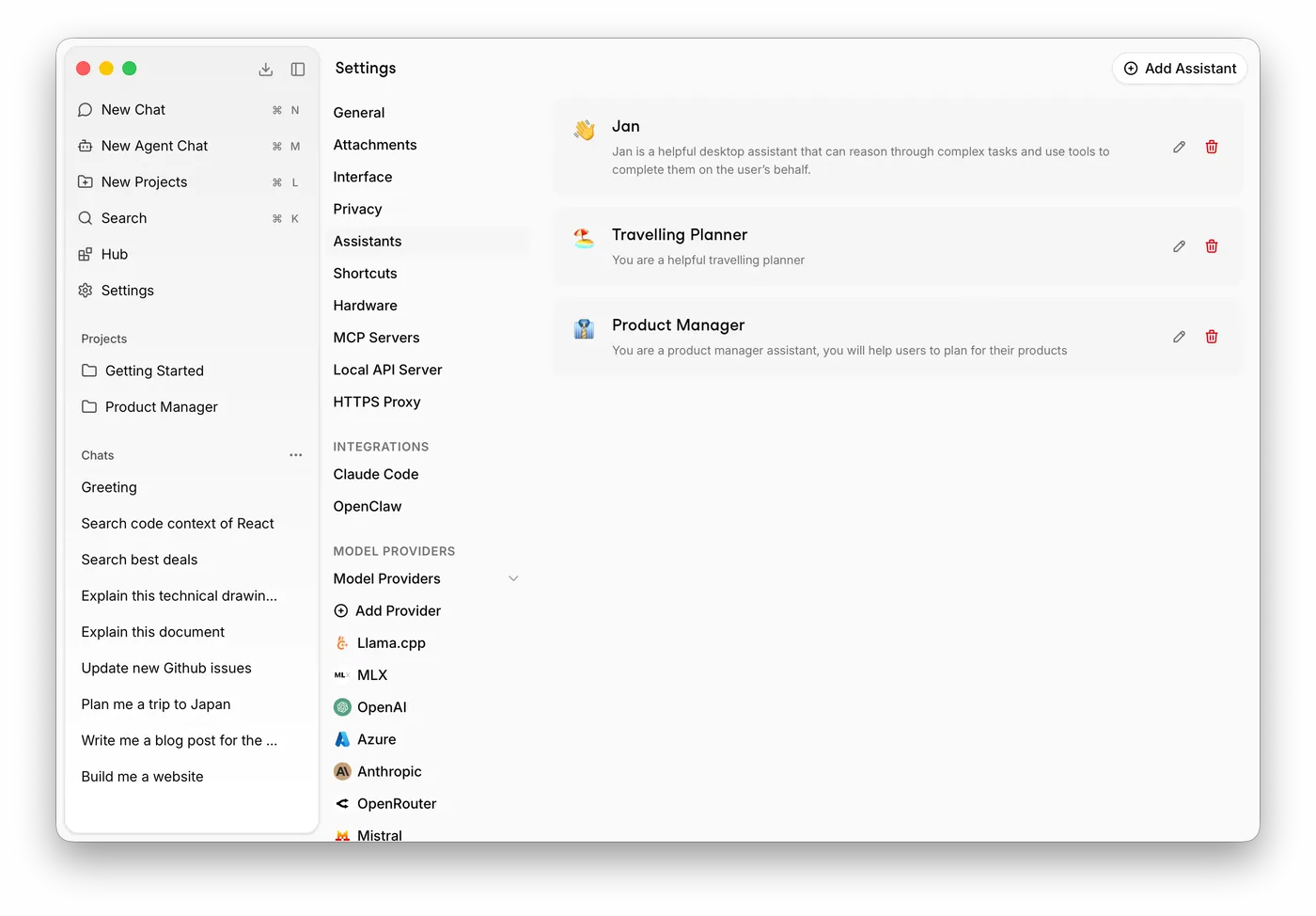
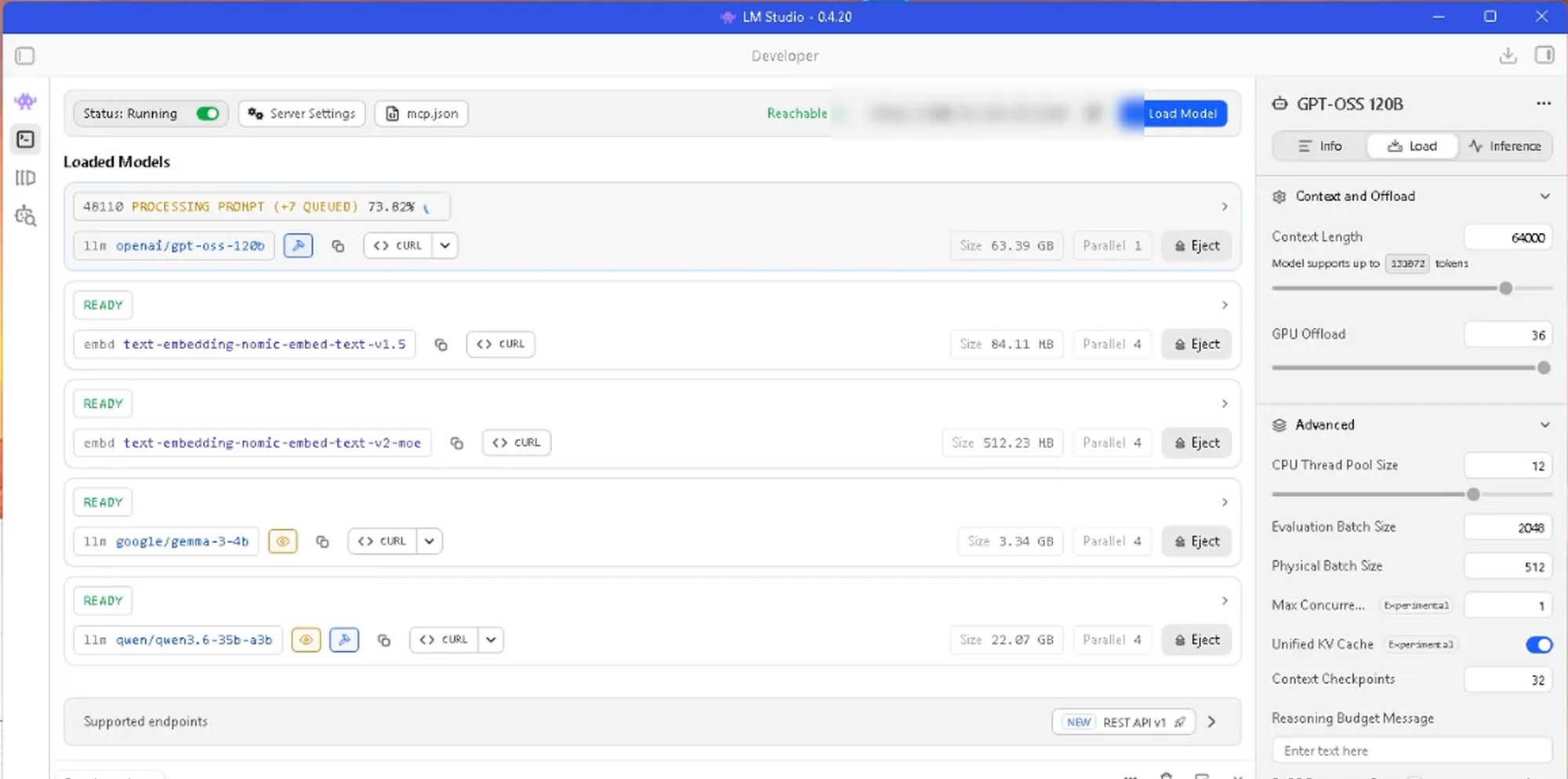
 Ollama HR / People +1
 LM Studio
 Hermes