OpenClaw
Never miss a new dataset release
You are the first to pull fresh data for your pipeline — no more daily manual checks or missed release windows.
A personal AI assistant — run agents on your own devices via WhatsApp or Telegram
OpenClaw (formerly Clawdbot) — a self-hosted personal agent with persistent memory and 50+ integrations (Gmail, Calendar, GitHub, Spotify…), reachable wherever you already chat.
One user chained three OpenClaw skills in a single chat — write a personalised meditation, convert it to speech, mix in ambient audio — end to end, no manual steps. OpenClaw (formerly Clawdbot) is an open-source personal agent you run on your own machine and talk to through apps you already have: WhatsApp, Telegram, Signal, Discord, Slack, and 15+ others. It reads and writes email and calendar events, browses the web, controls smart-home devices, and remembers your preferences across conversations — on Claude, GPT, or a local model via Ollama. → Setup is real (Node 24+, your own API key, a host machine to keep running); this is self-hosting, not a point-and-click app. To compare it against Hermes, the other self-hosted assistant in this course, see "Hermes".
You want an agent that feels like texting a person, reachable from the chat app you already have open — not a dashboard or a new app to learn.
50+ integrations (Gmail, Calendar, GitHub, Spotify…), persistent memory, cron-style proactive tasks, and support for Claude, GPT, or a local Ollama model.
OpenClaw is an open‑source personal AI that runs on your machine and answers you through chat apps like WhatsApp, Telegram or Discord.
Get OpenClaw installed, configured and replying in your chosen messenger
curl -fsSL https://openclaw.ai/install.sh | bash
openclaw onboard
Paste the two lines into your terminal and press Enter after each. After the onboarding finishes, open the messenger you linked (e.g., WhatsApp) and send any message to OpenClaw—watch for its reply confirming the agent is running.
OpenClaw can use Anthropic, OpenAI or a self‑hosted model running on your machine, configured during onboarding and changeable at any time.
Do this first Install OpenClaw and send a message
Change the active provider between Anthropic, OpenAI and a local model
openclaw onboardEnter this command in the terminal where OpenClaw is installed and hit Enter. After the interactive prompts, verify the confirmation message shows the newly selected model before testing.
OpenClaw can browse the web, read/write files and run shell commands, all triggered from a messenger chat.
Do this first Switch the AI model used by OpenClaw
Trigger browser navigation, file reads/writes, and shell commands directly from a chat conversation
Go to the OpenClaw GitHub page and tell me the repository name; then read the file Desktop/notes.txt and give me a brief summary; next write a file called test-agent.txt on my Desktop containing the text "agent test successful"; finally run the command `echo hello from openclaw` and show me its output.Paste this exact message into your WhatsApp (or Telegram) chat with OpenClaw. Watch that it replies with the repo name, a summary, confirms file creation, and returns the echo command’s result in order.
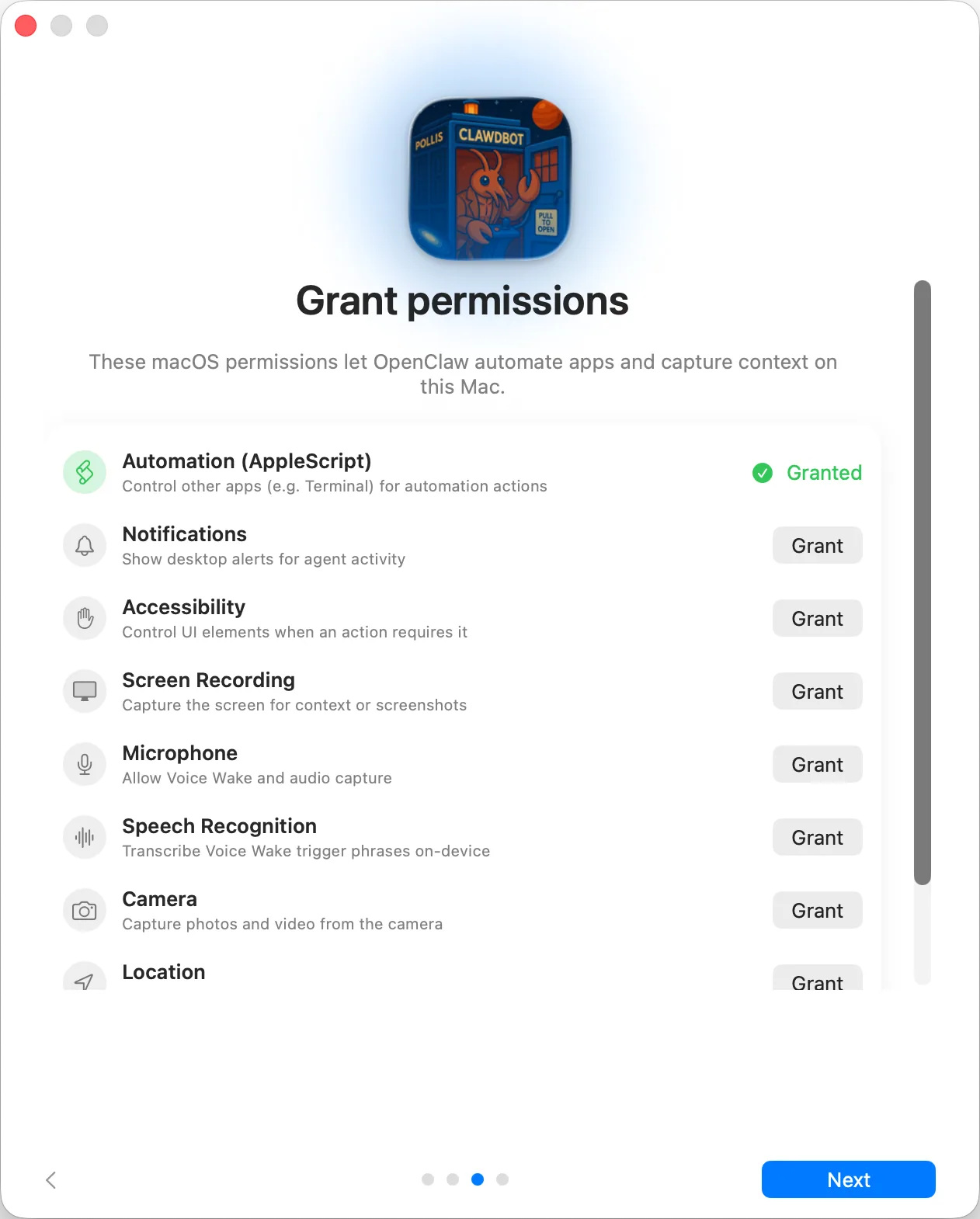
Best viewed on desktop — tap Enlarge to read the numbered controls.
OpenClaw’s marketplace (ClawHub) offers community‑built skills that integrate with services such as Gmail, GitHub or Spotify.
Do this first Control web browsing and files from a chat message
Install a skill from ClawHub and verify it returns real data in your messenger
Open https://clawhub.ai in your browser, locate the "GitHub" skill, click the Install button, then go to your WhatsApp chat with OpenClaw and type: Check my GitHub notificationsPaste the whole line into your web browser address bar, follow the on‑screen install steps, then switch to the WhatsApp messenger window and send the message. Watch for a reply that lists actual notifications from your GitHub account.
A WhatsApp channel plugin that lets OpenClaw receive and send messages through a dedicated number.
You will have a WhatsApp channel linked to OpenClaw that only accepts messages from an allow‑listed phone number.
openclaw plugins install clawhub:@openclaw/whatsapp.openclaw channels login --channel whatsapp and scan it with the dedicated assistant phone.openclaw gateway --port 18789.58 outcomes in all — one per recipe below.
Never miss a new dataset release
You are the first to pull fresh data for your pipeline — no more daily manual checks or missed release windows.
Want a focused daily paper list delivered to Telegram
A focused reading list lands before you open your laptop — no manual search, no information overload.
Need quick research on an unfamiliar topic
Deep-enough research on an unfamiliar topic arrives in minutes — sourced, readable, and ready to share or act on.
Need to screen a batch of applicant CSVs fast
A first-pass shortlist arrives in minutes rather than hours — the team only reads applications that already meet the baseline.
Don’t know what’s driving repeated escalations
Systematic problems behind escalations surface before they become reputational issues — product and support teams can address root causes, not just symptoms.
Product feedback hidden in tickets
Product feedback buried in the support queue is surfaced as a ranked theme list each week — no manual tagging session or data export to a separate tool.
Need real‑time competitor price, feature or hiring news
You catch pricing moves, new feature announcements, or hiring signals within hours instead of stumbling on them weeks later.
Reference requests older than three days
Reference checks no longer stall hiring decisions — slow-responding referees are nudged promptly without the recruiter manually chasing each one.
Can’t see which employee certifications will expire soon
Expired mandatory certifications do not slip through year-end audits — the people team has 60 days of runway to arrange renewals.
Job posts go offline or stay empty for three days
Accidentally taken-down listings are caught within 24 hours and low-traffic posts trigger review before they waste the posting budget.
No timely news on target accounts
Outreach goes out within hours of a trigger event rather than weeks later when the moment has passed — reply rates improve with a relevant reason to contact.
Routine support tickets get auto‑sorted and drafted
Routine enquiries get a fast, on-brand first response and the team only touches threads that actually need judgment.
Overdue invoices need a nudge
Overdue invoices get a timely, professional nudge without the awkward manual chase — days-sales-outstanding drops with no extra effort.
When a new lead shows up with no details
Reps open every lead with instant company context already researched — no manual lookup, faster first call.
Need a custom cold‑email series fast
Personalised outreach that used to take 20 minutes per prospect is ready in under 2 — and sounds like you actually read their site.
Quiet deals for over a week
Deals that have gone quiet surface before they slip out of the quarter — reps are prompted to re-engage while the prospect is still warm.
Proposals over three days old with no reply
No sent proposal goes more than a few days without a follow-up — close rates improve without reps having to remember each outstanding quote.
Telegram call notes are just text
CRM notes are filed in a consistent format within seconds of the call — no post-call admin delays and no inconsistent free-text fields in the tracker.
Can’t tell which contracts need renewing soon
Renewals are never a surprise — account owners have a 90-day runway to open re-engagement conversations before the renewal date arrives.
Need morning backup status in Telegram
Backup status is visible every morning with zero manual effort; failures surface immediately instead of on the day you need to restore.
New hire added to HR sheet
Every new hire receives a consistent, timely onboarding experience without the people team manually tracking parallel to-do lists.
Support tickets aren’t organized
Every ticket is triaged and routed within minutes of arrival — agents spend time solving, not sorting.
Payroll data doesn’t match headcount or salary ranges
Payroll errors are caught before funds are sent — mismatched headcount or out-of-range figures do not reach the bank.
Month‑end close stalls in inboxes
The month-end close runs as a coordinated, visible workflow — nothing stalls in someone's inbox and the timeline is logged without a project-management tool.
Employee quits
Every departure follows the same consistent process regardless of who is handling it — equipment and access removal are never forgotten in the handover rush.
Tickets about to miss their SLA
SLA breaches are intercepted before they happen rather than flagged after the fact — the team can prioritise the right tickets in real time.
Agents overloaded with tickets
Overloaded agents are spotted and tickets redistributed before response times degrade — queue imbalances no longer hide until end-of-day reviews.
Tickets sitting over a day with no reply
Customers with open tickets always receive a proactive update within 24 hours — silence-driven chaser tickets and frustration drop sharply.
Asking it to find a GitHub repo name shows it can navigate and read a page unaided, not just fetch a URL.
Want a quick glance at today’s unread mail
Triage happens before you open the inbox, so urgent messages surface without scanning every unread one.
I want to try file and shell actions without risking my system
Choosing sandboxed mode lets you try file and shell actions without granting it free rein over the whole machine.
Need a fact from a website saved to a file
One instruction covering the whole chain avoids babysitting each step as a separate follow-up prompt.
Want a weekly recap of GitHub tasks and calendar
The task runs unprompted on schedule, turning a one-off request into a standing routine.
Clients never get a follow‑up after booking
Every client is acknowledged and followed up on automatically — no booking falls through the cracks at busy periods.
Interview participants not confirming in time
No-shows and last-minute scrambles are cut sharply — every participant is confirmed at least a day before the interview.
Staring at an empty weekly calendar
You start Monday with a full week planned instead of staring at a blank content calendar.
Need fast, on‑brand copy in your voice
First drafts that already sound like you arrive in under a minute — no blank page, no brand-drift from a generic prompt.
I need a quick policy answer in Slack
Policy and process questions get a precise, document-grounded answer in seconds — reducing interruptions to senior staff and keeping remote teams unblocked.
Need a fast HR policy answer in Slack
Routine HR questions are answered instantly from the source of truth — the people team is freed from repetitive policy lookups.
Can’t tell which help articles are missing or outdated
KB gaps are surfaced automatically before they become repeat-ticket patterns — content work focuses on real coverage holes.
When resolved tickets have long solutions or knowledge‑gap tags
Every reusable resolution automatically seeds a KB article draft — the knowledge base grows from real cases with no extra authoring effort.
Metric crosses its limit
You are notified the instant a KPI or system metric crosses a threshold, without running a monitoring stack or paying for an alerting service.
When a category’s weekly cost jumps 20 %+
Budget anomalies surface in minutes at the start of each week — without building a BI dashboard or waiting for month-end reconciliation.
Need a variance narrative for the month
Finance has a variance narrative ready before the first team standup — no spreadsheet wrangling, no waiting for a report to be emailed.
Need a weekly CSAT overview and low‑score tickets highlighted
Support leads see their weekly satisfaction numbers and any problem tickets before the Monday standup — no manual report to pull.
Can't manually pull cash data each week
Finance has a forward-looking cash position before the weekend without manually pulling and reconciling multiple exports.
Unexpected SaaS renewals or price hikes show up
Unrecognised subscription renewals and price increases surface before they become budget surprises — no spreadsheet audit required.
Want to see weekly vendor payment aging
The weekly AP snapshot lands automatically — overdue vendor payments are visible before they become relationship or penalty issues.
Unsure who has excess or negative PTO
Accrual risks and policy breaches surface weekly with no manual report — the people team can intervene before year-end leave spikes.
Don’t know which hiring pipelines are stuck
Stalled pipelines surface before they delay hiring — the team sees at a glance which roles need attention without building a recruitment dashboard.
Want a monthly win‑loss pattern recap
The team starts each month knowing exactly where they won and lost — competitive patterns and weak segments are visible without a BI tool.
Can’t track agents’ response‑time trends daily
Response-time trends and outlier agents are visible every morning with no manual report — the team lead can coach on real data, not guesswork.
Onboarding tickets spike to twice the weekly norm
A sudden surge of onboarding-type tickets triggers an alert within hours rather than being noticed at month-end review — product or docs issues get fixed faster.
People skip the first two days of a survey
Response rates climb without the HR team manually chasing individuals — everyone is nudged once and the team sees live completion numbers.
Need Node.js and its helper script installed together
Installs both Node.js and OpenClaw in a single command
Guides you through linking an LLM provider and a chat app
Confirms the agent is running and can respond through your chosen chat app
Unsure which LLM you selected and why
Writing down why you selected a particular LLM helps you revisit the decision later
Want a desktop file with your exact text
You can instruct OpenClaw to write arbitrary text to a file on your computer
Need new actions from a community plug‑in
Installing a skill enables OpenClaw to perform new actions via the connected service
You can confirm the skill works by receiving live data from its service
Need an external service to act for you
Connecting an integration lets OpenClaw act on your behalf within that service
A successful request proves the integration works end-to-end
OpenClaw is a free, open-source personal AI assistant you run on your own computer. It connects to messaging apps you already use (WhatsApp, Telegram, Discord, Slack, Signal, and more) and lets you interact with an AI through them. It stores data locally on your device and supports voice on several platforms.
Yes. OpenClaw is released under the MIT License, so you can download, use, and modify it at no cost. You do pay for the AI model API you connect it to (e.g. an OpenAI or Anthropic key), but the OpenClaw software itself is free.
On Mac or Linux, open Terminal and paste one line: curl -fsSL https://openclaw.ai/install.sh | bash. On Windows, open PowerShell and paste the install command from the site. The installer handles everything, including dependencies, and a guided onboarding wizard walks you through the rest of setup.
OpenClaw can manage files, control a browser, send and read messages across channels, schedule reminders, answer questions, and run multi-step automated workflows. Extensibility comes through community-built 'skills.' Users report using it for daily briefings, tracking, calendar management, and integrating with note-taking tools.
OpenClaw was created by Austrian programmer Peter Steinberger, first published in November 2025. In 2026 Steinberger announced he was joining OpenAI, and stewardship of the project was set to transfer to a newly formed non-profit foundation.
The same set on /recipes, filtered by tool and role.
Start here before any tutorial. The thesis is what makes the tool worth learning — without it, OpenClaw looks like just another agent.
The most current broad tutorial. Watch right after the TED talk to see the thesis turned into a working install.
OpenClaw is a free, open-source personal AI assistant you run on your own computer. It connects to messaging apps you already use (WhatsApp, Telegram, Discord, Slack, Signal, and more) and lets you interact with an AI through them. It stores data locally on your device and supports voice on several platforms.
Yes. OpenClaw is released under the MIT License, so you can download, use, and modify it at no cost. You do pay for the AI model API you connect it to (e.g. an OpenAI or Anthropic key), but the OpenClaw software itself is free.
On Mac or Linux, open Terminal and paste one line: curl -fsSL https://openclaw.ai/install.sh | bash. On Windows, open PowerShell and paste the install command from the site. The installer handles everything, including dependencies, and a guided onboarding wizard walks you through the rest of setup.
OpenClaw can manage files, control a browser, send and read messages across channels, schedule reminders, answer questions, and run multi-step automated workflows. Extensibility comes through community-built 'skills.' Users report using it for daily briefings, tracking, calendar management, and integrating with note-taking tools.
OpenClaw was created by Austrian programmer Peter Steinberger, first published in November 2025. In 2026 Steinberger announced he was joining OpenAI, and stewardship of the project was set to transfer to a newly formed non-profit foundation.
npm i -g openclawopenclaw onboardlocal modelskillsAsk, share, or report — over on the Heidelberg AI community forum.