▸How-to Everyone
Need a sandboxed place for your coding agents
Use Docker Sandbox to run any model or agent without manual tool-call approval
The open, self-hostable git forge — own your code, own your CI.
A self-hostable, open-source git forge (repos, PRs, issues, CI) launched in 2016 as a community fork of Gogs.
Gitea is a lightweight, open-source alternative to GitHub that you install on your own server. Learn what "self-hosting your codebase" means in practice, how Gitea Actions gives you GitHub-compatible CI without your code ever leaving your infrastructure, and why 32dots runs its entire platform on it.
This chapter is about ownership: Gitea is the open, self-hostable git forge that gives you the GitHub experience — repos, pull requests, code review, CI — on a server you control. Pair it with the GitHub chapter to see the same workflow told two ways: proprietary and cloud-only vs. open-source and self-hosted. The AI angle is direct — self-hosting means your codebase never has to leave your infrastructure to run an AI coding agent or CI pipeline against it.
Teams and labs that want to keep their codebase entirely on infrastructure they control.
You (or your IT) own backups, updates, and security — there is no vendor safety net if something breaks.
The software is free and open source (MIT) to self-host; Gitea Cloud/Enterprise hosting runs roughly $9.50-19/user/month.
Gitea can read configuration values from environment variables prefixed with GITEA__.
You will set a database connection using environment variables and verify Gitea reads them on start‑up.
Run a Gitea server locally reachable at http://localhost:3000.
Add a new repository to Gitea and upload a change using the HTTPS remote
git clone <URL> in a terminal, add a file, commit with git commit -m "Add file" and push with git pushThe app.ini file holds persistent Gitea settings and can be edited directly or generated from environment variables.
You will edit app.ini to change the application name and enable forced private repositories, then reload Gitea to apply them.
Gitea’s built‑in web server can serve traffic over TLS using a certificate and key defined in app.ini.
You will generate a self‑signed certificate, configure Gitea to use it, and access the instance via https://.
Create a self‑hosted runner and run a CI workflow on every push
Best viewed on desktop — tap Enlarge to read the numbered controls.
Gitea provides a dump command that packages the database and repository data into a ZIP file.
You will run the dump command to produce a backup archive and verify its contents.
96 outcomes in all — one per recipe below.
Need a sandboxed place for your coding agents
Use Docker Sandbox to run any model or agent without manual tool-call approval
From the Gitea dashboard click the "+ New Repository" button, enter a name and optional description, choose Public or Private, and optionally tick "Initialize Repository." Then confirm by clicking the Create button. The new repo appears immediately with its file list, README preview, and recent commit count.
A pull request (PR) asks to merge a branch back into the target branch and shows a diff view of the changes line‑by‑line. Reviewers can add inline comments or request changes before the PR is merged. The Merge button becomes active only after required checks pass, then clicking it completes the merge.
When creating or editing an issue, use the Assignee dropdown to select a user; their avatar appears on the issue card. This makes clear who is responsible for fixing the ticket. Labels can also be added to categorize the issue.
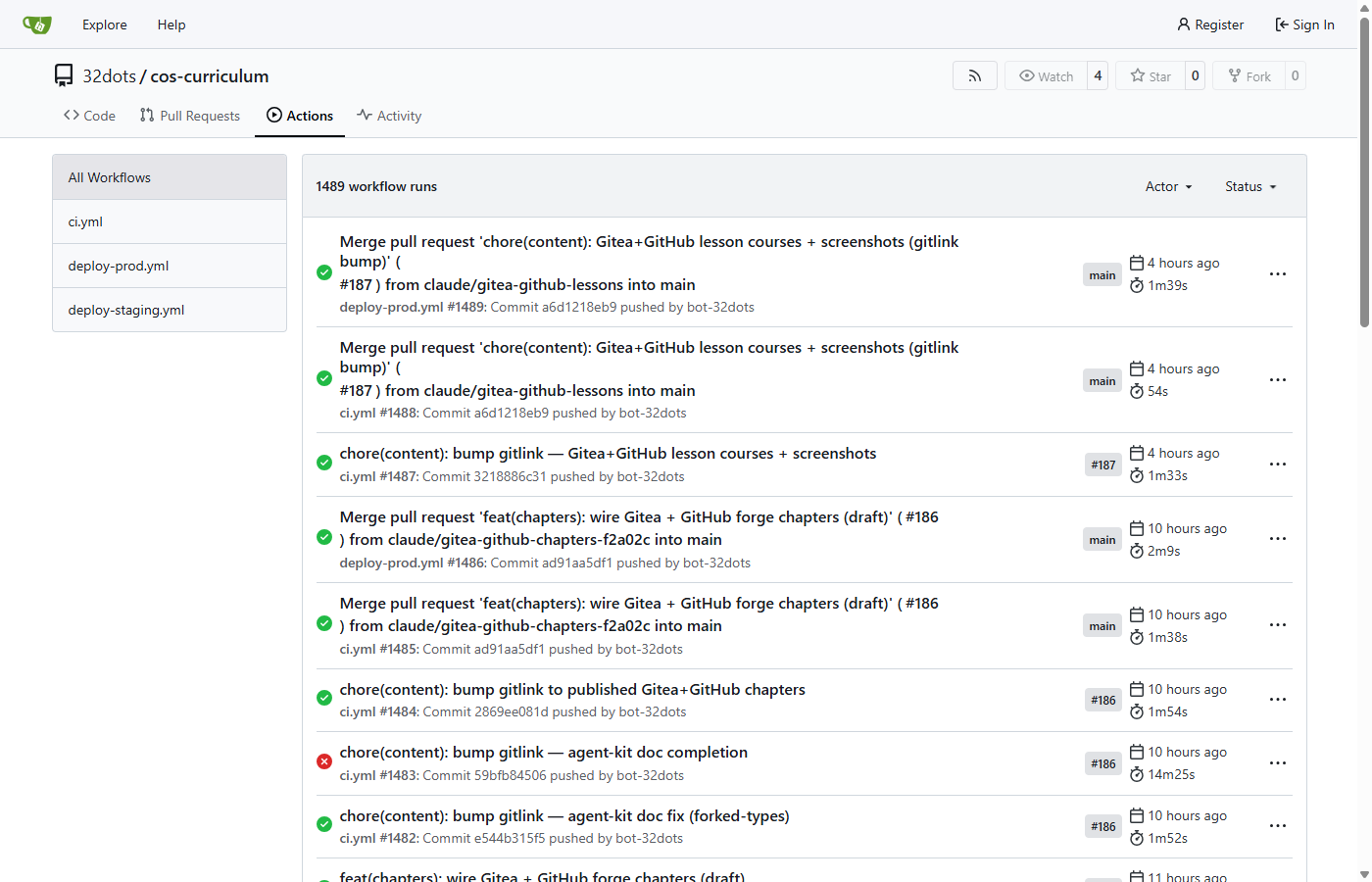
Gitea includes built‑in Actions that run workflow files placed in a ".gitea/workflows/" directory. A YAML file defines triggers (e.g., "on: push") and job steps such as checkout, install, and test. A registered Gitea Runner—a small Go binary—executes the jobs on your own server, and a green check mark shows successful execution.
You can start a full Gitea web/SSH service with a single Docker run command that launches the Gitea binary. After the container starts, open http://localhost:3000 and complete the five‑minute web wizard, which creates the first admin user and configures storage. Choosing SQLite in the wizard lets you run Gitea without setting up a separate database.
Need a private AI notebook on your computer
The video shows how to pull the Open Notebook Docker image, provide an OpenAI API key, and start the container. This gives you a self‑hosted instance that runs on your machine without needing to compile code.
Multiple AI models behind one URL
LiteLLM can run as a Dockerized proxy that normalizes API calls to different LLM providers. By defining each provider in the config file you expose a single endpoint that forwards requests to the chosen backend, simplifying client code.
Need to try an AI model on your computer without cloud fees
Using Docker containers isolates AI applications on your own machine, giving you the same security and reproducibility as a cloud VM without recurring costs. Containers package code, dependencies, and hardware access, so you can develop and test models offline.
Want a self‑hosted Git server with its database
A Docker compose file defines services, ports, volumes, and environment variables for both Gitea and its database. By specifying the correct version tag and configuring passwords, you create a reproducible self‑hosted Git server that runs on any platform with Docker.
Want a local Git service with web UI
`docker compose up -d` reads the docker‑compose.yml, pulls required images, creates containers, and runs them in detached mode. This single command brings the whole Git service stack online without manual installation steps.
New self‑hosted Git service needs its first admin
The initial Gitea launch presents an admin creation form. Supplying a strong username, email and password creates the super‑user that can manage users, repositories, and server settings.
Need a copy of a GitHub project on my private server
Gitea’s “Migrate Repository” feature can clone a remote GitHub repository using a personal access token, preserving commits, branches, tags, and optionally issues/labels. This provides a quick backup or move of projects to your private server.
Need a safe copy of Gitea repos and database
Gitea stores repositories and LFS files under its data volume, while PostgreSQL stores user accounts and settings. Regularly copying these host‑directory volumes ensures you can restore the entire service after failure.
Running `docker version` in a terminal shows the client and server versions if Docker Desktop is correctly installed. It confirms the CLI can communicate with the Docker daemon.
Need a portable package for my Node server
A Dockerfile defines the build steps for an image. Using a base Node image, copying package files first enables layer caching of dependencies, making rebuilds faster.
Need a ready‑to‑run container image
`docker build -t <name> .` reads the Dockerfile in the current directory, executes each instruction, and produces an immutable image identified by the tag you provide.
Want to view your Node.js app in a browser
`docker run -p hostPort:containerPort <image>` maps a port on your host to the container's exposed port, allowing you to access the service via localhost.
Docker Scout analyzes the layers of an image, lists all installed packages, and flags known security issues, providing remediation suggestions.
Want to run a Node app with its PostgreSQL DB together
`docker-compose.yml` defines multiple services, their build contexts, images, environment variables, ports, and shared volumes, allowing a single command to launch the whole stack.
Container restarts wipe my database rows
A named volume stores files outside the container's writable layer, so data remains even when the container is removed. Declaring it in `docker-compose.yml` or with `-v` on `docker run` mounts it into the container.
Need a private research‑chat notebook like Google’s
Open Notebook is an open‑source, Docker‑first application that provides the same research‑chat experience as Google NotebookLM but runs on your own server. By running it locally you keep all uploaded documents private and can choose any LLM provider.
Want a container engine on Ubuntu without sudo
The video shows how to download and pipe a community‑maintained Bash script that updates the system, installs Docker Engine and Docker Compose, and adds your user to the docker group. Running it as sudo ensures all required packages and permissions are configured automatically.
Want to host your own Git server
A minimal `docker-compose.yml` defines the Gitea image, container name, ports (3000 for web UI, 2222 for SSH), volume mounts for persistent data, and runs with UID/GID matching your host user to avoid permission issues.
New self‑hosted Git server setup
When you first access Gitea’s web UI, you choose a lightweight SQLite DB (or PostgreSQL for larger setups), set the site title, domain, and SSH port, then create the first administrator account. This creates all internal tables and prepares the service for repositories.
Having to type a password for every git push
Generating an Ed25519 key pair on your client machine (`ssh-keygen -t ed25519`) provides a strong, password‑less credential. Adding the public key to your Gitea user profile enables password‑free pushes and pulls over SSH.
Can't use SSH keys or firewall blocks them
Gitea provides a clone URL over plain HTTPS (e.g., `http://<host_ip>:3000/username/repo.git`). Using this URL with `git clone` lets you pull repositories even if you haven’t set up SSH keys, useful for quick read‑only access or when behind restrictive firewalls.
Added a new file locally and pushed via SSH
After adding an SSH key, you can use the SSH clone URL (`git@<host_ip>:username/repo.git` with port 2222) to push commits. Configuring `git config --global user.name/email` ensures proper commit metadata.
Host fails and I lose my Gitea files
All repository data and configuration live in the Docker bind‑mounted directory (e.g., `~/gitea/data`). Regularly copying this folder to another location or using rsync ensures you can restore the service if the host fails.
Want to run containers on Debian
Adds Docker's official GPG key and repository, updates the package index, then installs docker-ce, docker-ce-cli, containerd.io, and the compose plugin. Using Docker's repo ensures you get up‑to‑date packages rather than outdated distro versions.
Running the official hello‑world image pulls a tiny test container that prints a confirmation message, proving the daemon can pull images and run containers correctly.
Having to type sudo for every container command
Adding your user to the `docker` Unix group grants permission to communicate with the Docker daemon, eliminating the need for `sudo` on each command.
Want a local CI/CD worker for your Gitea server
By extending the existing docker‑compose.yml you can launch a Gitea Actions runner as another service. The runner runs in its own container, shares the Docker socket and network with the Gitea server, allowing it to execute jobs on the same host.
Can't link your CI runner to Gitea
Gitea provides a one‑time registration token in the admin UI. Supplying this token to the runner container links it to your Gitea instance so jobs can be dispatched.
Every push just updates code
Workflows are defined in YAML under `.gitea/workflows/`. A simple file that runs on every push can echo information, clone the repo, and list files, demonstrating that the runner executes jobs correctly.
Runner only lets whitelisted images
A `config.yml` file lets you define labels that map to specific Docker images. This allows jobs to request custom images (e.g., pytorch) even if the default runner only permits a whitelist.
Need a static site built and shipped as a release file
A workflow can install Hugo inside the job, build the static site, tar the output, and publish it as a release using the `gitea-release` action. This automates the entire site generation and distribution process.
Want a self‑hosted Git server on Windows without internet
Gitea is a lightweight, self‑hosted Git service that runs on Windows without internet access. By placing the executable and data folder together, running it once creates a web UI where you can configure a SQLite database, set the base URL to your machine's IP, and create users and repositories.
Edit Unreal Engine assets via Gitea
Anchorpoint is a Git client that can clone, push, and sync projects with any HTTP‑based Git server. By adding the Gitea HTTPS URL and authenticating with the user created on the server, you can manage Unreal Engine assets directly from Anchorpoint.
Want to host your own Git service
Use the provided Docker Compose template to spin up Gitea and its PostgreSQL database in containers. The compose file defines networks, volumes, and environment variables so the services start correctly and persist data.
Need to access Gitea securely from the web
Traefik can route traffic from a public domain to the internal Gitea container, automatically obtaining certificates from Cloudflare DNS. This secures web access without exposing the raw container port.
SSH defaults to port 22 so git clone errors
Gitea’s built‑in SSH server can listen on any port, avoiding conflicts with the host’s existing SSH daemon. Setting `SSH_PORT` env var tells Gitea to advertise the correct port in clone URLs.
First run of a self‑hosted code server
The web installer creates the database schema, sets up an administrator, and lets you configure email, security, and registration options. Doing this once finalizes the installation.
Can’t push without typing a password
Adding your public key to your Gitea user profile enables password‑less authentication for pushes and pulls over SSH, improving security and convenience.
Want your own self‑hosted Git platform
Elestio provides a one‑click deployment wizard that provisions a server, installs Gitea, and handles backups. By selecting a cloud provider, region, and plan you get a ready‑to‑use Git platform without manual setup.
Need a fresh repo on my server
The Gitea UI mirrors GitHub/GitLab: a “New Repository” button opens a form where you set name, visibility, .gitignore, license and default branch. After creation the platform auto‑generates those files.
Need a local copy of a remote repo in VS Code
Gitea provides an “Open with VS Code” button that launches the desktop client, letting you pick a local folder for cloning. This streamlines the usual `git clone` workflow.
Local commits not showing up online
Using either the terminal or VS Code’s Git UI, you add, commit, and push changes. The first push requires a personal access token retrieved from the Gitea dashboard because password authentication is disabled.
Team needs to review and merge code changes
Gitea supports branch creation, PR opening, labeling, assigning reviewers, and merging. This mirrors typical collaborative workflows on larger platforms.
Need a way to log and follow bugs
Gitea’s Issues panel lets you create tickets with titles, descriptions, labels, assignees, due dates, and time tracking, providing a lightweight bug‑tracking system.
Want a simple way to see task status at a glance
Gitea’s Projects feature offers a Kanban board where you can create columns (To‑Do, In Progress, Done) and drag issues or pull requests between them, enabling simple sprint planning.
Want to run containers on a Raspberry Pi
The video shows how to download the official Docker install script with curl, run it, then add your user to the docker group so you can run Docker commands without sudo. Verifying versions confirms a successful installation.
Need a private Git server on your Pi
A docker‑compose.yml file defines the Gitea service, its ports, volumes and network. Matching the container's UID/GID to the Pi user prevents permission issues on the mounted folders.
Docker doesn’t start on boot
Enabling the docker service with systemctl ensures the Docker daemon (and thus the Gitea container) starts whenever the Pi powers on, providing a persistent Git server.
Fresh container with no Git service
After the container runs, navigating to http://<pi‑ip>:3000 brings up Gitea's installer. Choosing SQLite gives a simple out‑of‑the‑box DB; creating an admin user secures the instance; optional email settings enable notifications.
Project only on my computer
Creating a repo in the Gitea UI provides an HTTPS URL. On your development machine you initialize a Git repo, add files, commit, set the remote origin to that URL, then push. Authentication uses the Gitea user created earlier.
The `docker` command line tool communicates with the Docker Engine running in Desktop. Checking version and engine info confirms that the background service is active and your user has proper permissions.
Docker Hub hosts pre‑built images. Using `docker pull` downloads the image layers to your local machine, making it available for container creation without building anything yourself.
Need to verify an image runs once
A container is a runtime instance of an image. `docker run` creates the container, starts its main process, and then exits when that process finishes, demonstrating the basic lifecycle.
Can't run containers on my PC
The installer provides a GUI that adds the Docker CLI, daemon and optional Kubernetes. It also creates a lightweight Linux VM (or uses WSL/Hyper‑V) to run containers on non‑Linux hosts.
Want to show a custom message in a container
Docker pulls the image layers from Docker Hub, creates an isolated container, and runs the provided command inside it. The '--rm' flag (implicit in this demo) removes the container after exit.
Want a local PostgreSQL server for testing
Using 'docker run' with '-e' sets environment variables (POSTGRES_PASSWORD) required by the official image, while '-p' maps host port 5432 to the container’s port, making it reachable from local tools.
Docker creates a PID namespace so processes inside see their own PID space starting at 1. This prevents containers from seeing host processes, improving security and reproducibility.
Container keeps maxing out the host CPU
Docker maps cgroup settings from command‑line flags. '--cpus=0.5' limits the container to half a CPU core, preventing it from monopolizing host resources.
Docker stores images as a stack of read‑only lower layers plus a writable upper layer. When you pull an image, each layer is downloaded separately; shared base layers are reused across images, saving space and bandwidth.
Need a personal n8n server
Running n8n in Docker gives you full control over updates, ports, and data storage while keeping the setup simple with a single compose file.
Need a local LLM API you can call
Docker provides an isolated environment for LiteLLM, ensuring all dependencies are met and the service runs consistently across machines. Starting the container exposes the API on localhost:4000, ready for configuration.
Need to run containers on Arch Linux
Docker can be installed via the system package manager; on Arch Linux the pacman command pulls the Docker daemon and CLI packages, setting up the service automatically.
The `docker run hello-world` command pulls a tiny test image from Docker Hub, creates a container, and prints a confirmation message if the daemon is functional.
Want a custom container built from my code
A Dockerfile lists base image, package installs, file copies, and default command; `docker build` reads this file, executes each step, and produces an immutable image tagged as you specify.
Want to run your script isolated from the host
`docker run` starts a container from an image; the container runs the CMD defined in the Dockerfile unless overridden, providing an isolated environment for the app.
Need separate app versions without overwriting
Docker images are immutable; to change code you edit the Dockerfile and rebuild with a new tag (e.g., `myapp:v2`). Multiple tags can coexist, letting you run different versions side‑by‑side.
I need to run random Python snippets safely
A Docker container can act as a digital prison that runs arbitrary Python code while preventing access to the host filesystem, network, and excessive resources. By pulling a minimal python:3.11-slim image and launching it with restrictive flags, any malicious behavior is confined and the container self‑destructs after execution.
Need to run untrusted Python code
Specific Docker run options (`--network none`, `-m <mem>`, `--cpus <cpu>`) provide a lightweight security boundary that stops most attacks: no outbound connections, limited RAM to prevent OOM, and CPU caps to kill infinite loops quickly.
I need a local OpenAI‑compatible API
The video shows how to clone the LiteLLM repo, set a master key and salt in .env, then launch the proxy with Docker Compose. This creates a local HTTP server (default port 4000) that serves the OpenAI‑compatible API for all configured models.
Need Open NotebookLM but don’t want to install anything
Docker packages all dependencies into an isolated container, so you don’t need to install Python libraries or manage system paths. The video shows pulling the pre‑built image and running it with a single command.
Want a private notebook server on your VPS
Deploying Open Notebook via Docker on a virtual server gives you full control and privacy over your data. By pulling the GitHub repository into a Docker compose setup, the service runs in an isolated container that can be started with a single command.
Running the official hello‑world image confirms that Docker Engine is correctly installed and can pull images from Docker Hub, start a container, and display output. The video shows how to run the command and interpret the result.
Shows how to download and install Docker Desktop (or Docker Engine) for each OS, ensuring the daemon starts. It works because the installer sets up required hypervisor layers and configures the Docker service.
Need a container engine on Ubuntu
Installing Docker involves updating the package index, adding Docker's repository, installing the docker.io package, and enabling the service to start at boot. This ensures you have the latest stable Docker engine compatible with your Ubuntu version.
Running the official hello‑world image tests that the Docker daemon can pull images and run containers, confirming a successful install.
Need an OS container image locally
The command contacts Docker Hub (a public registry) and retrieves the specified image layers to your host. It caches them locally so future runs are instant.
Need to poke around a running container
`docker exec` runs a new process inside an existing container, letting you interact with its filesystem and services as if you were logged into a separate VM.
Containerized web server not reachable from my PC
The `-p hostPort:containerPort` flag creates a NAT rule so traffic hitting the host’s port is forwarded to the container, enabling web servers or other services to be reachable externally.
Want to free resources by halting a container
`docker stop` sends SIGTERM then SIGKILL after a timeout, gracefully halting the container. `docker start` restarts it without recreating the filesystem, preserving its state.
After installing Docker Desktop, the `docker` command becomes available in the shell. Running `docker version` and `docker info` confirms that both client and server components are correctly installed and communicating.
Want a particular container image saved locally
`docker pull <image>:<tag>` contacts Docker Hub (default registry) and stores the specified image locally, making it ready for container creation.
Need to start a service without tying up the terminal
`docker run -d <image>:<tag>` creates a new container from the image and runs it in the background, returning only the container ID.
Need to reach a service inside a container from my computer
The `-p hostPort:containerPort` flag maps a port on your machine to the container’s internal port, allowing you to reach the service via localhost.
Container IDs are cryptic
Using `--name <myname>` when running a container lets you refer to it by that name instead of the autogenerated ID in subsequent commands.
Need a portable way to run my Node.js app
A Dockerfile defines the steps to assemble an image: choose a base image (`FROM`), copy source files, install dependencies (`RUN npm install`), and set the start command (`CMD`). Building it with `docker build` produces a reusable image.
Want the same app environment everywhere
A Dockerfile is a plain‑text blueprint that lists the commands needed to assemble an application’s environment, including OS base, code, libraries and dependencies. Docker reads this file line‑by‑line to create a consistent container image every time.
Need to ship your app with all its libraries and settings
A Docker image is a read‑only snapshot created from a Dockerfile; it bundles the operating system layers, application code, libraries and configuration into one portable artifact. Because everything needed to run the app lives inside the image, it runs identically on any host that has Docker.
Need to run your app isolated from the host
A Docker container is a lightweight, runtime instance of a Docker image that uses the host kernel but isolates its filesystem, network and process space. Starting a container launches the application exactly as defined by the image’s CMD or ENTRYPOINT.
runC is the OCI‑compliant command‑line tool that actually creates and manages containers on a Linux host. Docker’s higher‑level daemon invokes runC under the hood to set up namespaces, cgroups and the filesystem for each container.
Container commands need sudo
After installing Docker, the video shows how to configure the system so regular users can execute Docker commands by adding them to the 'docker' group and restarting the session.
Want to start a new openSUSE package
Using the plus icon on src.opensuse.org you can start a new package with the provided template, which pre‑configures Git LFS support and basic metadata. This gives you a ready‑to‑edit repository for your software.
Need automatic builds from a Gitea repo
In OBS you can add an SCM sync parameter in the package metadata that points to your Gitea repo URL plus a branch hash. OBS then pulls the source, shows the files, and triggers a build without manual uploads.
Need a private, offline AI notebook for documents
Open NotebookLM is an open‑source web interface that lets you upload documents, create notebooks and query them with LLMs running on your own machine. Because everything runs inside Docker it stays offline, giving full privacy and no usage limits.
Need keyword‑free searching of notes
An embedding model converts text chunks into vector representations that can be compared for similarity, powering fast keyword‑free searches across your knowledge base.
Want to run Open Notebook without any installs
Docker packages all dependencies of Open Notebook into a self‑contained image, letting you run the app on any machine without manual installs. This isolation ensures consistent behavior and easy cleanup.
Need a private AI notebook on your server
`docker compose up -d` reads docker‑compose.yml and the .env variables, builds any needed images, and starts the services in detached mode, making the web UI available on your network.
The same set on /recipes, filtered by tool and role.
Explains how to set up Gitea on Ubuntu 24.04, including database configuration, admin account creation, HTTP cloning, and Docker Compose deployment
Shows how to set up and use Gitea for version control
Adds a self‑hosted actions runner to a Gitea server, registers it with a one‑time token, and demonstrates a simple workflow that runs on each push.
Shows how to set up a self-hosted Gitea instance with secure web access, SSH key configuration, and initial admin setup
From the Gitea dashboard click the "+ New Repository" button, enter a name and optional description, choose Public or Private, and optionally tick "Initialize Repository." Then confirm by clicking the Create button. The new repo appears immediately with its file list, README preview, and recent commit count.
A pull request (PR) asks to merge a branch back into the target branch and shows a diff view of the changes line‑by‑line. Reviewers can add inline comments or request changes before the PR is merged. The Merge button becomes active only after required checks pass, then clicking it completes the merge.
When creating or editing an issue, use the Assignee dropdown to select a user; their avatar appears on the issue card. This makes clear who is responsible for fixing the ticket. Labels can also be added to categorize the issue.
Gitea includes built‑in Actions that run workflow files placed in a ".gitea/workflows/" directory. A YAML file defines triggers (e.g., "on: push") and job steps such as checkout, install, and test. A registered Gitea Runner—a small Go binary—executes the jobs on your own server, and a green check mark shows successful execution.
You can start a full Gitea web/SSH service with a single Docker run command that launches the Gitea binary. After the container starts, open http://localhost:3000 and complete the five‑minute web wizard, which creates the first admin user and configures storage. Choosing SQLite in the wizard lets you run Gitea without setting up a separate database.
RepositorySelf‑hosted Git serviceGit forge+ New Repository buttonPull request (PR)BranchInline commentMerge buttonIssueLabelAssignee"Fixes #<issue-number>"Gitea ActionsRunnerWorkflow fileYAMLGreen checkDocker run commandSQLiteForgejoAsk, share, or report — over on the Heidelberg AI community forum.


